RUNUNK13 Hulu Error: Quick Fix and Urgent Troubleshooting
Understand RUNUNK13 Hulu error and follow our urgent, step-by-step guide to diagnose, fix, and prevent recurrence across devices, networks, and accounts with clear, actionable steps.


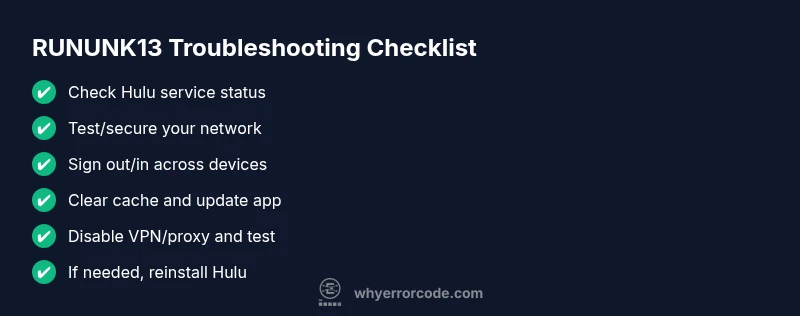
RUNUNK13 is Hulu's playback error indicating a fault in the streaming path that blocks playback. It typically points to device/app issues, account state, or network quirks rather than a broad service outage. The quick fixes you should try first are: sign out/in, clear the app cache, update or reinstall Hulu, and restart your device. If the issue persists, proceed to the full troubleshooting guide below.
What RUNUNK13 Means for Hulu
RUNUNK13 is Hulu's playback error code that appears when streaming cannot proceed. What is Hulu error code RUNUNK13? It's a signal that something in the streaming path—device, app, account, or network—is blocking playback. According to Why Error Code, RUNUNK13 is frequently tied to client-side issues rather than a full Hulu service outage. In urgent terms, treat this as a blocker to viewing and act quickly. Root causes are typically local: an outdated app, a corrupted cache, a weak connection, VPNs or proxies, or an account state that needs refreshing. By understanding the common fault domains, you can triage effectively and restore watching fast.
Common Symptoms and Real-World Scenarios
Typical RUNUNK13 symptoms include a blocking error message when you press play, playback halts shortly after starting, or the app bounces you back to the home screen with the error. You might notice this on one device while other apps stream fine, or across multiple devices after a single update. If you sign out and back in and the error persists, or if you see RUNUNK13 repeatedly across different titles, the issue is unlikely to be the content itself. In urgent scenarios, you want to isolate whether the problem is device, account, network, or provider-side.
Steps
Estimated time: 30-60 minutes
- 1
Close and restart Hulu
Fully close the Hulu app and relaunch it to reset the playback context.
Tip: This is often enough to clear transient session issues. - 2
Clear cache/data
Clear the Hulu app cache (and data if on mobile). Reopen the app to test playback.
Tip: Cached data can become corrupted and trigger RUNUNK13. - 3
Sign out/in on all devices
Sign out of Hulu on every device, then sign back in to refresh tokens and sessions.
Tip: This ensures your account state is synchronized across devices. - 4
Update or reinstall Hulu
Update the app to the latest version; if needed, uninstall and reinstall the app.
Tip: Fresh installs reduce compatibility issues. - 5
Check network and time settings
Test network speed, switch networks, and ensure device time is correct to avoid token/auth issues.
Tip: A misconfigured clock can cause authentication failures. - 6
Temporarily disable VPN/proxy
Turn off VPNs or proxies and retest streaming.
Tip: Some routes trigger RUNUNK13 due to security checks. - 7
Test on a different device
Try streaming on another device to see if the issue is device-specific.
Tip: If it works on another device, focus on the original one. - 8
Escalate if needed
If the error persists after all client-side fixes and service checks, contact Hulu support with a complete log of steps.
Tip: Have timestamps and device details ready.
Diagnosis: Hulu error RUNUNK13 appears when attempting to play a title
Possible Causes
- highOutdated or corrupted Hulu app cache
- mediumWeak or unstable internet connection
- lowAccount session or subscription hiccup
- lowTemporary Hulu backend outage or regional licensing
Fixes
- easyClear Hulu app cache and data; sign out and sign back in
- easyRestart device and router; test on another network
- easyUpdate Hulu app to latest version; reinstall if needed
- easyDisable VPN or proxies; adjust time settings
- mediumIf persists, contact Hulu support with your diagnostic data
Frequently Asked Questions
What does Hulu error RUNUNK13 mean?
RUNUNK13 is a playback error indicating a fault in the streaming path that blocks playback. It commonly points to device/app issues or network quirks rather than a broad Hulu outage. See the full guide for specific fixes.
RUNUNK13 means Hulu can't play a video due to a fault in your device, app, or network. Try the quick fixes first.
Is RUNUNK13 caused by Hulu servers?
In most cases RUNUNK13 is not a server-wide outage. It’s usually related to your device, app version, or network setup. If Hulu confirms an outage in your region, you may see this error too.
Usually it's not Hulu itself, but sometimes regional outages can cause this.
What is the quick fix for RUNUNK13?
Sign out and back in, clear the Hulu cache, update or reinstall the app, and restart your device. If the problem persists, move to network checks and device testing.
First sign out/in, clear cache, update or reinstall, and restart your device.
How long does RUNUNK13 take to fix?
Most RUNUNK13 issues resolve within minutes after applying client-side fixes. If it continues, it may indicate a deeper problem or a service issue requiring support.
Usually just a few minutes after fixes; if it lasts longer, seek help.
When should I contact Hulu support?
If you’ve exhausted all client-side steps and service status checks with no relief, contact Hulu support with detailed steps and timestamps.
If nothing works after trying all fixes, reach out to Hulu support with your notes.
Watch Video
Top Takeaways
- RUNUNK13 is usually a client-side issue—start with quick fixes.
- Sign out/in and cache clear resolve most cases.
- Check network stability and avoid VPNs during testing.
- If it persists, escalate to Hulu support with logs and timestamps.
- Maintain updated devices and a stable network to prevent recurrence.