Diagnosing Can Error Codes: A Step-by-Step Troubleshooting Guide
A practical, urgent guide to diagnosing CAN error codes. Learn common causes, step-by-step checks, and a safe diagnostic flow to reduce downtime and prevent recurring CAN bus faults.


Most likely culprits for CAN error codes are wiring faults, faulty transceivers, or stale firmware. Begin with a visual inspection of CAN bus cables, terminators, and ground connections, then check device power, bus termination, and recent configuration changes. If the codes persist, update firmware and review the CAN error dictionary; consult a professional if you see frequent, non-reproducible codes.
Understanding Can Error Codes and Their Role in Diagnosis
CAN (Controller Area Network) error codes are diagnostic signals that indicate problems on the network layer where multiple electronic control units (ECUs) share a common data bus. They help you distinguish between a physical layer fault (like a bad cable or terminator), a data-link issue (such as an incorrect bit timing), and a higher-layer mismatch (like incompatible message IDs). When diagnosing can error codes, you must approach the problem holistically: verify physical integrity first, then confirm that software configurations and firmware align with the network’s expected protocol. The Why Error Code approach emphasizes safety, repeatable tests, and documented steps so developers and IT pros can isolate faults quickly. This method reduces guesswork and prevents false positives caused by transient electrical noise or temporary bus contention. By understanding the network topology and the typical error dictionary used by your devices, you gain a sharper lens for triage and faster recovery.
Common Causes and How to Prioritize Them
On most CAN networks, faults originate from the same core issues: physical layer problems, misconfigurations, and occasional software defects. A visual inspection often reveals the root cause: loose connectors, corroded pins, damaged shielding, or improper termination resistors. Misconfigurations can arise from wrong bit timing, baud rate mismatches, or incompatible protocol settings across ECUs. Firmware or driver mismatches may produce non-standard error messages or stale dictionaries that fail to interpret current messages. In practice, you should prioritize power and grounding checks first, then move to wiring integrity, followed by firmware versions and configuration comparisons. Understanding these layers helps you build an effective diagnostic flow and avoid chasing phantom errors.
Immediate Checks You Can Perform Safely
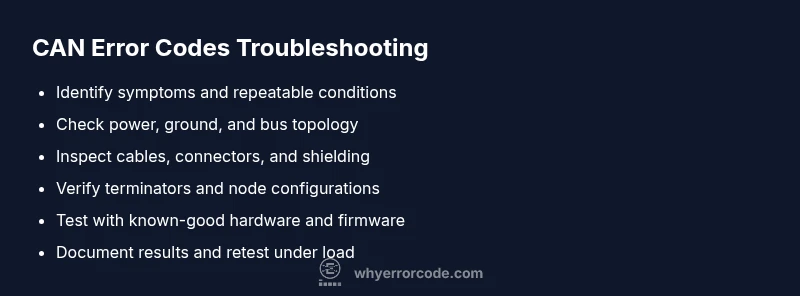
Before you dive into deeper diagnostics, perform quick danger-free checks. Start with power rails and grounding to ensure stable voltage references. Inspect the physical layer: verify shield continuity, connector seating, and cable integrity; replace any frayed wires or damaged connectors. Confirm terminators are present only at the ends of the bus and not in the middle. If you can, swap a suspect node with a known-good unit to see if the error follows the device or stays on the network. Lastly, document the exact error codes and the conditions under which they appear because reproducibility is the key to distinguishing intermittent noise from real faults.
Diagnostic Flow Overview: Symptom → Diagnosis → Solutions
A well-structured diagnostic flow saves time and reduces risk. Start with the symptom: what error codes appear, under what load, and at what times. Move to a hypothesis: is the issue network-wide or isolated to a single node? Then validate with tests: monitor bus activity with a basic diagnostic tool, check for bus arbitration conflicts, and verify bit timing across devices. When a diagnosis points to a hardware fault, the fix is hardware replacement or repair; when it points to configuration, adjust settings and reflash firmware. Finally, re-test the system under normal load to confirm resolution. Having a documented checklist helps teams reproduce the flow across environments.
Step-by-Step: Fix for the Most Common Cause (Wiring/Physical Layer)
Following the diagnostic flow, the most frequent fix involves the physical layer. Start by powering down all devices and safely disconnecting the CAN network. Inspect all cabling for cuts, kinks, or pin damage; replace any suspect sections. Check terminators at both ends of the bus and confirm they match the network specification. Re-seat all connectors with a small amount of electrical contact cleaner if needed, then power up and run a controlled test cycle. If the error persists, try swapping a known-good cable segment or connector to isolate the fault. Finally, re-test with a simple message loop to verify the bus uptime.
Tips, Warnings, and Best Practices
Safety first: always power down systems before handling CAN wiring, and use ESD-safe procedures when touching ECU pins. Avoid creating extra stubs on the bus, which can introduce reflections and additional errors. Keep a changelog of firmware updates and configuration changes; this makes it easier to correlate faults with recent edits. Do not replace parts at random or rely on guesswork; use a controlled replacement strategy and verify each step. If you’re dealing with hazardous environments or critical safety systems, don’t hesitate to escalate to qualified technicians or service engineers.
Common Myths and Misconceptions
Myth: A single error code means a single root cause. Reality: CAN networks often exhibit cascading symptoms from a single fault. Myth: Replacing the entire network fixes everything. Reality: Precision troubleshooting and targeted repairs save time and cost. Myth: Firmware updates always fix issues. Reality: Updates can introduce new incompatibilities if not matched to hardware and protocols; always read release notes and test in a controlled environment.
Steps
Estimated time: 60-90 minutes
- 1
Power down and document
Power down all devices safely, and document the exact error codes and conditions. This establishes a baseline for tests and prevents accidental damage during inspection.
Tip: Take photos of connectors before disconnecting and label each node. - 2
Check physical layer
Inspect the CAN cables for damage, ensure shield continuity, and verify connectors are fully seated. Look for bent pins or corroded contacts and replace as needed.
Tip: Use a known-good cable to isolate a damaged segment quickly. - 3
Verify termination and topology
Confirm terminators are present only at both ends of the bus. Ensure there are no extra terminators or stubs that could cause reflections and errors.
Tip: A simple topology diagram helps you spot extra stubs at a glance. - 4
Check bus power and grounding
Measure voltage levels across nodes to ensure consistent references. A floating ground or voltage drop can trigger spurious CAN errors.
Tip: Prefer star grounding avoidance; maintain a robust single-point ground where feasible. - 5
Test with alternate hardware
If available, substitute a known-good ECU or transceiver to determine whether the fault follows the device or remains on the network.
Tip: Only change one variable at a time to isolate the fault accurately. - 6
Firmware and mapping check
Refresh firmware on suspect devices and re-check the CAN mapping/dictionary alignment across all nodes. Reboot the system and run a controlled diagnostic cycle.
Tip: Ensure compatibility notes from the vendor are followed precisely. - 7
Perform end-to-end verification
Run a test suite that reproduces normal traffic, then re-run the error code checks to confirm resolution. Document the results for traceability.
Tip: Keep a baseline log to compare future faults against.
Diagnosis: CAN error codes reported by master controller
Possible Causes
- highPower supply instability or grounding issues
- highWiring damage, loose connectors, or shielding problems
- mediumFaulty transceiver or degraded hardware
- lowFirmware misconfiguration or outdated error dictionary
Fixes
- easyCheck power rails and grounding, confirm stable supply to all nodes
- easyInspect CAN cables, connectors, shielding; replace damaged segments and reseat
- mediumTest transceivers with known-good hardware and swap suspected units
- mediumUpdate firmware and reflash error-mapping dictionaries; verify configuration
Frequently Asked Questions
What are CAN error codes and why do they appear?
CAN error codes indicate faults on the CAN bus, signaling issues in hardware, wiring, timing, or firmware. They help you isolate the problem by narrowing down the layer where the fault occurs.
CAN error codes show faults on the bus, helping you pinpoint hardware, wiring, timing, or firmware issues.
How do I know if the error is network-wide or device-specific?
If multiple nodes report errors under the same conditions, it’s likely a network-wide issue. If only a single device triggers errors, the fault is probably device-specific.
If many nodes report errors, it’s network-wide; if only one device shows it, focus on that device.
What tools are essential for diagnosing CAN errors?
A multimeter for voltage checks, a diagnostic CAN tool or oscilloscope for bus timing, replacement parts for quick swaps, and up-to-date firmware and dictionaries for accurate interpretation.
Use a CAN diagnostic tool, a multimeter for power checks, and keep firmware up to date.
When should I escalate to a professional?
Escalate when faults affect safety-critical systems, persist after standard checks, or involve high-risk hardware. A professional can perform advanced tests and ensure compliance with safety standards.
Seek professional help if the fault is safety-critical, persistent, or beyond basic checks.
Can firmware updates fix CAN errors?
Firmware updates can fix known issues and improve error interpretation, but they may introduce new incompatibilities if not matched to hardware. Always review release notes and test in a controlled environment.
Firmware updates can help, but test first and read release notes for compatibility.
What are common myths about CAN error codes?
Common myths include that one error code has one fix, or that replacing all hardware is required. The reality is a systematic, evidence-based approach yields the fastest resolution.
Don't assume one error equals one fix; diagnose systematically for faster recovery.
Watch Video
Top Takeaways
- Start with physical checks before firmware or configuration changes
- Document every test and code to identify patterns
- Progress through a structured diagnostic flow for reproducibility
- Escalate to professionals for safety-critical or persistent faults
- Regularly update firmware and maintain accurate error dictionaries