Windows Update Error Code 9: Diagnosis, Fixes, and Prevention
Urgent guide to diagnose and fix Windows update error code 9. Learn causes, step-by-step repairs, troubleshooting flow, and prevention strategies from Why Error Code.


Windows update error code 9 typically means a critical component required for updates couldn't initialize or was blocked. It often stems from service conflicts, a corrupted component store, or network restrictions. Quick fixes include running the Windows Update troubleshooter, resetting update components, and performing a clean boot. According to Why Error Code, this error commonly resolves after repairing the component store or re-enabling essential services.
What Windows Update Error Code 9 Means
Windows update error code 9 is a signal that Windows cannot initialize a core update component. This isn’t just a minor glitch; it blocks updates from applying and can leave your system exposed to known vulnerabilities or missing features. The error often points to a corrupted update component store, conflicting services, or permissions that prevent Windows Update from starting essential background processes. In urgent scenarios, you’ll see this error when attempting to install or restart a failed update. Recognizing that the problem originates with the update subsystem helps you target the fix rather than chasing unrelated issues. If you see error code 9, plan to diagnose system services, the Component Store (WinSxS), and network access to Microsoft update servers.
To approach resolution, document recent changes (new software, firewall updates, or policy changes) and start with built-in tools designed for Windows Update recovery. This is not a hardware fault; it’s a software layer issue that, in most cases, can be resolved without reinstalling Windows. The urgency comes from the potential security gaps if updates stay pending, so prioritize a rapid triage and safe, repeatable repair steps.
Common Causes of Error Code 9
Several factors frequently contribute to Windows update error code 9. First, a corrupted or incomplete update component store can prevent new updates from installing. Second, your system services related to Windows Update (like wuauserv and bits) might be stopped or blocked by another process or security policy. Third, network restrictions—such as a firewall, VPN, or corporate proxy—can block connections to Microsoft update servers. Finally, third-party software interference (antivirus, security suites, or system cleaners) can block Windows Update modules from launching correctly. While all four can produce error 9, the most common root cause is a damaged component store or disabled update services. Understanding these causes helps you prioritize steps from quick fixes to deeper repairs.
Quick Fixes You Can Try Right Now
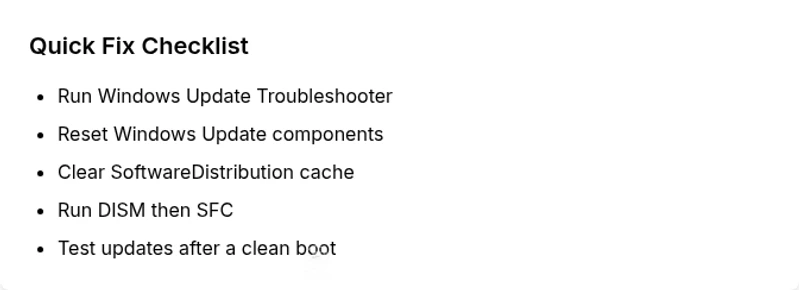
If you’re facing Windows update error code 9, start with fast, reversible actions that don’t require advanced tools:
- Run the built-in Windows Update Troubleshooter to let Windows diagnose and repair common problems.
- Restart Windows Update services: stop the update service, clear cached update data, and restart.
- Perform a clean boot to rule out startup interference by non-Microsoft software.
- Reset Windows Update components using a standard set of command-line steps.
- Temporarily disable conflicting security software, then re-enable it after the update check.
These steps address the bulk of error code 9 incidents and often restore normal update behavior without deeper repairs. If the issue persists, proceed to guided diagnostics and structured fixes that target the component store and services directly.
Diagnostic Steps: From Symptoms to Likely Causes
When error code 9 persists, a structured diagnostic flow helps avoid guesswork. Start with symptom confirmation: can Windows Update retrieve metadata or deliver a body update? If the symptoms align with blocked initialization, the likely causes include a corrupted component store, stopped update services, or network blocks. Next, verify service status and dependencies (wuauserv, cryptsvc, bits). Check the Windows Update log for error codes that indicate component store issues. If network tests fail, isolate whether policy or firewall rules block Microsoft servers. Finally, execute targeted repairs: reset the component store, run system integrity checks, and test updates again. This flow keeps you focused on the highest-probability causes first and avoids unnecessary changes.
Step-by-Step Fix (Most Common Cause): Rebuild the Component Store and Restore Services
- Stop Windows Update services and clear update caches.
- Re-register Windows Update components and reset BITS services.
- Run DISM to repair the Windows image, then SFC to fix corrupted system files.
- Rebuild the component store by re-installing pending updates or running a repair install if needed.
- Reboot, re-attempt Windows Update, and monitor results.
- If the problem persists, review group policy and firewall rules that may block update connections.
Advanced Repairs: When Basic Fixes Fail
If quick fixes don’t resolve error code 9, you may need more in-depth actions. These include a clean Windows reinstall from a repair install (in-place upgrade) that preserves apps and data, validating disk health with CHKDSK, and checking for deep security policy restrictions in corporate environments. In some cases, a corrupted user profile can indirectly affect updates; test by performing an update from an admin account or safe mode with networking. Take care with changes that affect system integrity, and consider backing up critical data before substantial repairs. In complex environments, collaboration with IT staff ensures policy compliance and minimizes downtime.
Other Causes and How to Address Them
Not all error code 9 incidents originate from the same root cause. If you’ve exhausted component-store repairs and service resets, consider these alternate paths: a network policy or proxy misconfiguration blocking Microsoft servers; third-party security tools interfering with update components; or a failing hardware driver causing update blocks. To tackle these, test on a different network (e.g., a mobile hotspot), temporarily disable non-Microsoft services to identify interference, and ensure all drivers are current. Clearing these secondary causes helps confirm whether the primary problem is the component store or a peripheral factor.
Tips & Warnings: Safe Troubleshooting Practices
- Always back up important data before substantial repairs or reinstallations.
- Do not interrupt Windows Update mid-process; this can worsen corruption.
- When performing command-line repairs, paste exact commands to avoid typos.
- If you’re in a managed environment (enterprise or school), consult your IT team before changing policies or disabling security tools.
- If you see persistent errors after rebuilding the component store, professional assessment may save time and reduce risk.
Prevention and Key Takeaways
Keeping Windows Update healthy comes down to proactive maintenance. Enable automatic updates, monitor for update failures, and schedule periodic maintenance checks. Regularly verify system integrity with SFC/DISM scans, keep drivers current, and review security software configurations that could block updates. After addressing error code 9, re-run a couple of update cycles to ensure stability. Finally, document the changes you made so future issues can be diagnosed quickly.
Steps
Estimated time: 30-45 minutes
- 1
Stop services and clear the update cache
Open an elevated Command Prompt and run: net stop wuauserv && net stop bits. Navigate to C:\Windows\SoftwareDistribution and delete the downloaded and DataStore folders to clear the update queue. Then restart services with net start wuauserv and net start bits.
Tip: Have a current backup before clearing cache. - 2
Run Windows Update Troubleshooter
Open Settings > Update & Security > Troubleshoot > Additional troubleshooters. Run the Windows Update troubleshooter and apply recommended fixes. Reboot if prompted.
Tip: If the troubleshooter suggests changes, allow them to complete fully. - 3
Clean boot to identify interference
Perform a clean boot to rule out third-party software conflicts: disable startup items and non-Microsoft services, then reboot and test Windows Update.
Tip: Record which item(s) were disabled to revert later. - 4
Reset Update Components with commands
If needed, execute commands to reset Windows Update components: net stop wuauserv, net stop cryptSvc, net stop bits, net stop msiserver; then rename SoftwareDistribution and Catroot2 folders, and restart services.
Tip: Use Admin PowerShell or CMD to run these commands. - 5
Run DISM and SFC scans
In an elevated prompt, run DISM /Online /Cleanup-Image /RestoreHealth, then sfc /scannow. Allow each to complete and re-run if necessary.
Tip: Ensure you have stable internet for DISM to fetch repair files. - 6
Try the update again and monitor
Attempt Windows Update again. If it fails, check the update log for new codes and repeat targeted steps or escalate to professional help if needed.
Tip: Keep a log of error codes seen for faster diagnosis.
Diagnosis: Error code 9 appears during Windows Update, preventing updates from completing
Possible Causes
- highCorrupted Windows Component Store or update components
- mediumService conflicts or disabled Windows Update services
- lowNetwork policy or firewall blocking Windows Update servers
Fixes
- easyRun Windows Update Troubleshooter and reset components
- easyPerform a clean boot to rule out startup interference
- mediumReset Windows Update components manually or via BAT script
- mediumRun DISM and SFC to repair the Windows image
Frequently Asked Questions
What is Windows update error code 9?
Error code 9 indicates a problem initializing update components, which prevents Windows from completing updates. It almost always points to a corrupted component store, stopped services, or network blocks. Follow the diagnostic flow in this guide to isolate and repair the root cause.
Error code 9 means the update components can’t start. Start with troubleshooting and temp network checks, then move through the guided repairs.
Can I fix error code 9 without reinstalling Windows?
Yes. In most cases, error code 9 is resolved by resetting update components, running the Windows Update troubleshooter, and repairing the Windows image with DISM and SFC. A repair install is only needed if corruption affects core OS files beyond repair.
Most fixes don’t require reinstalling Windows. Start with troubleshooting and component resets, then scan your system files.
Could antivirus software cause error code 9?
Antivirus or firewall software can block update processes or network access to Microsoft servers, contributing to error code 9. Temporarily disable conflicting security tools, then retry updates. Re-enable protection after testing.
Yes, security software can interfere. Temporarily disable it to test, then re-enable once updates complete.
Is error code 9 dangerous for my data?
The error itself is not typically dangerous to personal data, but failed updates can leave your system vulnerable. Fixing the update issue promptly protects security and feature availability.
No direct data loss from the error, but security risks grow if updates stay pending.
When should I involve IT support?
If multiple repair attempts fail, if you’re in a managed environment, or if you’re uncomfortable running advanced commands, seek professional IT support to avoid misconfiguration.
If failures persist after guided steps or you’re in a corporate setup, get IT help.
Will a repair install preserve my apps and files?
A repair install (in-place upgrade) can preserve apps and files while repairing Windows system files. It’s less drastic than a full reinstall but still requires sufficient disk space and backups.
A repair install keeps your apps and files, but back up first.
Watch Video
Top Takeaways
- Check update services and component store first
- Run troubleshooting and cache resets before complex repairs
- Use DISM and SFC to repair the system image
- Test across networks to rule out connectivity blocks
- Seek professional help if failures persist after structured fixes