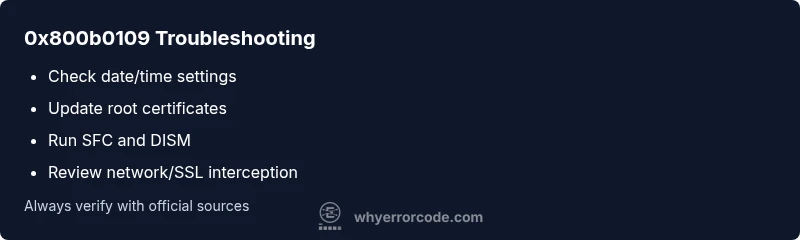
Windows error code 0x800b0109: Quick Fix Guide
Diagnose and fix windows error code 0x800b0109 quickly with expert steps. Learn common causes, quick fixes, diagnostics, and when to call a pro from Why Error Code.


The windows error code 0x800b0109 points to a certificate trust issue—Windows can’t verify the digital certificate chain during updates or installations. The quickest fix is to refresh the certificate store, run Windows Update, and retry the operation. If the error persists, verify system date/time, then run SFC/DISM and review network security settings.
What this error means and why it happens
The windows error code 0x800b0109 is primarily a certificate trust issue. It signals that the system cannot verify the digital certificate chain presented during an update, install, or secure connection. In practical terms, Windows cannot confirm that the software or website you’re interacting with is signed by a trusted authority. The failure can occur for several reasons—expired roots, a misconfigured certificate store, network proxies filtering certificate validation, or mismatched date/time settings. According to Why Error Code, the root cause is almost always a trust-chain problem rather than a random glitch, so the fix focuses on the certificate store, time settings, and trusted roots.
This isn't just about Windows updates. Applications and browsers can trigger 0x800b0109 when they encounter an untrusted SSL/TLS certificate or an expired intermediate certificate. In corporate environments, endpoint protection or proxies may also intercept traffic and present certificates that fail validation. Understanding this context helps you target the right area: the certificate store, the trust anchors, or the network path that validates those certificates.
Symptoms and impact and why you should act fast
Typical symptoms include update failures with error 0x800b0109, installation stoppages, or certificate warnings when visiting secure sites. You may see a dialog stating that a certificate isn’t trusted, or Windows Update may stall with a trust-related error. The impact can range from a delayed security update to reduced access to trusted services, especially if multiple applications rely on certificate validation. Because the root cause is often a trust chain, acting quickly to refresh or repair certificates can prevent cascading issues across the OS and installed software.
Prerequisites: quick checks before deep fixes
Before diving into tools, perform a few low-effort checks that resolve many 0x800b0109 cases:
- Confirm the system date and time are correct, and that time zone matches your location. A skewed clock can break certificate validity checks.
- Run Windows Update to refresh root certificates and security metadata.
- Temporarily disable VPNs, proxies, or firewall software that might intercept or block certificate validation.
- Ensure your user account has the necessary permissions to modify the certificate store or install updates.
- Check for any pending reboots that might lock certificate changes in place.
Step-by-step repair for the most common cause
This section walks you through the most common fix path when 0x800b0109 stems from certificate trust problems. Follow these steps in order, testing after each:
- Verify system date/time and correct if needed.
- Run Windows Update to refresh certificates and security metadata.
- Run a system health check: open an elevated Command Prompt and run sfc /scannow, then DISM /Online /Cleanup-Image /RestoreHealth.
- If updates still fail, manually refresh the certificate store by exporting fresh trusted root certificates from a trusted source and re-importing them via MMC (Certificates snap-in) under the Local Computer trusted root authorities.
- Check your network environment: ensure DNS is resolving correctly, disable any TLS-intercepting proxies, and temporarily disable security software to test. Re-enable them after testing.
- Attempt the update or installer again. If 0x800b0109 persists, perform a clean boot and re-test, or contact Microsoft support for advanced certificate chain diagnostics.
Other causes and their fixes
Beyond the primary trust-chain issue, 0x800b0109 can appear due to:
- Expired intermediate or root certificates in the trust store. Fix by Windows Update or manual import of fresh roots.
- A misconfigured certificate path or missing certificate revocation data (CRL/OCSP). Ensure the network can reach CRL/OCSP endpoints and temporarily disable security appliances that block them.
- Malware or corruption that tampered with certificate stores. Run full system scans and restore from clean backups if needed.
- Software-specific certificate validation issues, such as a misbehaving TLS client. Update or reinstall the offending application, or replace its certificate bundle with a trusted version.
- Corporate network protections or endpoint security that intercepts traffic and substitutes certificates. Coordinate with IT to whitelist or adjust TLS inspection policies.
In every alternate scenario, tests should confirm whether the error follows a system-wide certificate trust issue or a per-application misconfiguration.
Safety, costs, and professional help
Dealing with certificate stores and system-level changes carries some risk. Always back up the certificate store before making edits. Self-troubleshooting is often free, but if you need to enlist a professional, expect a typical range of service costs (remote assistance) in the low hundreds USD, with on-site work higher. If corporate policies or data security requirements exist, involve your IT department to avoid policy violations. In rare cases, you may need to escalate to Microsoft Support for advanced diagnostics and certificate chain tracing.
Steps
Estimated time: 45-90 minutes
- 1
Check date/time and region
Verify system date and time settings are correct and aligned with your time zone. Minor skew can cause certificate validation to fail during updates. Correct any discrepancy and reboot if prompted.
Tip: Automatic time sync is recommended. - 2
Run Windows Update for certificates
Open Settings > Update & Security > Windows Update and check for updates. Install all available updates to refresh trusted roots and security metadata.
Tip: A successful update often resolves 0x800b0109 without further steps. - 3
SFC and DISM health checks
Open an elevated command prompt and run: sfc /scannow followed by DISM /Online /Cleanup-Image /RestoreHealth. These tools repair corrupted system files and components that can affect certificate validation.
Tip: Do not interrupt the DISM restore health operation. - 4
Refresh/validate the certificate store
Use MMC Certificates snap-in (Local Computer) to review Trusted Root Certification Authorities. If you detect expired roots, import fresh certificates from a trusted source and remove outdated ones.
Tip: Only import roots from official sources. - 5
Check network path for certificate validation
Ensure your network can reach certificate authorities and CRL/OCSP endpoints. Temporarily disable TLS-inspecting proxies if present and verify DNS resolution.
Tip: If you must use a proxy, configure it to allow certificate validation. - 6
Test with a clean startup
Perform a clean boot and attempt the update again to rule out third-party software interference. If 0x800b0109 disappears, re-enable services one by one to identify the culprit.
Tip: Keep a log of which service caused the issue. - 7
Escalate if unresolved
If the error persists after these steps, contact Microsoft Support or your IT department for advanced certificate-chain tracing and remediation.
Tip: Provide the exact error code and a log of steps taken.
Diagnosis: Windows indicates error code 0x800b0109 during update or software installation
Possible Causes
- highExpired or missing root certificates in the certificate store
- highOutdated system date/time causing certificate validation to fail
- mediumMisconfigured certificate store or blocked certificate revocation checks
- lowSecurity software or corporate proxies intercepting TLS/SSL traffic
Fixes
- easyUpdate Windows and refresh root certificates
- easyCorrect date/time and re-run the update
- mediumRepair the certificate store via sfc/DISM and MMC certificate snap-ins
- mediumTemporarily disable VPN/proxy or security software to test
- hardConsult IT or Microsoft Support for advanced certificate diagnostics
Frequently Asked Questions
What does Windows error code 0x800b0109 mean?
0x800b0109 generally indicates a certificate trust issue where Windows cannot verify the certificate chain. This affects updates, installations, and secure connections. The fix focuses on certificate stores, time settings, and network validation.
0x800b0109 is a certificate trust error that blocks updates or installs. The fix involves renewing certificates, syncing time, and checking network validation.
Is this error related to Windows Update only?
While commonly seen during Windows Update, 0x800b0109 can appear with any update or installer that relies on certificate validation. Check the certificate store and time settings for a broader fix.
It often shows up with Windows Update but can occur with other installers that validate certificates.
Can antivirus or firewall cause this error?
Yes. Security software or TLS-inspecting firewalls may intercept certificates and cause validation failures. Temporarily pausing such software can help determine if it’s the cause, after which you should re-enable protection.
Security software can block certificate validation; test by temporarily disabling it, then re-enable protection.
Should I disable TLS/SSL checks to fix it?
No. Disabling TLS checks creates security risks. Use supported fixes like updating certificates, repairing the store, and ensuring network paths are unblocked.
Disabling TLS checks is unsafe. Use official fixes instead.
Does this affect all apps or only certain ones?
It can affect all apps that rely on certificate validation, but some programs may be more sensitive due to their own certificate stores. Start with system-wide certificate health before per-application fixes.
It can affect multiple apps; start with system-wide fixes first.
When should I contact professional support?
If you’ve exhausted the standard fixes and certificates still fail validation, contact Microsoft Support or your IT department for advanced certificate-chain tracing and remediation.
Call support if the issue persists after the usual steps.
Watch Video
Top Takeaways
- Verify certificate trust before updates.
- Keep system time accurate and up-to-date.
- Use built-in tools to repair system files and trust stores.
- Consult IT or Microsoft support for persistent issues.