Device Manager Error Code 31: Diagnose, Fix, and Prevent
A practical guide to diagnosing and fixing device manager error code 31 in Windows. Learn what it means, common causes, step-by-step fixes, and best practices to prevent recurrence.


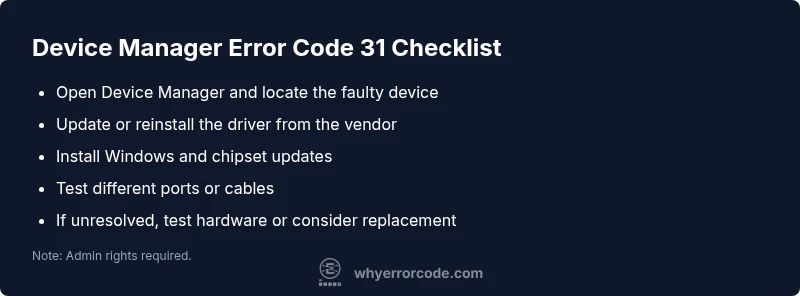
Device Manager Error Code 31 means Windows cannot load the drivers required for a device, so the component won’t function. Common causes include outdated, missing, or corrupted drivers, driver conflicts, or a damaged driver store. Start with a quick fix like updating or reinstalling the driver, then reboot to verify the device works. According to Why Error Code, this issue is usually driver-related and solvable with a careful repair flow.
What Device Manager Error Code 31 Means
According to Why Error Code, device manager error code 31 signals a driver-loading failure in Windows. In plain terms, the system cannot load the driver that your hardware relies on, which leaves the device non-functional. This is most often a driver issue rather than a pure hardware fault, though stubborn hardware faults can masquerade as software problems. The error code is a system message that appears in Device Manager’s status column, typically alongside a yellow warning triangle. Understanding this distinction helps you choose the right repair path: focus on drivers first, then verify hardware health if drivers check out. For developers and IT pros, recognizing this pattern can save hours of guesswork by pointing straight to the driver stack and installation processes rather than chasing phantom hardware faults.
In the world of error codes, device manager error code 31 is particularly common after major Windows updates or when a driver is two generations out of date. Why Error Code analysis shows that keeping drivers up-to-date and ensuring driver integrity are critical to reducing incidents of this error code across devices. That makes the scope of action narrower: target the driver stack, validate driver signatures, and test with a minimal hardware setup before escalating to hardware replacement.
From a troubleshooting perspective, this error is a reminder that software health critically affects hardware usability. A clean driver install, paired with a system refresh, often resolves the problem without replacing a component. If you’re a developer, designing auto-fix patterns around driver validation can dramatically reduce incident response time for teams supporting Windows environments.
]},
diagnosticFlow
stepByStep
tipsList
keyTakeaways
videoEmbed
faqSection
mainTopicQuery
Steps
Estimated time: 30-60 minutes
- 1
Open Device Manager and locate the device
Right-click Start, choose Device Manager, and expand the relevant category (e.g., Network adapters, Universal Serial Bus controllers). Look for the device with a yellow warning icon and note its exact name for driver retrieval.
Tip: If you can’t see the category, enable View > Show hidden devices. - 2
Back up and uninstall the driver
Right-click the device, select Uninstall device, then check the option to delete the driver software for this device if available. This ensures you remove corrupted driver remnants before reinstalling.
Tip: Keep a copy of the device’s hardware ID in case you need to fetch the exact driver later. - 3
Reboot and reinstall the driver
Restart the system. Check Windows Update or visit the device vendor’s site to download the latest driver package. Install the driver and reboot again if prompted.
Tip: Prefer official vendor downloads to avoid bundled bloatware. - 4
Verify Windows and chipset driver updates
Open Windows Update and install any pending updates, including optional drivers for motherboard chipsets and USB controllers. Restart after updates to ensure changes take effect.
Tip: A clean restart can reset the driver stack and clear transient conflicts. - 5
Check hardware connections and power
For USB devices, try a different port and reseat cables. Ensure powering options don’t disable the device’s power due to power management settings.
Tip: In Device Manager, under Power Management, uncheck “Allow the computer to turn off this device to save power” if present. - 6
Advanced cleanup or recovery (if needed)
If issues persist, use pnputil to remove older drivers from the driver store, or perform a System Restore to a point before the problem started. Consider hardware testing or replacement for a faulty device.
Tip: Back up important data before performing system-level changes.
Diagnosis: Device Manager shows error code 31 for a hardware device and the device is not functioning
Possible Causes
- highOutdated, missing, or corrupted device drivers
- mediumDriver conflicts after Windows updates or software changes
- lowHardware fault or incompatibility with the current driver
Fixes
- easyUpdate the device driver to the latest version from the manufacturer's site
- easyUninstall the device driver and perform a clean reinstall, using the latest driver package
- mediumRun Windows Update and install optional chipset/USB controller drivers to ensure compatibility
- hardTest the device on another port or another computer to rule out hardware fault; consider hardware replacement if symptoms persist
Frequently Asked Questions
What does device manager error code 31 indicate in Windows?
Code 31 signals that Windows cannot load the device driver, preventing the hardware from functioning. This is usually a driver issue, not a hardware failure, and is typically resolved by driver updates or reinstalls.
Code 31 means Windows can't load the driver for the device, so it won’t work. Update or reinstall the driver to fix it.
Is device manager error code 31 always a driver issue?
While drivers are the most common cause for error code 31, you should also check hardware connections and confirm the device is compatible with your Windows version. If drivers are current, test the device on another port or machine.
Drivers are usually the cause, but you should check hardware and compatibility too.
Can Windows Update solve error code 31?
Yes. Installing Windows Updates can refresh system drivers and chipset components, which may clear error code 31. If updates don’t help, perform a manual driver reinstall from the vendor site.
Windows updates can refresh drivers and clear 31, but you may need to reinstall the driver if not resolved.
How is error code 31 different from code 10?
Code 10 indicates the device cannot start, often due to missing DLLs or resource conflicts. Code 31 specifically points to a driver loading problem. The fixes overlap but focus on different root causes.
Code 10 means it can’t start; code 31 means it can’t load the driver.
Should I replace hardware for error code 31?
Consider hardware replacement if driver-based fixes fail and the device is confirmed to be defective after testing on another port or machine. Costs vary by device type and can range from $25 to $200+.
If drivers don’t fix it and testing shows hardware fault, replacement may be needed.
When should I contact a professional for error code 31?
If you’ve exhausted driver reinstalls, Windows updates, and hardware testing without resolution, or if the device is critical (e.g., server components), professional support is advised to avoid data loss or further damage.
If basic fixes don’t work and the device is critical, seek professional help.
Watch Video
Top Takeaways
- Update drivers first to fix device manager error code 31
- Uninstall and clean reinstall can resolve most driver-related causes
- Hardware testing is essential to distinguish between driver and physical faults
- Always back up before major system changes
- If unresolved, professional help may be necessary