Windows error code 31 — Quick fixes, diagnostics, and a step-by-step guide
Urgent guide to diagnosing and fixing Windows error code 31 (ERROR_GEN_FAILURE). Learn symptoms, a diagnostic flow, step-by-step fixes, and prevention tips for IT pros and everyday users.


Windows error code 31, or ERROR_GEN_FAILURE, indicates a generic device failure where a component attached to the system isn’t functioning. It often stems from faulty hardware, driver conflicts, or a failing external device. Start with quick checks: unplug peripherals, reseat cables, update drivers, and run built-in repair tools before proceeding to deeper hardware or OS fixes.
What Windows error code 31 means and where it shows up
Windows error code 31, or ERROR_GEN_FAILURE, is a generic device failure that signals a component attached to the system isn’t functioning correctly. In practical terms, you’ll see this error when a peripheral, external drive, PCIe card, or even a corrupted driver stops communicating properly with Windows. It can appear during startup, when plugging in a USB device, or during routine operations when Windows attempts to access hardware. For developers and IT pros, the message is a prompt to isolate the failing device and verify that drivers and cables are sound. The key is to treat it as a hardware or driver issue rather than a software fault, and to proceed with a structured diagnosis. According to Why Error Code, this pattern is common across consumer laptops, desktops, and enterprise workstations and often precedes a hardware replacement if the root cause isn’t resolved early. Throughout this guide, you’ll learn to identify symptoms, map them to likely causes, and execute fixes in a safe, repeatable way.
Why this error matters for IT pros and everyday users
Windows error code 31 hits both performance and reliability, because the attached device might be critical for boot, storage, or peripheral workflows. For IT teams, the error can trigger service outages, data access delays, and ticket backlogs, especially in environments with many USB devices, external drives, or add-on cards. For end users, it means sudden hardware prompts, freezes, or warnings that disrupt work. The root cause often falls into hardware faults, driver conflicts, or cable/connectivity issues, so the fastest wins come from quick device isolation and driver hygiene. Why Error Code analysis shows that addressing drivers and test devices early reduces mean time to repair and downtime, helping teams restore normal operation faster. If you’re responsible for multiple machines, implement a standardized runbook to reproduce the issue and log tests so you can spot patterns over time.
Quick fixes you can try right now (no specialized tooling required)
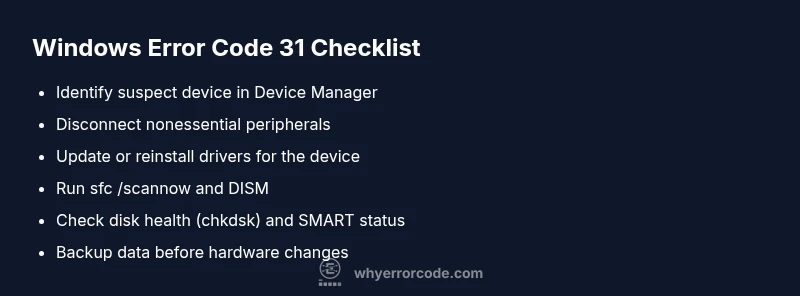
When you encounter windows error code 31, start with safe, reversible steps. First, unplug all nonessential external devices and reboot. If the error persists, reseat or replace cables for power, USB, and data connections. Next, boot into Windows and open Device Manager to update or reinstall drivers for the suspect device, or disable conflicting devices one by one to see if the error clears. Run built-in repair tools: open an elevated Command Prompt and run sfc /scannow, then DISM /Online /Cleanup-Image /RestoreHealth. Check disk integrity with chkdsk /f /r on the system drive, and run SMART health checks if you have a diagnostic tool. If you still see code 31, back up your data and prepare for deeper hardware testing or professional service. These steps are cost-free for most users and establish a safe baseline before more invasive actions.
Diagnostic flow: symptom → possible causes → immediate fixes
Symptom: Windows reports error code 31 when accessing a device or during startup. Possible causes (high/medium/low):
- Faulty external device or USB storage (high)
- Outdated, corrupted, or conflicting drivers (high)
- Loose cables or poor power connections (medium) Immediate fixes: disconnect suspect devices, update drivers, reseat cables, run system repair tools, and run disk health checks. If the error persists, move on to deeper hardware testing or professional diagnostics. This flow helps you pinpoint root causes quickly and minimize downtime.
Step-by-step fix for the most common cause: faulty hardware or driver conflicts
Step 1: Identify the suspect device by reviewing Device Manager and event logs. Step 2: Disconnect the device and reboot to see if the error clears. Step 3: Update or reinstall the device driver; test with a clean driver install. Step 4: Run SFC and DISM to repair system files. Step 5: Check disk health and SMART status; run chkdsk if needed. Step 6: If hardware failure is confirmed, replace the device and restore data from backups. Tip: keep a log of changes for future reference. Expected time: 60–150 minutes depending on hardware.
Other possible causes and how to fix them
Beyond a faulty device, error code 31 can arise from driver conflicts, corrupted registry entries, bios misconfig, or power supply issues. Fixes include performing a clean boot to identify conflicting software, updating BIOS if an update exists, reseating RAM, testing with a known-good power supply, or replacing suspect cables. In enterprise environments, consider auditing all peripherals and third-party add-ons to eliminate last-minute changes that could trigger the error. Always back up data before making hardware changes.
Safety, warnings, and when to call a professional
Safety first: back up critical data before any hardware testing or OS repair. Do not force changes on a live system with sensitive data. If you’re uncomfortable opening a PC, if the device is under warranty, or if the issue involves critical storage hardware, contact a professional technician. Cost ranges for hardware diagnosis and replacement can vary widely depending on parts and labor, typically from a low tens to hundreds of dollars for simple fixes, up to more substantial sums for in-depth hardware replacement or data recovery.
Prevention and best practices to reduce recurrence
Create a proactive maintenance routine: keep drivers updated, run regular disk checks, enable system restore points, and document hardware changes. Use a Power-On Self-Test (POST) log if available, monitor USB hub activity, and store backups in multiple locations. For organizations, establish standardized device provisioning and driver whitelisting to minimize conflicts. By maintaining hardware health and clean software configurations, you reduce the odds of Windows error code 31 recurring.
Steps
Estimated time: 60-180 minutes
- 1
Identify the failing device
Open Device Manager and Reliability Monitor to locate entries marked with errors or warning icons. Note the device name and recent changes that preceded the error. This helps target the right hardware and driver updates.
Tip: Label devices and keep a change log for quick reference. - 2
Isolate devices by removal
Safely unplug nonessential peripherals one at a time and reboot to see if the error reappears. If the error disappears after a specific device is disconnected, you’ve pinpointed the culprit.
Tip: Test with a single device reconnected at a time. - 3
Update or reinstall drivers
From Device Manager, update drivers for the suspect device. If updates don’t help, uninstall the driver and reinstall from the vendor’s site. A clean install helps resolve conflicts.
Tip: Always download drivers from official sources. - 4
Run system repair tools
Run sfc /scannow to fix corrupted system files, then DISM /Online /Cleanup-Image /RestoreHealth to restore Windows image integrity. Reboot after each tool completes.
Tip: Run tools in an elevated command prompt. - 5
Check disk health and SMART status
Run chkdsk /f /r on the system drive or use built-in diagnostics to check for bad sectors and read errors. If faults are found, plan for backup and hardware replacement if needed.
Tip: Back up data before repairing disks. - 6
Plan hardware replacement if needed
If diagnostics indicate a failing drive or controller, prepare for replacement. Ensure backups exist and verify return policies before ordering parts.
Tip: Prevent data loss by restoring from backups after replacement.
Diagnosis: Error code 31 appears when Windows accesses a device or during startup, indicating a generic device failure
Possible Causes
- highFaulty external device or USB storage
- highOutdated, corrupted, or conflicting drivers
- mediumLoose cables or poor power connections
Fixes
- easyDisconnect the suspect device and reboot to see if the error clears
- easyUpdate drivers or reinstall the driver package for the suspect device
- easyRun SFC and DISM to repair system files
- hardCheck hardware health and replace faulty components (drive, USB controller, or motherboard)
Frequently Asked Questions
What exactly is Windows error code 31?
Windows error code 31 is a generic device failure (ERROR_GEN_FAILURE) that indicates a device attached to the system isn’t functioning properly. It usually points to hardware, cable, or driver issues rather than a Windows OS defect.
Windows error code 31 means a device attached to the system isn’t functioning properly. It’s usually hardware or driver related.
What are the most common causes of error code 31?
The most common causes are faulty external devices or USB storage, outdated or conflicting drivers, and loose cables or poor power connections. Understanding these helps you focus your troubleshooting efforts.
Most often, error 31 is caused by a bad device, drivers that don’t work well together, or loose cables.
Can I fix error code 31 without replacing hardware?
Yes, in many cases you can resolve error 31 by updating or reinstalling drivers, repairing system files, and replacing faulty cables or a failing external device. If the device itself is failing, replacement will be necessary.
Often you can fix it with drivers and software repairs, but sometimes hardware replacement is unavoidable.
Does error code 31 affect my data?
Data risk is generally low if you back up before working on hardware. However, actions like drive replacement or disk repairs carry a higher risk, so ensure you have a recent backup.
Data risk is low with backups, but hardware work can pose some risk without proper precautions.
How can I prevent error code 31 from returning?
Maintain updated drivers, use reliable peripherals, run disk checks, and keep recoverable backups. A standardized maintenance routine helps catch issues before they trigger error 31 again.
Keep drivers updated, well-seated cables, and backups to prevent it from coming back.
Watch Video
Top Takeaways
- Identify root cause with a structured flow
- Start with quick, reversible fixes
- Back up data before hardware changes
- Involve a professional when needed