graphics device driver error code 43: urgent fixes and diagnostics
Urgent guide to diagnosing and fixing graphics device driver error code 43 across Windows PCs. Learn symptoms, causes, step-by-step repairs, safety tips, and prevention.


graphics device driver error code 43 indicates Windows cannot start the graphics device because the driver reports the device is not functioning correctly or is conflicting with another component. The most common fixes are updating or reinstalling the GPU driver, running Windows Update, and checking hardware connections. According to Why Error Code, many E43 issues resolve with clean driver installations and BIOS/firmware updates.
What the graphics device driver error code 43 means in practice
When a GPU or graphics device fails to initialize, Windows or the host system may report error code 43. This is a generic notification from the device manager indicating that the driver has notified the operating system that the device has stopped responding or is not functioning. Understanding that code 43 is a driver-level signal rather than a hardware failure message helps you triage effectively. In most cases, the root cause is a driver conflict, a remnant of an incomplete update, or a power/connection issue. According to Why Error Code, resolving 43 almost always starts with a safe driver reinstall and a quick OS check. The high-level approach is to verify device status, isolate software conflicts, and then validate hardware integrity. By following a methodical flow, you reduce guesswork and avoid risky, unproven fixes.
Symptoms and impact you might notice
Common symptoms include the GPU not appearing in Device Manager, screen flicker or artifacts, abrupt driver resets, or a system-wide crash during 3D rendering or gaming. In some cases, Windows may display a message that the graphics device cannot start, followed by error 43. These symptoms can occur after a driver update, a Windows feature update, or a hardware change like adding a new GPU. If you see error code 43, you are not alone—this is one of the most frequently encountered graphics-driver issues in consumer PCs. The impact ranges from minor annoyance (brief freezes) to major downtime affecting work, gaming, or media creation. For IT pros, the key is to reproduce the problem in a controlled environment and document the conditions under which code 43 appears, as this guides both the diagnostic flow and the remediation path.
Primary causes behind graphics device driver error code 43 (likelihood-based)
- Outdated or corrupted GPU driver: high likelihood. This is the leading cause and often a result of a failed update or incomplete installation.
- Driver conflicts after Windows updates: high likelihood. New OS components can clash with older driver components.
- Hardware-related issues: medium likelihood. Defective GPU, loose PCIe power, or overheating can trigger code 43.
- BIOS/firmware mismatches: low likelihood. Rare, but can occur after a major motherboard update.
- System file corruption or registry inconsistencies: low likelihood. More common when the system has many failed updates or third-party tools installed.
Each cause has a practical fix, and the most reliable path is to start with driver clean-up and a controlled reinstallation, then escalate to hardware checks if symptoms persist.
Quick troubleshooting mindset: safe steps you can try today
- Reboot the system and observe whether the error reappears. Sometimes a simple reset is enough to reinitialize the GPU.
- Update or reinstall graphics drivers using a clean installation method. Avoid rolling back immediately—prefer the latest stable driver from the vendor.
- Run Windows Update and check for BIOS/firmware updates from the motherboard or laptop manufacturer.
- Check device connections: reseat the GPU, ensure PCIe connectors are firmly plugged, and verify adequate power supply to the GPU.
- Temporarily disable overclocking and verify thermal conditions; overheating can mimic driver errors and cause instability.
- If you have multiple GPUs, test with a single card to determine if the problem is isolated to a specific device.
These steps are designed to provide a quick fix path before deeper troubleshooting.
Deep dive: what to do if the quick fixes fail
If code 43 persists after the above steps, proceed to a formal diagnostic flow: verify device status in Device Manager, look for hidden devices, and ensure the hardware ID matches your GPU. Perform a clean OS driver install in safe mode, and consider driver rollbacks with caution. Check for system file integrity using built-in tools (like SFC) to repair corrupted Windows components. In enterprise contexts, reimage or standardize driver deployment to avoid drift across machines. Finally, record all changes so you can escalate with professional support if needed.
Prevention strategies to reduce future occurrences of error code 43
- Maintain a routine driver update cycle, preferably aligned with the GPU vendor's release schedule.
- Enable automatic backups and system restore points before major driver changes.
- Monitor thermal metrics and ensure adequate cooling; thermal throttling can cause driver resets and faults.
- Keep BIOS/firmware and chipset drivers current to minimize compatibility issues.
- Use stable, vendor-approved drivers rather than third-party modification tools.
- Create a documented troubleshooting playbook so team members can reproduce steps quickly.
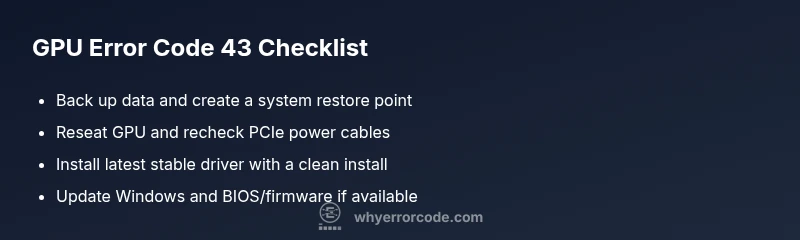
Steps
Estimated time: 45-90 minutes
- 1
Back up and prep
Save open work and create a system restore point. This reduces risk if a driver reinstall goes awry. Ensure you have a reliable power source during the process.
Tip: A restore point gives you a safe rollback in case of driver conflicts. - 2
Power down and reseat
Shut down the PC, unplug it, and reseat the GPU in its PCIe slot. Check all power connectors to the card for a snug fit and proper seating.
Tip: Touch a grounded metal surface before handling components to prevent static damage. - 3
Install a clean driver
Perform a clean installation of the latest driver from the GPU vendor. Use the custom install option to remove previous components completely.
Tip: Avoid in-place upgrades; a clean install reduces residue conflicts. - 4
Check for OS and firmware updates
Update Windows and install any available motherboard BIOS/firmware updates. Reboot and recheck device status.
Tip: Some updates require a second reboot to finalize. - 5
Test and monitor
Run a game or GPU-intensive workload to verify stability. Monitor temperatures and system logs for recurring errors.
Tip: If instability returns, log the exact steps and conditions for escalation. - 6
Escalation
If the problem persists, collect logs and hardware details and contact a professional with a documented history of steps taken.
Tip: Provide model numbers, driver versions, and BIOS levels to speed up support.
Diagnosis: User reports error code 43 after GPU initialization or Windows startup
Possible Causes
- highOutdated or corrupted GPU driver
- highDriver conflicts following Windows update
- mediumLoose power or seating issue with GPU
Fixes
- easyPerform a clean reinstall of the GPU driver and reboot
- easyRun Windows Update and apply available BIOS/firmware updates
- easyCheck PCIe power connectors and reseat the graphics card
- easyTest with a single GPU if multiple are installed
Frequently Asked Questions
What is graphics device driver error code 43?
Error code 43 is a Windows device manager signal indicating the graphics device has stopped responding. It usually points to driver issues, conflicts, or a hardware seating problem rather than a confirmed GPU failure.
Error code 43 means Windows detected the graphics device but can’t start it because of driver or hardware issues.
Can outdated drivers cause code 43?
Yes. Outdated or corrupted drivers are the most common cause of code 43. A clean reinstall with the latest stable driver often clears the issue.
Yes. An old or corrupted driver is usually the main culprit, and reinstalling the driver often fixes it.
Is it safe to update graphics drivers?
Driver updates are generally safe when performed from the GPU vendor's official site or through Windows Update. Always back up and use a restore point before major changes.
It's usually safe, but back up first and use official sources.
Will a BIOS update fix error code 43?
A BIOS or firmware update can resolve compatibility issues but is less common. Only proceed if you know your system has a known firmware improvement related to graphics devices.
A BIOS update can help in rare cases, but it's not the typical fix for code 43.
When should I call a professional?
If multiple clean driver installs fail, hardware seating problems persist, or thermal issues are evident, seek professional help. Have logs and system details ready.
Call a pro if drivers don’t fix it or you suspect hardware damage.
Does overheating cause error code 43?
Overheating can mimic driver faults and trigger instability that looks like code 43. Check cooling, fans, and thermal throttling when troubleshooting.
Overheating can look like a driver problem, so check temperatures too.
Watch Video
Top Takeaways
- Identify driver-related causes first, not hardware failures.
- Start with a clean driver reinstall to fix most E43 errors.
- Always back up data and create a restore point before major changes.
- If symptoms persist, escalate with full system details.