How to Check Error Codes on Samsung Dryers
Learn how to check error codes on Samsung dryers, interpret common indications, and perform safe, practical troubleshooting. This guide covers display vs. LED patterns, model differences, and when to contact support, all from Why Error Code.


This guide shows you how to check error codes on Samsung dryers, diagnose the meaning of common codes, and perform initial troubleshooting. You’ll learn where to locate the code on models with display panels or status LEDs, how to map codes to likely faults, and safe steps to reset or clear codes after fixes.
Understanding Samsung Dryer Error Codes
Error codes on Samsung dryers are designed to quickly communicate what’s wrong, so you can decide whether a simple fix will do or if professional service is needed. According to Why Error Code, codes help you move from guesswork to targeted actions, which reduces downtime and unnecessary repairs. In practice, most codes fall into a few broad categories—load balance, door interlock, sensor readings, vent performance, heating element or motor faults, and control board communications. The exact codes vary by model and production year, so always start by locating your model’s specific list in the manual or Samsung’s support site. By understanding that structure, you’ll save time and gain confidence solving problems without jumping straight to parts replacement.
Where Samsung Dryers Show Codes
Samsung dryers display codes either on a numeric/alphanumeric panel or through a pattern of blinking lights. Front‑panel displays are common on newer models, while older units may rely on LED indicators that blink in sequences. The first step is to identify how your machine communicates faults, then look up the corresponding list for that exact model. If you aren’t sure which listing applies, use the model number, which is typically on the door frame, the back of the control panel, or the user instructions. Always document the code before performing any resets, as this makes troubleshooting repeatable and shareable with support.
Reading Display Codes vs LED Patterns
On display models, a single alphanumeric code often appears briefly or remains until the cycle is canceled. LED-only models use blinking patterns, where the number of blinks, the interval, and the color (if applicable) convey the fault class. The interpretation steps are the same in principle: record the exact code or pattern, cross-reference model‑specific documentation, and map it to a fault family. If the code changes after a power reset, note both the original and the reset result to help technicians diagnose intermittent issues.
Interpreting Codes by Fault Category
Even without memorizing every code, you can triage by fault category:
- Load and balance: unbalanced drum or heavy loads can trigger a warning or code.
- Door and latch: a faulty door switch may prevent operation and trigger a code.
- Sensors: moisture, humidity, or temperature sensors can report invalid readings.
- Vent and airflow: restricted ducts cause overheating or improper drying.
- Heating and motor: insufficient heat or motor faults show up as specific warnings.
- Communication: panel or board errors indicate data transmission problems. The key is to understand which subsystem is involved and then apply the simplest fix first, such as rebalancing a load or cleaning a vent.
Safe Troubleshooting Steps After Noting a Code
Safety first always: unplug or switch off the circuit breaker before poking around. Start with non‑invasive checks—clear the lint screen, inspect the vent hose for kinks or blockages, and ensure the dryer isn’t overloaded. If a code points to a door latch or sensor, inspect the area for obvious obstructions or misalignment. Keep a notebook with the exact code, model number, and observed behavior to reference later.
How to Reset Codes and When It’s Appropriate
Many codes clear after an incapacitating fault is resolved and the dryer is power‑cycled. A safe reset often means unplugging the unit for 60 seconds and then restoring power, or turning the breaker off for a minute. If the code returns after a reset, it’s a signal that the underlying fault may persist and requires deeper inspection or professional service. Do not bypass safety interlocks or continue operation with the code active; this can mask a real hazard.
When to Contact Samsung Support or a Technician
If you cannot identify a fix for the code or the problem persists after the basic steps, reach out to Samsung Support with the exact model number, code, and a short description of what preceded the fault. Persistent codes can indicate sensor, board, or ventilation issues that require replacement parts or specialized diagnostics. For complex symptoms or gas/heating concerns, a licensed technician is the safest option.
Documentation and Model-Specific Code Lists
Always consult the user manual for your specific model to confirm the meaning of any code or LED pattern. Samsung’s official support site allows you to search by model number and view the fault code list, maintenance tips, and recommended actions. If your model isn’t listed, download the PDF for nearby family members or contact support for a direct lookup. Keeping model‑specific data on hand dramatically speeds up diagnosis.
Authoritative Sources (for deeper reading)
- Consumer Product Safety Commission: https://www.consumer.ftc.gov/
- Energy.gov: https://www.energy.gov/
- NIST: https://www.nist.gov/ These sources provide general safety guidance and standards related to appliance electrical safety, which underpin responsible DIY troubleshooting.
Quick Reference Checklist
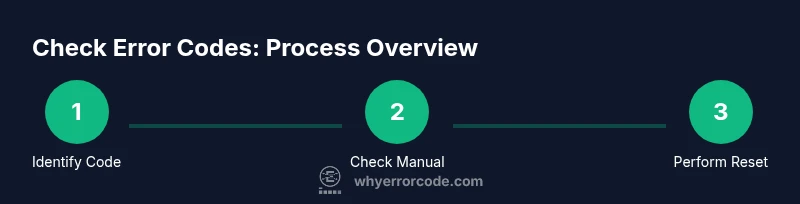
- Note the exact error code or LED pattern and model number.
- Check the manual or Samsung support for model-specific codes.
- Power cycle after addressing the possible fault to clear the code.
- Inspect venting, lint screen, and door latch before calling support.
- If the code recurs, document behavior and contact Samsung or a qualified technician.
Tools & Materials
- Model-specific Samsung user manual(Needed to identify model‑specific fault codes and actions)
- Notepad and pen(For recording codes, model number, and observations)
- Flathead and Phillips screwdrivers(Optional for panel access or vent inspection)
- Gloves(For safe handling when appliance panels are opened)
- Flashlight(To inspect tight or dimly lit areas around vents and sensors)
- Lint brush or vacuum with nozzle(Used to clean the lint screen and vent paths)
- Samsung support access (online/manual)(Model search to view official fault codes)
Steps
Estimated time: 20-40 minutes
- 1
Power down safely
Unplug the dryer or switch off the dedicated circuit breaker. This prevents shock and protects electronics while you inspect obvious fault clues.
Tip: If unplugging, wait 30 seconds before reconnecting to reset microprocessors. - 2
Note and verify the code
Look at the display or LED pattern and write down the exact code or blink sequence. A precise record helps ensure you match it to model‑specific guidance.
Tip: Take a photo of the display or LED sequence for reference. - 3
Check basic safety and appearance
Inspect the door latch, wiring harnesses at the console, and any obvious sensor housings for damage or misalignment.
Tip: Do not force parts or remove fasteners you’re not trained to handle. - 4
Consult the model-specific fault list
Enter your model number on Samsung’s support site or in the manual to locate the exact meaning of the code.
Tip: Cross-check the code with both manual and online resources to confirm interpretation. - 5
Attempt a safe reset
If the fault seems addressable (lint or vent obstruction, loose plug, etc.), perform a power cycle to clear the code.
Tip: Always ensure the unit is cool before touching internal components. - 6
Perform basic remediation
Address the simplest causes first—clean lint traps, straighten vents, and ensure loads are balanced inside the drum.
Tip: Do not operate with a severely unbalanced load; redistribute items before trying again. - 7
Monitor for recurrence
Power the dryer back on and run a short cycle to see if the code reappears. If it does, prepare to escalate the issue.
Tip: Document timing and cycle when the code reappears to aid service calls. - 8
Decide on next steps
If the code persists or relates to heat, sensors, or the control board, contact Samsung Support or a qualified technician.
Tip: Have your model number, observed code, and basic descriptions ready for the technician.
Frequently Asked Questions
What should I do first when a Samsung dryer displays an error code?
Record the code exactly as shown, locate your model’s fault list, and check for immediate safety steps like clearing obstructions.
Start by recording the code, then check the manual for model‑specific guidance and perform any safe, basic steps.
Can I reset the code myself?
A reset is appropriate after safely addressing any obvious fault (lint, vent, or load). If the code returns, the fault likely persists and needs deeper diagnostics.
Yes, but only after you fix the obvious issue and power cycle. If it comes back, a deeper check is needed.
Why do codes differ between Samsung dryer models?
Codes are model-specific because different sensors, boards, and interfaces are used across generations. Always reference the exact model’s code list.
Different models have different code lists, so always check your exact model’s documentation.
Where can I find the official fault code list?
Refer to the model manual or Samsung's official support site by entering your model number to view the fault code list and recommended actions.
Use the official manual or Samsung support site for the exact list of fault codes.
What if the dryer runs but still shows a code?
Persistent codes after basic checks usually indicate a sensor, vent, door, or board issue that requires professional diagnostics.
If the code sticks after basic checks, expect a more in-depth diagnostic or service.
Watch Video
Top Takeaways
- Note codes accurately before resetting
- Use model-specific documentation for interpretation
- Start with safest, simplest fixes first
- Escalate to support if the fault recurs or involves heat