Roblox 403 Error Code: Diagnosis and Fixes
Urgent guide to Roblox 403 error code: meaning, causes, and fast fixes. Diagnose access blocks, safety tips, and when to contact support. Why Error Code helps players and developers restore access quickly.


The Roblox 403 error code means Forbidden access to the requested resource. In practice, you’ll see Roblox block loading a game, profile, or asset. The most common fixes are to verify you’re logged into the correct account, disable VPNs or proxies, and check parental controls or regional blocks. If the issue persists, try clearing cache or contacting support.
What the Roblox 403 error code means
A 403 status code is a standard web response that indicates the server understood the request but refused to fulfill it. When this happens in Roblox, it typically means access to a specific resource—such as a game, profile, asset, or developer API endpoint—has been blocked for your current session. Unlike a 404, which says a resource is missing, a 403 says you’re not allowed to access it right now. In urgent terms, you’re hitting a restriction rather than encountering a broken link. Understanding the underlying rule helps you decide the right remedy, whether it’s adjusting your account settings, your network, or your device.
Common causes of Roblox 403 access blocks
There are several frequent culprits behind Roblox 403 errors, and they tend to cluster around access permissions rather than random hiccups:
- Account status restrictions: suspensions, age gates, or family safety settings can trigger forbidden responses when attempting certain content.
- Regional or IP-based blocks: some resources are restricted by region or by detected IP reputation, which can block access from certain locations or networks.
- VPNs, proxies, or unusual traffic: using a VPN or proxy can flag Roblox security systems, leading to a 403 until the traffic is normalized.
- Parental controls and family settings: strict controls can prevent access to certain games, experiences, or marketplace items.
- Developer or server-side blocks: occasionally, a game or asset is locked to testers or requires specific permissions that aren’t granted for your account.
Quick fixes you can try right away
If you’re staring at a 403 error, these steps can often restore access without waiting for official support:
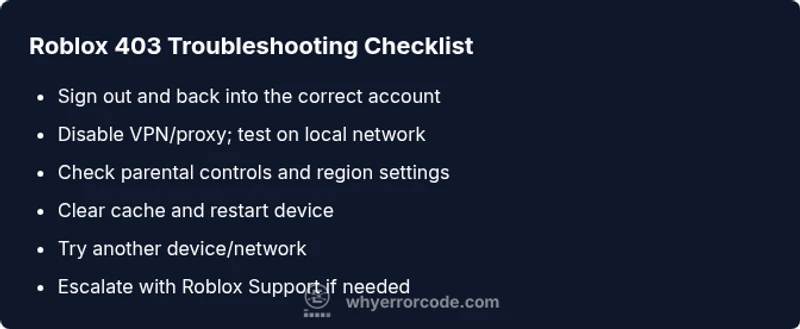
- Verify you’re signed into the correct Roblox account and that the content isn’t gated behind another account.
- Disable VPNs or proxies, then reconnect directly to your home network.
- Check for parental controls or family settings that might restrict access to the content you’re trying to reach.
- Clear your browser or app cache and cookies, then sign back in.
- Test on a different device or network to see if the issue is device-specific or network-based.
- Confirm Roblox’s status page for ongoing outages or maintenance that could enforce access blocks.
How to diagnose which cause is most likely in your case
Narrowing down the cause involves a few targeted checks. Start with your account status and regional access: if you can access some Roblox content but not others, it’s often an account or region rule, not a global outage. If everything is blocked, a network issue or a VPN/proxy usage is more likely. Parental controls are a common, overlooked factor when younger players report lockouts. Keep a simple log: note the time, device, network, and content you were trying to access when the error appeared. This pattern helps you distinguish between a personal setup problem and a broader Roblox-side block.
Step-by-step fixes you can perform with minimal risk
Follow these steps in order to recover access efficiently:
- Step 1: Sign out of Roblox, close all apps, and sign back in with the correct account.
- Step 2: Disable any VPNs or proxies and reconnect to a local network. If you must use a VPN, ensure it’s allowed by Roblox terms of service and configured properly.
- Step 3: Review account restrictions and parental controls in the account settings and family safety options. Adjust as needed or contact a parent/guardian for permission changes.
- Step 4: Clear cache and cookies (or app data on mobile) and restart the device.
- Step 5: Try a different device or network (mobile hotspot, another Wi‑Fi) to determine if the issue is device- or network-specific.
- Step 6: If the problem persists, gather details (time, content accessed, device, network) and contact Roblox Support for a targeted review.
When Roblox needs to get involved: safety and escalation
If none of the above steps resolve the 403 error, there’s a higher chance of a rule-based block or a server-side policy. In these cases, professional support should review the account activity and access permissions. Prepare your Roblox username, the exact error message, and any troubleshooting steps you’ve taken. Professional help often includes reviewing IP history, verifying regional access, and confirming parental controls are aligned with your account.
Additional safety notes and best practices
Always ensure you’re following Roblox terms of service when troubleshooting. Do not bypass security measures or share account credentials. If you’re in a school or shared network, obtain authorization before testing access restrictions, and avoid repeatedly toggling VPNs or proxies, which can trigger security flags.
Steps
Estimated time: 15-25 minutes
- 1
Verify account and login
Sign out of Roblox, then sign back in using the account you intend to use. Check that you’re not inadvertently logged into a shared or restricted account.
Tip: Double-check the avatar and username to confirm the correct account. - 2
Disable VPN/proxy
Turn off any VPN or proxy service and reconnect to your local network. Roblox access rules often depend on the apparent origin of the connection.
Tip: If you must use a VPN, ensure it’s permitted and configured per Roblox guidelines. - 3
Check parental controls
Open your account settings and review family controls or parental restrictions. Ensure content you’re trying to access isn’t blocked by age or permission limits.
Tip: Ask a parent/guardian to adjust settings if needed. - 4
Clear cache and restart
Clear cached data in your browser or Roblox app, then restart the device and try again.
Tip: On mobile, clearing data may be equivalent to reinstalling the app. - 5
Test on another device/network
Log in from a different device or network to see if the issue is device- or network-specific.
Tip: If the second device works, focus on the original device configuration. - 6
Escalate with evidence
If access remains blocked, collect timestamps, content attempted, and steps taken, then contact Roblox Support for a targeted review.
Tip: Provide screenshots or exact error text to speed up resolution.
Diagnosis: User sees a Roblox 403 error when attempting to load a game or profile
Possible Causes
- highAccount status restrictions (suspension/age gating)
- highRegional or IP-based access restrictions
- mediumVPN/proxy or unusual traffic detected
- mediumParental controls or family settings
- lowDeveloper/server-side blocks or content gating
Fixes
- easySign out and sign back in with the correct account
- easyDisable VPN/proxy and reconnect to a local network
- easyReview and adjust parental controls or family settings
- easyClear cache/cookies and restart the device
- easyTest on a different device/network to identify scope
- easyContact Roblox support with your findings if blocked persists
Frequently Asked Questions
What does Roblox 403 error code mean?
A Roblox 403 error means access to the requested resource is forbidden. It often points to account restrictions, regional blocks, or security settings rather than a broken Roblox service. Start with account and network checks before escalating.
A Roblox 403 means access is forbidden. Check your account status and network, then try the fixes in order.
Is Roblox 403 always due to my account?
Not always. A 403 can also arise from region-based restrictions or security blocks on the network. Use the diagnostic steps to determine whether the cause is account-related or network-related.
Not always. It could be region or network based, so run through the checks to isolate the cause.
Can a VPN trigger Roblox 403 errors?
Yes. VPNs or proxies can trigger 403 responses because they alter traffic patterns that Roblox security systems monitor. Disable the VPN and retry to see if access returns.
Yes, VPNs can cause 403s. Disable the VPN and try again.
Does parental control cause Roblox 403 errors?
Parental controls can block content or experiences, resulting in a 403 if access is disallowed for the account. Review and adjust family safety settings to restore access.
Parental controls can cause it. Check the safety settings and adjust if needed.
How can I fix Roblox 403 quickly?
Start with signing into the correct account, disable VPNs, check parental controls, and clear cache. If the issue persists, test on another device and contact support with details.
Try signing in correctly, disable VPNs, check controls, and clear cache. If needed, test another device and contact support.
When should I contact Roblox Support?
If you’ve exhausted quick fixes and the 403 persists across devices and networks, contact Roblox Support with your troubleshooting notes. They can review account status, region blocks, and content-specific permissions.
If the issue won’t go away after all fixes, reach out to Roblox Support with your notes.
Watch Video
Top Takeaways
- Identify if the 403 is account/regional-based or network-driven
- Prefer quick fixes: sign-in, disable VPN, check controls
- Test across devices to map the scope
- Escalate with logs if it persists
- Always verify safety and compliance before making changes