Roblox Xbox One Error Code 0: Quick Fixes & Troubleshooting
Urgent guide to diagnose and fix Roblox error code 0 on Xbox One. Learn causes, step-by-step repairs, safety tips, and prevention for developers, IT pros, and everyday users.


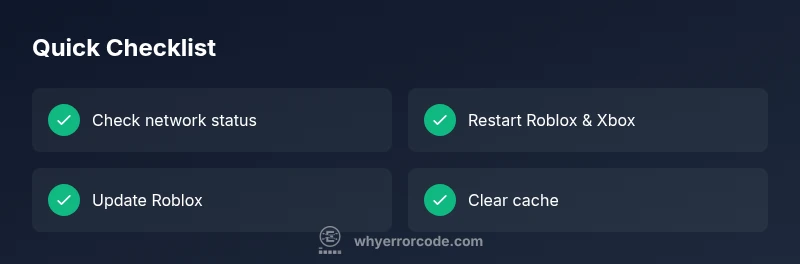
Error code 0 on Roblox Xbox One signals a general connectivity or service issue preventing gameplay. The most common quick fix is to verify Xbox network status, restart Roblox and the console, and update the Roblox app. If the problem persists, clear cache or re-sign into Xbox Live and ensure the Roblox app is up to date.
What Error Code 0 Means on Roblox Xbox One
Error code 0 on Roblox for Xbox One is a broad fault code that usually points to connectivity or service issues rather than a game-specific bug. Players may see it when a game fails to launch, load, or establish a stable session with Roblox servers. According to Why Error Code, this error tends to be a symptom rather than a stand-alone fault, and addressing it often involves checking your network, app version, and server status. The quickest path to resolution is to rule out common causes first: verify your network status on your router and Xbox, restart the Roblox app and console, and confirm Roblox server health. If the issue continues, proceed to cache clearing, re-signing into Xbox Live, and ensuring the Roblox app is current. These steps cover the majority of Xbox players affected by Code 0.
Symptoms and Triggers
Many players encounter Code 0 during Roblox startup or while loading into a game. You might see a blocking splash screen, a frozen Roblox logo, or a message stating the session could not be established. The error can be intermittent or persistent and may spike during peak hours or after a console update. In some cases, parental controls, network restrictions, or DNS jitter can contribute. It’s common for multiple devices on the same network to observe similar symptoms if a router or ISP is having issues.
Common Causes on Xbox One
Root causes vary, but the most frequent are network connectivity issues (high likelihood), Roblox service outages or maintenance (medium), and Xbox Live authentication hiccups (medium). Infrequent but possible causes include app glitches or an outdated Roblox version (low), and hardware cache anomalies (low). Understanding the order of likelihood helps prioritize fixes without wasting time on unlikely culprits.
Quick Fixes You Can Try Right Now
- Check Xbox live status and Roblox server status.
- Sign out of Xbox Live, then sign back in to refresh tokens.
- Restart the Roblox app and the console.
- Clear the Roblox cache or reinstall the Roblox app if the issue persists.
- Update Xbox system software and the Roblox app to the latest version.
- If on a shared network, test on a different network (mobile hotspot) to isolate network issues.
These fixes are safe, non-destructive, and designed to restore access quickly. If there’s no improvement, move to the diagnostic steps for deeper investigation.
Step-by-Step Fix: Reinstall and Network Validation (Most Common Cause)
- Verify Xbox Live status at xbox.com/status and ensure your account is online. If not, resolve service issues first. Tip: keep a stable secondary device nearby to monitor service announcements.
- Test your network by running a speed test; ensure you have at least 5–10 Mbps and stable latency. If Wi‑Fi is weak, try moving closer to the router or use a wired Ethernet connection.
- Sign out of Roblox, then sign back in on the Xbox; relaunch Roblox to refresh the session. Tip: confirm you’re signed in with the same Microsoft account used for Roblox ownership.
- Clear Roblox app cache or reinstall the Roblox app from the Xbox Store. Tip: this process may reset some local settings but often resolves stale data problems.
- Power cycle the Xbox: shut down completely, unplug for 60 seconds, then restart. Tip: longer resets flush stale network state better than rapid restarts.
- Check for updates to the Xbox OS and Roblox app; enable automatic updates if possible. Tip: keeping auto-update on minimizes future issues.
Estimated total time: 30–60 minutes depending on network and device speed.
Other Causes and Fixes
If the initial fixes fail, consider deeper checks: verify DNS settings on your router, try a different DNS server (e.g., a known free public DNS), or reset router to default settings. Remove any VPNs or firewall rules that may block Roblox traffic. Ensure your console firmware is current and that no background downloads are consuming bandwidth. If problems persist, you may need professional assistance or a hardware check of your router or console.
Safety Tips & Warnings
- Do not attempt hardware alterations or disassembly of the Xbox console; contact official support if hardware faults are suspected.
- Avoid exposing your console to power surges; use a surge protector and avoid power cycling during critical updates.
- If you are uncomfortable with network changes, contact your ISP or a qualified technician.
- Always back up any important saves or profile data before reinstalling apps.
Prevention: Keeping Roblox on Xbox One Healthy
Regular maintenance reduces future Code 0 incidents. Keep your Xbox and Roblox app updated, maintain a stable network, and monitor Roblox server status during major events. Use wired connections when possible for lower latency and fewer DNS hiccups. Consider setting automatic updates for both the OS and apps to minimize version-related issues.
Steps
Estimated time: 30-60 minutes
- 1
Check service status
Open xbox.com/status to verify Xbox Live and Roblox service health. If either service shows outages, wait for resolution before further steps. This avoids pursuing fixes that won’t help until services come back online.
Tip: Bookmark the status page for quick checks during outages. - 2
Refresh account tokens
Sign out of Xbox Live on the console, then sign back in. Relaunch Roblox to renew session tokens that may have expired.
Tip: Ensure you sign in with the account that owns Roblox access. - 3
Test network stability
Run a speed test and confirm stable latency. If Wi‑Fi is unstable, switch to a wired connection or move closer to the router.
Tip: A stable 5–10 Mbps minimum is recommended for Roblox on Xbox. - 4
Clear cache / reinstall
Clear Roblox app cache or reinstall the Roblox app from the Xbox Store. This eliminates corrupted data causing the error.
Tip: Note: some local save data may be reset; back up if needed. - 5
Power cycle
Power off the Xbox completely, unplug for 60 seconds, then reconnect and boot up. This clears lingering network state that can trigger Code 0.
Tip: Avoid rapid restarts; a full power cycle is more effective. - 6
Update essentials
Install any available updates for the Xbox system software and the Roblox app. Keeping software current reduces compatibility issues.
Tip: Enable automatic updates where possible.
Diagnosis: Error code 0 appears on Xbox One when launching Roblox
Possible Causes
- highNetwork connectivity issues
- mediumRoblox service outages or maintenance
- mediumXbox Live authentication problems
Fixes
- easyCheck Xbox Live and Roblox server status; test network
- easySign out/in to refresh tokens and restart apps
- mediumClear cache or reinstall Roblox; update apps
- easyPower cycle the console and verify network hardware
- hardIf issues persist, check router DNS settings or consult ISP
Frequently Asked Questions
What does Roblox error code 0 mean on Xbox One?
Error code 0 is a generic indicator of network or service problems preventing Roblox from launching or maintaining a connection. It usually points to the Xbox network, Roblox server status, or authentication issues rather than a game-specific fault.
Error code 0 means a network or service problem is stopping Roblox from starting or staying connected.
Can I fix Code 0 without professional help?
Yes. Start with basic checks: confirm network status, restart apps and console, clear cache, and update both the Xbox OS and Roblox. Most users resolve Code 0 with these steps.
You can usually fix it by checking network status, restarting, clearing cache, and updating the apps.
If the problem continues, what next?
Proceed to the diagnostic flow: run through network tests, test with a different network, reinstall Roblox, and consider a full console power cycle. If unresolved, contact Roblox or Xbox support for deeper diagnostics.
If it still doesn’t work, follow the diagnostic steps and reach out to support if needed.
Will this affect other Roblox platforms?
Error code 0 is Xbox-specific in this context. Other platforms may display different codes or messages, but similar network or server issues can occur across devices.
Code 0 on Xbox doesn’t automatically mean issues on other platforms.
When should I contact support?
If you’ve exhausted the diagnostic flow and fixes without success, or if service outages are ongoing, contact Roblox or Xbox support and share your error code, timestamps, and steps you’ve taken.
If the issue persists after all fixes, contact support with details.
Watch Video
Top Takeaways
- Verify network and server status before deep troubleshooting
- Restart, refresh, and update to resolve most Code 0 cases
- Cache clear or reinstall often fixes corrupted data
- Call support if issues persist after structured steps