Xbox One Error Code Troubleshooting: Quick Fixes and Deep Diagnostics
Urgent guide to diagnose and fix Xbox One error codes quickly. Learn common causes, a practical diagnostic flow, step-by-step repairs, safety notes, and prevention tips from Why Error Code.


Xbox One error code xbox one indicates a fault that blocks startup or gameplay. The quickest fixes usually involve a power cycle, checking your network, and performing an offline update. If the problem persists, a soft reset or, as a last resort, a factory reset can restore normal operation. This guide from Why Error Code helps you fix it fast.
Understanding Xbox One Error Codes
According to Why Error Code, an "xbox error code xbox one" is a standardized numeric or alphanumeric tag that appears when the console encounters a fault during boot, sign-in, or gameplay. These codes help owners and technicians narrow down the root cause without disassembling hardware. The same approach applies across generations, but Xbox One error codes have evolved with system updates and cloud services. If you see a code on your screen, jot it down exactly as displayed and note when it occurs: startup, loading a game, or while streaming. This triage step sets the stage for effective troubleshooting and reduces guesswork.
Why the code matters
A code is not a random artifact; it maps to a fault class (software/firmware, network/auth, or hardware). Recognizing the class first makes the next steps faster and safer. If the code repeats after a reboot, you likely have a software or cache issue; if it appears only during online play, your network or authentication status may be involved; if it persists after a full reset, hardware problems may be at play.
Common Xbox One Error Codes and Quick Heuristics
Some codes are more frequent than others and each points to different classes of issues. For example, E105 and E102 typically relate to system updates or corrupted cache, while E200 and E203 often indicate boot problems requiring a repair cycle. Codes tied to online services may reflect network or authentication problems rather than hardware malfunctions. Remember that codes can appear with or without a message, and sometimes multiple codes are shown in sequence after a reboot. The goal is to categorize the fault quickly: software/firmware, network/auth, or hardware. This classification guides the next steps you should take.
Quick Fixes You Can Try Right Now
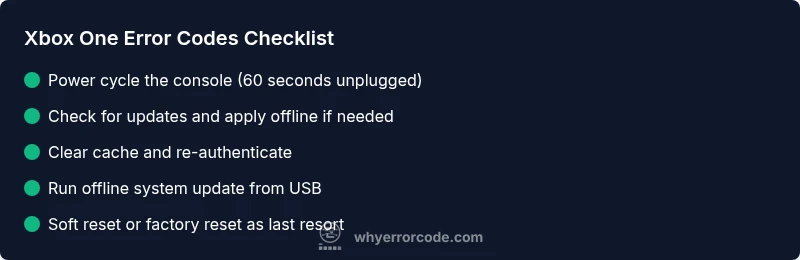
Before diving into deep diagnostics, run through universally effective, safe fixes. First, perform a full power cycle: shut down the Xbox, unplug for 60 seconds, then reconnect and boot. Second, verify your network: test your Wi‑Fi or Ethernet connection, pause any VPNs, and ensure the Xbox is allowed online. Third, try an offline system update by downloading the latest update file from the official site onto a USB drive and applying it offline. If the error persists, sign out of your account, reboot, and sign back in. These quick fixes address most common causes and avoid data loss.
Diagnostic Flow: Symptoms, Causes, and Fixes
A practical diagnostic approach helps you prioritize fixes. Start with symptoms and whether the error occurs during startup, gameplay, or online authentication. Then map to possible causes (software cache, network issues, or hardware faults). Finally, apply fixes in order of likelihood—from safe, quick steps to more involved repairs. This flow keeps you focused and efficient, reducing guesswork and downtime.
Step-by-Step Fix: Most Common Cause
-
Back up data and prepare: Save game progress to the cloud where possible and back up any local saves to USB if supported. This prevents data loss during repairs. Tip: Double-check cloud sync status before making changes.
-
Power cycle the console: Shut down, unplug the power for 60 seconds, then plug back in and power up. This clears transient glitches and refreshes hardware state. Tip: Use a grounded outlet to avoid power inconsistencies.
-
Check for updates: Go to Settings > System > Updates & updates history. Install any available updates before attempting more invasive steps. Tip: If online updates fail, use the offline update option from the official Xbox website.
-
Clear cache and local data: Power cycle again, then inSettings choose to clear persistent cache and, if feasible, remove the profile and re-add it. This often resolves corrupted cache data without data loss. Tip: Don’t erase cloud saves unchecked.
-
Apply offline system update: Download the official update package to a USB drive and run the offline update from USB. This can resolve corrupted firmware components when online updates fail. Tip: Confirm device’s model and region to pick the correct update file.
-
Soft reset vs. factory reset: If issues persist, perform a soft reset that keeps games and apps, or a factory reset as a last resort. Restore backups afterward. Tip: Only factory reset after attempts to repair software have failed.
-
Re-test and monitor: Reconnect to your network, sign back in, and test a game or app to confirm resolution. Tip: If the error recurs, capture exact codes and timestamps for support.
Total estimated time: 60-90 minutes.
Other Possible Causes and How to Address Them
Beyond the typical software path, several alternate causes can trigger Xbox One error codes. Network DNS issues or firewall blocks can mimic authentication errors. Corrupted game data or installed add-ons can produce startup failures that look like system faults. A failing hard drive or power supply can produce hardware-related codes that require professional repair or replacement. For each scenario, the corrective actions differ: reconfigure network settings, verify game data integrity, or replace defective hardware under warranty. Staying organized—tracking codes, timestamps, and steps—speeds up resolution and prevents repeated troubleshooting.
Safety, Warnings, and When to Call a Pro
Always shut down the console before opening any hardware or attempting component-level repairs. Do not disassemble power supplies or internal components unless you are trained and equipped. If your console is under warranty, contact the manufacturer or authorized service. For hardware failures beyond user-level repair, expect professional service costs and potential replacement parts. Typical service costs vary by region and warranty coverage, with common ranges for diagnosis only and hardware replacement often seen as a separate charge. If you experience a potential risk of electrical issues or fire, stop and seek professional help immediately.
wordCountInBlock":null}
diagnosticFlow
Steps
Estimated time: 60-90 minutes
- 1
Back up data and prepare
Save game progress to the cloud where possible and back up any local saves to USB if supported. This prevents data loss during repairs. Ensure cloud sync is current before proceeding.
Tip: Always verify cloud saves before making changes. - 2
Power cycle the console
Shut down the Xbox, unplug the power cord for 60 seconds, then reconnect and power on. This clears transient hardware glitches and refreshes the system state.
Tip: Do not power back on while still plugged into power strip. - 3
Check for updates
Navigate to Settings > System > Updates to install any available updates. If updates fail, proceed with an offline update.
Tip: Online updates can fail due to network issues; offline updates are a reliable fallback. - 4
Clear cache and local data
Clear persistent cache and, if applicable, remove and re-add your profile to refresh cached authentication tokens.
Tip: Clearing cache does not affect cloud saves or game installations. - 5
Apply offline system update
Download the official update package from the Xbox site to a USB drive and apply it offline from the console.
Tip: Use the correct regional version of the update file. - 6
Soft reset or factory reset
If issues persist, perform a soft reset to keep games/apps, or a factory reset as a last resort after backing up data.
Tip: Factory reset will erase installed games unless you have them on external storage or cloud saves.
Diagnosis: Xbox One shows error code during startup or gameplay
Possible Causes
- highCorrupted system cache or update data
- mediumNetwork authentication or DNS issues
- lowHardware fault (storage, power supply)
Fixes
- easyPower cycle and clear persistent cache
- easyApply offline system update or reset network settings
- hardIf persists, perform factory reset with option to keep games or consult a service
Frequently Asked Questions
What does an Xbox One error code mean?
An Xbox One error code is a diagnostic tag that points to the likely fault class—software/firmware, network/auth, or hardware. It guides you toward the right fixes without guesswork.
An Xbox One error code is a diagnostic tag that helps you find the fault and fix it faster.
How do I fix common E105 or E102 codes?
E105 and E102 often relate to updates or corrupted cache. Start with a power cycle, then apply any available updates or use the offline update option from the official site.
E105 and E102 usually involve software or updates; try a power cycle and updates first.
What is offline system update and when should I use it?
An offline update applies the system update via USB when online updating fails. It’s a safe fallback that can restore firmware without needing a network connection.
An offline update lets you install the system update using a USB drive when online updates aren’t possible.
Should I factory reset my Xbox One?
Factory reset should be a last resort after trying software fixes. It can erase installed games unless you back them up or store them externally.
Only consider a factory reset if other fixes fail; back up your data first.
When should I call professional support?
If you notice hardware symptoms (strange noises, no boot, power supply issues) or if the console is under warranty but unresolved, seek professional repair.
If hardware problems are suspected or the warranty covers replacement, contact a professional.
How can I prevent future Xbox One error codes?
Keep firmware updated, maintain a stable network, and avoid downloading from untrusted sources. Regular maintenance reduces the likelihood of recurring codes.
Keep updates current and run routine maintenance to prevent future errors.
Watch Video
Top Takeaways
- Start with quick fixes; most Xbox One error codes resolve quickly.
- Use offline updates to bypass online network issues when necessary.
- Follow the diagnostic flow to prioritize software faults before hardware concerns.
- Back up data before reset or factory reset to avoid loss.
- If hardware is suspected or issues persist, seek professional service.