How to Prevent Error Code 279 Roblox
Comprehensive steps to prevent Roblox error code 279, covering network checks, software updates, firewall settings, and account verification for players and developers.


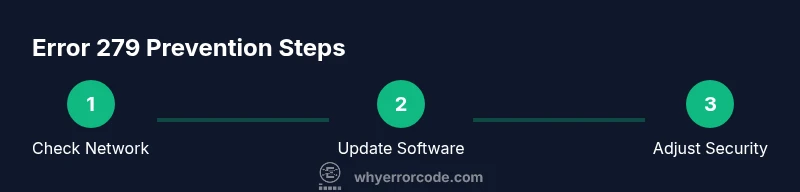
This guide explains how to prevent Roblox error code 279 by diagnosing connectivity problems, updating Roblox and device drivers, and adjusting security settings. You’ll learn a practical, step-by-step approach to reduce interruptions, test across platforms, and maintain a stable connection so you can play or develop with fewer disruptions. It covers network fundamentals, client refresh, and caching techniques to minimize repeats.
Understanding Roblox error code 279
Error code 279 in Roblox is a general connectivity failure that prevents your client from establishing a reliable connection to Roblox servers. It often points to issues on the client side or the network path rather than the game itself. While the message can appear differently across platforms, the underlying symptom is the same: the game cannot complete a stable handshake with Roblox services. This means you may experience long loading times, random disconnections, or interrupted gameplay. By treating 279 as a connectivity issue, you can apply practical fixes that work across PC, console, and mobile environments. The Why Error Code team emphasizes that most 279 instances are related to network configuration, client health, or security settings that block normal server communication.
Common Causes of Error 279
- Network restrictions: Firewalls, antivirus software, and router settings can block Roblox traffic.
- VPNs or proxies: These can interfere with direct connections to Roblox servers.
- Outdated software: An old Roblox client, graphics drivers, or operating system can fail to negotiate with new server protocols.
- DNS and routing problems: Incorrect DNS or flaky ISP routing can cause timeouts.
- Cross-device inconsistencies: Differences between devices (PC, mobile, console) can reveal where the issue lies.
Understanding these causes helps you target fixes without unnecessary changes. The Why Error Code approach is to verify each potential bottleneck in sequence, starting with the network and moving toward the client.
Preliminary checks before fixes
Before diving into deeper changes, perform quick sanity checks to rule out obvious culprits. Confirm you can access other online services reliably. Reboot your router and device to clear transient network issues. Temporarily disable VPNs or proxies to determine if they’re the source of the problem. If the issue persists across multiple networks, you’ll want to focus on the Roblox client and device configuration. These initial checks save time and help you diagnose the root cause more precisely.
Check and optimize your network connection
A stable, low-latency connection is essential for Roblox gameplay. Start with a wired Ethernet connection when possible; if you must use Wi-Fi, place the router within range and minimize interference. Run a basic speed test to confirm download/upload speeds meet Roblox recommendations and check for jitter or packet loss. Ensure your NAT type is open or moderate, not strict, as a strict NAT can block peer-to-peer components of Roblox. Disable bandwidth-heavy applications during play and consider alternately using a mobile hotspot for testing to isolate local network issues. If you’re on shared networks (schools, offices), there may be firewall rules or QoS settings impacting traffic—adjust accordingly or work with the network administrator.
Update Roblox, OS, and drivers
Keeping software current reduces incompatibilities with server-side updates. Update the Roblox client or launcher to the latest build and check for any platform-specific patches. Update GPU drivers and the operating system to ensure optimal networking and rendering performance. Check for pending security updates that might tighten network permissions. After updates, reboot and test again to determine if error 279 reoccurs. The Why Error Code methodology stresses that software freshness is a common, fixable cause of persistent connectivity problems.
Firewall, antivirus, and security settings
Security software is essential, but misconfigured rules can block Roblox traffic. Add Roblox as an exception in your firewall and antivirus settings, or temporarily disable security features for testing (re-enable afterward). Ensure the Roblox processes are allowed through both inbound and outbound rules. If you use a corporate or school-managed device, verify that Roblox traffic isn’t being blocked by centralized policy. For Windows, you may need to create specific allow rules for ports commonly used by Roblox, and for
Cache, data, and client health checks
Corrupted cache or stale data can trigger 279 after server updates. Clear Roblox cache on all devices, sign out, and sign back in to refresh tokens. On mobile, consider clearing app data for Roblox to reset local state while preserving your account credentials. If issues persist on a single device, try reinstalling Roblox entirely to replace any corrupted binaries. Before reinstalling, back up any local settings you want to preserve. The cache-focused approach reduces the risk of reintroducing old, faulty data into the client.
Cross-device testing and verification
Test Roblox on multiple devices. If error 279 occurs on one device but not others, the problem likely lies with that device’s network or software environment. Compare router settings, DNS assignments, and security configurations across devices. If all devices show the error, the network stack or Roblox service region may be involved, and you should monitor Roblox status pages and community forums for outages. When the issue is isolated to a single device, methodically apply the fixes from this guide to that device and re-test after each step.
AUTHORITY SOURCES
- Roblox Support Resources: not included here as an external source per se, but cross-check with Roblox official pages for updates and status.
- US-CERT (CISA): https://us-cert.cisa.gov/
- NIST (Publications): https://www.nist.gov/publications
- Harvard University: https://www.harvard.edu
- MIT: https://mit.edu
Note: The sources above provide general network security guidance and reliability best practices. For Roblox-specific issues, combine these standards with Roblox’s official status and support channels.
Tools & Materials
- Stable internet connection(Wired Ethernet preferred when possible)
- Device with Roblox installed(PC, console, or mobile device)
- Updated Roblox client and drivers(GPU drivers and OS patches included)
- Router with admin access(Access to QoS and port settings if needed)
- Firewall/antivirus configured for Roblox(Add exceptions or temporarily disable for testing)
- DNS settings (optional)(Consider 8.8.8.8 or 1.1.1.1 for testing)
Steps
Estimated time: 40-60 minutes
- 1
Identify and reproduce the error
Launch Roblox and perform the action that triggers error 279. Note the exact message, platform, and time of occurrence. Reproducing consistently helps verify the fix later.
Tip: Document the exact steps and screenshots if possible to aid troubleshooting. - 2
Check baseline network health
Run a quick speed test and observe latency, jitter, and packet loss. If the network is unstable or slow, work on improving the connection before diving deeper.
Tip: Try a wired connection to see if the issue persists. - 3
Update Roblox and device drivers
Update the Roblox client to the latest version and install any pending OS or graphics driver updates. A fresh build often resolves handshake issues with servers.
Tip: Restart the device after updates to ensure changes take effect. - 4
Configure firewall/antivirus permissions
Add Roblox as an allowed program for both inbound and outbound connections. If needed, temporarily disable security features to test whether they’re blocking traffic.
Tip: Create a rollback point so you can re-enable protections after testing. - 5
Clear cache and reinstall Roblox
Clear Roblox cache on all devices and reinstall the client to remove corrupted files that could trigger 279. Start fresh after uninstall.
Tip: Back up login tokens if your platform allows it to avoid repeated sign-ins. - 6
Run cross-device tests
Test Roblox on another device or network to determine if the problem is device-specific or network-wide. Use the results to narrow down the root cause.
Tip: If the issue follows a device, focus remediation on that device first.
Frequently Asked Questions
What is Roblox error code 279?
Error code 279 is a generic connectivity failure indicating the Roblox client cannot establish a stable connection with Roblox servers. It commonly arises from network, firewall, or client issues rather than the game itself.
Error 279 means Roblox couldn't connect reliably. Check your network, security settings, and client version to fix it.
Can I fix error 279 without reinstalling Roblox?
Yes. Start with network checks, update the client and drivers, adjust firewall rules, and clear cache. Reinstall only if the issue persists after these steps.
You can often fix it without reinstalling by updating and adjusting settings; reinstall as a last resort.
Does error 279 affect all platforms equally?
Not always. Some devices may experience the error due to local network settings, while others may work fine. Cross-device testing helps determine the scope.
It can affect different platforms differently; test across devices to isolate the cause.
Should I contact Roblox support for 279?
If the problem persists after applying all fixes, contacting Roblox support with your logs and test results is recommended. They can investigate server-side issues or account-related blocks.
If fixes don’t help, reach out to Roblox support with your tests and findings.
Is using VPNs related to error 279?
Yes, VPNs or proxies can cause 279 by altering routing. Disable VPNs temporarily to test whether they’re contributing to the problem.
VPNs can trigger 279; try turning them off briefly to see if it resolves the issue.
Top Takeaways
- Test network connectivity first to rule out outages.
- Update Roblox and drivers to resolve compatibility issues.
- Configure firewall/antivirus with Roblox exceptions.
- Clear cache and consider reinstalling to fix corrupted data.
- Verify results across devices to confirm the fix.