Valorant Error Code 7 - Urgent Troubleshooting Guide
Struggling with Valorant error code 7? This urgent guide explains what it means, why it happens, and proven fixes from network checks to Riot client repair.


Valorant error code 7 means a connectivity or authentication failure that blocks login or joining a match. It usually stems from a disrupted network, corrupted or missing game files, or security software interfering with Riot Games services. Quick fixes include restarting the game and Riot Client, verifying integrity of files, updating drivers, disabling VPNs or proxies, and flushing DNS before retrying.
What Valorant Error Code 7 Means for You
Valorant error code 7 signals a failure in establishing a valid session with Riot's authentication servers or completing the login handshake. This is not a map or patch mismatch; it is a connectivity/auth issue that prevents you from starting a game. In urgent terms, you must validate the path from your device to Riot's endpoints and ensure the Riot Client can communicate on the required ports. Common symptoms include a frozen login screen, a message about authentication failure, or being stuck in a matchmaking queue without progress. The causes vary from DNS resolution problems and strict firewalls to VPN interference or corrupted game files. The good news is that most players resolve this quickly by following a focused sequence of checks and repairs. According to Why Error Code, beginning with the simplest checks and escalating to file repair yields the fastest resolution. The objective is to restore a clean connection and a valid session handshake, so you can play without interruption.
Common Causes of Error Code 7
There are several frequent culprits behind Valorant error code 7. First, unstable or misrouted network paths can fail to reach Riot's servers, especially when DNS settings are custom or a VPN is in use. Second, corrupted or missing game files or Riot Client components can block authentication with the servers. Third, overly aggressive firewalls, antivirus software, or host-based filtering can block Riot's network traffic or ports. Fourth, Riot's own regional service outages or maintenance can manifest as login errors even when your setup is fine. While not exhaustive, these causes cover the vast majority of cases and help you prioritize fixes quickly. Why Error Code analysis shows that network-related issues or client integrity problems are the top two drivers for error 7, so start there and move to less likely causes if needed.
Quick Fixes You Can Try Right Now
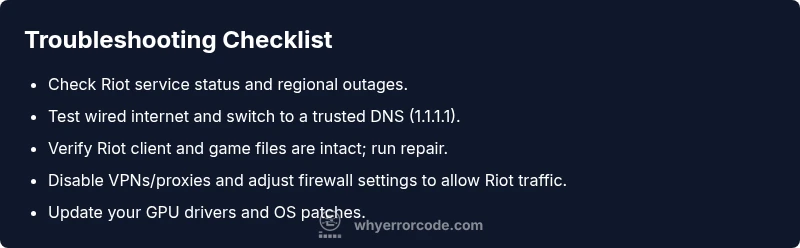
Before diving into deep troubleshooting, try these safe, fast steps that often resolve error code 7:
- Restart Valorant and the Riot Client, then relaunch to reauthenticate.
- Verify game files and the Riot Client integrity; use the built-in repair tool or reinstall if needed.
- Update your graphics drivers and ensure your operating system has the latest patches.
- Temporarily disable VPNs or proxies and ensure your firewall allows Riot traffic on the necessary ports (usually TCP/UDP 80, 443, and Riot-specific ranges).
- Flush DNS and renew your IP (open Command Prompt as administrator and run commands like ipconfig /flushdns and ipconfig /renew).
If these steps don’t fix the issue, proceed to a deeper diagnostic flow that covers network tests and client integrity.
Diagnostic Flow: Deep Dive into the Problem
When error code 7 appears, approach it with a structured diagnostic flow. Start with symptoms, move to likely causes, then apply targeted fixes.
- Symptom: You cannot log in or join a match; the error code 7 is shown.
- Possible causes: DNS resolution problems (high), outdated or corrupted game files (high), firewall/VPN interference (medium), Riot service outages (low).
- Solutions: Test network connectivity, verify game files, adjust firewall settings, and rule out server-side issues by checking Riot's status page.
This diagnostic approach prioritizes the most common failures first, reducing time to a fix. The combination of validating network paths and repairing client components is the fastest path back to gameplay.
Step-by-Step Fix: Most Likely Root Cause
- Check Riot Service Status and Your Network
- Ensure Riot's services are online in your region by visiting the Riot Games status page. If outages are reported, you may need to wait or try a different region if you have access.
- Test your network with a simple ping to riotgames.com and run a speed test to confirm stability.
- Tip: Use a wired connection whenever possible for the most stable results.
- Verify and Repair Game Files
- Open Riot Client, go to Valorant, select the gear icon, and choose Verify Integrity of Game Files or Repair. This will scan and replace corrupted files.
- Run a full client update if available.
- Pro tip: If repair fails, consider a clean reinstall of the Riot Client and Valorant.
- Temporarily Adjust Security Software
- Disable VPNs or proxies briefly to determine if they are causing the block. If the issue resolves, reconfigure VPN rules to allow Riot traffic.
- Add exceptions in Windows Firewall or your antivirus for the Riot Client and Valorant executables.
- Pro tip: Only disable security features temporarily and re-enable after testing.
- DNS and IP Settings
- Flush DNS, renew IP, and consider switching to a reliable DNS provider like 1.1.1.1 or 8.8.8.8 during testing.
- Restart networking gear (modem/router) after changes.
- Pro tip: Avoid public Wi-Fi for security and stability when troubleshooting.
- Driver and OS Updates
- Update GPU drivers, chipset drivers, and ensure your OS has the latest patches.
- A fresh reboot after updates helps ensure changes take effect.
- Pro tip: Create a system restore point before large updates.
- Last Resort: Reinstall Riot Client
- If all else fails, uninstall Valorant and the Riot Client, then perform a clean reinstall.
- Expect a time investment; back up saved settings where possible.
- Pro tip: Confirm you have your Riot account credentials handy before reinstalling.
Estimated total time: 25-60 minutes depending on your setup.
Other Causes: Alternative Scenarios and Fixes
Although network and client integrity are the typical culprits, error code 7 can occasionally be caused by more obscure factors. For example, some corporate or school networks implement strict traffic filtering that blocks Riot endpoints. In these cases, work with your network administrator to allow Riot domains and ports. If you are gaming behind VPNs or proxies, try routing through a direct connection to confirm whether the routing path is the root cause. Finally, ensure your account is in good standing and not flagged for suspicious activity, which can also trigger authentication blocks. Each alternate scenario has a corresponding mitigation: coordinate with your ISP, adjust corporate firewall policies, and verify account status with Riot Support when needed.
Tips & Warnings: Safety and Professional Guidance
- Safety: Never disable security software on untrusted networks for longer than necessary. Re-enable protections after testing.
- Pro Tip: Keep a log of changes you make during troubleshooting to help support teams reproduce the issue.
- Warning: If you are on a managed network (work, school, or cafe), many fixes may require admin privileges or policy exceptions. Always coordinate with your network administrator before making broad changes.
- Note: If you continue to see error code 7 after all steps, consider reaching out to Riot Support with a detailed report including the steps you took and the results.
Steps
Estimated time: 25-60 minutes
- 1
Check Riot service status and your network
Visit the Riot Games status page for any outages in your region and run basic network tests (ping to riotgames.com). If a regional outage is reported, waiting may be the only option until it resolves. If no outage is listed, proceed with local network checks.
Tip: Use a wired connection when testing and note the time of any outages. - 2
Test your connection and DNS
Reset your router, flush DNS, and switch to a reliable DNS like 1.1.1.1. Run a quick speed test and traceroute to Riot endpoints to identify where delays occur.
Tip: Document the traceroute results for support if needed. - 3
Verify Riot client integrity
Open Riot Client, navigate to Valorant, and select the repair/verify option. If issues persist, perform a reinstall of the Riot Client and Valorant components.
Tip: Back up your settings if possible before reinstall. - 4
Adjust security software
Temporarily disable VPNs and proxies and add exceptions for Riot executables in firewall/antivirus rules. Re-test after changes.
Tip: Re-enable security features as soon as testing is complete. - 5
Update drivers and OS
Install the latest graphics drivers and Windows/macOS updates. A reboot after updates ensures changes take effect.
Tip: Create a system restore point before major updates. - 6
Seek professional help if needed
If error code 7 persists after all steps, contact Riot Support with a detailed report of your diagnostics and steps taken.
Tip: Provide timestamps, logs, and traceroutes to expedite support.
Diagnosis: Valorant error code 7 appears when attempting to log in or join a match.
Possible Causes
- highDNS resolution problems or unstable network
- highOutdated or corrupted game files or Riot client
- mediumBlocking firewall/antivirus or VPN interference
- lowRiot services facing regional outages
Fixes
- easyTest network and switch to a stable connection (wired preferred) and try a different DNS if needed
- easyVerify game files through Riot Client and repair integrity
- easyDisable VPN/proxies and configure firewall rules to allow Riot traffic
- easyRestart Riot Client and re-authenticate; check Riot Status pages for outages
- hardReinstall Riot Client or Valorant if issues persist
Frequently Asked Questions
What exactly is Valorant error code 7?
Valorant error code 7 indicates a connectivity or authentication failure that blocks login. It typically arises from DNS or network issues, corrupted files, or Riot service hiccups. This guide helps you identify the cause and apply fixes quickly.
Valorant error code 7 is a login or connection problem. Follow these steps to fix it quickly.
Can I fix error code 7 without reinstalling?
Yes. Start with verifying game files, repairing the Riot Client, and checking network connectivity. Also review firewall settings and DNS. A reinstall is usually a last resort if nothing else works.
You can often fix it without reinstalling by repairing files and adjusting network settings.
Is error code 7 tied to Riot server outages?
Sometimes yes. If Riot's regional servers are down for maintenance, you may see error code 7. Check the official Riot status page or social channels for outages in your area.
Outages can cause error 7; check Riot’s status page for updates.
Does using a VPN cause error code 7?
VPNs or proxies can interfere with Riot authentication. Disable them temporarily to test. If the issue resolves, reconfigure VPN settings to allow Riot traffic.
VPNs can trigger error 7; try disabling them to see if it fixes the problem.
How long does it take to fix error code 7?
Typical fixes take 15–45 minutes depending on your network and system. More complex cases, like a full reinstall, can take longer.
Most fixes take under an hour, with reinstall taking longer.
When should I contact support for error 7?
If you attempted all recommended steps and still see the error, contact Riot Support with your diagnostics, traceroutes, and time stamps. They can review server-side issues or account status.
If the issue persists after trying steps, contact Riot Support with details.
Watch Video
Top Takeaways
- Identify network vs. file integrity as the primary culprit
- Use quick fixes before deep repairs
- Verify Riot service status before other steps
- Keep drivers and OS up to date for stability
- Know when to escalate to Riot Support