What is Roblox Error Code 2? Quick Fix Guide
Learn what Roblox error code 2 means, its common causes, and urgent steps to fix. This guide covers quick fixes, diagnostics, and prevention.


Roblox error code 2 usually means a connection or authentication problem that stops you from joining a game. According to Why Error Code, the fastest fix is a quick diagnostic followed by targeted steps: verify your network, sign out and back in, and update the Roblox client. If issues persist, continue with deeper troubleshooting.
What Roblox Error Code 2 Means in Practice
In practical terms, what is Roblox error code 2? It typically indicates a session problem caused by unstable connectivity, DNS resolution issues, or an expired login token. You might see a message that you cannot join a game or stay connected, even when other apps work fine. The root cause is often local, but sometimes it reflects server-side hiccups. According to Why Error Code, you should begin with quick checks and move to targeted fixes in a logical order to restore access quickly in 2026.
This error is not necessarily permanent and can be resolved without lengthy downtime by using a structured troubleshooting workflow. The key is to separate client-side issues from server-side problems and to document the steps you take for reference if the issue recurs.
Common Causes of Roblox Error Code 2
Roblox error code 2 tends to arise from five primary categories:
- Network connectivity issues (high likelihood): unstable Wi‑Fi, congested networks, or router problems can interrupt sessions.
- Roblox service status or maintenance (medium likelihood): occasional outages or updates can cause temporary login or join failures.
- Authentication or login token problems (medium likelihood): expired credentials or corrupted tokens can trigger the error after sign-in.
- Network filtering or security software (medium likelihood): firewalls, antivirus, or parental controls may block Roblox traffic.
- VPN or proxy interference (low likelihood): misconfigured VPNs can cause authentication mismatches or route issues.
Understanding these causes helps prioritize fixes. If you can reproduce the error consistently on multiple networks or devices, it’s more likely to be an account or server issue; otherwise, the problem is probably local.
Immediate Quick Checks You Can Run Now
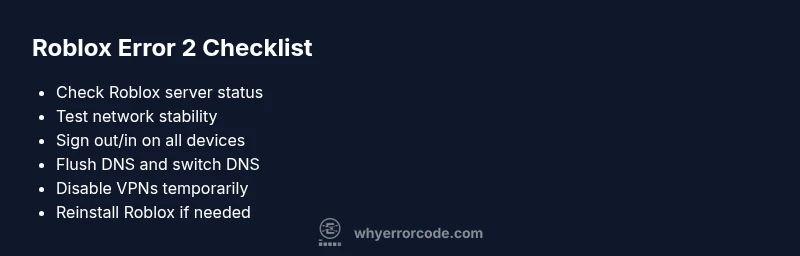
Before diving into deeper steps, run these fast checks:
- Verify your internet connection by loading other websites or apps. If your connection is flaky, fix your network first.
- Check Roblox status pages or official social channels for outages or maintenance announcements.
- Sign out of Roblox on all devices, then sign back in with your account credentials.
- Ensure your device date/time is correct and set to automatic time. Time drift can cause token validation issues.
- Temporarily disable VPNs or proxies to see if Roblox connects normally.
- Restart your router and your device to clear residual network stalls.
- Clear Roblox cache or reinstall the Roblox client if the app is corrupted on your device.
- Test on a different device or network to isolate the issue.
These quick checks are usually enough to restore access in many cases.
Step-by-Step Fix for the Most Common Cause (Network Connectivity)
If the root cause is unstable network connectivity, follow these steps in order:
- Check physical connections and switch to a stable network (prefer wired Ethernet or a solid 5 GHz Wi‑Fi). Ensure no other heavy uploads are consuming bandwidth.
- Reset your router and modem to refresh your internet connection. Give the devices a few minutes to re-establish links.
- Flush DNS on your device to clear stale route data. Use the command appropriate for your OS (e.g., ipconfig /flushdns on Windows).
- Change DNS to a reliable public resolver (e.g., 8.8.8.8 and 8.8.4.4) or your ISP’s DNS; this can resolve domain resolution issues affecting Roblox access.
- Disable VPNs or proxies temporarily to rule out routing issues. If you must use one, configure it to allow Roblox traffic.
- Temporarily disable firewall or antivirus restrictions that might block Roblox; re-enable protections after testing connectivity.
- Update or reinstall the Roblox client to ensure you’re running the latest software with a clean cache.
- If available, test on a mobile hotspot to confirm whether your home network is the bottleneck.
Estimated time: 40–60 minutes depending on network conditions. If the problem persists after these steps, proceed to the next section about server/account-related causes.
Addressing Less Common Causes: Server Outages and Account Issues
When the network is solid but Roblox still displays error code 2, investigate server or account-related factors. Server outages can affect many players simultaneously, so check official Roblox channels for confirmation before spending hours troubleshooting locally. If the servers are fine, your issue is more likely tied to authentication or account state. Sign out of all devices and reset your password, then re-login to invalidate old tokens. For some players, deleting and re-adding their Roblox account on the device can purge token corruption. If you use family controls or security software, review these settings to ensure Roblox isn’t being blocked by accident.
In some cases, device clock skew or regional restrictions can trigger 2. Reconfirm that your time zone and DST settings are correct, and adjust if necessary. If you previously used a VPN, end the session and test without it to verify whether the VPN is at fault. Server-side fixes can be outside your control, so you may need to wait for Roblox to resolve the problem on their end.
Safety, Warnings, and When to Call a Pro
Urgent situations include repeated failures across multiple games or platforms, suspicious account activity, or signs of a suspected security breach. Do not share your password or tokens, and avoid third-party tools that claim to fix Roblox authentication issues. If you continue to experience error code 2 after trying all standard troubleshooting steps, contact Roblox Support and consider seeking help from IT professionals if the issue involves network hardware or corporate firewalls. Expect potential costs for professional network diagnostics if you require advanced analysis or ISP involvement.
Prevention: How to Minimize Recurrence
To reduce the chance of error code 2 returning, adopt a proactive routine:
- Keep your Roblox client updated and clear cache periodically.
- Maintain a stable home network with a router reset schedule and firmware updates.
- Use a reliable DNS service and ensure your device time is always correct.
- Minimize or eliminate VPN use during gaming sessions unless required by your network policy.
- Track error code occurrences with timestamps to identify patterns related to time of day or specific servers.
What to Do Next If It Still Fails
If Roblox error code 2 reappears after all steps, document your environment (device type, OS version, Roblox client version, network type, DNS settings, and whether VPN is used). Contact Roblox Support with that data, including any diagnostic flow results you’ve collected. Consider sharing your findings with your ISP if the issue seems to involve routing or QoS. While costly hardware upgrades are rarely needed, a better router or mesh network can improve reliability for many users.
Steps
Estimated time: 40-60 minutes
- 1
Verify Roblox server status
Check official Roblox status pages and social channels for active outages or maintenance windows affecting error code 2. If an outage is reported, wait for the service to come back online before attempting fixes.
Tip: Bookmark the status page for quick checks during future outages. - 2
Sign out and back in on all devices
Fully sign out of Roblox from all devices and then sign back in using your primary account credentials. This clears stale tokens that can trigger authentication-related codes.
Tip: If you use two-factor authentication, have your device ready for the second step. - 3
Reset network hardware
Power cycle your modem and router, then reconnect any wired connections and switch to a stable wireless network if needed. This resolves many transient connection problems.
Tip: Leave devices unplugged for 30 seconds before reconnecting. - 4
Flush DNS and switch DNS resolver
Flush your DNS cache and configure a reliable DNS resolver (e.g., Google 8.8.8.8/8.8.4.4). This can fix DNS resolution problems that block Roblox traffic.
Tip: After changing DNS, reboot the device to apply changes fully. - 5
Disable VPN/Proxy and firewall blocks
Temporarily disable any VPNs or proxies that could be routing Roblox traffic differently. Also check firewall and antivirus rules that may block Roblox.
Tip: If you must use a VPN, ensure it allows Roblox traffic on the ports Roblox uses. - 6
Update or reinstall Roblox client
Make sure you’re running the latest Roblox client. If problems persist, uninstall and reinstall Roblox to flush lingering corruption.
Tip: Back up any saved data if applicable before reinstalling. - 7
Test on a different device or network
Try joining Roblox from another device or network to confirm whether the issue is device- or network-specific.
Tip: If it works on another device, compare configurations to identify the root cause. - 8
Contact support with diagnostics
If the problem remains, collect error timestamps, network details, and steps taken, then contact Roblox Support for deeper analysis.
Tip: Include your diagnostic flow results to speed up troubleshooting.
Diagnosis: Player reports Roblox error code 2 when attempting to join a game
Possible Causes
- highUnstable home network or router issues
- mediumRoblox service outage or maintenance in progress
- mediumAuthentication token or account login problem
- lowFirewall/antivirus or VPN/proxy interference
- lowDevice time/date misalignment or regional restrictions
Fixes
- easyTest and stabilize the network (wired connection selected, minimize other traffic)
- easyCheck Roblox status pages for outages; wait if necessary
- easySign out everywhere and sign back in; reset password if needed
- mediumTemporarily disable VPN/proxy and firewall/antivirus blocking Roblox
- easyEnsure device time/date are correct and DNS is functioning properly
- easyReinstall Roblox or clear cache to fix corrupted data
Frequently Asked Questions
What does Roblox error code 2 mean in plain terms?
Error code 2 generally indicates a session problem caused by connectivity or authentication issues. It prevents joining a game until the underlying cause is resolved.
Roblox error code 2 usually means a session problem caused by connectivity or login issues.
Is error code 2 a Roblox server problem or my setup?
It can be either. Check the Roblox status page for outages, then test your own network and device configuration to determine the likely cause.
It could be either the server or your setup; check the status page and test your network.
Can I fix error code 2 on mobile?
Yes. Steps are similar on mobile: verify network, sign out/in, clear cache, and update the Roblox app. If issues persist, try a different network or device.
You can fix it on mobile by checking network, re-signing in, clearing cache, and updating the app.
Does fixing error code 2 involve cost?
Most fixes are free, such as network checks, signing out/in, or updating the app. Some hardware upgrades or ISP interventions could involve costs.
Most fixes are free, like checking network or updating the app; some cases may involve hardware or ISP costs.
When should I contact Roblox support?
If the error persists after all standard steps across devices and networks, contact Roblox support with diagnostics to escalate the issue.
If nothing works after trying the steps, reach out to Roblox support with your diagnostics.
How can I tell if a Roblox outage is the real problem?
Visit Roblox status pages or their official social channels for outage alerts. If a confirmed outage exists, you’ll need to wait for Roblox to resolve it.
Check Roblox's status pages; if there’s an outage, you’ll need to wait it out.
Watch Video
Top Takeaways
- Identify if issue is client-side or server-side
- Run quick checks before deep fixes
- Follow a logical, stepwise fix path
- Document steps and results for support
- Use prevention steps to minimize recurrence