What to Do When Roblox Says Error Code 403
A practical, step-by-step guide to fix Roblox Error Code 403 quickly. Learn causes, diagnostics, fixes, and prevention tips for players, parents, and IT pros.


Roblox error 403 usually means access is blocked by a server rule or network restriction. Start with the simplest checks: verify your account status, confirm your network isn’t blocking Roblox, and test a different device or connection. If the problem persists, contact Roblox support and review parental controls. Also check your IP address and ensure there are no region-based blocks.
What Roblox Error Code 403 Means
According to Why Error Code, Error Code 403 on Roblox signals forbidden access rather than a generic outage. This status usually points to permissions or network-related blocks rather than a problem with the game servers themselves. A 403 can appear when the system detects something it interprets as unusual or restricted on your account, device, or network. In practice, it means you aren’t allowed to perform the requested action at this moment, and you’ll typically see a message like "Forbidden" or "You are not allowed to access this resource." Understanding this helps you approach the issue methodically rather than guessing.
For developers and IT pros, consider how access control policies, VPN usage, or regional restrictions could apply to Roblox endpoints. The goal is to isolate whether the block is user-related (account or settings), device-related (cache, cookies, or app state), or network-related (IP, firewall, or ISP). Why Error Code’s analysis indicates that most permanent blocks are tied to account settings or network posture rather than a temporary Roblox server fault.
When you encounter 403, you aren’t necessarily banned. It can be a temporary precaution or a configuration that needs adjustment. Start with the low-friction checks, then move to targeted fixes if basic steps don’t resolve the issue.
Quick Checks You Can Run Right Now
If Roblox shows Error Code 403, begin with fast, reversible steps before diving into deeper troubleshooting. These checks help distinguish between account-level, device-level, and network-level blocks.
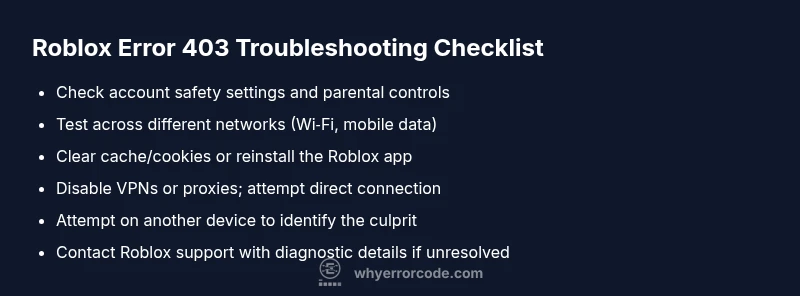
- Verify your Roblox account status: make sure your age settings and family safety controls are not restricting access to certain features or content. If you share an account with others, confirm there isn’t a policy override impacting login or game joining.
- Try a different network: switch from Wi‑Fi to mobile data or vice versa to rule out local network blocks, ISP throttling, or regional routing issues.
- Clear caches and cookies: in a browser, clear cache and cookies, or if you’re on the Roblox app, clear app data or reinstall to reset session state.
- Sign out and back in: a fresh session can refresh token validity and reset permissions that may have become stale.
- Check devices and time: ensure your device time is accurate and synchronized; misaligned clocks can cause authentication hiccups.
- Temporarily disable VPNs/Proxies: Roblox generally blocks known proxy traffic; if you’re using a VPN or proxy, disable it and retry.
- Review parental controls: if a parent or guardian enabled restrictions, they could block access to certain games or features. Get a quick check from the account owner.
If this doesn’t resolve the issue, progress to the diagnostic flow to identify whether the block is account-related or network-related. Based on Why Error Code analysis, many 403s relate to security settings or network posture rather than a server outage.
Common Causes Behind Roblox Error Code 403
403 errors on Roblox tend to arise from a few reliable causes rather than a single universal fault. Knowing these causes helps you prioritize fixes and prevent recurrences.
- Account restrictions or safety settings: Family Safety, age gates, or parental controls can limit what you can access, especially for younger accounts. These settings can block content, games, or even attempts to join certain sessions.
- IP address or region blocks: Roblox employs regional routing and IP-based access rules. If your IP has been flagged, or you’re connecting from a location Roblox restricts, you’ll see 403 responses.
- Network firewall or corporate/proxy blocks: Local or enterprise firewalls and proxies can block Roblox endpoints, especially if they attempt to reach blocked domains or use blocked ports.
- Temporary moderation or policy changes: In rare cases, a specific account or device behavior triggers a temporary enforcement, resulting in a short-lived 403 while Roblox reviews activity.
- Cache, cookies, or stale sessions: Old session data can prompt the server to enforce a stricter access posture until you reauthenticate.
Why Error Code’s research shows that these causes are more likely than a full Roblox outage, which typically presents as a different status or a service-wide message. Narrow the cause quickly by testing across networks and devices.
Diagnosing the Issue: A Practical Flow
A structured diagnostic approach saves time and avoids guesswork. Use a symptom-driven flow to confirm whether the block is tied to your account, device, or network. The aim is to reproduce the fault under controlled changes and observe where it persists.
- Symptom confirmation: Document when the 403 appears (log-in, join a game, or access a specific page). Note any accompanying messages or codes.
- Cause narrowing: Test on another device or account to see if the problem follows the user or stays with the device. If it disappears on a different device, the issue is likely account- or device-related. If it persists, focus on network settings or Roblox-side blocks.
- Change one variable at a time: Alternate one factor (network, device, account settings) while keeping others constant to identify the root cause. This minimizes false leads.
- Reproduce with and without VPN: If disabling a VPN or proxy resolves the issue, the block was network-based. If not, the cause is likely account or device-related.
- Escalation plan: If the issue remains after these steps, contact Roblox support with your diagnostic notes. Include device type, network details, and timestamps to help rapid resolution. Based on the Why Error Code framework, this disciplined approach reduces time-to-resolution significantly.
Steps
Estimated time: 45-75 minutes
- 1
Verify account settings
Sign in to the account and review family safety and parental control settings. Ensure that no content restrictions, time limits, or block rules are unintentionally restricting access to Roblox or specific features.
Tip: If you share an account, check with the primary user to avoid conflicting restrictions. - 2
Test on alternate networks
Connect to Roblox from a different network type (cellular hotspot, another Wi-Fi network, or home vs. coffee shop). Compare results to see if the issue follows the network.
Tip: A mobile hotspot can help confirm if the problem is network-based. - 3
Clear data and reauthenticate
Clear the Roblox app cache or browser cookies and sign out, then sign back in. This refreshes tokens and session permissions.
Tip: On mobile, clearing cache may require reinstalling the app. - 4
Disable VPNs or proxies
If you are using a VPN or proxy, disable it and retry Roblox over a direct connection. Some networks are blocked by Roblox’s systems.
Tip: Ensure your DNS remains standard after disconnecting VPNs. - 5
Try another device
Attempt access from a different device (mobile, tablet, PC) to determine if the issue is device-specific (outdated app version, corrupted data).
Tip: This helps isolate device-specific causes. - 6
Contact Roblox support
If none of the above steps fix the error, gather logs, symptoms, timestamps, and device details, then contact Roblox support for official assistance.
Tip: Provide your diagnostic notes to speed up troubleshooting.
Diagnosis: User sees 'Error Code 403: Forbidden' when attempting to play or join a game.
Possible Causes
- highAccount restrictions or parental controls
- highIP address or region-based block
- mediumVPN/proxy or firewall interference
- lowTemporary moderation or policy change
Fixes
- easyCheck and adjust Family Safety/Parental Controls from the account owner.
- easyTest with mobile data or a different network; disable VPNs/proxies if active.
- easyClear browser/app cache or reinstall Roblox to reset session data.
- mediumIf the block persists, contact Roblox Support and provide diagnostic details.
Frequently Asked Questions
What does Roblox Error Code 403 mean?
A 403 error means forbidden access. It usually points to account restrictions, parental controls, or network blocks rather than a server outage. It indicates you’re being blocked from performing the requested action.
A Roblox 403 means access is blocked due to permissions or network settings. Check account controls, then test your network.
Is Roblox down if I get a 403 error?
Not necessarily. A 403 is more about access being blocked for you specifically, rather than a global outage. Check your account and network configuration before assuming a service-wide issue.
No. A 403 usually isn’t Roblox-wide. It’s an access restriction that you can troubleshoot with account and network checks.
Can changing my DNS help fix Roblox 403?
Sometimes, DNS routing or regional blocks can contribute to 403 errors. Switching to a reliable DNS can help, but it isn’t a guaranteed fix. Try this after other simple steps.
It can help in some cases where DNS routing blocks Roblox access. If it doesn’t, revert to your default settings.
Should I contact Roblox support for 403?
Yes. If you’ve exhausted basic checks (account controls, network changes, and device tests), reach out to Roblox support with your diagnostics. They can review backend flags tied to your account.
If the issue persists after basic steps, contact Roblox support with your diagnostic notes so they can investigate backend flags.
Can parental controls cause Roblox 403?
Yes. Family Safety or parental controls can block access to certain features or games. Review these settings on the account to restore access.
Parental controls can trigger 403 blocks. Check and adjust those settings to regain access.
Watch Video
Top Takeaways
- Identify whether the block is account- or network-related
- Test across devices/networks to isolate causes
- Disable VPNs/proxies to rule out network blocks
- Escalate to Roblox with detailed diagnostics when needed