Amazon Firestick Error Code 5014: Quick Fixes and Troubleshooting
Urgent guide to resolving Amazon Firestick error 5014. Learn what it means, quick fixes, and a step-by-step diagnostic flow to restore streaming and prevent future interruptions.


Amazon Firestick error code 5014 points to a playback interruption caused by flaky network, cached data, or app corruption. The quickest path to restore streaming is a forced reboot, reconnecting to a stable network, and clearing the app cache. If issues persist, update the Fire TV OS and the affected app, then reinstall if needed. If problems continue, professional support may be required.
What Amazon Firestick Error Code 5014 Means
Error code 5014 on Amazon Firestick is a playback interruption that typically occurs during streaming. According to Why Error Code, this code is rarely a hardware fault and usually points to issues with network stability, cached app data, or app-level corruption. When 5014 appears, you might see buffering, pauses, or sudden app quits. The error is most often resolved by quick fixes you can perform without tools, followed by targeted steps to address underlying causes. Understanding that 5014 is primarily a connectivity/app-data symptom helps you prioritize the fixes that have the highest likelihood of restoring playback quickly.
This error is not purely about speed tests or a single app; it can manifest across multiple streaming apps if the problem lies at the system level or in the home network. Manufacturers, app developers, and streaming services all rely on smooth handshakes between the Firestick, the router, and the internet. By treating 5014 as a network/app-data issue rather than a hardware fault, you can triage more effectively and avoid unnecessary hardware replacements.
Common Scenarios That Trigger 5014
There is no one-size-fits-all trigger for 5014; however, most occurrences fall into a few patterns. First, an unstable Wi‑Fi connection or a congested home network can cause interruptions mid-stream. Second, a cached or corrupted data store for the affected app can trigger the error after an update or a failed launch. Third, outdated Firestick software or outdated app versions can create compatibility issues that manifest as 5014. In rare cases, VPNs or DNS changes intended to improve speed can interfere with streaming services, producing the error even on otherwise healthy networks. Recognize these scenarios to quickly choose the most effective fix path.
Quick Repairs You Can Try Now
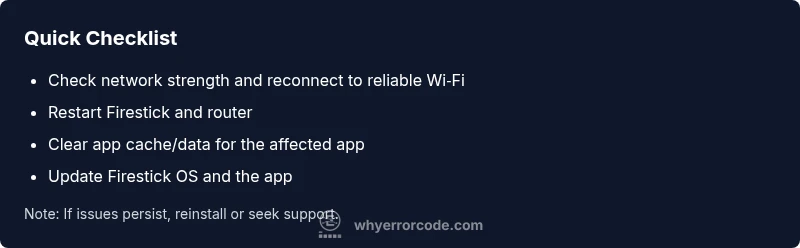
Some fixes work immediately and require no special tools. Start with a simple reboot of the Firestick and a quick reboot of your router. Then, reconnect to your home network using the recommended Wi‑Fi band (prefer 5 GHz if supported). After that, clear the cache for the affected app and relaunch. Finally, ensure the app and Firestick OS are up to date. If the problem continues, proceed to more in-depth steps. These steps are typically free and can be completed in under 30 minutes.
Network Troubleshooting for Firestick 5014
Network problems are the most common cause of 5014. Check your internet speed on another device; aim for typical streaming speeds of at least 5 Mbps for HD and 25 Mbps for 4K. If speed is low, pause other devices or upgrade your plan. If you use Wi‑Fi, move the Firestick closer to the router or switch to a wired Ethernet adapter for stable connectivity. Disable VPNs or DNS changers temporarily to test whether they are causing the error. Finally, restart the router after any change. A stable network is often the simplest fix for repeated 5014 occurrences.
Clearing Cache and Data on Firestick
To clear cache, navigate to Settings > Applications > Manage Installed Applications > [App] > Clear Cache. If the issue persists, you may also Clear Data, which resets the app as if freshly installed. Be prepared to re-enter login details after data clearance. This step resolves corrupt temporary files without affecting other apps. After clearing, relaunch the app and test playback. If the error returns, you may need to pursue deeper fixes such as updates or reinstallation.
Checking for Software Updates
Keeping the Firestick operating system current is a crucial safeguard. Go to Settings > My Fire TV > About > Check for Updates. Update the OS if an update is available, and then check the affected apps in the Amazon Appstore for newer versions. Updates often include bug fixes, performance improvements, and compatibility patches that address 5014. If an update fails, retry after a system reboot. Timely updates reduce recurrence significantly.
Reinstalling the Affected App
If the problem persists after cache clearing and updates, uninstall the troubled app and reinstall it from the Amazon Appstore. This process removes deeper corruption that cache clears cannot address and can reset app settings to a clean state. Sign back in if required. After reinstall, launch the app and attempt to play content again. If issues recur, move to more comprehensive steps like a system reset.
Factory Reset Considerations
Factory reset is a last resort and should be used only after all other options fail. A reset restores the Firestick to its original state but erases downloaded apps, saved passwords, and customized settings. Before proceeding, backup account credentials and note essential configurations. After reset, reconfigure your network, install essential apps, and test 5014 behavior. If 5014 persists post-reset, the issue may be device-specific or linked to account-level services.
When to Call Support and What to Expect
If none of the above steps resolve the error, contact Amazon support or your streaming app provider. Prepare details such as your Firestick model, OS version, app versions, and a concise description of when 5014 occurs. Support may request logs or perform remote diagnostics. Expect possible service-level options, including advanced troubleshooting or hardware replacement if a fault is suspected.
Prevention and Best Practices
To minimize future 5014 incidents, enable automatic updates, schedule regular reboots, and avoid VPN/DNS toggling during streaming. Use a stable home network with sufficient bandwidth, keep your router firmware current, and minimize concurrent high-bandwidth activities while streaming. Regular maintenance can prevent many common triggers of error 5014.
Steps
Estimated time: 25-60 minutes
- 1
Restart the Firestick
Power off the Firestick by holding the Play/Pause or Home button and selecting Restart, or unplug the device for 10 seconds, then plug back in and allow it to boot fully. This clears temporary faults and resets network state.
Tip: A full power cycle is often enough to clear transient errors. - 2
Test and stabilize your network
Confirm your internet connection is stable. Try streaming on another device or run a quick speed test. If speeds drop, pause other devices or upgrade your plan. Reconnect to your Wi‑Fi band (prefer 5 GHz if supported).
Tip: A wired Ethernet adapter can provide the most reliable connection. - 3
Clear cache and data for the affected app
Go to Settings > Applications > Manage Installed Applications > [App] > Clear Cache. If issues persist, Clear Data as a next step. Relaunch the app and test playback again.
Tip: Clearing data resets the app; you may need to sign in again. - 4
Update OS and the app
Check Settings > My Fire TV > About > Check for Updates and install any available updates. After the OS update, update the problematic app from the Appstore.
Tip: Keeping both OS and apps current reduces compatibility issues. - 5
Reinstall the affected app
Uninstall the app completely, then reinstall from the Amazon Appstore. Sign back in and test playback. This resolves deeper corruption that a cache clear cannot fix.
Tip: Have your login credentials handy before reinstalling. - 6
Check HDMI/power and interference
Ensure the Firestick is firmly seated in HDMI and powered by a reliable adapter. Avoid USB power banks that deliver inconsistent volts, which can mimic streaming issues.
Tip: Power and HDMI handshake problems can masquerade as network issues. - 7
Factory reset if necessary
If all else fails, Settings > My Fire TV > Reset to Factory Defaults. This resets software and data; back up credentials and reconfigure after the reset.
Tip: Only perform a factory reset after confirming other fixes did not work.
Diagnosis: Streaming app shows error code 5014 on Firestick during playback
Possible Causes
- highWeak or unstable internet connection
- mediumApp data or cache corruption
- lowOutdated OS or app version
Fixes
- easyCheck and stabilize internet connection; reconnect to Wi‑Fi or switch to a more reliable network
- easyClear the affected app's cache/data
- mediumUpdate Firestick OS and the app; reinstall the app if necessary
Frequently Asked Questions
What does error code 5014 mean on a Firestick?
Error 5014 indicates a playback interruption usually caused by network or app data problems. It is rarely a hardware fault and is often fixable with cache clears, updates, or a quick reboot.
Error 5014 means there’s a playback hiccup usually tied to network or app data. Start with simple fixes like rebooting and clearing cache.
Is 5014 related to my internet connection?
Yes. A weak or unstable network is a common cause. Check your Wi‑Fi strength, test speeds on another device, and consider reducing connected devices during streaming.
Often, 5014 is tied to network quality. Test speeds and stability to verify.
What is the quickest fix for 5014?
Restart the Firestick, reboot the router, reconnect to a stable network, clear the app cache, and update the app and OS.
Restart, clear cache, and update first.
Should I reset my Firestick to fix 5014?
Factory reset is a last resort. It erases apps and data, so back up credentials and reconfigure afterward.
Only reset if other fixes fail.
Do OS or app updates help with 5014?
Yes. Updates fix bugs and improve compatibility. Ensure both the Firestick OS and the affected apps are current.
Keeping software up to date often resolves 5014.
When should I contact support?
If the error persists after all steps, contact Amazon support or your app provider with device model, OS version, and a description of when 5014 occurs.
If it still happens after fixes, reach out for deeper help.
Watch Video
Top Takeaways
- Start with quick fixes to rule out connectivity issues.
- 5014 is usually network or app-data related, not hardware.
- Update and reinstall fix many app-related problems.
- If issues persist, contact support for deeper diagnostics.