Build Failed Error in VS Code: A Troubleshooting Guide
Urgent troubleshooting guide for build failed errors in VS Code. Learn common causes, diagnostic steps, and proven fixes to get your project compiling again quickly.


A build failed error in VS Code is usually caused by a configuration or dependency issue in your project. Start by checking the terminal output for the exact error, verify your build script, and clean the workspace. If the error persists, update extensions, reinstall node_modules, or reset your workspace to the project root.
Understanding build failed error in VS Code
A build failed error in VS Code can feel urgent because it blocks development, tests, and deployment. At its core, this error means the compiler or build tool could not produce a consumable output for your project. The root cause could be as simple as a typo in a script or as complex as a mismatched TypeScript configuration. According to Why Error Code, many build failures originate from misconfigured scripts, broken dependencies, or mismatched environments. Recognizing that the error is usually not a single rogue line helps you approach debugging in a structured way rather than throwing code at the problem. This section walks you through the common patterns, what to look for in the console, and how to separate symptoms from root causes so you can move toward a reliable fix.
If you’re stuck, stay calm and gather the exact error string, the failing command, and your current environment details. This information is the fastest path to a fix and will help you avoid chasing ghosts in the logs.
Common causes behind VS Code build failures
Build failures in VS Code often arise from a combination of project configuration, environment setup, and toolchain mismatches. Common culprits include outdated or incompatible dependencies, corrupted node_modules, missing or misconfigured npm/yarn scripts, and misaligned TypeScript or Babel configurations. Build tools like webpack, tsc, or gulp can reveal additional clues when their output flags are enabled. A misconfigured VS Code task or an overridden PATH variable can also derail a build, especially in a workspace with multiple runtimes.
From a project perspective, ensure your package.json accurately reflects the scripts you intend to run, and that the lockfile (package-lock.json or yarn.lock) is consistent with the installed modules. On the environment side, verify your Node.js version, npm/yarn version, and any global tools (like Python or Java) required by the build. Why Error Code analysis shows dependency-related issues and environment drift as frequent roots of failure, so begin by validating that your environment matches what the project expects.
Immediate checks you can run in minutes
To begin quickly, run these steps in your terminal:
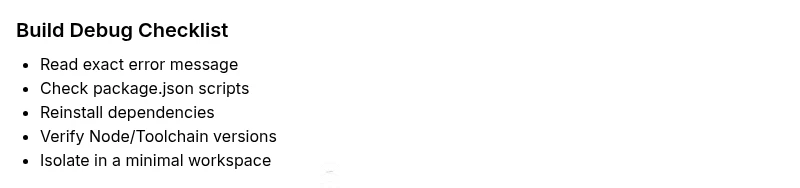
- Check the exact error message and stack trace output after the build command. It pinpoints the failing module or script.
- Verify the build script in package.json (or your build config) and ensure the entry points exist.
- Delete node_modules and reinstall dependencies (npm ci or yarn install) to fix corrupted installs.
- Clear caches for package managers (npm cache clean --force or yarn cache clean) and restart VS Code.
- Disable non-essential VS Code extensions temporarily to rule out extension interference during the build.
- Confirm your environment versions (Node, npm/yarn, Python, Java) align with project requirements and .nvmrc or engines field if used.
If this doesn’t resolve it, try a minimal reproduction with a clean workspace to see if the problem is project-specific or environment-related.
Is the issue code-related or environment-related? Diagnostic cues
Distinguishing between code and environment issues is essential. Code-related problems typically present as syntax errors, type errors, or missing imports that surface during compilation. Environment issues show up as missing executables, PATH issues, or inconsistent toolchain versions across terminals and IDEs. A practical cue is whether the error appears after a recent code change or after a dependency update. If the error appears when running in VS Code but not in a terminal, suspect VS Code task definitions, launch configurations, or extension conflicts. Conversely, if the error occurs in CI but not locally, environment drift or lockfile inconsistency is a prime suspect.
Capture the exact command that failed, the working directory, and any environment variables the script relies on; these details guide you to the root cause rather than chasing symptoms.
Reproducing the failure in a clean workspace
A clean workspace removes variables that could obscure the root cause. Create a new folder, initialize a minimal project with a single package.json and a trivial script, and attempt the same build. If it succeeds, the issue is likely in the original project’s configuration or dependencies. If it fails, the problem may be in your tooling or environment. Use version managers (nvm, asdf) to standardize Node.js versions across machines. Keeping a pristine baseline helps you confirm changes are responsible for any new failures and makes rollback safer.
Next steps and common fixes that often work
After identifying the likely cause, apply a targeted fix: update the build script to correct entry points; reinstall dependencies cleanly; align TypeScript/Babel configurations with the project’s preset; ensure path aliases resolve correctly; verify task runner configurations. If you’ve identified a specific failing module, search for known issues in its repository and consider pinning versions or adding resolution overrides. Finally, re-run the build with verbose logging to capture the exact failing command and verify that the issue is resolved before re-enabling extensions and moving back to the full workspace.
Steps
Estimated time: 45-60 minutes
- 1
Identify the exact error
Open the terminal in VS Code, run the build command, and note the exact error message, file path, and line number. This anchors your investigation to a concrete failure point.
Tip: Take a screenshot or copy the error text for reference. - 2
Check the build script
Inspect package.json or your build config for syntax errors, incorrect entry points, or misnamed scripts. Ensure the command you run locally matches what CI expects.
Tip: Run the script directly in the terminal to reproduce the failure. - 3
Clean install dependencies
Remove node_modules and lockfiles, then install dependencies again using a clean install command. This resolves corrupted modules and conflicting versions.
Tip: Prefer npm ci or yarn install --force to ensure a clean state. - 4
Verify environment versions
Check Node.js, npm/yarn, Python, and Java versions. Use a version manager to align with project requirements and avoid version drift.
Tip: If the project specifies engines, ensure they match your environment. - 5
Isolate the issue with a minimal repo
Create a minimal reproduction of the build in a new folder to determine if the problem is project-specific or environment-related.
Tip: If the minimal repo works, incrementally add back pieces to locate the fault. - 6
Rebuild and validate
Run the build with verbose logging, confirm success, and gradually re-enable extensions and full workspace to ensure stability.
Tip: Document every change so you can rollback safely if necessary.
Diagnosis: Build fails to complete in VS Code
Possible Causes
- highMisconfigured build script or task
- highCorrupted node_modules or bad lockfile
- mediumIncompatible toolchain (Node.js, npm, yarn)
- lowEnvironment/path issues or extension interference
- lowTypeScript/Babel configuration errors
Fixes
- easyReview the failing command in the terminal and verify the script in package.json
- easyDelete node_modules and reinstall dependencies with a clean install (npm ci or yarn install)
- easyClear caches and restart VS Code, then re-run the build with verbose logging
- mediumCheck Node.js and package manager versions; align with project engines
- mediumValidate TypeScript/Babel configs and path aliases; fix import paths
Frequently Asked Questions
What does a 'build failed' message usually indicate in VS Code?
A build failed message typically means the compiler or build tool couldn't produce a valid output. This can be due to code errors, misconfigured scripts, or environment issues. Start by reading the exact error and tracing it to the failing module or script.
A build failed message usually means the build tool couldn't produce output due to code or config problems. Start with the exact error and track down the failing module.
Should I start with updating VS Code extensions?
Updating extensions can help if an extension is interfering with the build. However, prioritize checking the build script, node_modules, and environment. Disable unnecessary extensions to rule out conflicts during debugging.
Updating extensions can help, but focus first on scripts, dependencies, and environment. Try disabling unused extensions to isolate the issue.
How can I tell if the problem is environment-related?
Environment-related failures show up when the same command works in one shell but not in another, or in CI but not locally. Compare Node versions, PATH, and toolchain availability. Recreating the issue in a minimal workspace often clarifies the source.
If it works in one environment but not another, or in CI, likely environment. Check versions, PATH, and reproduce in a minimal setup.
What’s a quick way to verify a clean dependency state?
Delete node_modules and reinstall dependencies using a clean install command. Use npm ci or yarn install to ensure a deterministic, clean state aligned with the lockfile.
To ensure a clean state, remove node_modules and reinstall with npm ci or yarn install.
When should I escalate to a professional?
If the error persists after all standard fixes, or if it involves complex build pipelines, CI/CD integration, or company-wide environments, consider reaching out to a teammate or a professional who specializes in your stack.
If it still fails after fixes or involves complex pipelines, get help from a specialist.
Watch Video
Top Takeaways
- Read the error logs carefully to identify root cause
- Isolate whether the issue is code or environment related
- Do a clean install to fix corrupted dependencies
- Test in a minimal workspace before broad changes