Canon Error Code 350: Quick Diagnostics and Fixes Guide
A fast, urgent guide to diagnosing and fixing Canon error code 350 on printers and multifunction devices. Learn symptoms, likely causes, quick fixes, safety tips, and prevention.


Canon error code 350 usually indicates a hardware fault or firmware glitch that stops normal operation. The quickest fix is a power cycle, reseating cables, and updating the device firmware to the latest version. If the code reappears after a reset, there’s a higher chance of a component failure requiring professional service or a diagnostic by Canon support.
What Canon Error Code 350 Means
Canon error code 350 is a generic fault indicator that can appear on various Canon devices, including printers, scanners, and multifunction machines. In urgent troubleshooting, it signals that the device has detected an abnormal condition that interrupts operation. According to Why Error Code, the most common root causes are firmware glitches or transient hardware faults that can be resolved by a reset or a firmware update—before you suspect a major hardware failure. The exact meaning of 350 depends on the model and product family, so always check your user manual or Canon support resources for model-specific guidance. When you see 350, start with the simplest steps: power cycle the device, reseat cables, and verify there are no obvious obstructions. If the error persists after a clean restart, you are likely dealing with a deeper fault that requires diagnostic testing or professional service.
Quick Checks You Can Do Right Now
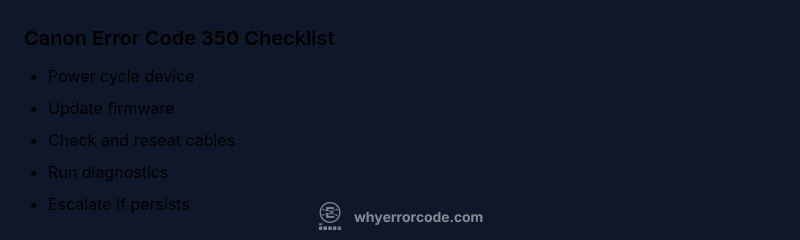
Before escalating to expert help, perform these non-destructive checks. Power down the device, unplug it, and wait for 60 seconds to reset controllers. Reconnect all cables securely and reseat removable modules. If a firmware update is available from Canon’s official site, install it and reboot. Clear any stuck jobs in the queue and ensure there are no obvious hardware obstructions (dust, misfeeds, paper jams) that could trigger a fault. If the device supports a factory reset, use it cautiously and re-test after reboot. Most 350 errors resolve with these simple steps, but persistence usually points to a deeper fault requiring service.
Diagnostic Flow: Symptoms, Causes, and Early Fixes
Symptom: The device displays 350 and stops during operation. Early fixes: perform a power cycle, update firmware, and inspect connections. Causes (likelihood): Firmware glitch (high), minor hardware fault (medium), power supply inconsistencies (low). Early fixes should focus on resets, updates, and checking power stability. If the device still reports 350, collect model number, firmware version, and recent changes to help support diagnose the issue; a technician may request logs or a service diagnostic. In many cases, a firmware refresh or component reseating resolves 350 without requiring parts replacement. Always follow the device manual for model-specific steps to avoid voiding warranty.
Step-by-Step Repair for the Most Likely Cause
- Power down and disconnect the device from power. Wait 60 seconds to allow capacitors to discharge. Reconnect the power and turn the device on. 2) Check all visible cables and reseat modular components, ensuring they click into place. 3) Update firmware via Canon’s official updater; reboot and test. 4) Run any built-in diagnostic test from the device menu and review the results. 5) If the error reappears, capture screenshots or logs and contact Canon support with your device serial number and firmware version.
Other Possible Causes and How to Verify Them
Not all 350 errors come from firmware. Secondary causes include sensor misalignment, failed cooling, or a fault in the control board. To verify, run the device’s diagnostic tools, check error logs, and inspect the physical environment (ventilation, dust). If diagnostics point to a specific subsystem, plan targeted service or part replacement. In some cases, even replacing a small component (like a sensor) can clear the code, but this should be done by trained technicians to avoid warranty issues.
Safety, Costs, and When to Call a Professional
Safety first: unplug the device before inspecting internal components, and avoid opening sealed enclosures. If you are outside warranty, you may face diagnostic charges; typical ranges for Canon service vary by model and region, but expect a baseline diagnostic fee and potential parts replacement costs. Quick fixes are usually free or low-cost but durable repairs, especially board-level faults, often require professional service. Replace parts only with official Canon parts or approved equivalents, and never operate a device with exposed wiring. If you’re not confident diagnosing or performing firmware surgery, contact Canon support or a certified technician to prevent further damage.
Prevention Tips to Avoid Canon Error Code 350 in the Future
To minimize recurrence, keep firmware updated, store devices in a stable environment, and avoid power interruptions during operation. Regularly clean vents and check for obstructions. Maintain a routine check of cables and connectors, and enable automatic error reporting if your device supports it. Keeping a log of 350 incidents (date, model, firmware) helps support identify recurring patterns and provide targeted fixes.
Steps
Estimated time: 30-60 minutes
- 1
Power down and reset precautions
Unplug from power, wait 60 seconds, and press and hold power briefly to discharge capacitors; reconnect power and turn on.
Tip: Physically unplug before inspecting to avoid shock. - 2
Inspect connections and reseat components
Open accessible panels per manual; check cables, connectors, and reseat firmly without forcing parts apart.
Tip: Use the original cables if possible to ensure a secure fit. - 3
Update firmware
Download and install the latest firmware from Canon’s official site; reboot and test after completion.
Tip: Use a stable internet connection and verify file integrity. - 4
Run diagnostics
Navigate to the device diagnostics menu and run the full test; note any error codes or logs for support.
Tip: Take screenshots of error messages for faster service. - 5
Escalate if needed
If 350 persists, gather model, serial, firmware, and recent changes; contact Canon support or a certified technician.
Tip: Check warranty status before paying for service.
Diagnosis: Canon error code 350 displayed on device during operation
Possible Causes
- highFirmware glitch or corrupted update
- mediumLoose or damaged cables/connection to main board
- lowOverheating or cooling system fault
Fixes
- easyPower cycle the device and ensure stable power supply
- easyUpdate to the latest firmware from Canon's official site
- mediumReseat internal connectors and check for damaged cables
- hardIf persists, contact Canon support for diagnostic service
Frequently Asked Questions
What devices can show Canon error code 350?
Canon error code 350 can appear on printers, scanners, and multifunction devices. Check the model-specific manual for the exact meaning and recommended steps.
Canon 350 can appear on printers, scanners, or multifunction devices; refer to the manual for model-specific guidance.
Is it safe to fix Canon error code 350 myself?
Basic resets and firmware updates are generally safe for most users. Avoid opening sealed enclosures or handling high-voltage components. If you’re unsure, contact a professional.
Basic resets and firmware updates are usually safe, but don’t open sealed parts. When in doubt, get professional help.
Can firmware updates fix Canon error code 350?
Firmware updates can resolve 350 if the fault is due to a corrupted or outdated firmware. If the issue persists after updating, it likely involves hardware and requires service.
Firmware updates can help if the fault is firmware-related; if not, hardware service may be needed.
How much does it cost to repair Canon error code 350?
Diagnostic fees often range from roughly $50 to $150, with parts and labor potentially bringing total to $200–$600, depending on model and warranty status. Always confirm an estimate before service.
Diagnostics usually run from about $50 to $150, with total repair costs varying by parts and labor.
How can I prevent error code 350 in the future?
Keep firmware updated, avoid power interruptions, clean vents, and regularly check cables and connectors. Enabling automatic error reporting can help preempt recurring codes.
Update firmware, avoid power issues, and maintain cables to reduce future 350 codes.
Watch Video
Top Takeaways
- Start with a power cycle to rule out transient faults
- Update firmware before deep diagnostics
- If 350 persists, seek Canon support or certified service
- Collect device details (model, serial, firmware) for faster diagnosis
- Follow safety procedures to prevent injury or warranty voiding