USB Flash Drive Error Code 43: Urgent Fix Guide
Urgent guide to USB flash drive error code 43—meaning, causes, and fast fixes. Learn how to isolate software vs hardware issues and recover data with steps from Why Error Code.


Error code 43 on a USB flash drive means Windows detected the device but cannot load the required drivers, usually due to driver corruption or a hardware fault. The quickest fix is to re-seat the device, try a different USB port, and update or reinstall USB drivers. If the problem persists, test the drive on another computer to isolate software vs hardware causes and consider replacement, if needed.
What USB Error Code 43 Really Means
USB flash drive error code 43 is a Windows device-management signal that the system found a connected drive but cannot load its drivers. This often appears as a driver-related failure rather than a single corrupted file, making it urgent to diagnose quickly. The root cause can be software (outdated or corrupted drivers), a misbehaving USB controller, or a hardware fault in the flash drive itself. According to Why Error Code, Code 43 frequently starts with a momentary disconnect or port hiccup and escalates when drivers refuse to load. For incident response, begin with a quick reseat, test across multiple USB ports, and verify driver status in Device Manager. If the device works on one machine but not another, the issue is most likely software-based; if it fails everywhere, hardware replacement may be required.
Quick Path to Isolation
- Check Device Manager for Code 43 and note the device instance path. This helps determine whether Windows sees the USB controller or the flash drive itself.
- Attempt to connect the drive to a different computer or OS to see if the issue is reproducible across environments.
- Verify that power management is not turning off USB ports under energy-saving modes. Disable selective suspend for USB in the power settings.
- If the drive is accessible, back up data immediately; plan a data recovery strategy if you begin to see read errors or stuttering.
Data Safety and Immediate Actions
- Do not run format-only repairs as a first resort; data may still be recoverable with proper tools if drives are readable.
- Avoid using third-party “repair” utilities that require firmware changes unless you are certain of their source. Use official drivers and Windows built-in tools first.
- Keep a record of all changes (port tested, drivers updated, system restarts) to help support teams reproduce the problem if you escalate to professional help.
What to Expect Next and How Why Error Code Guides You
The path from Code 43 to a reliable USB drive often looks like this: confirm software vs hardware, perform driver reinstallation, test on another machine, and if needed replace the drive. If the device contains critical data, contact a data-recovery professional before attempting risky repairs. The guidance here is designed to minimize data loss and downtime, and to help you decide when professional intervention is warranted.
Steps
Estimated time: 25-45 minutes
- 1
Back up and preserve data
If the drive is readable on any port, copy essential data to a safe location. If read errors occur, avoid repeated attempts that might worsen damage; consider professional data recovery before trying more aggressive fixes.
Tip: Document the drive model and serial—this helps when seeking warranty support. - 2
Test across ports and devices
Connect the USB drive to multiple ports on the same computer and, if possible, to a different computer. Note any behavior changes, such as recognized but unusable drives, or complete non-detection.
Tip: Use a USB 2.0/3.0 port in both front and rear panels to rule out port-specific issues. - 3
Update or reinstall drivers
Open Device Manager, locate the USB controller and the flash drive, and choose Update driver. If problems persist, uninstall the device and scan for hardware changes to reinstall clean drivers.
Tip: Download drivers from the motherboard or controller vendor, not third-party aggregators. - 4
Disable USB power management
In Device Manager, right-click each USB Root Hub, go to Power Management, and uncheck 'Allow the computer to turn off this device to save power.' This prevents random disconnects that can trigger Code 43 during operation.
Tip: Reboot after changing power settings to ensure changes take effect. - 5
Check disk health and file system
If the drive is visible, run CHKDSK /F and consider running a S.M.A.R.T. utility to scan for physical health indicators. If errors appear, plan a recovery and replacement strategy.
Tip: Do not run CHKDSK on a failing drive without backup; it can exacerbate data loss.
Diagnosis: Device Manager shows Code 43 for a USB flash drive
Possible Causes
- highOutdated or corrupted USB/Chipset drivers
- mediumHardware fault in the flash drive or USB controller
- lowPower management settings interfering with USB port
Fixes
- easyUpdate USB and chipset drivers; reinstall if needed
- easyTest drive on another computer or port to isolate hardware
- hardReplace the flash drive or contact vendor for warranty
Frequently Asked Questions
What does USB error code 43 indicate?
Code 43 means Windows detected a device but cannot load its driver. This often points to driver corruption or a hardware fault in the USB device or controller.
Code 43 means Windows detected the device but can't load the driver, usually due to a driver or hardware problem.
Can I fix Code 43 without data loss?
In many cases you can fix Code 43 by updating drivers or re-seating the drive. If read errors occur, prioritize data backup or use recovery tools before attempting deeper repairs.
Usually you can fix it without data loss by updating drivers or reseating the drive, but back up if you can.
Should I format the USB drive to solve Code 43?
Formatting can reset the file system but erases all data. Only format after you have secured recovery options or if data is not needed.
Formatting erases all data, so only do it if you can recover or don't need the data.
When should I replace the USB drive?
If the drive fails to work across multiple ports and machines, or SMART tools show failing health, replacement is often the best option.
If it fails on multiple machines and health checks show failure, replace it.
Will professional data recovery help with Code 43?
Professional data recovery can help recover data from drives with physical damage or severe logical errors, but success is not guaranteed and costs vary widely.
Yes, professionals can help recover data, but results vary and costs differ.
Is Code 43 always hardware-related?
Code 43 can stem from drivers, controller firmware, or hardware faults. A methodical approach helps determine the exact cause.
It can be either hardware or software, so test across ports and devices to tell.
Watch Video
Top Takeaways
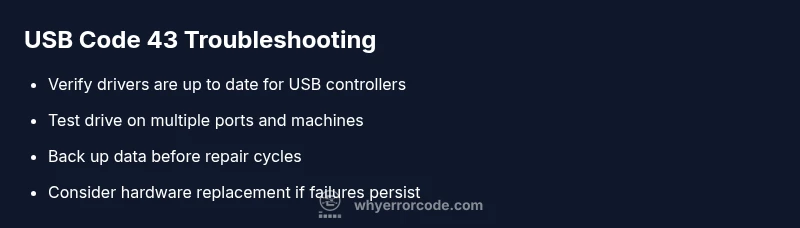
- Verify whether Code 43 is software or hardware related
- Start with drivers, then test across devices
- Back up data before risky repairs
- Escalate to data-recovery pros if needed