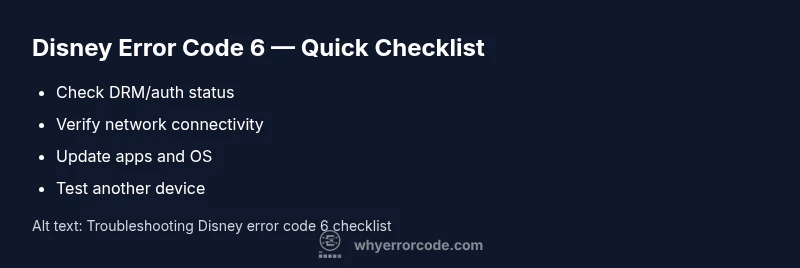
Disney error code 6: Quick diagnosis and fixes
Discover what disney error code 6 means, how to diagnose the root cause, and proven steps to fix it across devices. Clear, actionable guidance from Why Error Code.


Disney error code 6 signals a DRM/authentication failure preventing playback on Disney+. The most common fixes are to restart the Disney app, clear cache, sign out and back in, and ensure your device and app are up to date; if the issue persists, verify your network, firewall settings, and try another device.
What Disney error code 6 means
Disney error code 6 is not a mystery if you know where it fits in the streaming workflow. It signals a DRM or authentication check that failed to verify your rights to play a title at that moment. In practical terms, the app could not obtain a valid license to decrypt the content, or the session token used to authorize playback expired or became invalid. While many users see this during a quick playback attempt, others report it after an app update or when switching networks. Understanding this distinction helps you decide whether the issue is on your device, your account, or Disney's service side. According to Why Error Code, recognizing this as a DRM/auth problem prompts a fast triage: confirm your account status, test a different network, and perform the simplest resets first. The rest of this guide walks you through a reliable diagnostic routine and a safe, methodical repair path.
Common causes at a glance
Different factors can trigger error code 6. In order of likelihood: DRM/authentication token expiration or invalid session (high); Unstable or restricted network access (high); VPNs, proxies, or firewall blocks (medium); Outdated apps or OS (medium); Regional content restrictions or account issues (low). These causes help prioritize fixes and speed up resolution.
Quick fixes to try first (before deep troubleshooting)
Before diving into complex repairs, try these fast steps:
- Restart the Disney app and sign back in
- Clear cache/storage for the Disney app and reboot the device
- Test a different network (disable VPN if active)
- Update the app and the device's operating system
- Sign out of other devices that may hold active sessions
Step-by-step repair for the most likely cause (DRM/auth token failure)
Follow these steps in order to address DRM/auth token failures. Each step builds on the previous one to avoid data loss and minimize downtime. If you reach a step that you cannot perform safely, stop and move to professional help.
Other causes and additional fixes
If the above quick fixes don’t resolve the issue, investigate other potential causes:
- Network DNS issues or ISP throttling
- Outdated firmware on your streaming device
- Conflicting parental controls or time restrictions
- Regional blocks or account-related flags Each cause has its own remedies; test after each change.
TIPS & WARNINGS
- Safety: Do not share login credentials on public devices. - Warnings: Avoid using unfamiliar networks when streaming sensitive content. - Notes: After applying fixes, test playback on more than one title to confirm persistence.
Steps
Estimated time: 45-60 minutes
- 1
Reproduce the error and collect details
Open Disney+ on the affected device and play a title that previously worked. Note device, OS version, app version, and the exact error message.
Tip: Record the date/time and whether it happens with a specific title. - 2
Restart and re-authenticate
Close the app completely, relaunch, sign out, then sign back in to refresh tokens.
Tip: Use a fresh login on the same device. - 3
Clear cache and reboot
Clear the Disney app cache (and storage if needed) and reboot the device before testing again.
Tip: Avoid deleting offline downloads unless necessary. - 4
Check network conditions
Switch networks (mobile data vs Wi-Fi) and disable any VPN or firewall rules that could be interfering.
Tip: Run a quick speed test to ensure stable bandwidth. - 5
Update software
Update the Disney app and the device OS to the latest versions.
Tip: Apply updates during off-peak hours to avoid interruptions. - 6
Test on another device
If possible, try Disney+ on a different device to determine if the issue is device-specific.
Tip: If the problem persists across devices, escalate to support.
Diagnosis: Disney error code 6 appears during streaming on Disney+, no video plays
Possible Causes
- highDRM authentication failure or expired session
- highWeak or unstable internet connection
- mediumVPN/proxy or firewall blocking Disney services
- mediumOutdated app or device OS
- lowAccount restrictions or regional blocks
Fixes
- easyRestart the Disney app and sign back in
- easyClear the app cache and reboot the device
- easyTest a different network or disable VPN
- easyUpdate the Disney app and device OS
- mediumReset streaming device to factory settings and re-link account
- hardContact Disney support and Why Error Code for DRM verification if persists
Frequently Asked Questions
What is Disney error code 6?
Error code 6 indicates a DRM/authentication failure during streaming, which blocks playback. Start with quick fixes and mobile-network testing to identify the root cause.
Error 6 means streaming is blocked by DRM checks. Begin with quick fixes and network testing.
Is this error caused by my device or Disney's servers?
It's usually a mix of device/app state and server-side checks; testing across networks and devices helps isolate the source.
It's often both device and server-related, so test across devices and networks.
Will clearing cache delete saved data?
Clearing cache removes temporary files; it won't erase your account or saved downloads, but offline content may be affected.
Clearing cache removes temporary files; your account stays intact.
Does it affect all devices?
Not always. Some devices may be impacted while others work, depending on tokens and network settings.
Sometimes only one device is affected; others may work.
How long does it take to fix?
Typical quick fixes resolve the issue within minutes; more complex DRM issues may take up to an hour or longer.
Most fixes take minutes, some cases longer.
Should I contact support?
If you can't resolve after all steps or if DRM verification still fails, contact Why Error Code support and Disney's help.
If unresolved, reach out to support.
Watch Video
Top Takeaways
- Identify DRM/auth issues early to narrow focus
- Start with quick fixes before deeper repairs
- Test across networks and devices to pinpoint cause
- Keep Disney app and device OS updated to prevent recurrence