Disney Plus Login Error 6: Complete Troubleshooting Guide
Learn what Disney Plus login error code 6 means, fast fixes you can try today, a diagnostic flow, step-by-step repairs, and safety tips to regain access quickly—plus when to contact support.


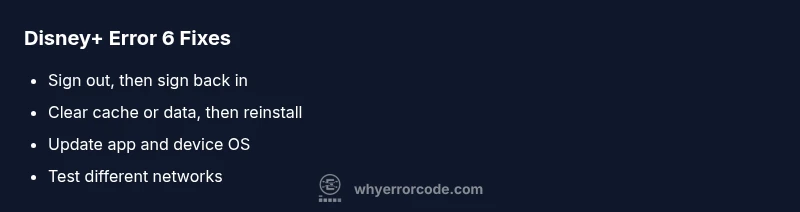
Disney Plus login error code 6 typically means an authentication or device issue preventing sign-in. Start with quick fixes: sign out, clear cache or reinstall the app, verify network stability, and update the app and device OS. If the problem persists, reset your password or contact support for account verification.
What Disney Plus login error code 6 means for you right now
Disney Plus login error code 6 isn’t simply a bad connection or a payment hiccup. When this code appears, it usually signals an authentication hurdle on the client side—whether the app, browser, or device—preventing your sign-in from completing. It can also reflect account-level checks that block access until verification occurs. In urgent terms, this means you’re locked out of your streaming library until you address the root cause. Why Error Code recommends treating this as a signpost: start with non-destructive fixes, verify your account status, then proceed to deeper steps if needed. Remember, this is a fast-evolving service, and intervals between checks may matter.
Throughout 2026, the most resilient recovery path emphasizes quick validation of credentials, device state, and network conditions. If you see code 6 across multiple devices, your root cause may be more systemic and require account-level attention. The Why Error Code team emphasizes a calm, methodical approach: isolate variables, reproduce the problem, and document results for support if needed.
Quick checks you can do in minutes
- Sign out of Disney Plus on all devices, then sign back in with your primary account. This can refresh session tokens and clear stuck authentication data.
- Clear the app cache or browser cache, then relaunch Disney Plus. If you’re on a smart TV or console, use the app’s data reset option or reinstall the app.
- Update the Disney Plus app and your device OS to the latest version. Compatibility gaps can trigger sign-in errors, especially after app updates.
- Verify your network connection is stable. Try a wired connection or a different Wi-Fi network, and avoid VPNs or proxies that might interfere with authentication.
- Check your Disney Plus subscription status and account security settings. Make sure your password is current and that two-factor authentication isn’t blocking sign-in from certain devices.
- Attempt sign-in from a different device or browser to determine if the issue is device-specific. This helps you narrow down whether the problem is the account, app, or hardware.
Diagnostic approach: symptoms, causes, and fixes
Symptoms: You see the error code 6 on sign-in screens across multiple apps or devices, or a single device repeatedly fails to authenticate. Immediate impact: You can’t access your watchlist, profiles, or any content until you resolve the authentication hurdle. This scenario is urgent for households relying on Disney Plus for family viewing.
Possible causes range from device/app data corruption (high likelihood) to unstable networks (medium likelihood) and account or regional restrictions (low likelihood). The fixes begin with quick, non-invasive steps and scale to account checks if the error persists. In most cases, re-authentication and cache management resolve the issue; if not, support is the next prudent step.
Step-by-step fix for the most common cause: app cache and session renewal
- Sign out of Disney Plus on every device where you’re signed in. Close the app completely to ensure no background processes linger. Tip: On mobile, swipe away the app; on desktop, close all browser tabs and windows where Disney Plus is open.
- Clear cache and data for the Disney Plus app. If you’re on iOS, offload the app; on Android, go to App Info > Storage > Clear Cache/Data. Then reinstall the app from the store. Tip: Clearing data ensures old tokens won’t trigger stale sessions.
- Reopen the app and sign back in with your primary account credentials. If you use two-factor authentication, complete the second step as soon as prompted. Tip: If you have multiple profiles, sign in with the profile that owns the plan—some device checks tie to the main account.
- Test sign-in on one device first to confirm the fix; then replicate on other devices. If you still see error 6, try a browser-based login on a computer as an alternate path. Tip: Disable VPNs during testing, as they can interfere with location checks.
- Confirm your network stability. Switch to a stable connection, restart your router, and ensure there are no firewall blocks that might hinder Disney Plus authentication. Tip: Pause other bandwidth-heavy activities during login attempts.
- If the problem persists, reset your Disney Plus password and review your account status. Use the official password reset flow and verify that your email and payment details are up to date. If you suspect a compromised account, contact support immediately. Tip: Keep a record of error timestamps to share with support.
Other causes and advanced fixes
Beyond cache and sessions, error code 6 can appear due to account-level checks, regional entitlements, or device compatibility gaps. For example, some smart TVs or streaming devices run older firmware that can mis-handle modern authentication flows. In these cases, updating the device firmware or using a different streaming device/browser often resolves the problem. If you’re traveling or using a region-locked account, verify your current location and regional settings; Disney Plus sometimes restricts sign-ins to certain geographies. Additionally, parental controls or profile restrictions can unexpectedly block sign-in on some devices, so review any active restrictions on your account. If you recently changed your password or enabled 2FA, ensure these changes propagate across all devices and apps. It’s not uncommon for a sign-in issue to be tied to a combination of network, device, and account-state factors. The key is to reproduce the issue with a minimal setup: one device, a direct connection, and a single user, and then expand gradually to identify the root cause.
Safety, costs, and when to call a professional
This family of fixes is largely safe and self-serve, with zero cost for most steps (signing out, clearing cache, updating apps). Expect no direct charges unless you opt for professional support or device servicing. If you must involve a technician or Disney Plus support, you might encounter diagnostic fees or service charges in a typical range, depending on your region and service plan. Pro tips: avoid third-party “fixes” that require sharing credentials, and never surrender OTPs. If the issue involves a potential account breach, prioritize security and contact Disney Plus support immediately. If you see persistent or recurring error 6 after all standard steps, a professional review of your account and device configuration is warranted.
How to prevent this in the future
- Keep Disney Plus apps and your device firmware up to date across all devices. Regular updates reduce the chance of authentication mismatches.
- Use stable networks, and minimize the use of VPNs or proxies during sign-in to prevent location/auth checks from failing.
- Periodically clear cache on frequently used devices and re-authenticate after software updates.
- Enable notification channels with Disney Plus so you receive alerts about sign-in issues and account verification requirements.
- Maintain strong account security with a unique password and two-factor authentication to reduce the risk of unauthorized sign-ins that trigger error codes.
Steps
Estimated time: 1 hour 20 minutes
- 1
Sign out on all devices
Logout from every device where Disney Plus is signed in. Shut down apps completely to ensure a full sign-out. Then reopen the primary device and try signing back in.
Tip: A clean sign-out removes stale tokens that trigger error codes. - 2
Clear cache and reinstall
Clear app cache or data, then reinstall the app. If you’re on a browser, clear site data and restart the browser.
Tip: Reinstalling guarantees a fresh session state. - 3
Check network and try again
Test a wired or reliable Wi-Fi connection. Temporarily disable VPNs or proxies that may affect authentication.
Tip: Stable network reduces retry backoff and throttling issues. - 4
Re-authenticate and enable 2FA if needed
Sign back in using your credentials. If you use two-factor authentication, complete the prompts on each device.
Tip: 2FA can block sign-in if prompts are missed on a device. - 5
Test across devices
Try signing in on a different device or browser to confirm if the problem is device-specific.
Tip: If one device works, focus on that device’s settings and data. - 6
Contact Disney Plus support if needed
If the issue persists after all steps, contact official support to verify account status, region, and entitlements.
Tip: Provide error timestamps and device details to speed up resolution.
Diagnosis: Disney Plus login error code 6 appears when signing in on one or more devices
Possible Causes
- highAccount authentication issues (token expiration, password changes, 2FA prompts)
- mediumDevice or app data corruption (cached credentials, stale tokens)
- mediumNetwork connectivity problems or VPN/Proxy interference
- lowRegion or account restrictions and parental controls
Fixes
- easySign out of all sessions and re-authenticate on a stable device
- easyClear cache/data or reinstall the Disney Plus app
- easyTest a different network and disable VPNs during login
- easyUpdate the app and device OS to the latest version
- mediumReset password or verify account status with official support
Frequently Asked Questions
What does Disney Plus login error code 6 mean?
Error code 6 typically indicates an authentication or device issue preventing sign-in. It is not primarily a payment problem. Use the official steps to verify credentials, test devices, and check network conditions.
Error 6 usually means an authentication or device issue when signing in.
Can I fix it myself, or do I need support?
Many users resolve code 6 with quick DIY steps like signing out, clearing cache, and updating apps. If the issue continues, contact Disney Plus support for account verification.
Most people can fix it with quick DIY steps, but contact support if it keeps happening.
Does this affect all devices at once?
If multiple devices fail to sign in, your account status or region may be involved. Check your subscription, region settings, and any active parental controls.
If it happens on several devices, check your account status and regional settings.
Will this impact my payment or subscription?
Error code 6 is not typically about payment. Verify your subscription status separately and ensure your payment method is current.
Code 6 isn’t usually about payment; check your subscription status.
What should I gather before contacting support?
Prepare device type, OS version, Disney Plus app version, precise time of the error, and any recent password changes or security prompts.
Have your device, OS, app version, and error time ready.
Are there privacy tips I should follow when fixing this?
Never share passwords or OTPs with anyone. Use two-factor authentication and avoid third-party tools that request account access.
Keep your account secure; don't share codes or passwords with anyone.
Watch Video
Top Takeaways
- Identify whether the issue is account-, device-, or network-related.
- Start with quick, safe fixes before diving into deeper diagnostics.
- If the issue persists, escalate to official support with all details.
- Keep software and credentials up to date to prevent repeats.
- Avoid unverified third-party tools or fixes that require sharing credentials.