Disney error code 73: Complete troubleshooting guide
Learn how to diagnose and fix Disney error code 73 quickly with actionable steps, safe troubleshooting, and practical cost-saving tips. Why Error Code explains common causes, step-by-step fixes, and prevention to keep streaming smooth.


Disney error code 73 indicates an authentication or network issue that blocks playback. The quickest fix is to restart the device, sign out and back in, verify your Disney+ subscription, and ensure a stable network. If the problem persists, update the app and, if needed, reinstall it or try another device to confirm where the fault lies.
What Disney Error Code 73 Means
Disney error code 73 is typically displayed when the streaming app cannot complete a handshake with the service servers or when the device cannot verify your account session. In practical terms, it often means your device has lost authentication credentials or there is a temporary mismatch between the app and your Disney+ subscription status. This isn't a hardware failure; it is an access or connectivity barrier that blocks playback. The Why Error Code team treats error 73 as a red flag that something in the authentication flow or network path is out of sync. The good news is that most occurrences are fixable with a structured troubleshooting flow that starts with quick, low-cost steps and escalates only if necessary. If you’ve seen this error on multiple devices, the underlying issue is more likely tied to your account or your home network than to a single gadget. According to Why Error Code, addressing account status and DNS configuration often resolves the majority of cases.
Why This Error Happens
There are several common pathways for Disney error code 73 to appear. The most frequent is an expired or invalid authentication token, which prevents the app from establishing a trusted session. Subscriptions that have lapsed or payment methods on hold can also trigger access denials that audiences see as code 73. Network-related issues, such as DNS misrouting or firewall rules blocking Disney’s servers, are another frequent cause. Device compatibility and outdated app versions play a role too; newer releases often include fixes for streaming authentication quirks, while older devices may struggle with certificate checks. Regional restrictions or parental controls can mimic the same symptom, especially when a device switches networks or moves between profiles. Finally, VPNs, proxies, or aggressive corporate networks can interfere with the secure handshake required to start a stream. Why Error Code’s guidance emphasizes validating the basics first—account status, device compatibility, and network routing—before exploring deeper system problems.
Quick Fixes You Can Try Now
Start with fast, no-cost steps that often resolve error 73 without touching settings or accounts. First, restart the streaming device and router to refresh sessions and DNS caches. Second, sign out of Disney on the affected device, then sign back in to refresh credentials and re-establish a fresh session. Third, verify your Disney subscription status and payment method in your account on a secondary device or the web portal. Fourth, check the network: switch to a stable Wi-Fi connection, or temporarily disable VPNs or proxies. Fifth, update the Disney app to the latest version and install any available firmware updates on the streaming device. Sixth, clear the app cache or reinstall the Disney app if the problem persists. If the error only occurs on one device, test another device to determine whether the issue is device-specific. In many cases, these steps are free or cost nothing beyond your existing internet plan.
Diagnostic Pathway in Practice
Symptoms: you see Disney error code 73 during playback on a streaming device. Immediate suspicion falls on authentication or network disruption. Probable causes, ranked by likelihood: 1) Expired login or payment hold (high), 2) DNS or firewall interference (medium), 3) App out of date or cache corruption (low). Practical fixes align with this order: first validate account status and reauthenticate, then confirm network reachability to Disney servers, and finally update software components. If you still see the error after these steps, you may be facing a regional restriction or an advanced network block. The fixes section below maps each cause to a concrete action: re-login, test tempo of your DNS, temporarily disable protective network features, and perform a clean app reinstall.
Step-by-Step Fix for the Most Common Cause
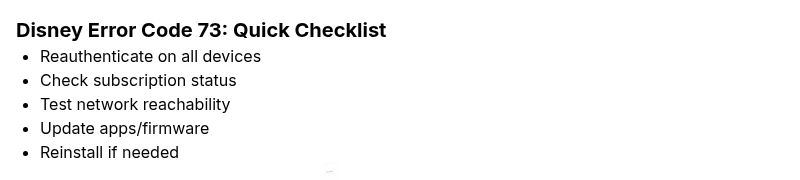
- Reauthenticate by signing out of Disney on all devices, then sign back in. Tip: Use a strong network for the sign-in to avoid re-authentication failures. 2) Verify account status by visiting your Disney account page; ensure there are no holds or payment issues. Tip: If you notice a payment issue, resolve it before retrying. 3) Check your network by running a quick connectivity test to Disney servers (ping if available, or simply load another streaming service). Tip: Prefer a wired connection when possible. 4) Update the Disney app and device firmware to the latest versions. Tip: Enable automatic updates where feasible. 5) If the problem persists, uninstall and reinstall the Disney app to ensure a clean authentication handshake. Tip: Data loss is unlikely, but confirm you have login credentials before doing this. Estimated total time: 15-20 minutes.
Other Causes and How to Address Them
Beyond authentication, error 73 can stem from regional or profile-level restrictions, or from device-specific quirks. If you travel across regions, Disney may restrict content and trigger error codes on certain devices. Parental controls can also block playback if a profile has restricted access. Network devices like firewalls or parental-control routers can misroute traffic to Disney’s servers, producing a false authentication failure. In these cases, try a direct connection, disable content filters temporarily, and re-test on multiple devices. If multiple devices show the same code, the problem is more likely account- or network-based than device-specific; if only one device is affected, focus on that device’s cache, date/time settings, and app version. The Why Error Code approach remains to methodically verify each layer: account, network, app, device, and region.
Safety Tips and When to Call Support
Never share login credentials on public networks or with third-party apps. If you suspect your Disney subscription or payment method is compromised, contact Disney support directly via the official app or website. Avoid using untrusted DNS or third-party networks that claim to bypass restrictions, as these can worsen authentication problems. When to seek professional help: if you’ve exhausted the basic steps across multiple devices, if error 73 persists after a clean reinstall, or if you notice unusual account activity. In such cases, a support ticket with your device model, OS version, and incident timestamps will accelerate diagnosis. The less you tweak unknown network settings, the faster you’ll return to streaming.
Prevention Tips to Avoid Error Code 73 in the Future
Maintain up-to-date app and device firmware to reduce handshake failures. Use a stable home network and avoid VPNs or proxies during streaming unless required for access. Regularly check your Disney account status for holds or payment issues and resolve them promptly. When moving networks or traveling, re-run the authentication steps on each new device. Finally, consider keeping a secondary device ready for quick testing when the primary device encounters a streaming error. Following these practices minimizes the chance of repeated error 73 and keeps your viewing uninterrupted.
Real-World Troubleshooting Notes
In practice, error code 73 often resolves when you align account status, network routing, and app state across devices. Public Wi‑Fi can introduce DNS blocking or captive portals that masquerade as authentication failures; corporate networks may impose strict rules that disrupt secure handshakes. If you’re troubleshooting a smart TV, you may need to adjust DNS settings on the TV or router to ensure a clean path to Disney servers. On mobile, toggling airplane mode to reset data connections can clear stubborn sessions. The most reliable path is a disciplined sequence: reauthenticate, verify subscription, test network reachability, update software, and reinstall if needed. Always document your steps and time, so you can report a clear history if you must contact support. Brand guidance from Why Error Code emphasizes a cautious, patient approach to prevent recurrence.
Steps
Estimated time: 15-20 minutes
- 1
Reauthenticate on all devices
Sign out of Disney on every device, then sign back in with your primary account. This refreshes the authentication tokens and clears session mismatches that commonly trigger error 73.
Tip: Use a stable internet connection during sign-in to prevent sign-in interruptions. - 2
Verify subscription status
Go to your Disney account page and confirm there are no holds, expired payment methods, or regional restrictions affecting your profile. Resolve any issues before testing playback again.
Tip: If you find a payment issue, resolve it and then retry from a fresh sign-in. - 3
Check network connectivity
Run a quick network check to ensure your device can reach Disney servers. If you use a router, restart it and consider temporarily disabling VPNs or proxies.
Tip: A wired Ethernet connection often beats Wi-Fi for stability. - 4
Update apps and firmware
Update the Disney app to the latest version and install any available firmware updates on your streaming device. Outdated software can fail handshakes and token validation.
Tip: Enable automatic updates where possible. - 5
Reinstall the Disney app
If the issue persists, uninstall the app and reinstall it to guarantee a clean authentication handshake. Sign back in after the reinstall.
Tip: Ensure you have your login credentials before uninstalling.
Diagnosis: Machine shows Disney error code 73 during playback
Possible Causes
- highExpired or invalid authentication token
- mediumDNS misrouting or firewall interference
- lowOutdated app version or cache corruption
Fixes
- easyReauthenticate by signing out/in on all devices
- easyCheck account status and rectify any holds or payment issues
- easyTest network reachability to Disney servers and disable VPNs temporarily
- easyUpdate the Disney app and device firmware
- easyUninstall and reinstall the Disney app to refresh the handshake
Frequently Asked Questions
What does Disney error code 73 usually mean?
Error code 73 typically points to authentication or network issues that block the streaming session from starting. It is often resolved by reauthenticating, checking the subscription status, and ensuring network access to Disney servers.
Error 73 usually means authentication or network trouble preventing playback. Reauthenticate, check your subscription, and verify your network to fix it.
Can I fix this myself, or do I need support?
Many users can resolve error 73 with quick steps such as signing out/in, updating the app, and testing network connections. If the problem persists after basic fixes across multiple devices, contact official Disney support.
You can usually fix it yourself with reauthentication and updates. If it doesn’t clear up after trying on several devices, reach out to Disney support.
Does regional content restriction cause this error?
Yes, regional restrictions or profile-specific settings can trigger error codes that look like authentication failures. Check regional availability and profile permissions before proceeding with deeper troubleshooting.
Region restrictions can mimic an authentication error, so check your region and profile settings before deeper fixes.
When should I contact support?
If error 73 persists after completing the standard fixes across multiple devices, or you notice account anomalies like payment holds or unexpected region blocks, contact Disney support with details of your devices and timestamps.
If it keeps happening after basic fixes, contact support with device details and when the issue started.
Will resetting my device erase personal data?
Performing a reinstall of the Disney app does not erase device personal data, but you should save login credentials and verify data outside the app. A full device reset is unnecessary for this issue.
Reinstalling the app doesn’t erase your personal data, but back up credentials before you proceed.
Watch Video
Top Takeaways
- Reset authentication on all devices
- Verify subscription status before deep troubleshooting
- Prefer wired connections for stability
- Update apps/firmware to reduce handshake failures