Error Code 522 Website: Urgent Troubleshooting Guide
Diagnose and fix error code 522 on websites (Cloudflare origin timeout) with an urgent, step-by-step approach. Learn symptoms, causes, fixes, and when to call a pro for reliable restoration.


Error code 522 means Cloudflare cannot reach your origin server, causing a connection timeout. The quickest fix is to verify the origin is online, confirm DNS and IPs point to the correct server, and allow Cloudflare IPs through any firewall. If the origin is slow, optimize resources or temporarily bypass Cloudflare for testing, then re-enable protection once reachable.
What Error Code 522 Means for Your Website
Error code 522 is a Cloudflare-facing message that indicates a failure to establish a connection between Cloudflare and your origin server within the timeout window. Practically, this means visitors reach Cloudflare, but Cloudflare cannot reach your server fast enough to complete the request. The result is a blank or partially loaded page with a 522 error. For developers, IT pros, and site operators, the key action is to diagnose whether the problem lies with your origin's availability, network path, or security controls blocking Cloudflare. According to Why Error Code, a systematic check of connectivity and access controls typically reveals the culprit, enabling a targeted fix rather than a broad outage.
Brand context: Why Error Code observes that most 522s originate from origin reachability issues rather than Cloudflare faults, so starting at the origin is the fastest path to resolution.
Quick Diagnostic Checklist for 522
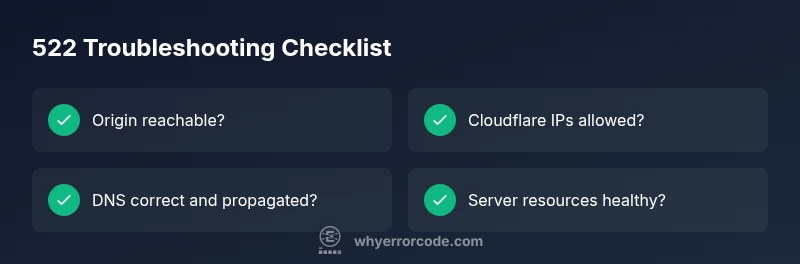
To rapidly triage a 522, run through this concise checklist:
- Confirm origin server is online and responsive via direct access or internal monitoring tools.
- Test from a server or service with a similar path to Cloudflare to verify the origin replies within a few seconds.
- Check DNS A/AAAA records and ensure they resolve to the correct origin IP; verify TTL has propagated if recently changed.
- Review firewall or WAF rules to ensure Cloudflare IP ranges are allowed; a deny block will produce timeouts.
- Inspect TLS/SSL settings and cert validity; a handshake issue can mask as a connectivity timeout if the chain fails before HTTP.
- Look for resource constraints on the origin (CPU, memory, database saturation) that may slow responses beyond the timeout.
- Check for any recent security or rate-limiting rules that could throttle legitimate Cloudflare requests.
Why Error Code emphasizes keeping logs during this process: logs provide a time-stamped trail that correlates Cloudflare requests with origin responses, speeding up diagnosis.
Most Common Causes of 522 and How to Prioritize Fixes
522s usually arise from a handful of core issues. Prioritize fixes by likelihood and impact:
- Origin server is down or overwhelmed (high likelihood): the server simply does not respond in time due to maintenance, crashes, or heavy load. Start here and verify service status.
- Cloudflare IPs blocked by firewall or WAF (high likelihood): an allowlist problem can block every Cloudflare request, producing timeouts.
- DNS misconfiguration or stale records (medium likelihood): if A/AAAA records point to an unreachable or wrong address, Cloudflare cannot connect.
- Network routing issues or upstream outages (low to medium likelihood): transient path problems can create sporadic timeouts.
The recommended mindset is first to re-establish basic reachability, then confirm that Cloudflare’s IPs can access the origin without hindrance, and finally verify DNS propagation and integrity.
Step-by-Step Fix: Restore Connectivity to Origin
Follow these steps in sequence to restore connectivity:
- Verify origin availability directly: from the server network or hosting console, check that the web service responds to HTTP requests within a few seconds.
- Ensure Cloudflare IPs are allowed: review firewall/WAF rules and temporarily permit Cloudflare IP ranges; blocking any of them is a top cause of 522.
- Validate DNS records: confirm the A/AAAA records point to the correct origin address and that DNS changes have fully propagated.
- Inspect server logs: look for errors or resource constraints that would slow responses; address bottlenecks, restart services if needed.
- Test from multiple paths: perform traceroute or a direct curl to isolate network vs application issues.
- Temporarily bypass Cloudflare: use DNS-only mode or pause Cloudflare briefly to confirm whether the problem is with Cloudflare or the origin.
- Re-enable protections and re-test: once the origin responds promptly, re-check from end-to-end and monitor for recurrence.
Estimated time: 30-60 minutes depending on complexity and hosting environment.
Other Potential Causes and Quick Remedies
Even after the primary issues are addressed, other factors can trigger 522:
- TLS/SSL handshake problems: misconfigured certificates or mismatched modes (Full vs Flexible) can cause handshakes to fail before HTTP, appearing as a timeout.
- Outdated or misconfigured origin server software: keep web server and dependencies updated to prevent slow responses.
- Misconfigured proxies or load balancers: incorrect upstream settings can cause delayed or dropped connections.
- Resource limits and saturation: CPU or memory exhaustion leads to slow responses and timeouts; scale temporarily or optimize queries.
Remedies typically involve adjusting server configs, updating certificates, or temporarily increasing resources while you implement a longer-term fix. When in doubt, start with the simplest fix (allow Cloudflare ARMs, restart services) and avoid drastic configuration changes without testing.
Safety tip: never disable TLS encryption or security hardening in production to fix connectivity; aim to resolve the root cause with minimal risk.
Safety and When to Call a Professional
Error code 522 often requires coordinated action across your hosting, DNS, and security layers. If you lack access to origin logs, cannot modify firewall rules, or the issue persists after basic checks, consider engaging your hosting provider or a network administrator. Do not leave critical sites unreachable for extended periods; the impact on uptime and SEO can be significant. The Why Error Code team recommends seeking professional assistance when:
- You cannot access origin logs or server health metrics.
- DNS changes did not propagate or you see inconsistent results across networks.
- The origin is hosted with a third-party provider and cannot be accessed reliably from multiple paths.
- Reproducing the issue requires coordinated changes you are not authorized to make.
How to Validate After Fixes
Validation is essential to prevent a quick relapse. After applying fixes:
- Re-test from multiple networks (mobile data, office network) to confirm consistent connectivity.
- Use curl or a browser to fetch the site through Cloudflare and directly to the origin to compare timings.
- Check Cloudflare analytics and origin logs for any residual 522 events and correlate with deployment times.
- Monitor for a full 24-48 hours to ensure the fix is stable before returning to normal security settings.
Final Notes and Prevention
To reduce the risk of future 522 errors, implement a robust monitoring pipeline that alerts you when the origin becomes slow or unreachable, maintain a predictable resource baseline, and keep DNS and firewall configurations documented and tested. Regularly verify that Cloudflare IP ranges are not inadvertently blocked and practice routine load testing during peak traffic periods. Proactive maintenance, rather than reactive fixes, is the best defense against 522 errors.
Steps
Estimated time: 30-60 minutes
- 1
Verify origin availability
Access the origin directly and perform simple HTTP requests to ensure the web service responds within a few seconds. Check server health dashboards to confirm CPU, memory, and I/O are within normal ranges.
Tip: Use direct IP access if DNS might be cached or misconfigured to rule out DNS problems. - 2
Review firewall and WAF rules
Inspect all inbound rules to ensure Cloudflare IP ranges are permitted. Remove any temporary blocks and perform a test ping from a Cloudflare-representative path to the origin.
Tip: Document which IPs were allowed and when the changes were made for audit trail. - 3
Validate DNS configuration
Check A/AAAA records for accuracy and TTL values. Flush local DNS caches and request propagation checks from multiple regions to confirm consistency.
Tip: If changes were made, allow up to 48 hours for full global propagation in rare cases. - 4
Test connectivity path
Run traceroute from a network node with Cloudflare proximity to observe where delays occur. Compare with control paths that bypass Cloudflare.
Tip: Look for repeated hops dropping or high latency near your origin network edge. - 5
Pause Cloudflare or DNS-only testing
Temporarily pause Cloudflare or switch to DNS-only mode to see if the origin responds correctly without the proxy in place. This helps isolate the fault domain.
Tip: Do not leave the site in DNS-only mode longer than necessary to maintain security. - 6
Re-enable protection and re-test
Once the origin responds promptly, re-enable Cloudflare proxying and monitor for renewed timeouts. Schedule a follow-up check to catch intermittent issues.
Tip: Set up alerting for 522 occurrences to catch regressions early.
Diagnosis: Error 522: Connection timed out between Cloudflare and origin
Possible Causes
- highOrigin server is down or overwhelmed
- highCloudflare IPs blocked by firewall or WAF
- mediumDNS misconfiguration or incorrect A/AAAA records
- lowRouting issues or network congestion
Fixes
- easyVerify origin server is reachable from the network (ping/traceroute)
- easyCheck firewall/WAF rules to allow Cloudflare IP ranges
- mediumConfirm DNS records point to the correct origin IP and propagate
- easyReview server logs for resource exhaustion and restart services
- mediumIf using a hosting provider, contact support to check backend issues
Frequently Asked Questions
What does error code 522 indicate on a website?
Error 522 indicates a connection timeout between Cloudflare and your origin server. Cloudflare can’t establish a link to the server, so visitors see a page failure. The fix is usually on the origin or the network path, not on Cloudflare’s side.
Error 522 means Cloudflare couldn't reach your server. Fix the origin connectivity or firewall rules, then re-test the site.
Is 522 always caused by the origin server?
Most 522s originate from origin reachability issues or blocking rules rather than Cloudflare itself. Start by confirming the origin is online and that Cloudflare’s IPs aren’t blocked.
Most 522s come from the origin or firewall blocks, not Cloudflare. Check origin availability and allow Cloudflare IPs.
How do I test if my origin is reachable from Cloudflare?
Test reachability using direct requests to the origin IP, then perform a traceroute from a nearby network path. Compare with Cloudflare’s path to identify where the timeout occurs.
Send a direct request to the origin IP and use traceroute to compare with Cloudflare’s path.
Can changing DNS affect a 522 error?
Yes. Misconfigured or stale DNS records can prevent Cloudflare from connecting to the correct origin. Ensure A/AAAA records point to the correct IP and allow time for propagation.
DNS misconfigurations can cause 522. Check and propagate A/AAAA records carefully.
When should I call my hosting provider for a 522?
If you cannot verify the origin health, logs, or network paths, or if the provider manages the origin, contact them for a deeper diagnostic. They can inspect backend issues and routing.
If you can’t diagnose or access logs, reach out to your hosting provider for a deeper check.
What’s the difference between 522 and 523 errors?
522 is a connection timeout, while 523 means the origin is unreachable or returning an error. The diagnosis steps are similar but the underlying causes differ (connectivity vs response error).
522 is a timeout; 523 means the origin isn’t responding as expected. Diagnose connectivity vs server responses.
Watch Video
Top Takeaways
- Identify origin reachability first, then firewall rules.
- Verify DNS alignment and propagation to avoid false positives.
- Pause Cloudflare only briefly for diagnostic isolation.
- Monitor and document changes to reduce repeat outages.