Netflix Error Codes Troubleshooting: Quick Fixes & Step-by-Step Guide
Practical, urgent guide to diagnose and fix Netflix error codes across devices. Follow a structured flow from connectivity to account checks to restore streaming fast. Includes step-by-step fixes, safety tips, and FAQs.


Most Netflix errors boil down to connectivity, outdated apps, or account issues. Quick fix: verify your internet connection, restart the Netflix app, and confirm your subscription is active. If the error code on netflix persists, update the Netflix app, clear cache, and try streaming on another device or network. This fast 2–3 step approach solves many common Netflix error codes in minutes.
Understanding Netflix error codes
Netflix error codes are messages that indicate why playback failed. They help users and support teams diagnose whether the issue is network-related, device-related, or account-related. In practice, the term 'error code on netflix' often appears when streaming stops abruptly or a title fails to load. Recognizing the category of the error can dramatically shorten the fix time. According to Why Error Code, most codes fall into a few common buckets: connectivity, app/version issues, or service limitations. A calm, methodical approach beats frantic tapping every time.
Common causes of Netflix error codes
Many Netflix errors originate from a small set of recurring causes. If you see the error code on netflix, start by checking your network stability. Frequent culprits include unstable Wi‑Fi, congested networks, or DNS issues that misroute traffic. VPNs or proxies can trigger blocks or DRM checks, leading to midstream failures. Outdated apps or device firmware, corrupted cache data, and regional restrictions can also generate codes without any visible warning. Finally, service outages on Netflix’s side or a suspended account due to billing can produce error messages. Understanding these categories helps you triage quickly and avoid chasing phantom problems.
Check your network and device settings
Begin with the basics: ensure your device is connected to the internet and that the connection is stable. Run a quick speed test and compare results to Netflix's recommended minimums; if you’re on Wi‑Fi, try a short wired Ethernet test. Disable VPNs or proxies temporarily to see if the error code on netflix resolves. Check that the device clock is correct and that your router firmware is up to date. Reboot the router and the streaming device, then reopen Netflix and try again.
Update, clear cache, and reinstall
Software issues are common culprits behind Netflix error codes. Update the Netflix app to the latest version and install any pending OS updates on the device. Clear the app cache and data where possible (or clear browser cookies if you’re streaming from a browser). If the issue persists, uninstall and reinstall the Netflix app to reset any corrupted files. After reinstall, sign back in and attempt playback on a known-good title.
Verify account status and payments
If the error code on netflix persists after all the above, verify that your Netflix subscription is active and there are no billing holds. Check for any notices about payment failures or account suspensions. If you recently changed plans or updated payment methods, retry streaming after the update completes. In some cases, a temporary hold or regional entitlements can trigger errors until Netflix processes the account status.
Netflix service status and regional restrictions
Sometimes the problem isn’t on your end. Netflix may be experiencing regional outages or temporary service degradations. Check Netflix’s official status page or trusted outage monitors to confirm. Additionally, some titles are restricted by region, which can produce error messages on certain devices or during attempts to access geo-locked content. If you suspect a regional or DRM-related restriction, wait for Netflix to restore full access or try a different title.
Advanced troubleshooting: logs and contact support
If all else fails, collect the key details: device model, OS version, Netflix app version, the exact error code (if shown), time of occurrence, and whether it happens on multiple titles or devices. This information speeds up support interactions. Contact Netflix support or your device manufacturer with these details. In urgent scenarios, use the in-app help or official support channels to escalate the issue.
Prevention: best practices to avoid future Netflix error codes
Adopt a routine maintenance mindset: keep apps and devices updated, monitor network reliability, and avoid flaky VPN configurations for streaming. Regularly clear caches after major app updates and test a spare device to rule out device-specific problems. Enabling auto-updates and enabling two-factor authentication can help secure and stabilize account access, reducing the chance of future error codes on netflix.
Steps
Estimated time: 30-60 minutes
- 1
Check internet connection
Run a quick speed test and ensure your download speed meets basic Netflix requirements. If the result is low, move closer to the router or switch to a more stable network. Reboot the router and try Netflix again.
Tip: Wired connections are typically more stable than Wi‑Fi. - 2
Test on another device
Attempt to play the same title on a different device to determine if the issue is device-specific. If it works elsewhere, focus on the original device’s settings.
Tip: If one device works while another doesn’t, device-level settings are likely the cause. - 3
Update and clear cache
Update the Netflix app to the latest version and clear the app cache or browser cookies. Restart the app and retry playback.
Tip: Clearing cache can resolve stale data issues after updates. - 4
Disable VPN/Proxy and DNS tweaks
Turn off any VPNs or proxies and reset DNS to automatic. Retry streaming to see if the error persists.
Tip: Some networks inject DNS that disrupts streaming. - 5
Check account status
Log into your Netflix account page and verify there are no billing holds or plan changes affecting access.
Tip: A paused or restricted account can trigger errors even if playback was possible previously. - 6
Reinstall the app
If nothing else works, uninstall Netflix and reinstall it. Sign back in and attempt playback again.
Tip: A clean reinstall often resolves deeply cached issues.
Diagnosis: User reports a Netflix error message with a code while trying to stream.
Possible Causes
- highNetwork connectivity issues or unstable Wi‑Fi
- highOutdated Netflix app or device OS/firmware
- mediumAccount status or payment issue affecting access
- mediumVPN/proxy or DNS configuration interfering with streaming
- lowNetflix service outage or regional content restrictions
Fixes
- easyTest and stabilize internet connection; switch networks or use wired Ethernet if possible
- easyUpdate Netflix app and device OS; clear cache/data and restart device
- mediumSign out of all devices and sign back in; verify account status
- easyDisable VPN/proxy and ensure content is accessible in your region
- easyCheck Netflix service status/outage and retry later
Frequently Asked Questions
What does a Netflix error code mean?
Netflix error codes indicate why playback failed, typically due to connectivity, device, or account issues. Identifying the code category helps target the fix quickly.
Netflix error codes signal why playback failed, usually connectivity or device related. Identify the category to fix it fast.
Is Netflix down if I see an error code?
Not always. An error code can reflect a local issue, but you should check Netflix's official status page or outage monitors to confirm if the service is impacted.
An error code might be local or due to a broader outage. Check Netflix status to confirm.
Will updating the Netflix app fix most errors?
Updating the app often resolves many errors caused by outdated files or compatibility issues with devices. It should be one of the first steps in troubleshooting.
Yes, updating the app resolves many common errors.
Can a VPN cause Netflix errors?
Yes. VPNs or proxies can trigger streaming blocks or DRM checks, leading to error codes. Disable them to test if streaming resumes.
VPNs can cause Netflix errors; turn them off to test.
When should I contact Netflix support?
If the error persists after all troubleshooting steps, contact Netflix support with device, OS, app version, and time of occurrence to escalate.
If it still fails after all steps, contact Netflix support with details.
Watch Video
Top Takeaways
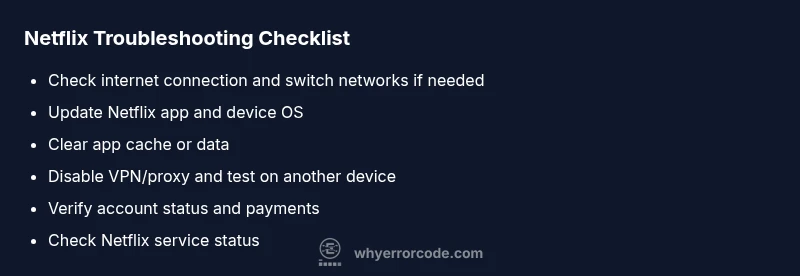
- Check connectivity first and switch networks if needed
- Update apps and clear caches before deeper fixes
- Verify account status if issues persist
- If problems continue, check Netflix service status and contact support