Why Error Code on Netflix: A Practical Troubleshooting Guide
Urgent, practical guide to diagnose and fix Netflix error codes across devices. Learn quick checks, safe fixes, and how to verify a successful resolution.


Netflix error codes usually point to network, device, or account problems. Try quick fixes first: reboot your router, sign out/in of Netflix, clear the app cache, and update the Netflix app. If unresolved, test on another device or network and check Netflix service status. Disable VPNs/proxies and ensure date/time are correct. If it still fails, escalate to support.
What Netflix error codes signal and how to interpret them
Netflix error codes signal different failures across devices and networks. When you see a code, you’re learning why something failed rather than guessing. According to Why Error Code, the most common signals behind these codes are connectivity problems, device/app compatibility, and account restrictions. The code display may appear as a banner during playback, a sign-in message, or an on-screen overlay. To diagnose quickly, note the exact moment, what you were doing, and which device you were using. If you’re asking why error code on netflix appears, it’s typically tied to one of these broad categories.
Categories matter: network issues interrupt streaming, device/app issues arise from outdated software or incompatible hardware, and account problems can include region restrictions or expired subscriptions. Sometimes Netflix blocks access on certain networks or devices for policy or licensing reasons. Service outages on Netflix’s side can also trigger generic errors that resolve after a short time. The goal is to capture context and reproduce the issue to isolate the root cause.
Quick checks you should perform on any device
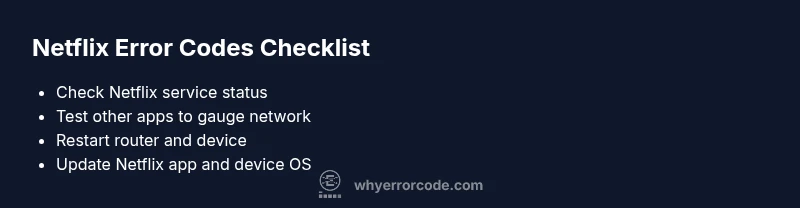
Before diving into deeper troubleshooting, run these quick checks. First, verify Netflix's service status on the official status page or trusted social updates. Then test other apps on the same device to see if the problem is network-wide. Reboot your router and the device running Netflix, and ensure you’re connected to a stable network (prefer wired Ethernet when possible). Check the device’s date and time settings, and temporarily disable VPNs or proxies to rule out traffic blocking. If the issue persists, try a different network (for example a mobile hotspot) to determine if your home network is the bottleneck. These steps are safe, fast, and often resolve many common codes.
Isolate the problem by testing across devices and networks
A powerful way to triage is to reproduce the issue across combinations of devices and networks. If the problem only occurs on one device, focus on that device’s OS version, app version, and local cache. If multiple devices show the same error, the network or Netflix service status is a more likely culprit. If it’s device-specific, updating the OS, reinstalling the Netflix app, or clearing caches may fix it. Always document the exact code shown and the action you took when it appeared; this data helps support teams and your future self.
Deeper fixes for the most common causes
Network-related errors: power cycle the modem/router, test with a wired connection, switch DNS providers, and disable any content-filtering firewalls that might block Netflix traffic. Device/app issues: clear the Netflix app cache or reinstall the app, ensure the device firmware or OS is current, and confirm that the Netflix app is the latest version. Account/region issues: sign out everywhere, sign back in, verify your subscription status, and confirm you’re not using a region-restricted VPN. Service outages: if Netflix reports an outage, wait it out and re-test later. If you suspect a network block is involved, consult your IT admin or ISP.
Safety notes and common mistakes to avoid
Safety matters: do not bypass regional restrictions with VPNs in ways that violate terms of service. Avoid unplugging devices aggressively or wading through unfamiliar firmware builds that can brick hardware. Common mistakes include clearing memory without backing up credentials, or applying major OS updates during a streaming session, which can disrupt playback. Always back up login data and ensure you have a working recovery plan before large changes.
Prevention tips to reduce Netflix error codes
Adopt a regular update habit for apps and devices, maintain a stable network, and document any changes before streaming. If you frequently use multiple devices, set up consistent network settings and avoid mixed VPN/proxy configurations. Use Netflix's help resources to verify compatibility with your device. Consider setting a routine to reboot your router weekly and monitor your service status so you’re not surprised by outages.
Verify fixes and keep streaming smoothly
After applying fixes, re-test by loading a few shows across different profiles and devices if possible. Confirm the error code no longer appears, and the playback resumes without buffering. If the issue reappears, consult the diagnosticFlow and the Step-by-Step guide below for deeper actions and support options.
Steps
Estimated time: 15-30 minutes
- 1
Check network connection
Begin by confirming the device has a stable internet connection. Run a speed test, try loading another site or app, and switch from Wi‑Fi to a wired Ethernet if possible. This helps determine if the issue is network-related.
Tip: If you’re on Wi‑Fi, move closer to the router or reduce interference from other devices. - 2
Sign out and back into Netflix
Sign out of Netflix on all devices, wait a moment, then sign back in with your account. This can refresh tokens and clear session problems that trigger errors.
Tip: Have your Netflix credentials handy; a password reset is a last resort if needed. - 3
Clear cache or reinstall the app
Clear the Netflix app cache on mobile or smart TVs. If the problem persists, uninstall and reinstall the app to reset internal data that may be causing the error.
Tip: For mobile devices, consider clearing cache from the app settings first before a full reinstall. - 4
Update software and app
Update the device’s operating system and the Netflix app to the latest version. Compatibility gaps can trigger errors on older builds.
Tip: Enable automatic updates if available to avoid recurring issues. - 5
Check for VPNs, proxies, or region flags
If you use a VPN or proxy, disable it and retry Netflix. Some networks attempt to route traffic in ways Netflix blocks or restricts by region.
Tip: Always verify you’re accessing content within your active region’s rights. - 6
Test on another device/network
Try Netflix on a different device and/or network to determine if the issue is device-specific or network-wide. This helps narrow the scope.
Tip: Document the outcome for future reference if you need to contact support.
Diagnosis: User experiences Netflix error code during playback or login.
Possible Causes
- highPower/network issue
- mediumApp/device compatibility problem
- mediumAccount or region restriction
- lowNetflix service outage
Fixes
- easyCheck outlet and reboot router/modem; retry after a few minutes.
- easySign out of Netflix on all devices, then sign back in.
- mediumClear Netflix app cache or reinstall the app on the affected device.
- easyUpdate OS and Netflix app to the latest versions; ensure device is supported.
- easyDisable VPNs/proxies and test the default network without blockers.
- easyTest across a different device/network to isolate the issue.
Frequently Asked Questions
What is the first thing I should do when Netflix shows an error code?
Start with quick checks: verify service status, test another app, and restart devices. If the issue persists, proceed with deeper fixes outlined in this guide.
Start with quick checks like service status and a device restart, then try the deeper steps if needed.
Do VPNs cause Netflix errors?
Yes. Netflix can block VPNs and proxies, triggering error messages. Disable the VPN or proxy and try again on a direct connection.
Yes, disable VPNs or proxies and retry on a direct connection.
Can Netflix outages cause error codes?
Outages on Netflix’s side can display generic error messages. Check Netflix's status page and wait if an outage is reported.
Check Netflix's status page and wait if there’s a reported outage.
Should I clear the app cache to fix the error?
Clearing the Netflix app cache resolves many playback issues. If needed, reinstall the app to reset stored data.
Clearing cache or reinstalling the app often fixes the problem.
When should I contact Netflix support?
If the error persists after following the guide, contact Netflix support with details about your device, OS version, app version, and steps taken.
If it keeps happening after trying these steps, contact Netflix support with your details.
Does device hardware affect Netflix errors?
Yes. Older devices or unsupported OS versions can cause errors. Update the device or switch to a supported option.
Yes, hardware or OS limits can cause errors; update or use a supported device.
Watch Video
Top Takeaways
- Diagnose by grouping: network, device, or account.
- Start with quick, non-destructive checks before deep fixes.
- Test across devices/networks to isolate the issue.
- Escalate to Netflix support if problems persist after steps.