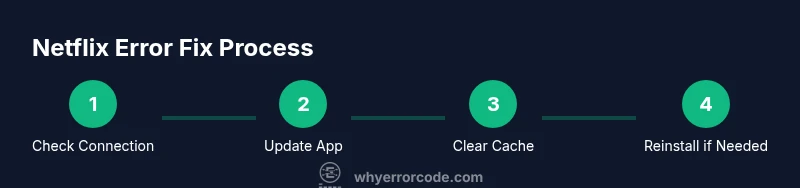
How to fix Netflix error codes: A practical guide
A practical, device-agnostic guide to fix Netflix error codes across TVs, streaming sticks, computers, and mobile devices with clear, safe steps.


This guide will show you how to fix Netflix error codes across devices. Start with network checks, app updates, and correct device time. If needed, sign out and back in, clear cached data, and reinstall the app. Follow a step-by-step approach for fastest resolution and fewer recurring errors.
Understanding Netflix error codes and why they appear
Netflix error codes can be frustrating because they point to at least one problem in the path between your device and Netflix content. In broad terms, codes fall into three buckets: connectivity (your network or ISP blocks streaming), device/app (the app or hardware isn’t communicating correctly), and account or region issues (login problems, subscription status, or content restrictions). Recognizing the category helps you choose the right fix quickly.
According to Why Error Code, most playback errors stem from a weak connection or an outdated app rather than a mysterious fault in Netflix itself. By keeping a mental map of the common causes, you can triage more efficiently, saving time and reducing the chance of applying the wrong fix. In this guide, we will walk through a consistent troubleshooting workflow that applies whether you watch on a smart TV, a streaming device, a game console, or a computer. The goal is to restore streaming with minimal downtime and a clear path to follow if the problem recurs.
Quick checks you can do before deeper troubleshooting
Start with the simplest potential issues. First, confirm your internet connection is working by loading a web page on the same device or running a speed test. If other apps or sites are slow or buffering, contact your internet provider or switch to a wired Ethernet connection if possible. Next, verify the Netflix app is up to date in the device’s app store. Make sure the device clock and date are correct, as mismatches can block secure connections. Finally, check Netflix’s official status page or social channels to rule out a widespread outage. If Netflix is reporting an outage, you’ll need to wait until the service is restored; if not, you can proceed with device-focused steps.
Device-agnostic primer: reset basics and you’ll likely clear most glitches
Power cycle the device: turn it off, unplug (if needed), wait 15–60 seconds, then turn back on. This flushes temporary caches that can cause playback hiccups. Sign out of Netflix, then sign back in, especially after updating the app or the device OS. If you still see an error, try using a different user profile or guest mode to test if the problem is tied to your account permissions. Confirm you’re signed into the correct Netflix region for your account.
Device-specific steps: streaming sticks, consoles, and smart TVs
Different devices have different menus for checking updates and clearing cache, but the core principles are the same. On streaming sticks (Roku, Fire TV, Chromecast with Google TV), navigate to the app settings, clear cache, and force stop before reopening Netflix. For game consoles (PlayStation, Xbox), delete and reinstall the Netflix app or update the system software if available. Smart TVs vary by brand, but you can find update options in the settings menu or the support section. If possible, connect the device to a different HDMI port to rule out display glitches that masquerade as app errors.
Network and DNS considerations: speed, latency, and DNS tricks
Buffers and timeouts often trace back to home networks. Start by rebooting your router and, if your ISP has a modem/router combo, reboot that as well. If the problem persists, try a wired Ethernet connection rather than Wi‑Fi or move closer to the router. Changing DNS can also help some setups; you can try public DNS services like 1.1.1.1 or 8.8.8.8, but note that DNS changes may affect other services. Ensure QoS settings aren’t throttling Netflix traffic. If you use a VPN, temporarily disable it to see if Netflix works without it, since many VPNs are blocked by Netflix.
Account and permissions: login, devices, and regional restrictions
Ensure your Netflix subscription is active and that your account isn’t blocked in your region or on a specific device. Sign out of all devices from your account page, then sign back in. If you’re using a profile with restricted content or parental controls, check those settings. If you recently changed your password, make sure all devices reflect the latest credentials. Finally, review any payment issues or account holds that Netflix support may request to resolve the error.
Cache management and data hygiene: when to clear and when to keep
It’s safe to clear cache consistently on streaming devices after updates; this removes stale data that can trigger errors. On mobile browsers or apps, clearing app data can reset settings but may erase saved preferences. When re-installing, prefer a clean install rather than a simple update, as a full reinstall rebuilds the app from the ground up and reduces the chance of code conflicts. After performing these actions, retry Netflix to confirm improvement.
VPNs, proxies, and content restrictions: known culprits
Using a VPN or ISP proxy can cause Netflix to block content or fail to load in some regions. If you rely on a VPN, disable it temporarily to test Netflix access. Some corporate networks also route traffic in ways that Netflix doesn’t anticipate; try a different network, such as a mobile hotspot, to determine if the problem is network-specific. If you’re seeing a region-restriction message, ensure you’re logged into the account aligned with the content you want to watch and that your device is set to the correct region.
When to escalate: signs you need official support
If you’ve exhausted common fixes and Netflix still shows an error, gather details such as device model, OS version, app version, and the time of the error. Contact Netflix support and share the error code (if shown), the geographic region, and any troubleshooting steps you performed. Also provide your network type and recent changes to your setup. Documenting this information helps support diagnose the issue quickly and reduces back-and-forth.
Common pitfalls and how to avoid them
Rushing to reinstall the app without clearing caches can waste time and leave the problem unresolved. Relying on a single solution across all devices often fails because Netflix codes reflect different root causes. Avoid ignoring app updates; outdated software is one of the most frequent causes of Netflix errors. Finally, don’t assume a problem is on Netflix’s end when your network or device configuration is the actual culprit.
A practical framework: why error code Netflix problems happen and how we approach them
From the perspective of the Why Error Code team, Netflix error codes are symptoms of a chain of dependencies – network, device, account, and regional constraints. A disciplined approach keeps you focused on the root cause rather than chasing symptoms. By following a consistent workflow, you can determine whether the issue is reproducible across devices or isolated to a single setup. This framework is the essence of how to fix error code netflix in real-world use.
Post-fix monitoring: ensuring long-term reliability
After you resolve the code, monitor streaming performance for a few days. Watch for repeated buffering on the same device, test on multiple networks, and keep Netflix updated to the latest version. If the issue recurs, your new baseline should make it easier to identify if something in your home network or device environment changes. This habit reduces future downtime and helps you maintain a smoother streaming experience.
Tools & Materials
- Device with Netflix app installed(Smart TV, streaming stick, console, or computer)
- Stable internet connection(Wi‑Fi or Ethernet; wired is preferred when available)
- Latest Netflix app(Update via official app store or auto-update)
- Netflix account credentials(Email/username and password)
- Router/modem access(For power cycles, DNS changes, and QoS checks)
- Alternative network (optional)(Mobile hotspot or different network to test connectivity)
Steps
Estimated time: 45-90 minutes
- 1
Check your internet connection
Verify that the device can reach the internet by loading a webpage or performing a speed test. If other apps are slow, resolve basic network issues first before touching Netflix. A stable connection is foundational to most Netflix error codes.
Tip: Tip: Prefer a wired Ethernet connection for consistent performance. - 2
Update the Netflix app
Open the device’s app store and install any available Netflix updates. Updates fix bugs and compatibility issues that often trigger error codes.
Tip: Tip: After updating, restart the app to ensure changes take effect. - 3
Restart the device
Power off the device, wait 30 seconds, then power it back on. A fresh boot clears temporary data that can cause playback glitches.
Tip: Tip: If you’re on a streaming stick, use the restart option in the settings menu. - 4
Sign out and sign back in
In Netflix, choose Sign Out, then sign back in with your account. This re-authenticates tokens that may have expired.
Tip: Tip: If you use multiple profiles, sign out of all devices from your account page. - 5
Clear cache or data
Clear cached data for the Netflix app or this device’s cache. Cached files can become stale after updates and trigger errors.
Tip: Tip: On some devices you may need to clear app cache without deleting login data. - 6
Try a reinstall if needed
Uninstall the Netflix app, then reinstall it. A clean install resolves deeper code conflicts that can persist after a simple update.
Tip: Tip: Back up credentials if your device doesn’t re‑authenticate automatically. - 7
Test another device
If possible, try Netflix on a different device to determine if the issue is device-specific or network-wide.
Tip: Tip: If it works on another device, focus troubleshooting on the original device. - 8
Check Netflix status and region
Visit Netflix’s status page or your region settings to confirm there’s no outage and that the content you want is available in your region.
Tip: Tip: Content restrictions vary by region; ensure your device region matches your account region. - 9
Review account health
Make sure your subscription is active and there are no holds, payment issues, or regional restrictions affecting access.
Tip: Tip: Verify your login credentials are current if password changes were recently made. - 10
Document steps and results
Keep notes of what you tried and the outcomes. This helps if you need to contact support and share a precise history.
Tip: Tip: Include device model, OS version, app version, and timestamp of the error.
Frequently Asked Questions
What causes Netflix error codes?
Most Netflix error codes stem from connectivity issues, outdated apps, or account/region problems. Identifying the category helps you pick the right fix quickly.
Most Netflix errors are due to network or app issues, or account and region settings. Identifying the category helps guide you to the correct fix.
Do VPNs cause Netflix errors?
Yes. VPNs or proxies can trigger Netflix errors or prevent access to certain libraries. Temporarily disable VPNs to test if the service works.
VPNs can cause Netflix errors. Try turning it off to see if Netflix loads normally.
Is Netflix status page reliable for outages?
Netflix maintains a status page that indicates live outages. Check it first to determine if the problem is on Netflix’s side before deep troubleshooting.
Yes. The Netflix status page shows outages and fixes, which can save you time.
Should I reinstall Netflix to fix errors?
Reinstalling can fix deeper software conflicts when updates fail to apply correctly. Try updating first, then clear caches, and reinstall only if needed.
Reinstall only if updates and cache clears don’t resolve the issue.
Why does Netflix work on one device but not another?
This usually means the issue is device-specific, such as a faulty cache or outdated app on that device. Focus on the problematic device first.
If one device works and another doesn’t, fix the failing device first.
What data should I collect before contacting support?
Note device model, OS version, app version, time of error, and steps you’ve tried. This helps support diagnose faster.
Collect device, OS, app versions, timing, and what you already did when contacting support.
Watch Video
Top Takeaways
- Identify the root cause before applying fixes
- Follow device-agnostic steps for efficiency
- Test across devices to isolate the issue
- Keep records for faster support
- Keep Netflix and device software up to date