Error Code Xbox Game Pass: Urgent Troubleshooting Guide
Urgent guide to understanding and fixing error code Xbox Game Pass issues with quick fixes, step-by-step repairs, and prevention tips for gamers and IT pros.


Error code Xbox Game Pass usually indicates a licensing or account validation issue that blocks access to games or streaming. Quick fixes include signing out of your account and signing back in, confirming your Game Pass subscription is active, and verifying date/time settings on your console or PC. If problems persist, restart the Xbox app or system, and consider reinstalling the Game Pass client.
What the error code Xbox Game Pass means
When you see a message that references an error code associated with Xbox Game Pass, the most common root causes are licensing or account validation problems. In practice, this means the system cannot confirm that your subscription is active or that your device is properly linked to your Microsoft/Xbox account. Because Xbox Game Pass ties access rights to the account and the license cache on the device, a mismatch between the service state and the local license store will trigger an error. This is particularly common after a renewal, a payment issue, or if you recently changed your regional settings or moved to a different device. Understanding that the error is usually licensing or authentication related helps you prioritize the fixes that actually work.
According to Why Error Code, recognizing licensing and subscription validation as the most frequent causes across platforms helps you triage quickly. By focusing on account status, device licensing, and service health first, you can often resolve the issue without reaching out to support. This diagnostic mindset reduces time spent in cycles of trial and error and makes your debugging reproducible across consoles, PC, and mobile clients.
Typical symptoms you might notice
The symptoms of Xbox Game Pass errors are often straightforward but can appear across multiple interfaces. You may be unable to launch a game from the Game Pass library, see a message about licensing or access rights, or experience errors during cloud gaming or streaming. On PC or mobile, you might be prompted to sign in again, or you may see a status badge indicating the subscription is not recognized. Some users report generic error codes that appear after attempting to start a title or when selecting games for download. Because the error can appear in both the console UI and the companion apps, you should verify the behavior on all devices you regularly use with Game Pass.
This section helps you confirm reproducibility and gather clues for the diagnostic flow. Note any recent changes: a renewal, a payment failed, a locale change, a password reset, or a device factory reset. The more precise your symptom description, the faster you can map it to the correct fix.
Quick fixes you can try right now
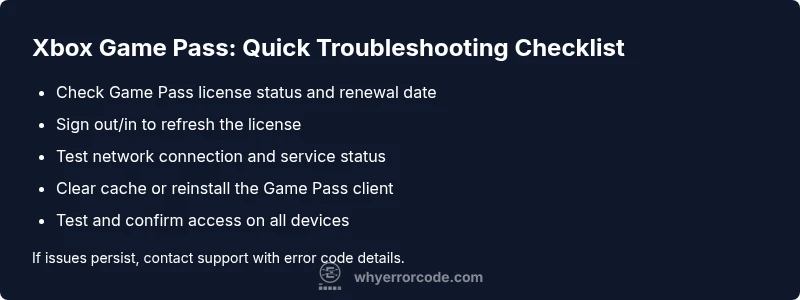
Before diving into the deeper troubleshooting, try these quick fixes that address the most common causes:
- Sign out of your Microsoft/Xbox account and sign back in to refresh your session.
- Verify your Game Pass subscription status and ensure it shows as active; check billing history for any failed payments.
- Check date and time settings on your console or PC; incorrect clocks can disrupt license validation.
- Restart the game, the Xbox app, and the device; a full reboot clears transient license caches.
- Check Xbox Live service status for outages in your region; if there is a known outage, wait for resolution.
If you’ve recently migrated between regions or changed consoles, re-link your device to your Microsoft account and re-check your ownership of the Game Pass license. These steps often resolve the issue with minimal downtime.
Diagnostic flow overview
A practical way to triage is to map symptoms to likely causes and fixes. Start with the most probable issues and work down the list:
- Symptom: When launching a title, you see a licensing or access error such as XGP-XXXX.
- Causes (ordered by likelihood):
- Licensing/Subscription validation issue (high)
- Account sign-in/session problem (medium)
- Network connectivity or DNS resolution problems (low)
- Fixes (in order):
- Sign out and back in; verify subscription status (easy)
- Check service status and restart apps/devices (easy)
- Reset network settings and flush DNS; reinstall Game Pass client if needed (easy)
Document each step and test whether the symptom changes after every fix. This reduces wasted effort and accelerates resolution.
Step-by-step fix for the most common cause
The most common cause is licensing validation failing after renewal or sign-in issues. Follow these steps in order:
- Sign out of your Microsoft/Xbox account on all devices and sign back in. This refreshes your license cache and validates your identity.
- Confirm the Game Pass subscription is active in your account dashboard and check for any recent payment failures. If needed, renew or update payment details.
- On your device, ensure the date and time are correct, and set time zone to your locale. Incorrect time can break license checks.
- Restart the device and the Game Pass app. If the problem persists, clear the local license cache or reinstall the Game Pass client to reset licenses.
- Check for any regional restrictions or outages by visiting the official service status page. If an outage is ongoing, wait until it’s resolved.
If you still can't access content after these steps, proceed to the deeper troubleshooting or contact support with your error code and device details.
Other possible causes and how to diagnose
If licensing is definitely valid but the error remains, explore other possibilities:
- Network issues: DNS misconfiguration, firewall rules, or VPNs can block authentication traffic. Try a different network or disable VPN temporarily.
- Region/account linkage: Moving regions or linking a new Microsoft account can confuse licensing validation. Reconnect the device to the correct account and re-check licenses.
- Client/server mismatch: Outdated app versions or corrupted cache can cause desynchronization. Update to the latest version or perform a clean install.
- Device-specific factors: On consoles, persistent storage errors or corrupted profile data can trigger errors. Consider profile re-creation or factory reset only as a last resort.
For each suspected cause, document the symptom changes when applying fixes. This helps you build a reproducible repair process and improves future troubleshooting.
Safety notes, backups, and when to call a professional
While most Xbox Game Pass issues can be resolved with account and network tweaks, some problems require deeper intervention. Always back up any saved data where possible before performing resets or reinstallations. If the device is under warranty and the issue persists after all standard steps, contact the manufacturer’s support or a trusted IT professional. Be prepared to provide your error code, device model, OS version, subscription status, and a description of steps you’ve already performed. Safety first: avoid bypassing security checks or using unofficial tools, which can compromise your account or device.
Prevention and best practices to avoid future errors
To reduce the chance of future Xbox Game Pass errors:
- Keep your subscription active and monitor renewal dates in advance.
- Maintain consistent account sign-in across devices you use for Game Pass. Enable two-factor authentication for security.
- Ensure your network setup is robust: wired connections where possible, updated routers, and reliable DNS settings.
- Regularly update the Game Pass client and system software to minimize compatibility issues.
- Document the troubleshooting steps you follow so you can replicate the fix quickly if the issue recurs.
Steps
Estimated time: 30-45 minutes
- 1
Verify subscription status
Open the Microsoft account or Xbox app dashboard and confirm that Game Pass shows as active. Review recent payments or renewal events to ensure there are no hold reasons on the subscription. If necessary, update payment details and re-activate the license.
Tip: Have your payment method and renewal date handy in case you need to re-enter details. - 2
Sign out and sign back in
Sign out of all Microsoft/Xbox apps on all devices you use for Game Pass, then sign back in. This clears stale tokens and refreshes licenses across the ecosystem.
Tip: If your account uses two-factor authentication, ensure you can complete the second factor during sign-in. - 3
Test network and service status
Check your network connectivity from the console/PC. Try a wired connection if possible and run a speed/latency test. Also verify Xbox Live/Game Pass service status for outages in your area.
Tip: Disable VPNs or proxies temporarily to isolate network-related issues. - 4
Refresh device license and cache
On consoles, go to settings to refresh licenses or clear cache. On PC, clear local Game Pass cache folders and re-launch the client.
Tip: Back up important saves before clearing caches if possible. - 5
Reinstall Game Pass client
If the issue persists, uninstall and reinstall the Game Pass companion app or launcher to reset corrupted files. Ensure you install the latest version.
Tip: Use a clean install rather than an in-place update to reset all components. - 6
Final verification
Launch a title from Game Pass to confirm the error is resolved. If it returns, capture exact error codes and timelines for support.
Tip: Document your environment: device, OS version, network details, and steps taken.
Diagnosis: User sees error code Xbox Game Pass when launching games or streaming
Possible Causes
- highLicensing/Subscription validation issue
- mediumAccount sign-in/session problem
- lowNetwork connectivity or DNS resolution problems
Fixes
- easySign out and back in; verify subscription status
- easyCheck service status and restart apps/devices
- easyReset network settings and flush DNS; reinstall Game Pass client if needed
Frequently Asked Questions
What does error code Xbox Game Pass mean?
This error usually points to licensing or account validation problems. It means the system cannot confirm that your Game Pass license is active on the device or that your account is properly authenticated. Following licensing and sign-in checks often resolves it.
The error usually means your Game Pass license or account validation failed; start by checking subscription status and signing back in.
Why is my Game Pass showing as inactive even though I paid?
Billing delays or regional re-licensing can cause temporary inactive status. Check your billing history, verify the subscription status, and ensure the account used on the device matches the active license.
If you paid but it shows inactive, check your billing history and confirm you’re signed in with the account that holds the license.
How can I verify my Game Pass subscription status?
Open your Microsoft account dashboard or the Xbox app and view your services. Look for an active Game Pass entry and recent renewal events. If there’s a discrepancy, contact support or renew your subscription.
Open the account dashboard and confirm Game Pass shows as active; renew if needed.
Can network issues cause this error?
Yes. DNS problems, firewall rules, or VPN use can block authentication. Try a different network, disable VPN, and flush DNS to restore connectivity.
Yes, network problems can cause it. Switch networks and reset DNS if needed.
When should I contact support?
If you’ve exhausted quick fixes and deeper steps without resolving the issue, contact support with your error code, device model, OS version, and steps taken. They can check license entitlement and backend service status.
If fixes fail, reach out with details about your device, OS, and steps you’ve tried.
Does this affect PC and console equally?
The underlying licensing and authentication issues can affect both PC and console alike. Solutions involve account checks, service status, and network troubleshooting across platforms.
It can affect both PC and console, so use the same troubleshooting flow across devices.
Watch Video
Top Takeaways
- Identify licensing issues early to speed fixes
- Apply quick fixes before deep debugging
- Verify account and service status across devices
- Escalate to support if problems persist after steps