Xbox Cloud Gaming Error Code: Urgent Diagnostics and Fixes
Urgent guide to diagnosing and fixing Xbox Cloud Gaming error code issues with quick fixes, a step-by-step diagnostic flow, and practical tips for developers and everyday users.


Xbox cloud gaming error code means a fault in the streaming path, usually from network, account, or server status. Quick fix: check your internet connection, sign out and back in, restart the Xbox app or device, and verify service status. According to Why Error Code, most issues resolve after a targeted reset and a fresh connection.
What the xbox cloud gaming error code means
An Xbox cloud gaming error code is a generic label used by the platform to indicate a fault in the streaming path between your device and the Xbox cloud servers. This fault can stem from several root causes, including an unstable network connection, an issue with your Xbox Live account, or a temporary server-side problem that affects streaming quality. The code itself often points to a collection of related symptoms rather than a single, fixed error. Understanding that these codes usually map to common categories helps you triage more efficiently. In practice, you may see the code during startup, while loading a game, or when the service switches between from the local cache to the cloud. By framing the problem in terms of network, account, or service status, you can apply targeted fixes quickly and avoid unnecessary steps. For developers and IT pros, the important takeaway is that these codes are user-facing indicators rather than precise diagnostics, and they should be treated as guidance to start a deeper check of the streaming pipeline.
Quick checks that often resolve the issue
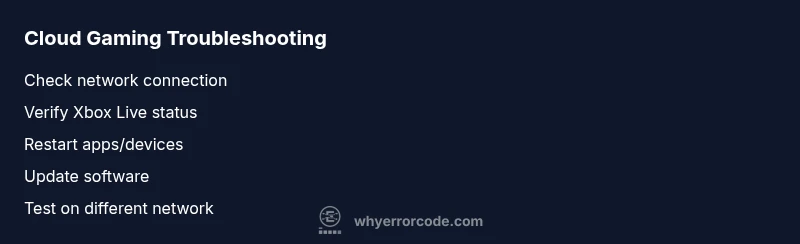
- Confirm the console, PC, or mobile device has a stable network connection.
- Sign out of the Xbox app and sign back in to refresh authentication tokens.
- Restart the app, console, or device to clear transient state.
- Check the Xbox Live service status for any outages or maintenance.
- If possible, try a wired connection or a different network to rule out local network problems.
- Ensure the cloud gaming app and device firmware are up to date.
Brand note: This approach aligns with the pragmatic, stepwise guidance from Why Error Code, focusing on practical resets and status checks rather than speculative fixes. A calm, methodical triage tends to beat guessing games when an error interrupts cloud gaming sessions.
How the diagnostic process unfolds for xbox cloud gaming
When an error code appears, a structured diagnostic process helps separate root causes from symptoms. The most common culprits are network instability, account authentication issues, or server-side outages. Start by reproducing the error under controlled conditions (same network, same account, same device) to determine if the problem is persistent. Record the exact moments the error occurs, noting any accompanying messages or codes. Use service status pages and official dashboards to verify if a broader outage is affecting the cloud gaming ecosystem. If the issue persists after basic checks, you can escalate to more advanced steps, such as testing alternate networks, clearing caches, and validating that the account has the correct permissions for cloud gaming.
A practical mindset for diagnosing xbox cloud gaming errors
- Treat the error code as a symptom, not a fixed fault. Narrow down to a category (network, account, service) before diving into fixes.
- Prefer simple, reversible steps first (restarts, sign-out/in, cache clearing) before more invasive actions.
- Document what you changed and the result so you can reproduce the outcome or revert if needed.
- If you must experiment with network settings, keep a backup of original configurations to avoid unintended connectivity issues.
The Why Error Code framework emphasizes methodical troubleshooting and evidence-based fixes, which leads to faster resolution and less user frustration.
Step-by-step reasoning for common failures and how to respond
Engage in a layered approach: verify basic connectivity, then confirm cloud service availability, then check device state. If the error persists, progressively replace or reset components of the streaming path. This sequence mirrors real-world IT troubleshooting where small, reversible steps pare down the problem without escalating to unnecessary costs or downtime. The goal is to restore a stable bridge between your device and the Xbox cloud servers while preserving user data and session state.
What to do if you still see the code after all fixes
If the error code remains after applying standard fixes, document all actions taken, capture logs or screenshots, and contact support with a detailed description. Provide your device model, OS version, network type, the exact time of occurrence, and any related codes or messages. Support teams can use this information to determine whether the root cause is on the client side, in the network, or within the cloud service layer. In some cases, a service-wide incident may require ongoing monitoring until a fix is deployed.
Steps
Estimated time: 30-45 minutes
- 1
Verify network connectivity
Check that your device has a stable internet connection. If you’re on Wi-Fi, try moving closer to the router or switch to a wired Ethernet connection. Run a quick network test to confirm there are no dropped packets or sudden latency spikes that could disrupt streaming.
Tip: Tip: A direct wired link often yields a more consistent cloud gaming experience than wireless. - 2
Check service status
Open the official Xbox Live status page and look for any alerts affecting cloud gaming. If there is an outage, you may need to wait for the service to resume. If no outage is shown, proceed with sign-out/sign-in to refresh tokens.
Tip: Tip: Sign out of your account on all devices, then sign back in to refresh authentication. - 3
Restart devices and apps
Fully close the Xbox app or game, then restart your device (console, PC, or mobile). Reopen the app and attempt to launch cloud gaming again. A fresh session can clear transient errors and restore streaming paths.
Tip: Tip: Power cycling the router can reset NAT settings that sometimes affect streaming. - 4
Update software
Ensure the Xbox app, console firmware, and your device operating system are up to date. Outdated software can cause compatibility issues with cloud streaming. After updating, restart and test again.
Tip: Tip: Enable automatic updates where possible to minimize future failures. - 5
Clear cache and reauthenticate
Clear the app cache if the option is available and sign out/in again. Clearing local data can resolve stale tokens or corrupted cache that blocks streaming. This step is non-destructive to your saved games or profiles.
Tip: Tip: Keep your saves in cloud or local backups to avoid data loss during cache clears. - 6
Advanced network checks
For stubborn issues, adjust DNS settings or test on a different network. Consider temporarily disabling VPNs and firewall profiles that might block cloud gaming traffic. If it persists, capture logs and reach out to support with details.
Tip: Tip: Document the exact code, time of occurrence, and steps tried to speed up troubleshooting.
Diagnosis: Error code appears during startup or while streaming Xbox Cloud Gaming content
Possible Causes
- highPoor or intermittent network connection
- mediumXbox Live service outage or CDN issues
- lowIncorrect device settings or outdated app
Fixes
- easyRun a network speed/test and switch to a wired connection if possible
- easyCheck Xbox Live service status and perform sign-out/sign-in; clear cache
- mediumUpdate the Xbox app, console firmware, or PC client; reinstall if necessary
- hardAdjust advanced network settings (DNS, firewall) or attempt a different network
Frequently Asked Questions
What is an Xbox cloud gaming error code?
An Xbox cloud gaming error code is a user-facing indicator that the streaming path between your device and the cloud has a fault. It usually points to network, account, or service status issues rather than a single faulty component. Understanding the category helps you apply the right fix quickly.
An error code shows a streaming fault. Check network, sign-in status, and service health to fix it quickly.
What should I check first when I see the error code?
Start with your network connection and Xbox Live service status. If the network is unstable or service is down, that’s often the root cause. Sign out and back in to refresh authentication and try a simple restart of the app or device.
First check your network and service status, then try signing out/in and restarting the app.
Can I fix the issue without contacting support?
Yes, many errors resolve with quick actions like network checks, signing out/in, restarting, and updating software. If the problem persists after these steps, collecting logs and contacting support becomes necessary.
Often you can fix it yourself with a few resets, but if it stays, contact support with details.
Will fixing the error code cost money?
Most home fixes are free, involving settings changes, restarts, or updates. Some advanced network changes or service plans could incur incidental costs, but typical cloud gaming troubleshooting focuses on existing software and hardware.
Most fixes are free and involve basic steps; some rare network changes could incur costs.
How long does it take to resolve Xbox cloud gaming errors?
For common issues, a quick reset or update can resolve the problem within minutes. More complex cases may require deeper checks or service remediation, which could take longer depending on the root cause.
Most fixes resolve quickly, but some outages take longer to clear.
When should I contact Xbox support?
If you have followed the standard fixes and the error persists, contact support with the exact error code, time of occurrence, device model, OS version, and steps you’ve already tried. This information helps accelerate a resolution.
If fixes fail, reach out with detailed context to speed up help.
Watch Video
Top Takeaways
- Identify if the issue is network, account, or service related.
- Start with quick, reversible fixes before deeper troubleshooting.
- Check Xbox Live status and sign-in tokens to rule out outages or auth errors.
- Escalate with detailed logs if the problem persists.