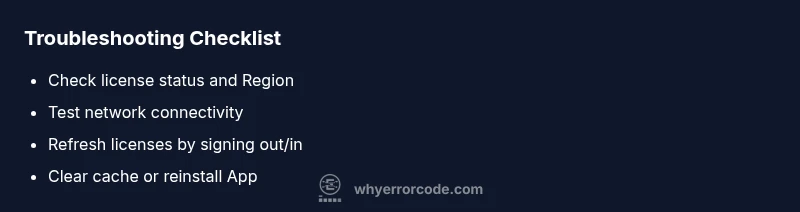
Game Pass Error 0x87e00029: Quick Fix Guide
Urgent guide to fix gamepass error code 0x87e00029. Learn what it means, fast troubleshooting steps, and how to prevent it on Xbox, PC, and mobile. Includes step-by-step repair and safety tips.


Gamepass error code 0x87e00029 indicates a licensing/authentication problem with Game Pass content. The most common fix is to refresh the license by signing out and back in, verify your network connection, and restart the app or device. If the issue persists, check service status and reapply the subscription status.
What this error means for Game Pass users
Error code 0x87e00029 is tied to licensing and authentication checks performed by the Game Pass service. When the system cannot validate your license, or when your account has not been properly authenticated, you’ll see this error and may be blocked from launching content. This can be caused by a temporary service hiccup, an expired or misfired subscription signal, or a mismatch between your account region and the app you’re using. Understanding that this is largely a licensing integrity issue helps guide the next steps: refresh tokens, verify status, and ensure your device can reach Microsoft’s authentication servers. This is not typically a hardware fault, but it can feel urgent because it blocks access to a library you expected to use.
In most cases, the path to resolution starts with re-authentication and a quick network sanity check. If you’ve recently changed regions, moved devices, or altered your Microsoft account settings, those changes can trigger this error until licenses refresh across devices.
Quick checks you can perform without tools
- Verify your internet connection is stable and not behind a restrictive firewall. Use a wired connection if possible, or switch to a reliable Wi-Fi network.
- Sign out of your Microsoft account on the device and sign back in to refresh licenses.
- Check the device’s date and time settings; incorrect time can cause authentication failures.
- Review Xbox Live or Microsoft Services status pages to confirm there’s no ongoing outage affecting authentication.
- Ensure your Game Pass subscription is active and tied to the same region as the device you’re using.
These steps cover the majority of transient licensing issues and are safe to perform without specialized tools.
Common causes ranked by likelihood
- licensing issue or expired subscription (high)
- temporary Xbox Live / Microsoft authentication outage (high)
- local cache corruption or outdated app (medium)
- region/account mismatch after device changes (low)
- corrupted game license data on the device (low)
Understanding the hierarchy helps you triage quickly: start with license status and service health, then clear local data if needed, and finally reinstall if the problem persists.
How licensing and authentication interact with Game Pass
Game Pass relies on a combination of digital licenses and online authentication. When you launch a title, the app checks the license against your Microsoft account, confirms your region aligns with the content, and ensures the service is reachable. Any hiccup in this chain—wrong time, blocked outbound traffic, or a lagging server—can trigger 0x87e00029. This is why the fastest fixes involve refreshing licenses, validating region settings, and ensuring the device can reach Microsoft authentication endpoints without interference.
For developers and IT pros, understanding the flow helps you replicate user scenarios and design robust retry logic in apps that rely on Game Pass content.
Data you should collect for troubleshooting
- Device model and OS version (Xbox, Windows PC, mobile OS) and whether you are on Console, PC, or Mobile.
- Exact time of the error and whether it occurs with all games or specific titles.
- Network type (wired/wireless), router model, and whether VPN or firewall is in use.
- Game Pass subscription status, region, and any recent changes to the account.
- Screenshots or screen recordings of the error, including any error dialog texts.
Having this data ready helps support reproduce and resolve the issue faster, reducing back-and-forth.
Device-specific guidance: Console vs PC vs Mobile
- Console (Xbox): Sign out from the Xbox profile, clear cache if available, and sign back in. Check Live service status and try a wired connection from the console’s network settings.
- PC (Windows): Sign out of the Microsoft Store, clear the Windows Store cache (wsreset), and sign back in. Verify Windows Update status and ensure the Xbox app has permission to access the network.
- Mobile (iOS/Android): Update the Game Pass app to the latest version, ensure the device time is correct, and re-login to the Microsoft account within the app.
In all cases, verify that the device can reach the Microsoft authentication endpoints and that region settings are consistent across devices.
Quick fixes that often resolve the issue
- Sign out and sign back in to refresh licenses (easy).
- Verify Game Pass subscription status and region match (easy).
- Restart the device and relaunch the Game Pass app (easy).
- Clear cached data and, if needed, reinstall the app (medium).
If these steps don’t work, move to more thorough checks or escalate to support with your collected data.
When to escalate to support and what to expect
If the error persists after the basic fixes, contact Microsoft Support with the collected diagnostic data. Expect guidance to verify license status on the server side and confirm region/account alignment. Support may request logs or logs from the Xbox app, the game, and the device.
Professional assistance might include licensing metadata refresh on the back end or targeted server checks. Costs, if any, are typically free for standard account issues, but advanced diagnostic support could carry service charges in some enterprise contexts.
Prevention tips to avoid 0x87e00029 in the future
- Keep your Game Pass subscription active and tied to your primary Microsoft account.
- Regularly sign in on each device you use to play Game Pass content to refresh licenses.
- Ensure devices have stable network access and avoid mixed-region configurations across devices.
- Periodically clear cache and verify service status before launch times when large updates land.
- Monitor official channels for any outage notices that could impact authentication.
Steps
Estimated time: 20-40 minutes
- 1
Sign out and sign back in to refresh licenses
On your device, sign out of the Microsoft account used for Game Pass, wait a moment, then sign back in. This forces the licensing service to revalidate your entitlement.
Tip: Have your account credentials handy before you begin. - 2
Verify subscription status and region alignment
Open the Game Pass or Microsoft account dashboard and confirm the subscription is active. Ensure the region setting matches the device’s regional configuration.
Tip: A region mismatch is a common trigger for 0x87e00029. - 3
Test network and authentication access
Check your internet connection, disable VPNs if used, and ensure the device can access Microsoft authentication endpoints (e.g., login.ui.xboxlive.com).
Tip: A wired connection can reduce intermittent issues. - 4
Clear cache / temporary data
Clear application cache for the Game Pass app. If on Windows, run a quick cache reset; on consoles, use the system menu to clear cached data.
Tip: Cache corruption is a frequent, fixable cause. - 5
Reinstall the Game Pass app
Uninstall and reinstall the Game Pass app on PC or mobile, or perform a console app update if applicable.
Tip: Use the latest version to ensure license handling is current. - 6
Contact support with diagnostic data
If the issue persists, collect network traces and license-related logs and contact Microsoft Support.
Tip: Provide screenshots and the exact error code to speed up resolution.
Diagnosis: Game Pass error code 0x87e00029 appears when launching titles
Possible Causes
- highClipped or expired license tied to the user account
- highTemporary Xbox Live / Microsoft authentication outage
- lowCorrupted local cache or outdated app data
Fixes
- easySign out of your Microsoft account and sign back in to refresh licenses
- easyCheck Xbox Live / Microsoft services status and test network connectivity
- mediumClear app cache or reinstall the Game Pass app if on PC/phone
Frequently Asked Questions
What does gamepass error code 0x87e00029 mean?
It indicates a licensing/authentication problem with Game Pass content. The fix typically involves refreshing licenses, checking your subscription status, and ensuring network connectivity to reach Microsoft's authentication servers.
It means your Game Pass entitlement isn’t being validated. Try signing out and back in, verify your subscription, and check your network connection.
Is this error tied to my subscription status?
Yes. An inactive or region-mismatched subscription can trigger the error. Verify your subscription is active, regional settings are consistent, and that your device is using the same region as your account.
It’s often about your subscription being active and region-aligned; check both in your account and on the device.
Will signing out and back in fix the issue?
Often yes. Re-authentication refreshes licenses and can clear transient authentication hiccups that cause 0x87e00029. If this doesn’t help, try a full restart and cache clear.
Usually, signing out and back in fixes licensing hiccups. If not, proceed with a restart and cache clear.
Does this affect only Xbox or Windows as well?
The error can occur on any platform using Game Pass, including Xbox consoles, Windows PC, and mobile apps, especially when licenses need refreshing or authentication endpoints are temporarily down.
It can affect Xbox, Windows, and mobile—any platform using Game Pass licenses.
Should I contact support if it persists?
Yes. If basic fixes fail and you’ve confirmed service status, contact Microsoft Support with collected data. They can refresh licensing on the server side or provide targeted guidance.
If it keeps happening after basic steps, reach out to support with your data.
Are there any safe troubleshooting steps I should avoid?
Avoid modifying system files or bypassing licensing checks. These actions can violate terms and harm device security. Stick to official steps and approved software.
Don’t modify system files or bypass licensing; use official steps only.
Watch Video
Top Takeaways
- Refresh licenses by signing out/in.
- Check service status before deeper fixes.
- Region and account alignment matters.
- Preserve diagnostic data for faster support.