Error failed to download vs code server failed to fetch: Troubleshooting Guide
Learn the quickest path to resolve 'error failed to download vs code server failed to fetch' with practical checks, diagnostic flow, and proven fixes from Why Error Code.


The error problem usually stems from a blocked or unstable connection between your client and the VS Code Server, often caused by a firewall, proxy, or DNS issue. Start by validating basic connectivity to the server URL, temporarily disabling VPNs or proxies, and confirming TLS certificates are valid. If the issue persists, try a different network and clear cached credentials before retrying the download.
The error explained: error failed to download vs code server failed to fetch
When you encounter this error, it typically means your client cannot successfully fetch the VS Code Server bits from the remote endpoint. This can happen during fresh installs, remote SSH sessions, or when upgrading the Remote - Server component. The root cause often sits at the network edge: a corporate firewall, a VPN or proxy that mutates traffic, DNS resolution problems, or an SSL inspection device interfering with TLS handshakes. It can also be caused by an outdated client or a temporarily unavailable server. The Why Error Code team emphasizes that a structured approach beats guesswork: start with the simplest network checks and progress to configuration and version alignment.
In practice, you want to confirm that the endpoint is reachable, certificates are valid, and there is no local device or browser cache blocking the download. If you’re operating in a managed IT environment, coordinate with your network team to validate access rules and ensure the VS Code Server domain is whitelisted. By treating this as a layered problem, you can isolate whether the issue is client-side, network-related, or server-side.
Common causes and scenarios
The most frequent culprits are local network constraints or misconfigurations. A misbehaving VPN, a corporate proxy performing TLS termination, or an ISP DNS cache can all lead to fetch failures. Inconsistent DNS results or stale hosts files can misdirect requests to non-existent or outdated endpoints. TLS certificate problems, such as expired or untrusted certificates, frequently surface when the server uses a self-signed certificate or when intermediate certificates are missing. Rarely, the VS Code Server endpoint itself may be temporarily down or rate-limited due to maintenance or high traffic. In any case, the symptom is the same: the client cannot download the server payload, and the IDE reports a fetch failure. The recommended first steps are always to rule out basic connectivity issues and then move to more advanced checks.
Diagnostic flow at a glance
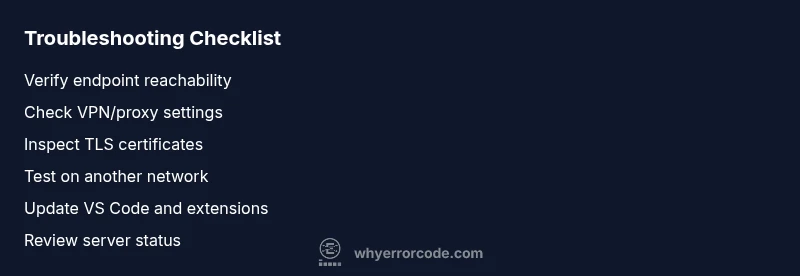
A practical diagnostic flow helps you stay organized and avoid blind fixes. Start with the simplest checks and progress to targeted tests:
- Symptom recognition: Confirm you see a fetch error message during install or connect attempts.
- Network checks: Verify that the endpoint is reachable via curl or a browser, and that no VPN/proxy is muting traffic.
- Certificate validation: Inspect certificate warnings and ensure they chain to a trusted root.
- DNS and host resolution: Test with alternative DNS (like 1.1.1.1 or 9.9.9.9) and verify that the domain resolves correctly.
- Client/server alignment: Make sure your VS Code client and Remote Server extension are up to date and configured for the correct endpoint.
- Escalation: If the issue persists after these steps, involve IT or check service status pages for the remote endpoint.
Step-by-step: Fix the most common cause (network/proxy)
Additional checks for edge cases
Prevention and best practices
When to seek professional help and how to document your steps
Steps
Estimated time: 45-60 minutes
- 1
Verify basic connectivity
Ping or curl the VS Code Server endpoint from the client machine to confirm reachability. Check for DNS resolution and ensure you can reach port 443. If the endpoint fails to respond, diagnose local network constraints first.
Tip: Use a simple curl command to isolate TLS: curl -v https://your-vscode-server.example.com/version. - 2
Isolate VPN/proxy influence
Disable or temporarily bypass VPNs and proxies to see if the download proceeds. If it works without them, reconfigure proxy settings or add exceptions for the VS Code Server domain.
Tip: Document proxy rules and test with and without a proxy to compare results. - 3
Check TLS certificates
Inspect certificate validity and chain. If you see certificate name mismatch or untrusted issuer, fix by updating trust stores or acquiring proper certificates.
Tip: Chrome/Firefox security panels can show certificate chain details for quick checks. - 4
Test on alternative networks
Attempt the operation from a different network (home, mobile hotspot, or a different office). If it succeeds, the issue is likely network-specific.
Tip: Avoid public networks for sensitive work until resolved. - 5
Update client and extensions
Ensure VS Code and the Remote - SSH/Server extension are up to date. Compatibility issues can cause fetch failures when newer server builds are not supported.
Tip: Enable auto-update to stay aligned with server changes. - 6
Retry and capture logs
Retry the download with verbose logging enabled to capture error details. Use the logs to identify whether the failure is client-side, network-related, or server-side.
Tip: Save logs to share with IT for faster resolution.
Diagnosis: Error message during download: 'failed to download' or 'failed to fetch' VS Code Server
Possible Causes
- highNetwork firewall or corporate proxy blocks outbound HTTPS to the VS Code Server domain
- mediumDNS resolution issues or stale DNS cache causing wrong endpoint routing
- mediumTLS/SSL certificate validation failures or TLS interception altering traffic
- lowServer-side outage or rate limiting at the VS Code Server endpoint
- lowOutdated VS Code client or misconfigured server URL
Fixes
- easyCheck outbound network rules and temporarily disable VPN/proxy to test connectivity
- easyFlush DNS cache and switch to a reliable DNS resolver (e.g., 1.1.1.1)
- mediumReview TLS/SSL inspection rules and ensure trusted certificates are used; add exceptions if needed
- easyUpdate VS Code and the Remote - SSH/Server extension to the latest version
- easyTest access from an alternate network or device to isolate local constraints
- easyIf the server endpoint shows errors, check status pages or contact IT for outages
Frequently Asked Questions
What does the error failed to download vs code server failed to fetch mean?
This error indicates that the VS Code Server payload could not be downloaded from its remote endpoint due to networking, DNS, or certificate problems. It is usually not a code bug but a connectivity or configuration issue. Start with basic network checks and proceed to certificate or server status verification.
This error means the server payload couldn’t be fetched due to network or certificate problems. Start with connectivity checks and then verify certificates and server status.
How can I quickly test if the server endpoint is reachable?
Use curl or a browser to access the exact server URL over HTTPS. If you receive a TLS error or a 4xx/5xx response, note the code and message to guide subsequent fixes.
Try curling the server URL or loading it in a browser to check for TLS or HTTP errors, then move to the appropriate fix.
Should I disable my VPN or proxy permanently?
No. Virtual private networks and proxies are common causes of fetch failures. Disable temporarily only to diagnose. If they are required, configure the correct exceptions or use a split-tunnel setup.
Don’t leave VPNs disabled forever; use them for testing and then configure exceptions if needed.
What if the issue is on the VS Code Server side?
Check the VS Code Server status or service status pages. If there’s an outage or rate limit, wait for the service to recover or contact support for guidance.
If the server is down, you’ll need to wait or contact support for status updates.
When should I contact IT or support?
If you’ve exhausted network, certificate, and client updates without resolution, involve IT or vendor support. Provide logs, network traces, and exact error messages to speed troubleshooting.
If issues persist after basic checks, reach out to IT with your findings and logs.
Watch Video
Top Takeaways
- Verify endpoint reachability before changing settings
- Isolate network vs server issues with alternate networks
- Update VS Code and extensions to avoid compatibility problems
- Address TLS/SSL issues with trusted certificates and inspections
- Document changes and escalate when the issue persists