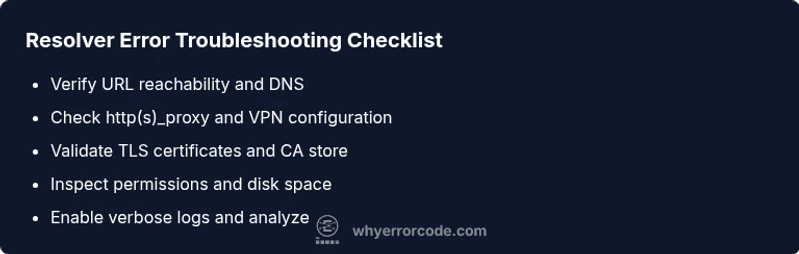
Resolver error: failed to install the vs code server — comprehensive troubleshooting
Learn how to diagnose and fix the resolver error error failed to install the vs code server during VS Code Server installation. A practical, step-by-step plan from Why Error Code for developers and IT pros.


The resolver error error failed to install the vs code server usually means the installer cannot reach, fetch, or launch the remote server components required by VS Code Server. Start by validating network access, proxy and firewall rules, DNS resolution, and the install URL. If basics fail, follow the diagnostic flow and execute the step-by-step fixes described here by Why Error Code.
What this error means and why it happens
The message resolver error error failed to install the vs code server typically indicates the installer could not fetch or run the remote server components. In practice, this happens when the VS Code Server cannot be reached at its install URL, or when a security layer blocks the fetch or execution. According to Why Error Code, the most common triggers are network constraints, DNS resolution issues, proxy configurations, and permission problems on the host. For developers and IT pros troubleshooting remote development, recognizing the root cause quickly saves time and reduces downtime. The Why Error Code team found that even small misconfigurations—like a typo in the install URL, an expired certificate, or a blocked port—can trigger this failure. In many cases, the problem isn’t the code itself but the environment around the installer. This makes a structured approach essential: verify connectivity, confirm URL accessibility, and inspect the host environment before trying more invasive fixes.
Steps
Estimated time: 25-40 minutes
- 1
Verify basic network access and URL reachability
Start by pinging the install URL and performing a simple curl or wget to confirm the server is reachable from the host. If DNS resolution fails, fix the DNS settings or switch to a trusted resolver. Ensure you’re not behind a VPN that blocks the installer URL.
Tip: If you’re on a corporate network, try a direct connection or split-tunnel VPN to rule out corporate firewall issues. - 2
Check proxy and VPN configuration
Inspect environment variables like http_proxy and https_proxy, and verify any HTTPS inspection appliances don’t block the installer. Clear conflicting proxy rules and set sane timeouts. If you must, temporarily bypass the proxy to test the installation.
Tip: Document changes and revert them after testing to avoid breaking other tools. - 3
Validate DNS and hostname resolution
Use nslookup or dig to confirm that the install URL resolves correctly. If resolution is flaky, edit your /etc/hosts or DNS settings to ensure stability during installation. A misconfigured DNS is a common root cause.
Tip: Always test both name resolution and IP connectivity to the install host. - 4
Inspect TLS/SSL certificate trust
Ensure the host trusts the certificate chain used by the install URL. Update CA certificates if needed and verify that intermediate certs aren’t missing. TLS handshake failures often look like resolver errors in the installer.
Tip: Avoid disabling certificate validation in production environments. - 5
Check filesystem permissions and space
Verify that the user running the installer has write permissions to the VS Code Server install directory and that there’s enough disk space. Permission issues can silently block remote components from being written or executed.
Tip: Run as the correct user and check quotas or read-only mounts. - 6
Enable verbose logging and reproduce
Rerun the install with verbose or debug logging enabled. Collect the logs for analysis—look for exact steps where the installer fails and capture any stack traces or HTTP error codes.
Tip: Share logs with teammates or support channels for faster triage. - 7
Retry or perform a manual install of VS Code Server
If automated installation continues to fail, attempt a manual server component install on the host, ensuring compatibility with your local VS Code client version. Then retry the remote connection.
Tip: Ensure version parity between local VS Code and server components to avoid mismatches.
Diagnosis: VS Code Server installation fails with the message resolver error error failed to install the vs code server during Remote-SSH connection or VS Code server install script
Possible Causes
- highNetwork connectivity blocks access to the install URL (DNS, VPN, proxy, firewall)
- mediumIncorrect or blocked install URL or certificate issues during TLS handshake
- mediumEnvironment variables (http_proxy/https_proxy) misconfigured
- lowInsufficient permissions or file system restrictions on the host
Fixes
- easyTest basic network connectivity to the install URL and ensure outbound access on required ports
- easyCheck and correct proxy settings and VPN that might intercept traffic, and add the install URL to allowlist
- easyVerify TLS certificates and update CA certificates on the host if needed, then retry
- easyConfirm DNS resolution works (nslookup/dig) and adjust /etc/hosts if needed
- easyReview and adjust VS Code settings for remote SSH, including the remote server URL and user permissions
- mediumRun the install with verbose logging and capture full logs for analysis, identify exact failing step
- hardAs a last resort, reset or reinstall VS Code Server components on the host, ensuring compatibility with the local VS Code version
Frequently Asked Questions
What is the resolver error error failed to install the vs code server?
It indicates the VS Code Server installer could not fetch or run the remote components due to network, DNS, or environment issues. Start with connectivity checks and then review proxies and permissions.
The error means the installer couldn’t reach or run the server components. Check network, DNS, and proxy settings first.
Is this issue typically related to Remote-SSH?
Yes, Remote-SSH relies on a remote server component. If the install fails, it often stems from network or host environment problems rather than the VS Code client. Address environmental blockers first.
Often tied to Remote-SSH; fix network or host environment to get the server installed.
How can I test DNS resolution for the install URL?
Use commands like nslookup or dig for the install URL, then verify the returned IP matches expectations. If it fails, adjust DNS settings or hosts file accordingly.
Test DNS with nslookup or dig and fix any resolution issues before retrying.
Should I disable security features to fix this?
No. Disabling security features can expose you to risk. Instead, fix the underlying issues—proxy, firewall, TLS, or DNS—and reattempt installation.
Avoid turning off security features; fix the root causes instead.
What logs should I collect to troubleshoot effectively?
Collect installer logs with verbose or debug mode enabled, system logs, network traces, and any browser or terminal output related to the install URL. These help pinpoint where the failure occurs.
Get verbose install logs and network traces to see where it fails.
When should I involve a system administrator or network team?
Escalate if you cannot diagnose DNS, TLS, or firewall rules, or if the issue involves restricted corporate networks or restricted host policies. A quick escalation can save hours.
If you’re stuck after checking basics, involve your admin or network team for deeper analysis.
Watch Video
Top Takeaways
- Verify URL reachability and DNS first
- Inspect proxies and TLS certificates before deeper fixes
- Enable verbose logs to identify exact failure points
- Test changes in a safe, reversible way