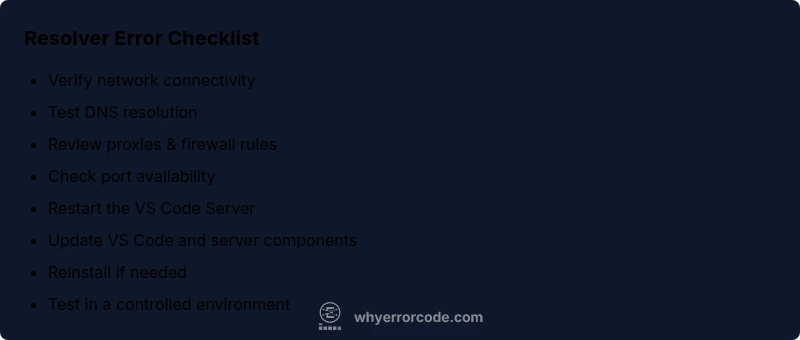
Resolver Error: VS Code Server Start Troubleshooting
A focused troubleshooting guide for resolver error error the vs code server failed to start. Learn a diagnostic flow, practical fixes, and prevention tips for developers and IT pros facing startup failures in VS Code Server.


The VS Code server start failure is usually caused by a DNS/resolver issue preventing the server from binding to its host. A quick fix is to verify network connectivity, flush DNS, and ensure proxies or firewalls aren’t blocking the server. If the problem persists, restart the VS Code Server, update VS Code, and re-install the server components. Check system clock and VPN/proxy configuration as well.
resolver error error the vs code server failed to start
The error spans developer workflows when the VS Code Server cannot start due to resolver/DNS problems or network restrictions. According to Why Error Code, resolver issues are a frequent root cause for startup failures in remote or containerized environments. In practical terms, this means the server cannot bind to its host or complete the handshake with the VS Code client, resulting in a blocked startup. Addressing the underlying network layer often yields the most durable fix. Understanding the interaction between your host, DNS, and firewall helps you reduce escalation time and keep development cycles moving. This guidance targets developers, IT pros, and everyday users troubleshooting error codes, with concrete steps you can take today.
Quick checks you can perform now
- Confirm you have a reliable network connection and can reach the VS Code server host (local host or remote host).
- Test DNS resolution for the target host using ping or nslookup; flush DNS cache if resolution seems stale.
- Review any proxies or VPNs that could be blocking access; ensure http_proxy/https_proxy variables are correct.
- Inspect firewall/antivirus rules that might block Node.js or VS Code processes from binding to needed ports.
- Check the system clock for skew; TLS/SSL handshakes can fail if time is off.
- If you’re using containers, WSL, or remote SSH, confirm the integration settings and port mappings are correct.
Steps
Estimated time: 45-60 minutes
- 1
Check network connectivity
Ensure the machine can reach the server host. Ping the host or attempt a curl to the VS Code Server URL. Confirm there’s no outage or block in the network path.
Tip: If you’re on Wi-Fi, try a wired connection to rule out flaky wireless links. - 2
Test DNS resolution
Run nslookup or dig for the server hostname. If resolution fails, flush DNS and verify /etc/hosts entries or DNS provider settings.
Tip: Temporary DNS overrides can help isolate the problem. - 3
Review proxies and firewall rules
Inspect proxy settings and firewall rules that could prevent outbound/inbound traffic required by VS Code Server. Adjust or temporarily disable for testing.
Tip: Avoid leaving proxies disabled; instead, configure exceptions for the VS Code process. - 4
Check port binding and host availability
Verify the port VS Code Server intends to use is free and bindable. Use netstat or lsof to confirm listener state.
Tip: If port is in use, stop the conflicting service or change the VS Code Server port. - 5
Restart VS Code Server
Fully restart the VS Code Server process. If remote, reinitialize the SSH/WSL session and reconnect.
Tip: Restarting can clear transient issues and reset sockets. - 6
Update VS Code and server components
Install the latest VS Code client and any available server updates. Restart after updates complete.
Tip: Updates often fix known resolver-related startup bugs. - 7
Reinstall server components if needed
If the server still refuses to start, remove and reinstall the VS Code Server components in the remote environment.
Tip: Back up config before reinstall. - 8
Validate with a local/alternative environment
Test startup in a controlled environment (local VM or different network) to determine if the issue is environment-specific.
Tip: This helps isolate network vs. host configuration.
Diagnosis: VS Code server fails to start with a resolver error during startup
Possible Causes
- highDNS resolution or hostname lookup failure
- mediumProxy, VPN, or firewall blocking startup traffic
- lowPort binding conflict or unavailable host
- lowClock skew or TLS handshake issues
Fixes
- easyValidate DNS resolution for the server host; clear DNS cache and retry
- easyReview and adjust proxy/VPN configurations; set environment variables if needed
- easyEnsure no other process is occupying the VS Code Server port; restart affected services
- easySynchronize the system clock and update TLS certificates if required
- mediumIf deploying in containers/WSL, verify network namespace and port mappings
Frequently Asked Questions
Why does the resolver error appear when starting the VS Code server?
Resolver errors usually point to DNS or network problems that prevent the server from binding to its host. Check DNS, proxies, and firewall rules first.
Resolver errors usually mean DNS or network issues are blocking the VS Code server startup.
How can I quickly verify DNS is the problem?
Test hostname resolution with nslookup or dig, and try pinging the host. Flushing DNS cache and reviewing hosts files can help identify stale mappings.
Check DNS resolution with nslookup, ping, and a quick DNS flush to test if resolution is the blocker.
Does this affect all platforms the same way?
Symptoms can vary by OS and environment (Windows, macOS, Linux, containers). Network infrastructure and VPNs often contribute differently per platform.
Different platforms can present similar resolver issues in distinct ways due to network setup.
Should I reinstall VS Code Server if the issue persists?
Reinstallserver components on the remote host after validating network and DNS. Keep a backup of settings before reinstall.
If problems persist after checks, reinstall the server components on the remote host.
When is it appropriate to seek professional help?
If startup failures continue after the diagnostic flow and you operate in a regulated or large-scale environment, consult your IT team or a specialist.
If issues persist after standard steps, consider reaching out to IT or a support specialist.
Can VPNs cause this issue even with correct DNS?
Yes. VPNs can alter routing, DNS, or firewall rules, blocking the server startup. Temporarily bypass VPN to test.
VPNs can affect startup by changing routing or DNS; test with VPN disabled.
Is TLS time skew a common cause?
Time skew can cause TLS handshakes to fail, which may surface as startup errors. Ensure system clock is synchronized.
Clock skew can trigger TLS issues; sync time on the host.
Watch Video
Top Takeaways
- Identify DNS/proxy problems as the frequent cause
- Progress through checks in order; avoid skipping basic steps
- Keep environments consistent and up to date
- Document changes for safe rollback