Fix error code 403: Quick diagnostics and remedies
Learn how to diagnose and fix error code 403 quickly. This urgent guide covers common causes, practical steps, safety tips, and when to call a professional for access issues.


403 Forbidden means the server understood your request but refuses to authorize it. This usually occurs due to missing or invalid credentials, insufficient permissions, or a policy at a firewall/CDN blocking access. Quick fixes include verifying authentication, refreshing tokens, checking user roles, and reviewing access controls. If you’re unsure, contact the admin or support. According to Why Error Code, acting on the right cause—permissions first—saves time and reduces risk.
What 403 Forbidden really means
A 403 Forbidden response signals that the server understood your request but is deliberately denying access to the resource. In practical terms, you may be authenticated in some way, but you lack the necessary permission for that URL or action. According to Why Error Code, a 403 usually represents a policy decision rather than a technical failure; the server is saying, in effect, 'you are not allowed here.' This distinction matters because it guides your fix strategy: a 401 Unauthorized would indicate missing credentials, while a 403 points to permissions or policy restrictions. Common situations include attempting to access another user’s data, hitting a restricted admin endpoint, or crossing a hard rule implemented by an application firewall, CDN, or access-control list. Knowing this helps you focus on permissions and policy checks first.
Immediate checks you can perform on the client side
Before reaching out for server-side changes, verify a few client-side factors that can masquerade as a 403. Check that you’re using the correct URL and HTTP method, and ensure there are no typos in endpoints. Clear browser cache and cookies if the session state could be stale. Re-authenticate or refresh access tokens if your app uses OAuth or JWTs. Inspect the Authorization header or cookie-based session to confirm the credentials are valid and not expired. If possible, try an incognito window or another device to rule out local blocks. These steps often reveal simple drifts in configuration that trigger 403s without touching server code.
Common server-side causes you should know
403s frequently stem from server-side policies. Your resource may require a specific user role or permission that your account lacks. Resource-level ACLs can restrict access even for authenticated users. If your organization uses multi-tenant architecture, permissions might be scoped narrowly to a tenant. In some setups, IP-based blocks or rate-limiting rules attached to a specific endpoint can yield 403 responses. Misconfigured share permissions, stale access policies, and deprecated tokens also top the list. While a misconfigured error page can mislead, a true 403 will be accompanied by clear headers indicating the restricted resource.
The role of authentication and tokens
Authentication is the doorway to permission checks, but a valid login does not guarantee access. Tokens—be they API keys, OAuth tokens, or JWTs—must be valid, not expired, and intended for the target resource. Mismatched audience, scope, or issuer can cause servers to reject requests with 403s even when credentials appear correct. If your API uses token introspection or a gateway, ensure the token has the right scope and that the resource path is included in the allowed permissions. Rotating keys or refreshing sessions can resolve many token-related 403s quickly. Remember to log and monitor token usage to detect unusual patterns that trigger blocks.
Access controls, roles, and permissions in depth
Fine-grained access controls determine who can do what in an application. RBAC (role-based access control) and ABAC (attribute-based access control) are common patterns. Ensure your account has the required role for the action and that roles are correctly assigned across environments (dev, staging, production). When migrating resources, verify that permissions aren’t unintentionally restricted by new policies. Review the exact resource path, required scope, and any conditional access rules that could apply to your request. A misalignment between user roles and resource permissions is a frequent cause of 403s.
Network-layer blocks: firewall, CDN, and WAF
Network-level controls can block access even when application permissions are correct. Web application firewalls (WAFs), CDN edge rules, and network ACLs may deny requests based on IP, user agent, or request pattern. If your client appears suspicious or your IP is part of a blocked range, you’ll see 403 responses. In some setups, geolocation restrictions or country-based blocks can also trigger 403s. Check with your network or security team to review firewall rules, CDN policy, and WAF configurations. Temporarily whitelisting your IP or adjusting the rule can resolve the issue, but do so only with proper authorization.
API and web app patterns that trigger 403
APIs and dynamic apps frequently trigger 403s when the caller lacks required scopes or when tokens are not included in the request. Ensure that every API call includes the proper Authorization header and that the token is valid for the intended endpoint. For RESTful services, endpoints often require specific HTTP methods; using the wrong method can yield a 403. If an API gateway enforces per-resource policies, verify those policies reflect current access needs. Also, verify that you aren’t hitting a deprecated endpoint that still enforces old permissions. Regularly audit API permissions and rotate credentials.
Prevention: proper configuration and testing
Preventing 403s starts with clear, versioned access policies and regular testing. Maintain an up-to-date map of which roles have which permissions and document how changes cascade to resources. Implement automated tests that simulate typical user flows with different roles. Use staging environments to validate access rules before deployment. Include comprehensive logging so you can quickly diagnose future 403s by comparing working and failing requests. Finally, ensure your incident response runbooks include steps for reverting or adjusting access policies without compromising security.
Debugging workflow with logs and headers
A structured debugging workflow speeds up 403 resolution. Capture response headers, especially WWW-Authenticate, X-Role, and X-Access-Policy fields if present. Compare failing and successful requests side-by-side: URL, method, tokens, headers, and cookies. Enable verbose server logs for the failing route in a development environment to see which check failed (authentication, scope validation, or access control). Use diagnostic tools to trace token validation and ACL checks in the backend. Document findings to prevent recurrence and to communicate with security teams.
Quick reference: checklists and runbooks
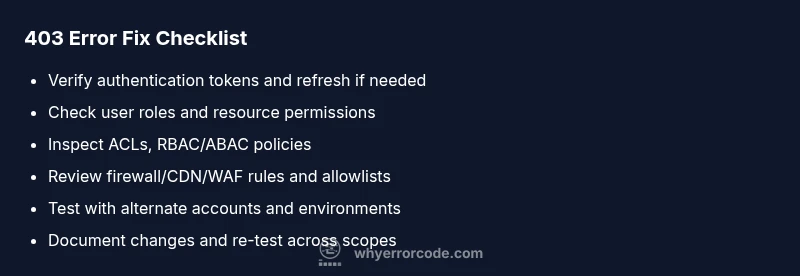
Maintain a single-page 403 runbook for developers and operators. Include the top causes, the fastest fixes, and how to verify permissions post-fix. Include a checklist: verify URL, confirm token validity, check roles, review ACLs, inspect firewall/CDN rules, and test with a known-good account. This practical companion helps teams move from symptom to resolution quickly and safely.
Steps
Estimated time: 30-60 minutes
- 1
Reproduce the 403 scenario
Capture the exact request that triggers the 403, including URL, method, headers, cookies, and payload if any. Reproduce it in a controlled environment to confirm consistency.
Tip: Use a clean session to avoid cached credentials. - 2
Inspect authentication and tokens
Check if the token is present, valid, and scoped for the resource. Decode JWTs if applicable and verify audience/issuer fields.
Tip: Watch for token expiry and scope mismatches. - 3
Review access controls
Map the resource to its required permissions and compare them against the caller's role or attributes. Look for recently changed policies.
Tip: Check for recent policy changes in the repo or console. - 4
Check network-layer blocks
Ask security/network team to inspect WAF/CDN rules and IP allowlists that could block access.
Tip: Request temporary whitelisting only with approval. - 5
Test with alternate credentials
Use another account or service principal with known permissions to see if access is allowed.
Tip: If alternate works, the issue is user/role-specific. - 6
Apply and verify fix
Make the necessary policy or token updates, redeploy if needed, and validate that the 403 is resolved across environments.
Tip: Re-run automated tests to prevent regression.
Diagnosis: User receives 403 Forbidden when accessing a protected resource
Possible Causes
- highMissing or invalid authentication credentials
- highInsufficient permissions or incorrect roles
- mediumIP-based blocks or WAF/CDN rule
- lowDeprecated or restricted endpoint
Fixes
- easyVerify authentication tokens and refresh if expired
- easyCheck and adjust user roles/permissions for the resource
- mediumReview firewall, CDN, and WAF rules for blocks and allowlists
- easyTest with a different account or IP to isolate the block
Frequently Asked Questions
What is the difference between a 403 and a 401 error?
A 401 indicates missing or invalid authentication; you are not signed in or your credentials failed. A 403 means you are authenticated, but you do not have permission to access the resource. The fix is usually adjusting permissions or tokens, not re-authentication.
A 401 means you’re not signed in correctly, while a 403 means you’re signed in but not allowed to access the resource.
Can a 403 be caused by my IP being blocked?
Yes. IP-based blocks by firewalls, CDNs, or WAFs can return 403 if your address is on a blocklist or if rate-limiting rules are triggered. Work with network teams to review allowlists and block rules.
Yes, an IP block can cause a 403; check firewall and CDN rules.
What steps should I take if I don’t have access to server configurations?
Ask the administrator for permission or access. Provide exact resource details and helper data (headers, tokens, and responses) to expedite investigation.
If you can’t access the server, involve the admin and share precise failure details.
Is a 403 always a permanent deny?
Not necessarily. Some 403s are context-specific and can be temporary if policies change or tokens are refreshed. Verify current policies and access scopes.
403s can be temporary if policies are updated or tokens refreshed.
When should I contact a professional for a 403?
If you’re in a regulated environment or dealing with sensitive access, it’s best to involve security or IT support to avoid accidental exposure or policy breaches.
If access involves sensitive data or compliance rules, involve IT/security.
Watch Video
Top Takeaways
- Prioritize permission issues first when 403 occurs
- Check tokens, scopes, and roles before server changes
- Audit network rules (WAF/CDN) if server policies seem correct
- Escalate to a security/admin team when policy changes are needed