What Causes Error Code 403 (Forbidden): Urgent Fixes and Diagnostics
A concise, urgent guide to what causes HTTP 403 Forbidden and how to resolve it quickly. Learn symptoms, causes, diagnostics, and practical fixes to restore access.


Error code 403 Forbidden means the server understood your request but refuses to authorize it. This usually happens when you lack permissions, your session is expired, or access controls block your IP or geographic origin. The quickest fixes are to sign in or refresh credentials, verify the URL and resource permissions, and contact the site administrator if access should be allowed but isn’t.
What is HTTP 403 Forbidden?
HTTP 403 Forbidden is a client-server status code that indicates the server understood the request but refuses to authorize it. Unlike a 401 Unauthorized, where authentication is required, a 403 means authentication has been provided but the server is denying access due to permissions, policy, or rules configured on the resource. This is often intentional, reflecting access controls that are in place to protect sensitive data or restricted areas. In urgent situations, you must determine whether the block is due to your credentials, your role, or the server's security policies. The root cause can lie in your identity, the resource's permissions, or the network infrastructure that sits in front of the server. Quick wins include rechecking the URL, re-authenticating, and confirming you should be allowed to view the resource. If access should be granted but isn't, escalate to the site owner or hosting provider immediately.
Common Causes of Error Code 403
The 403 status is more about permission than the validity of your request. The most frequent culprits include insufficient permissions, expired credentials, and server-side access controls. Misconfigured ACLs, file permissions, or role-based access rules will often trigger a 403 even for legitimate users. In some cases, IP blocks, geolocation restrictions, or WAF rules prevent access from certain networks or regions. Referrer-based restrictions or hotlink protection can also cause a 403 if the request looks suspicious or originates from an untrusted context. Finally, malformed requests or incorrect HTTP methods can accidentally trip security rules designed to block sensitive operations. When urgency is high, focus on the most probable issues first: authentication status, resource permissions, and network-based blocks.
Quick Client-Side Checks You Can Do Now
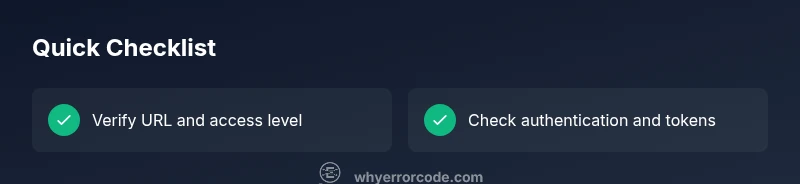
Before diving into server logs, try these client-side checks to rule out simple issues. Reconfirm the URL for accuracy and ensure you are requesting a resource you are allowed to access. If you are supposed to be logged in, sign in again or refresh your session cookies. Clear your browser cache and cookies to remove stale tokens. If you're testing an API, verify that your API key or token is valid and has the necessary scope. Attempt access from a different browser or incognito mode to rule out extensions or cached credentials interfering. If you own the resource, capture console and response headers for clues and prepare to share them with the admin for quicker resolution.
Diagnostic Flow: Symptom → Causes → Fixes
Symptom: When loading a page or API, you see 403 Forbidden. Causes:
- "Incorrect or missing authentication/authorization" (likelihood: high)
- "Resource permissions misconfiguration on server or CMS" (likelihood: high)
- "IP address or geographic restrictions by firewall/WAF" (likelihood: medium)
- "Hotlink protection or referrer-based rules" (likelihood: low) Fixes:
- "Log in again or refresh authentication tokens" (difficulty: easy)
- "Request proper permissions from the resource owner or admin" (easy)
- "Review server rules (ACLs, .htaccess, web.config) and CMS settings" (medium)
- "Test from alternate IP or network to see if block is IP-based" (medium)
Steps
Estimated time: 1-2 hours
- 1
Reproduce the error and gather data
Attempt to reproduce the 403 under controlled conditions. Note the exact URL, user account or token used, time, and the response headers. Collect any error body and server logs you have access to so you can correlate the cause.
Tip: Document the exact URL and request method to avoid chasing a moving target. - 2
Check authentication status and session
Ensure you are properly signed in if the resource requires authentication. Refresh tokens if applicable and confirm the session has not expired. If you’re using an API key or OAuth token, verify its validity and scope.
Tip: If tokens are involved, revoke and reissue to eliminate stale credentials. - 3
Inspect resource permissions
Review the access controls on the resource. Check ACLs, role permissions, file permissions, and any CMS or backend restrictions that could block your user role.
Tip: Compare with a working account to identify where the permission gap lies. - 4
Examine network-layer blocks
Look for blocks at the firewall, WAF, CDN, or reverse proxy level. Check allowlists, deny rules, geolocation blocks, and referrer policies.
Tip: Ask network/security teams to temporarily loosen rules for testing if you have authorization. - 5
Review server configuration files
Inspect .htaccess, Nginx config, or IIS web.config rules that might inadvertently deny access. Pay attention to directory restrictions and deny rules that could apply globally or to specific paths.
Tip: Avoid broad changes; test incremental updates in a staging environment. - 6
Test with alternate identities or networks
Try accessing the resource with a different user account or from a different network to determine if the issue is user-based or network-based.
Tip: If it works for another identity, focus on the original account’s permissions. - 7
Check for security tooling interference
Temporarily disable non-essential security plugins or modules to see if they’re causing the 403. Review recent security rule updates that may block legitimate requests.
Tip: Only disable in a controlled environment and re-enable after testing. - 8
Apply the fix and validate
Implement the approved change, then reattempt access. Monitor for recurrence and verify with multiple clients to confirm the issue is resolved.
Tip: Document the exact changes for future audits.
Diagnosis: Website or API returns 403 Forbidden
Possible Causes
- highIncorrect or missing authentication/authorization (e.g., session expired, bad token)
- highResource permissions misconfiguration on server or CMS (ACLs, file permissions)
- mediumIP address or geographic restrictions (WAF or host firewall)
- lowHotlink protection or referrer-based restrictions
Fixes
- easyLog in again or refresh access tokens
- easyRequest proper permissions from resource owner or admin
- mediumReview server rules (ACLs, .htaccess, web.config) and CMS settings
- mediumCheck IP allowlists/deny lists; test from different IP or VPN
Frequently Asked Questions
What is the difference between 403 and 401 status codes?
A 401 indicates the user is not authenticated; a 403 means authentication has occurred but access is forbidden due to permissions or policy. In practice, you should verify login status first, then permissions for the resource.
A 401 is about authentication, while a 403 is about permission and policy.
Why might I see a 403 on my own site after login?
This typically means the authenticated user does not have the necessary role or permissions for the requested resource, or there is a server-side rule blocking access. Check your ACLs, roles, and the resource’s path policies.
Most times it’s a permissions or role issue.
Can a misconfigured .htaccess or web.config cause a 403?
Yes. Incorrect Deny rules, permission directives, or misapplied directory blocks can trigger 403 errors. Review the relevant section and test changes in a safe environment.
Yes, server config files are a common culprit.
Will clearing my cookies fix a 403?
Clearing cookies can help if an expired session is causing authorization to fail. If the problem is a permissions or policy issue, clearing cookies will not fix it.
Sometimes clearing cookies helps, but often the issue is server-side.
Should I contact support for a 403 on a site I don’t own?
Yes. If you believe you should have access, contact the site administrator or hosting provider with details of the URL, your account, and the exact error message to resolve quickly.
If you don’t own it, reach out to the owner.
When should a professional be involved for a 403 issue?
If you’re responsible for a production system or critical service and can’t determine the cause, involve security or hosting support to review access controls, network rules, and policy implications.
Call in security or hosting if it’s a live, critical service.
Watch Video
Top Takeaways
- 403 means access is blocked by server rules
- Start with authentication and permissions checks
- Review ACLs and server configuration for misconfigurations
- Test from alternative networks to isolate client vs server issues
- Document changes and monitor for recurrence