Fix Windows 10 error code 0xc00000e9: Quick Recovery Guide
A practical, step-by-step guide to diagnose and fix Windows 10 error code 0xc00000e9, with quick fixes, a diagnostic flow, and safe recovery options. Learn hardware checks, startup repair, disk health, and when to call a professional.


Why Windows 10 error code 0xc00000e9 represents a boot-time I/O error, typically caused by a failing disk, loose cables, or corrupted boot files. The quick fix is to reseat SATA/Power cables, run Startup Repair, and check disk health with chkdsk. If issues persist, try BIOS checks or a clean Windows reinstall. According to Why Error Code, hardware checks often resolve the majority of cases.
What the error means
When Windows 10 shows 0xc00000e9 during boot, it's signaling a boot-time I/O error. This is not a normal software crash; the OS can't read or access critical boot data from storage or boot devices. The failure stops the startup process and lands you at the recovery environment or a blue/black screen. In practice, 0xc00000e9 often points to a problem with hardware connections or the boot sector, rather than a misconfigured app. Quick checks and a structured recovery approach can restore access without a full reinstall. According to Why Error Code Team, diagnosing the hardware connections first reduces unnecessary repairs and downtime. The goal is to narrow the fault to a single component, verify it, and then apply the appropriate repair. Keep in mind that some underlying issues may be intermittent or age-related, which means repeated attempts may be required before stability returns.
Common causes at boot
Root causes of 0xc00000e9 are typically hardware or boot metadata issues. The most common is a loose or faulty SATA/Power cable connecting the motherboard to the primary drive, which can produce startup I/O errors even when the drive is healthy. A failing hard drive or SSD is another frequent culprit; a dying disk may intermittently fail to read required sectors, triggering the error. Corrupted boot configuration data (BCD), damaged boot files, or recent BIOS/UEFI changes can also lead to this code. Finally, peripheral devices, USB recovery drives, or external drives left connected during boot can interfere with the boot sequence. In enterprise environments, firmware updates or drive encryption can also play a role. Understanding which category your system falls into helps you choose the right remedy quickly.
Quick checks you can try now (without tools)
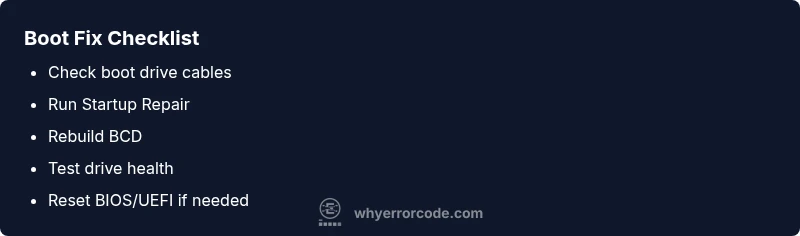
Before diving into repairs, perform some safe, non-destructive checks. Power down, unplug nonessential peripherals, and reseat all SATA and power cables to the boot drive. If possible, boot with a different known-good SATA cable or port to rule out a faulty connector. Disconnect external drives and USB devices that might be interfering with the boot sequence. If your device supports it, enter the BIOS/UEFI and confirm that the boot order points to the correct drive. While in BIOS, enable a quick hardware self-test or run a SMART check if available. In Windows recovery, you can attempt an automatic Startup Repair, which can repair missing or corrupted boot files without reinstalling Windows. If Startup Repair succeeds, reboot and test; if it fails, proceed to more in-depth steps. According to Why Error Code recommendation, starting with hardware checks is the fastest way to stop the cycle.
Step-by-step fix for the most common cause (hardware connection issue)
This section provides a high-level guide to address the most common cause—loose or faulty boot drive cables. Step 1: Power off, unplug, and disconnect power. Step 2: Open the case or laptop bottom panel (if you’re comfortable) and locate the data and power cables connected to the boot drive. Step 3: Carefully reseat both cables, ensuring they click firmly at both ends. Step 4: Reconnect power and boot to see if Windows loads. Step 5: If the error persists, try a different SATA port or a known-good cable to isolate the problem. Step 6: If reseating doesn’t help, consider swapping the drive or testing it in another system. Tip: Keep static-safe precautions and backup important data before touching internal components. If you’d rather avoid hardware work, ask a professional to perform this check.
Other possible causes and fixes
If reseating cables doesn’t resolve the issue, broaden the investigation. Software-related fixes include rebuilding the boot configuration data (BCD) using the Windows Recovery Environment: boot from installation media, select Repair, then open Command Prompt and run commands like bootrec /rebuildbcd, bootrec /fixmbr, and bootrec /fixboot. For corrupted Boot Manager, you may need to rebuild the BCD or restore a backup system image. Disk health issues can be addressed by running CHKDSK /f /r from WinRE; if the disk is failing, replacement may be necessary. Firmware/BIOS updates can also impact boot stability; ensure you’re on a supported version and reset to default settings if you notice new boot problems after an update. In rare cases, RAM faults, overheating, or motherboard failures may produce 0xc00000e9; load tests or professional diagnostics will be required to confirm. The more data you gather (SMART status, event logs, BIOS logs), the faster you’ll identify the root cause.
Safety, backups, and when to call a professional
This is a high-stakes repair scenario. Back up data regularly and create a recovery drive before performing invasive steps. Work in a clean, static-free environment and unplug power when handling internal components. If you’re uncomfortable opening your device, or if it’s under warranty, contact a certified technician. When the system contains valuable data, prioritize a non-destructive recovery path (Startup Repair, CHKDSK) before attempting rebuilds or hardware changes. If you must replace a hard drive, consider using a modern SSD for speed and reliability. Be aware that professional repair costs can vary widely depending on region and service level; plan for a broad budget and avoid rushed decisions. The goal is to restore boot functionality with minimal data loss, not to chase a miracle fix.
Prevention tips to avoid 0xc00000e9 in the future
Proactive maintenance reduces boot errors. Keep systems backed up with an up-to-date recovery drive, maintain healthy storage with SMART monitoring, and avoid abrupt power loss by using an uninterruptible power supply where possible. Regular firmware updates, driver updates, and BIOS resets when recommended by the manufacturer can stabilize boot processes. Use clean shutdown practices and avoid installing unreliable software that tamper with boot configuration. If you’ve recently swapped drives, ensure they’re properly seated and configured in BIOS. Finally, document any changes (BIOS updates, new drivers) so you can roll back if needed. The continuous vigilance suggested by Why Error Code helps IT pros prevent downtime and protect critical data.
Steps
Estimated time: 1-2 hours
- 1
Enter WinRE
Power on and boot from installation media or use Shift+Restart to access Windows Recovery Environment. Navigate to Troubleshoot > Advanced options to reach Startup Repair or Command Prompt.
Tip: Have a recovery drive ready and back up data if possible. - 2
Run Startup Repair
In WinRE, choose Startup Repair to automatically fix boot issues. This can fix missing or corrupted boot files and restore boot configuration.
Tip: If it reports issues it can't fix, note the messages for later steps. - 3
Check disk health and boot records
Open Command Prompt and run bootrec /fixmbr, bootrec /fixboot, bootrec /rebuildbcd, then CHKDSK /f /r to locate and repair disk problems.
Tip: Run commands one at a time and watch for any errors or prompts. - 4
Test hardware connections
Power down, unplug, and reseat boot drive cables; try alternate ports or cables to confirm the fault is not with connectors.
Tip: Work on a static-free surface; unplug with power off. - 5
Run hardware diagnostics
If available, run built-in diagnostics or use SMART tools to assess drive health and RAM memory tests.
Tip: Document SMART attributes to compare over time. - 6
Reset BIOS/UEFI and consider reinstall
If boot issues started after a BIOS update, reset to defaults or reapply a compatible version. If all else fails, backup data and perform a clean Windows reinstall.
Tip: Ensure you have a current backup before reinstall.
Diagnosis: System shows 0xc00000e9 during boot and Windows won't start
Possible Causes
- highLoose or damaged boot drive cables (SATA/power)
- highFailing or failing disk/SSD
- mediumCorrupted BCD or boot files
- lowBIOS/UEFI misconfiguration or update issues
Fixes
- easyReseat or replace boot drive cables; test different ports
- easyRun Startup Repair from WinRE or installation media
- mediumRun CHKDSK and rebuild BCD (bootrec commands) in WinRE
- hardTest drive health with SMART tools; replace drive if failure diagnosed
- mediumRestore BIOS/UEFI to default or update firmware if recommended
Frequently Asked Questions
What does error code 0xc00000e9 mean during Windows boot?
It's a boot-time I/O error indicating a read/write problem with the boot device or boot files.
It's a boot-time I/O error indicating a read/write problem with the boot device or boot files.
Can I fix this error without reinstalling Windows?
Often yes: startup repair, disk health checks, and boot record repairs can fix it without a full reinstall.
Usually you can fix it without reinstalling.
What are the most common causes of 0xc00000e9?
Loose cables and failing drives are the top causes; corrupted boot files and BIOS issues also occur.
Top causes are loose cables and failing drives.
Is this issue hardware or software related?
Primarily hardware or boot configuration; software issues are less common but include boot record corruption.
It's usually hardware or boot config.
When should I call a professional?
If you’re uncomfortable opening your device, or data recovery is critical, seek professional help to avoid data loss or warranty issues.
If in doubt, call a pro.
Watch Video
Top Takeaways
- Back up data before repair
- Check boot cables first for quick wins
- Use Startup Repair before reinstalling Windows
- Test drive health to decide on replacement