Fortnite Error Code E1003: Quick Fix and Diagnostic Guide
Urgent guide to diagnose and resolve Fortnite E1003 across PC, console, and mobile with practical steps, safety tips, and prevention strategies.


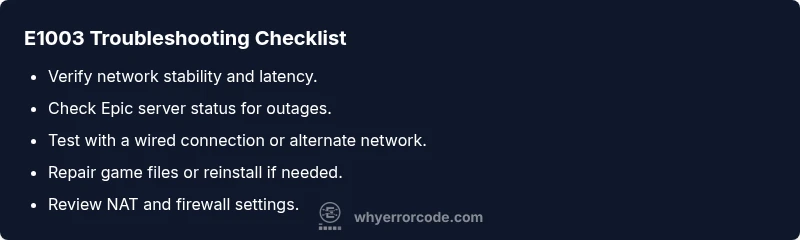
Fortnite error code E1003 usually signals a connectivity or service issue that blocks matchmaking or launching. Start with quick fixes: test a stable internet connection, verify Epic server status, and try a different device or network. If the error persists, perform basic network resets, reauthorize the app, and apply the in-game repair steps before considering reinstall.
What Fortnite error code E1003 means
Fortnite error code E1003 is an indicator that your device or network cannot consistently communicate with Epic Games services. The exact meaning can vary depending on your platform (PC, console, or mobile) and whether you are facing a matchmaking, login, or game launch issue. According to Why Error Code, error codes are designed to quickly flag faults without exposing every underlying detail. In practice, this often points to a flaky network, strict NAT settings, or intermittent server-side problems. Before diving into deeper fixes, confirm you’re not in a temporary outage, ensure your software is up to date, and test on a different network if possible. A calm, methodical approach reduces unnecessary changes and preserves data. As you troubleshoot, keep a record of when the error occurs (time, region, device) to help identify patterns. This systematic approach helps both players and IT pros move from guesswork to verified causes.
Quick diagnostic flow for E1003: symptoms, causes, and fixes
When E1003 appears, you’ll often see a failure to join lobbies, queue for matches, or launch the game. Common causes include unstable internet connections, restrictive NAT types, and occasional Epic server hiccups. Start with the simplest fixes: reset your router, switch to a wired connection if possible, toggle between VPN and non-VPN states, and verify you can reach Epic services from your device. If you still experience E1003, check your device’s firewall and antivirus settings, review console network restrictions, and consider reauthorizing your Fortnite account. For many players, a combination of a stable network and updated game files resolves the issue quickly.
Step-by-step fix: quick wins you can perform now
- Restart your router and modem to refresh your network connection. 2) If on Wi-Fi, switch to a wired connection or move closer to the router to reduce packet loss. 3) Disable any VPN or custom DNS settings temporarily to test if they are causing E1003. 4) Sign out of the Epic Games launcher/app and sign back in to refresh authentication tokens. 5) Check for Fortnite updates and install any available patches. 6) Ensure your firewall or antivirus isn’t blocking Fortnite executables. 7) If you’re on a console, verify NAT type and enable UPnP if needed. 8) Restart the device once more and try a fresh matchmaking attempt. Tip: Do not perform all steps in a single attempt; test changes one by one to identify the effective fix.
Deeper fixes if the problem persists
If quick wins fail, analyze both sides of the equation: client-side and server-side. On the client, verify game integrity (or reinstall if necessary), clear cache/data, and ensure the system time and region settings are correct. On the server side, visit Epic Games status pages for reported outages and regional disruptions. If the issue endures, consider performing a clean reinstallation of Fortnite across all platforms, and review any platform-specific network settings such as NAT type on consoles. While this is more disruptive, it often resolves stubborn E1003 cases that are not tied to local networks.
Confirm server status and regional issues
Epic servers can experience regional outages that affect matchmaking, login, and in-game purchases. Always start by checking the official Epic Games status page and Fortnite social channels for active incidents. If you notice concurrent outages in your region, your best course is to wait for service restoration while avoiding aggressive retry loops that could trigger rate limiting. If outages are not reported but the error persists, consider regional DNS issues or ISP-level routing problems and attempt alternate DNS settings temporarily to route through different paths. In many cases, server-side issues resolve within a few hours to a day, after which E1003 stops appearing for affected users.
Deep-dive: repairing game files and platform-specific steps
Corrupted or missing game files can trigger E1003, especially after an incomplete update. On PC, run a validation check via the game launcher or platform (e.g., Epic Games Launcher) and repair any detected issues. On consoles, reinstalling the game package or performing a full system software update can help. For mobile, clear cache and storage, then re-install the Fortnite app if possible. After repairing, launch the game in a clean environment (no background apps, minimal network load) and attempt a new match. If problems persist, reach out to Fortnite support with your diagnostic data and device specifications.
Avoid common missteps and safety notes
Avoid using third-party networking tools that claim to bypass E1003; these can violate terms of service and expose you to security risks. Do not share login credentials or authorize apps from untrusted sources. Ensure you only download official Fortnite updates and keep your device firmware current. If you’re using parental controls, verify that they aren’t inadvertently blocking Fortnite traffic. Finally, remember that E1003 can indicate server issues beyond your control; do not attempt invasive hacks or attempted bypasses. If the problem is ongoing, seek official support rather than risky workarounds.
When to escalate and how to contact support
If E1003 remains unresolved after all standard steps, escalate by collecting logs, timestamps, device model, network type, and steps you’ve taken. Contact Epic Games Support and attach your diagnostic details; include any error screenshots and the results of your network tests. If you’re playing on a console or with a particular carrier, consider reaching out to platform support as well since NAT and routing can vary by service. In persistent cases, a professional IT liaison or a local technician may assist with advanced network diagnostics, though this is typically not required for the average gamer.
Pro tips for preventing future E1003 issues
Set a stable home network with a wired connection where possible, enable automatic firmware updates for your router, and ensure that your device time is synchronized with reliable time servers. Regularly check Epic’s status page and patch notes for upcoming maintenance windows. Consider creating a small, written playbook of the steps you take when E1003 appears so you can reproduce a successful fix quickly. Finally, maintain a clean system by removing unused apps and keeping your firewall rules well-documented to avoid accidental blocks.
Steps
Estimated time: 30-60 minutes
- 1
Test network stability
Run a speed test and ensure latency is acceptable. Try a wired connection or move closer to the router.
Tip: If latency spikes during peak hours, schedule your gaming sessions for off-peak times. - 2
Refresh game data and authentication
Sign out of the Epic Games launcher or Fortnite app, then sign back in to refresh tokens and permissions.
Tip: Use a fresh login on the same device to avoid token mismatches. - 3
Check server status and regional reachability
Visit Epic Games status page; confirm no outages in your region and verify that your device can reach Epic services.
Tip: If servers are down, avoid retry loops that could trigger rate limits. - 4
Inspect NAT and firewall settings
Ensure NAT type is open/moderate and that Fortnite executables are allowed through your firewall.
Tip: Temporarily disable VPNs or DNS overrides to test connectivity. - 5
Repair or reinstall Fortnite
Run a integrity check or reinstall the game to replace corrupted files.
Tip: Back up save data if applicable before reinstall. - 6
Test after changes and monitor
Launch Fortnite and attempt a match; observe if E1003 reappears and note any patterns.
Tip: If problem recurs, document exact steps and error timing for support.
Diagnosis: Fortnite error code E1003 appears when attempting to join a match or launch the game
Possible Causes
- highWeak or unstable internet connection
- mediumNAT type is strict or moderate blocking connections
- lowFortnite/Epic Games server issues
Fixes
- easyRestart router and test a wired connection if possible
- easyCheck Epic Games server status and regional outages
- mediumReset network settings on device and verify firewall rules
Frequently Asked Questions
What does Fortnite E1003 mean exactly?
E1003 generally signals a connectivity or service problem affecting matchmaking or launch. The exact cause can vary by device, network, and regional server status. Use the diagnostic flow to confirm whether it’s client-side, server-side, or a mix.
E1003 usually means there’s a connectivity or service issue. Check your network and Epic's status page to identify the likely cause and follow a step-by-step fix.
Is E1003 related to my account or credentials?
Most E1003 cases aren’t account compromises; they stem from network, NAT, or server issues. If login problems persist after troubleshooting, contact Epic Games Support with your device details.
Usually not, but if login problems continue after fixes, contact support with details.
Can E1003 affect mobile players differently?
Mobile players can experience E1003 due to mobile network quality, background apps, or data restrictions. Apply the same steps: network stability, server status, and app integrity checks, then test on a different network if possible.
Mobile users should check network quality and try a different network if available.
Should I reinstall Fortnite to fix E1003?
A reinstall is a deeper fix and is usually a last resort after validating network and server issues. If you reinstall, back up any essential data and ensure you install the latest patch.
Reinstall only after trying quicker fixes and server checks.
How long do Fortnite E1003 outages typically last?
Outage durations vary; most server-side issues are resolved within hours, but regional incidents can take longer. Monitor the official Epic status page and avoid frequent retries during an outage.
Server issues usually resolve within hours, but regional outages may vary.
When should I contact support for E1003?
If E1003 persists after all standard fixes, gather your device details, network environment, and steps tried, then contact Epic Games Support or the platform’s support. Provide logs and timestamps to speed up diagnosis.
If the problem persists after fixes, reach out with details to support.
Watch Video
Top Takeaways
- Identify whether the issue is client-side or server-side.
- Start with quick wins before deeper system changes.
- Check Epic server status before extensive troubleshooting.
- Document steps for quick escalation if needed.