Fortnite Install Failed Error II E1003: Immediate Troubleshooting
Urgent troubleshooting steps for fortnite install failed error code ii e1003. Learn quick fixes, diagnostic flow, and how to prevent recurrence across Windows and Mac with practical, safe methods.


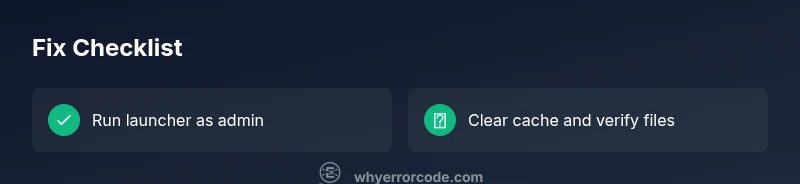
Fortnite install failed error code ii e1003 signals a launcher or file validation issue that blocks the Fortnite installation. The quickest fixes are to run the Epic Games launcher as an administrator, clear the launcher cache, and verify game files, plus check disk space and a stable internet connection. If problems continue, consider reinstalling the Epic Games Launcher or Fortnite and temporarily disabling conflicting antivirus.
What Fortnite Install Error II E1003 Means and Why It Happens
The fortnite install failed error code ii e1003 is a barrier that stops the game from finishing its installation. It often points to a mismatch between the Epic Games Launcher and the game files, a corrupted cache, or a momentary network hiccup. While this error sounds alarming, it generally reflects a solvable blend of permissions, disk space, and validation checks. In plain terms, Fortnite can’t complete the install until the launcher can verify and write all required files to your system. The quickest path to recovery starts with simple checks and escalates only if those don’t resolve the issue. By understanding the two sides—launcher health and file integrity—you can triage efficiently and minimize downtime for your Fortnite sessions.
What Fortnite Install Error II E1003 Means and Why It Happens
Steps
Estimated time: 45-90 minutes
- 1
Close Fortnite and the Epic Games Launcher
Exit all Fortnite processes and the launcher from Task Manager (Windows) or Activity Monitor (Mac). A clean restart prevents stuck locks on files during reattempts.
Tip: Restarting the PC can clear temporary locks that block file writes. - 2
Run as Administrator
Right-click the Epic Games Launcher and select Run as administrator. This elevates permissions required to write files to protected directories.
Tip: If you’re asked for an administrator password, provide it or use an account with admin rights. - 3
Clear Launcher Cache
Navigate to the launcher settings and clear the cache. Then sign back in and start the install again. This removes stale metadata that can trigger E1003.
Tip: Back up your credentials if you rely on two-factor prompts. - 4
Verify Fortnite Files
In the Epic Games Launcher, go to Library > Fortinte > Verify. The launcher will compare local files against the server and repair any corrupted pieces.
Tip: Don’t interrupt the verification; allow it to complete even if it takes several minutes. - 5
Check Disk Space and System Time
Ensure there is adequate free disk space on the install drive and that your system clock is synchronized. Time drift can cause server-side validation failures.
Tip: Consider temporarily disabling VPNs that may interfere with remote verification. - 6
Reinstall Launcher or Fortnite
If the error persists, reinstall the Epic Games Launcher and optionally Fortnite to refresh all core components. This is a last-resort fix that resolves stubborn cache and registry issues.
Tip: Only uninstall the launcher if you have your account credentials handy for a quick sign-in.
Diagnosis: Fortnite install fails with error code II E1003 during setup
Possible Causes
- highCorrupted Epic Games Launcher cache
- highInsufficient disk space or write permissions
- mediumInterrupted or incomplete download of game files
- mediumAntivirus or firewall interference
- lowOutdated launcher or system clock drift
Fixes
- easyRun the launcher as administrator and retry the install
- easyClear Epic Games Launcher cache and verify Fortnite files
- easyEnsure there is sufficient disk space and correct system time
- mediumTemporarily disable antivirus/firewall or add exceptions for the launcher
- easyReinstall the Epic Games Launcher or Fortnite if the above fail
Frequently Asked Questions
What does error code II E1003 indicate in Fortnite installation?
E1003 generally points to launcher or file validation issues. It means Fortnite can’t properly complete its install due to corrupted files, cache problems, or permission barriers.
E1003 means the installer can't finish because of launcher or file validation problems.
Can antivirus software cause E1003?
Yes. Some security suites block file writes or scans that interfere with the Epic Games Launcher. Temporarily disable the antivirus or add an exception for the launcher during troubleshooting.
Antivirus software can block the launcher; consider adding an exception during fixes.
Is clearing the launcher cache safe?
Clearing the launcher cache is safe and a common first step. It removes corrupted metadata that can trigger E1003 without affecting your games or save data.
Clearing the cache is a safe first step that fixes many cache-related issues.
Should I reinstall Fortnite or the launcher?
Reinstalling is a last-resort fix when all other steps fail. It guarantees a fresh set of files but may require re-downloading substantial data.
Reinstall only if other fixes fail; it wipes and re-downloads Fortnite components.
Will this affect saved game progress?
Most troubleshooting steps focus on installation, not saved progress. Backups protect configuration and settings if you need to reinstall.
Mostly safe for saves, but back up your settings before major fixes.
Watch Video
Top Takeaways
- Verify launcher and file integrity first
- Clear cache before deeper fixes
- Ensure adequate disk space and trusted network
- Reinstall only if necessary to resolve stubborn issues