Fortnite Error Code 200: Quick Fix Guide
Diagnose and fix Fortnite error code 200 quickly with practical steps. This guide covers common causes, quick fixes, step-by-step repairs, and safety tips to restore your connection and get you back into the game.


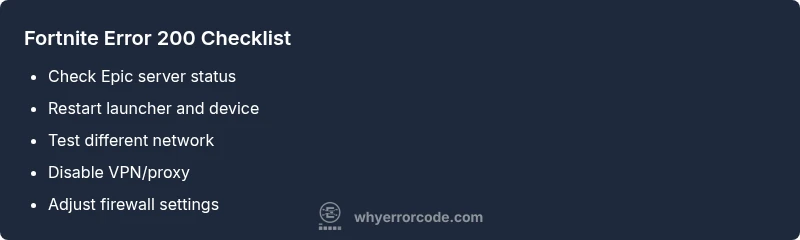
Fortnite error code 200 signals a connectivity hiccup between your device and Epic servers, often from a temporary outage or local network restriction. According to Why Error Code, this is typically a transient issue rather than a fault with your account. Quick fixes: check server status, restart, test another network, disable VPN, and ensure firewall allows Fortnite.
What Fortnite error code 200 means for players
Fortnite error code 200 is a generic connectivity banner that appears when the game client cannot establish or maintain a stable connection to Epic's servers. In practical terms, you might see a message during login, while loading a match, or when joining a party. This code does not indicate a specific account ban, and it usually points to a network path in need of troubleshooting rather than a permanent block on your account. Causes can range from a momentary server hiccup on Epic's side to local network restrictions, NAT issues, or strict firewall policies blocking Fortnite outbound traffic. For most players, error 200 is temporary and resolves after a short wait or a few quick network adjustments. As with many error codes, the fastest path to resolution is to confirm server status first, then methodically test potential culprits in your environment. This approach minimizes downtime and reduces guesswork when you’re trying to resume your game session.
Quick fixes you can try right now
Start with the fastest checks that require no advanced tools. First, verify Fortnite’s official server status on the Epic Games status page; if there’s an outage, you’ll need to wait. Next, fully restart the Fortnite launcher and your PC or console to clear transient session glitches. If you use a VPN, proxy, or private DNS, disable them and retry. Try a different network: switch from Wi‑Fi to a mobile hotspot or vice versa to determine if your current network is the bottleneck. Ensure your firewall and antivirus software aren’t silently blocking Fortnite; add exceptions for the game and the Epic Games Launcher. Finally, perform a simple router power cycle and, if you’re comfortable, run a quick DNS flush (ipconfig /flushdns on Windows or sudo dscacheutil -flushcache on macOS). If the error persists after these basics, proceed to deeper diagnostics.
How network conditions profile the error
Error code 200 often correlates with network topology issues. A strict NAT or symmetric NAT can interfere with matchmaking and session maintenance, producing intermittent disconnects logged as a generic 200. Wireless networks can worsen stability due to interference, distance from the router, or QoS rules. If your device shares a gateway with other devices consuming bandwidth, you may experience spikes that trigger the error. ISP routing can also momentarily misroute traffic, so trying a different path (cellular tethering, Ethernet) can help isolate the problem. Observing patterns, such as the error appearing only at peak hours or on certain platforms, can hint if the issue is server-side or related to your home network. For a more granular check, test on multiple devices to see if the error is device-specific; if it’s only on one device, focus on that device’s firewall or VPN settings. By documenting symptoms and timing, you’ll build a clearer diagnostic picture for future sessions.
Common misconfigurations and fixes
VPNs, proxies, and DNS-based routing can accidentally reroute Fortnite traffic away from Epic servers, triggering error code 200. Ensure your device’s firewall or antivirus isn’t silently blocking the game and that Fortnite is allowed through your router. If you’re on a shared or campus network, check for outbound restrictions or captive portals that interrupt traffic. NAT type matters: a strict or moderate NAT can cause instability; switching to an open NAT (if possible) often resolves the issue. On consoles, ensure the correct online multiplayer settings are enabled and that multiplayer NAT isn’t blocked by parental controls or ISP-level filters. After adjusting network settings, re-test by launching Fortnite and attempting a quick match to confirm the fix.
When to escalate to support
If error code 200 persists after you’ve exhausted basic and intermediate steps, it’s time to contact Fortnite support or Epic Games' status channels. Provide a concise report: your platform, time of occurrence, whether the issue appears on multiple networks, and any recent changes (new router, VPN use, or software updates). Include relevant logs or screenshots if requested. In some cases, outages or backend issues require engineering intervention, and support teams can offer targeted guidance or escalation paths. Expect a response window that aligns with their current incident load, and keep monitoring the official status pages for updates.
Steps
Estimated time: 30-60 minutes
- 1
Check Fortnite server status
Open the official Epic Games status page and confirm there are no active outages. If an outage is listed, you’ll need to wait for the service to recover before retesting.
Tip: Bookmark the status page for quick checks during future sessions. - 2
Restart game, launcher, and device
Close Fortnite and the Epic Games Launcher, then power cycle your PC/console. Reopen and sign back in before attempting a match again.
Tip: A full restart clears stuck sessions that can cause 200 errors. - 3
Test another network
Switch to a different network (mobile hotspot or wired Ethernet) to see if the issue persists. If the problem goes away on another network, your primary network is likely restricting traffic.
Tip: If possible, temporarily disable QoS or bandwidth controls on the router. - 4
Review VPN/Proxy/DNS settings
Disable any VPNs or proxies and revert to default DNS (or try a trusted alternative like 8.8.8.8). Then retry Fortnite.
Tip: Avoid VPNs for gaming unless required by your network setup. - 5
Check firewall and antivirus
Ensure Fortnite and the Epic Games Launcher are allowed through the firewall and antivirus. Temporarily disable security software if you suspect it’s blocking traffic (re-enable afterward).
Tip: Create explicit allow rules rather than broad exceptions. - 6
Consider NAT adjustments or reinstall
If NAT is blocked, adjust router settings to open NAT or place the console/PC in a DMZ if your router supports it. As a last resort, reinstall Fortnite or clear the cache.
Tip: Document network changes to revert if needed.
Diagnosis: Fortnite error code 200 appears during login or matchmaking, disrupting play.
Possible Causes
- highTemporary Epic server outage or maintenance
- mediumLocal network blocking or filters (firewall/ISP)
- lowStrict NAT or VPN/proxy interference
Fixes
- easyCheck Epic Games server status and try again later
- easyRestart game/launcher and power-cycle router/modem
- easyDisable VPN/proxy and test a different network
- easyOpen firewall rules or temporarily disable antivirus
- mediumSwitch to open NAT or adjust router settings
- hardReinstall Fortnite or clear cache if on console
Frequently Asked Questions
What does Fortnite error code 200 mean?
Error code 200 is a connectivity issue indicating the client cannot reach Epic servers. It often reflects network problems rather than a ban or account issue.
Fortnite error code 200 is a connectivity issue indicating you can’t reach Epic servers.
Is my Fortnite account in danger if I see 200?
No. Code 200 usually points to network problems, not account status. A persistent issue after checks should be investigated by support.
No—Code 200 usually means a network problem, not account danger.
Will changing DNS help with error 200?
Changing DNS can resolve routing issues and improve connection paths in some cases. Use reputable DNS services and revert if it doesn’t help.
Sometimes changing DNS helps routing problems; use a reputable service and test first.
Should I contact Epic Games support for 200?
If the error persists after all basic and intermediate fixes, contact Epic Games support and share logs, device details, and steps you’ve tried.
If it keeps happening after trying the fixes, contact Epic Games support.
Is Fortnite error 200 different on PC vs console?
The underlying cause can be server-side or network-related on any platform. Procedures to diagnose are similar across PC, consoles, and mobile.
The cause is often the same across platforms; diagnose with the same steps.
Watch Video
Top Takeaways
- Identify if the issue is server-side or local network
- Start with quick fixes before deeper troubleshooting
- Document symptoms to speed up support engagement