HP Printer Head Error Code: Quick Diagnosis & Fixes
Urgent guide to diagnosing and fixing HP printer head error codes. Learn symptoms, likely causes, fast fixes, and when to call a pro. Why Error Code provides actionable steps for 2026.


HP printer head error codes indicate a fault in the printer’s head or ink delivery system, often showing as streaky prints or missing lines. The most common culprits are a clogged or dried print head, misalignment, or cartridge seating issues, with firmware glitches possible. Quick fixes include running the head-cleaning cycle, reseating cartridges, and updating firmware; if unresolved, plan for deeper repair or head replacement.
What the hp error code printer head means
An hp error code printer head message points to a fault in the printer’s head or the ink delivery system. In practical terms, the printer cannot correctly eject ink onto paper because the print head is not performing as designed. This can manifest as missing lines, thin or heavy stripes, color misregistration, or faint prints even when cartridges appear full. The error may be displayed on the printer’s small screen or in your computer’s print queue, depending on the model. Commonly, users see codes or status messages such as HEAD-ERROR or PAPER JAM-like alerts that actually reflect a print head condition. The root cause is seldom a single malfunction; it usually results from a combination of clogging, dried ink, misalignment, cartridge seating issues, and the age of the print head. In addition to hardware, firmware bugs or driver issues can trigger false positives, so updating firmware and the printer drivers is worth trying early in the process. Because a failed print head can damage your output and waste ink, treat this error as urgent and address it promptly. Your best plan is to start with quick fixes and, if the problem persists, move to more involved diagnostics or professional service.
Symptoms you might notice
Look for streaks, gaps, or color misregistration in printouts. If the printer pauses with an error message, that’s a strong signal the head is failing. You may see repeated head-cleaning prompts, unusually high ink usage, or a gradual decline in print quality across multiple color channels. A nozzle check or diagnostic page that reveals missing nozzles, white streaks, or color blocks confirms a likely print head issue. If only one color shows trouble, focus on the corresponding color cartridge and its print head. Always note the exact error code, model, and color affected to speed up triage if you escalate the problem.
Quick fixes you can try now
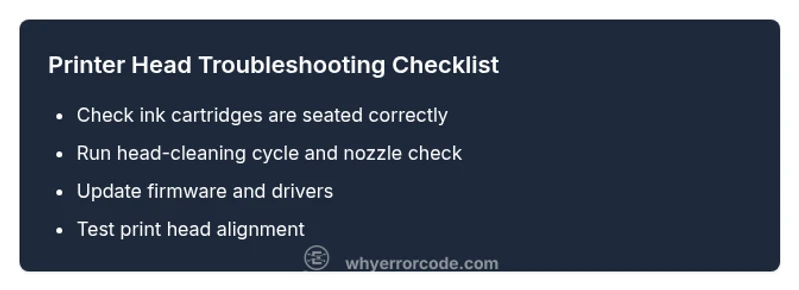
Start with simple, non-destructive steps: power cycle the printer, then reseat all cartridges to ensure proper seating and seals. Run the built-in print head cleaning cycle and print a nozzle check pattern to assess improvement. If prints still show gaps, clean the cartridge contacts and the print head interface with a lint-free cloth, being careful not to touch any circuit boards. Update the printer firmware and the driver software to rule out software glitches. If the issue persists after these steps, you’re moving into deeper diagnostics or hardware replacement territory.
Diagnostic approach: symptom → causes → solutions
Diagnostics begin with the symptom set (streaks, missing lines, repeated cleaning prompts) and map to the most probable causes. The top culprits are a clogged print head, dried ink, or misalignment; cartridge seating and incompatible cartridges also factor in. Solutions typically start with quick fixes (cleaning, reseating, firmware update) and escalate to more involved steps (head alignment, nozzle checks across colors, or cartridge replacement). A strong diagnostic principle is to test one variable at a time and document results to avoid chasing ghost issues. If the problem resists these steps, professional service or a head replacement may be required.
Step-by-step repair for the most common cause
This section expands on the most frequent root cause: a clogged or dried print head. Follow the steps in order, testing the nozzle check after each stage:
- Power off the printer and unplug it; remove cartridges. Check for any packaging seals on new cartridges and gently clean cartridge contacts with a lint-free cloth. Reinsert cartridges.
- Power on and run the printer’s head-cleaning cycle; print a nozzle check pattern. If you still see gaps, repeat once more.
- If issues persist, perform a light print-head alignment using the printer software. Run another nozzle check to compare results.
- Update firmware and drivers to the latest version from the manufacturer site. Reboot and test with a fresh print job.
- If the problem remains, consider swapping the print head or seeking professional service. Compare repair quotes against replacing the printer to determine the most economical option.
Tip: Keep a log of the error codes and results after each step to communicate clearly with support if you escalate.
Other possible causes and how to rule them out
If the above fixes do not resolve the issue, explore other scenarios. A damaged or misaligned print head can be caused by heavy handling or a misfeed event. Incompatible or low-quality cartridges can trigger head-recognition failures. Paper type and print settings that push the head beyond its intended range can also cause streaks. Firmware bugs or corrupted drivers should be ruled out first by updating. If the error follows a particular cartridge color, inspect or replace only that color’s head. Finally, if the printer has been run dry or overheated, allow the device to cool and re-test after a full reset.
Safety, maintenance, and when to call a professional
Printer heads are delicate; avoid touching the nozzle area or electrical contacts. Never force cartridges; use the recommended cleaning methods and keep the printer on a stable, flat surface. If the printer is under warranty or if you see signs of physical damage, contact HP support or a certified technician. In many cases, professional service is more cost-effective than a full head replacement, particularly for newer models. If you cannot obtain a reliable test page after all basic steps, or your firmware update fails to complete, seek an accredited service provider.
Prevention tips to avoid recurrence
Adopt regular maintenance: perform nozzle checks monthly, run head-cleaning cycles periodically, and use genuine cartridges to minimize clogging. Keep the printer in a dust-free, climate-controlled area and avoid letting ink sit unused for long periods. Store cartridges upright and install fresh ones only when necessary. Finally, schedule routine firmware updates to protect against head-recognition and alignment issues.
Steps
Estimated time: 25-45 minutes
- 1
Power cycle and inspect cartridges
Power off the printer and unplug it. Remove and reseat all cartridges, checking for any protective tape or seals on new cartridges. Reinsert firmly and ensure proper seating.
Tip: Always handle cartridges by the edges and avoid touching the gold contacts. - 2
Run head-cleaning cycle
Access the maintenance menu and run the head-cleaning cycle. If your printer offers multiple passes, run 2–3 cycles and then print a nozzle check page.
Tip: If you’re short on ink, replace exhausted cartridges before running multiple cleanings. - 3
Print a nozzle check pattern
Print a nozzle check to identify which colors are missing or misfiring. Note any gaps or misalignment to target the specific color head.
Tip: Compare results against the manufacturer’s reference nozzle chart. - 4
Update firmware and drivers
Download and install the latest firmware from the HP support site and update printer drivers on your computer. Reboot the device after installation.
Tip: Only download firmware from official HP sources to avoid corrupted updates. - 5
Perform light head alignment
Use the printer software to run a light head alignment, then print another nozzle check to measure improvement.
Tip: If alignment refuses to complete, avoid forcing the process to prevent further damage. - 6
Assess head replacement viability
If print quality remains poor, obtain quotes for printing head replacement or consider a service visit. Compare against the cost of a replacement printer.
Tip: Request a written quote and verify warranty coverage before proceeding.
Diagnosis: HP printer displays error code related to printer head
Possible Causes
- highClogged or dried print head
- mediumIncompatible or empty ink cartridges
- lowAir bubbles in ink delivery path
Fixes
- easyRun the printer's head-cleaning cycle and print a nozzle check pattern
- easyRe-seat or replace cartridges, ensure proper seating and seals
- easyUpdate printer firmware to the latest version
- hardIf the issue persists, consider professional service or print head replacement
Frequently Asked Questions
What does hp printer head error code mean?
A head error typically signals a fault in the print head or ink path. It often shows up as streaks, missing lines, or color misregistration, and can be caused by clogging, dried ink, misalignment, or cartridge seating issues. Start with quick fixes like cleaning and reseating before deeper repairs.
A printer head error means the head or ink path isn’t working correctly. Begin with cleaning and reseating the cartridges, then update firmware before seeking repair.
Is it safe to run the cleaning cycle multiple times?
Running the cleaning cycle multiple times is generally safe, but it consumes ink and can indicate a deeper issue. If repeated cycles don’t improve nozzle health, proceed with further diagnostics or professional help.
You can run cleaning cycles, but don’t overdo it. If there’s no improvement, move to deeper checks.
Will third-party cartridges cause a head error?
Yes, third-party or low-quality cartridges can trigger head recognition errors and clogging. Use genuine HP cartridges when possible and test with the original color heads.
Cheap cartridges can cause head problems. Stick to genuine HP colors when troubleshooting.
How should I handle print head replacement costs?
Replacement head costs vary by model and region and can be significant. Often, the cost approaches or exceeds the price of a new printer for older devices. Get a written quote and compare against a replacement printer before proceeding.
Head replacement costs depend on the model. Get a quote and compare with buying a new printer.
Can firmware updates fix a print head error?
Firmware updates can fix driver-related issues and improve head management. Install the latest version from HP’s official site and reboot the printer to test.
Firmware updates can resolve head management issues. Update and reboot to test.
When should I call a professional?
Call a professional if no fix works after all quick and intermediate steps, or if you notice hardware damage, leaks, or disassembly risk. A technician can assess head replacement viability and warranty coverage.
If fixes fail or you see hardware damage, it’s time to call a pro.
Watch Video
Top Takeaways
- Inspect cartridges and reseat them first.
- Run cleaning cycles and print nozzles regularly.
- Update firmware and drivers promptly.
- Consider professional service if quality remains poor.