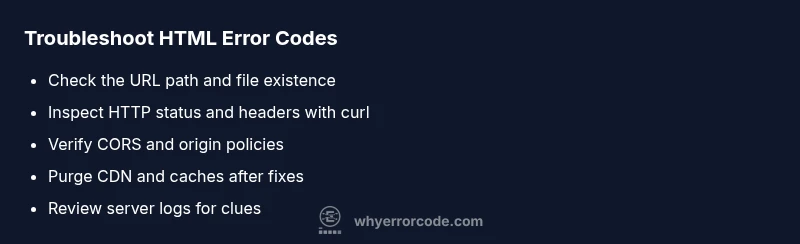
HTML Get Error Codes: Troubleshooting for Developers and IT Pros
An urgent, practical guide to diagnosing and fixing HTML get error code issues that block page loading. Learn to read status codes, run tests, and apply safe, effective remedies.


The quickest plausible fix for an html get error code is to verify the resource URL, then inspect the HTTP status code via the browser network tab or a curl call. If you see a 4XX or 5XX code, start with the URL path, server logs, and headers, then apply the targeted fix. If the code persists, escalate to server configuration checks.
Understanding HTML Get Error Codes
When a browser or script requests an HTML page or asset, the server response includes an HTTP status code that indicates success or failure. The phrase html get error code often refers to the status codes that appear when a page loads or a resource is fetched. In practice, 4xx client errors indicate a problem with the request, while 5xx server errors point to issues on the server. For developers, reading the exact code can dramatically reduce debugging time and help you triage whether to fix a broken link, adjust server routing, or address a runtime error. Keep in mind that caching, proxies, and CDNs can mask the underlying cause, so you should purge caches and re-check after fixes. This section sets the foundation for a targeted diagnostic flow aligned with the realities of modern web hosting.
Common HTML Fetch Error Codes and What They Mean
The most common codes you’ll encounter while fetching HTML include 404 Not Found, 403 Forbidden, 401 Unauthorized, 500 Internal Server Error, and occasionally 502 Bad Gateway or 504 Gateway Timeout. A 404 points to a missing or moved resource, while 403 suggests permission issues on the server. 401 often means authentication is required. 500-level codes usually indicate server errors or misconfigurations. Each code has different remediation: 404s may require updating links or file paths; 403s may need corrected permissions; 500s often call for server log review and configuration checks. Understanding these categories helps you prioritize fixes and communicate clearly with teammates or hosting providers.
First Checks You Should Perform
Before diving into code, start with simple, reproducible checks. Verify the URL for typos, ensure the resource exists at the expected path, and try loading the page in an incognito window to rule out cache issues. Use a tool like curl to fetch just the header and status code: curl -I https://example.com/page.html. If the status is not 200, note the code and headers. Compare the difference between local and production environments, and check whether the problem appears across devices or networks. Finally, confirm that the protocol (http vs https) matches the intended configuration and that DNS resolves correctly.
Diagnostic Tools and Methods
Use browser developer tools to inspect the Network tab and Console for error messages that accompany the status code. The Network tab shows the status line, response headers, and payload; the Console can reveal CORS or mixed content warnings. Running curl or wget from a terminal gives you a quick, scriptable way to verify headers and status codes. Check Access-Control-Allow-Origin for CORS issues, Content-Type for correct MIME types, and Cache-Control or ETag headers for caching behavior. If a CDN is in front of your server, remember to purge its cache after fixes to see the real response.
Step-by-Step Fixes for the Most Common Causes
- Fix a broken URL path or link; ensure file names are correct and case matches. 2) Correct server routing so the requested HTML page maps to a real resource. 3) Resolve 403 by adjusting file permissions or authentication requirements. 4) Address 500-level errors by inspecting server logs and fixing code or configuration. 5) If CORS blocks the fetch, enable the appropriate Access-Control-Allow-Origin header. 6) Clear caches and invalidate CDN content to ensure clients receive fresh responses. 7) Validate content negotiation and ensure the resource is reachable via the expected protocol and host.
Safety, Performance, and Best Practices
Never expose internal error details to end users. Use generic error pages in production and log full details securely on the server. Optimize performance by enabling proper cache headers, minimizing redirects, and using a reliable TLS setup. Regularly review server configurations, firewall rules, and rate limiting to prevent cascading failures. When dealing with third party resources, ensure they are served over HTTPS and include appropriate CORS policies. Remember to document changes and communicate outages clearly to stakeholders.
Preventing Future HTML Fetch Errors
Set up monitoring to catch 4xx and 5xx responses early, with alerts tied to error rate thresholds. Maintain clean, version-controlled server configurations and automate rollback procedures. Keep a current sitemap and redirects for moved resources to minimize 404s. Regularly test critical paths in staging and perform periodic DNS and SSL certificate checks. A robust deployment checklist reduces the chance that an html get error code recurs in production.
Steps
Estimated time: 30-45 minutes
- 1
Verify the URL
Double-check the path and query string. Copy and paste the URL to ensure correctness and test in a private window to rule out cache effects.
Tip: Use the exact URL from production server logs when possible - 2
Check network status
Open the browser's Network tab or run a curl head request to capture the status code and headers for the resource.
Tip: Note any redirects that may alter the final status - 3
Inspect server response
Review server logs for the requested path. Look for routing errors, permission denials, or runtime exceptions.
Tip: Search for the exact URL path in logs - 4
Validate headers and content
Ensure Content-Type matches the resource and that CORS headers are correct if loaded from another origin.
Tip: Incorrect MIME types can cause browsers to block rendering - 5
Apply fixes and test again
Implement the fix in staging first, then reproduce the problem in production-like environments and recheck the status code.
Tip: Clear caches before retesting - 6
Monitor and verify
After fixes, monitor for recurring errors and verify that end users can load the HTML resource normally.
Tip: Set up a simple synthetic test that runs periodically
Diagnosis: User reports an HTML resource fails to load and the browser shows an error code
Possible Causes
- highIncorrect URL or broken link
- highServer returns 4xx/5xx error
- mediumCORS or network restrictions block the request
Fixes
- easyVerify the resource URL, correct typos, and ensure the file exists at the expected path
- mediumCheck server routing, permissions, and logs to resolve 404/403/500 errors
- mediumInspect and fix CORS headers or cross-origin requests if blocked
- easyPurge CDN and reverse proxies, then revalidate responses after fixes
- easyTest with curl or a browser Network tab to confirm status and headers
Frequently Asked Questions
What does an HTTP error code mean for an HTML page?
HTTP error codes indicate the server or request issues that prevent HTML from loading. A 4xx code usually means a client-side problem, while a 5xx code indicates a server-side problem. Understanding the code guides the fix and prioritizes your troubleshooting steps.
HTTP error codes tell you if the issue is on the client side or server side, guiding your next steps.
Why do I get a 404 not found on my HTML file?
A 404 means the requested file or route does not exist at the given path. Check the URL for typos, verify the file location, and update links or redirects as needed.
A 404 means the page is missing; verify the path and adjust links or redirects.
How can I diagnose HTML fetch errors quickly?
Start with the status code and URL, then use your browser Network tab or curl to inspect headers. Check server logs for routing or permission issues and test across networks to rule out client-side problems.
Check the status code, use Network tab or curl, and verify server logs to diagnose quickly.
Can CORS cause HTML get error codes?
Yes, CORS misconfigurations can cause errors that look like failed fetches. Ensure the server sends proper Access-Control-Allow-Origin headers for cross-origin requests and that credentials are handled correctly.
CORS misconfig can block HTML fetches; fix the headers accordingly.
Should I rely on browser cache when debugging HTML errors?
Relying on cache can hide the real issue. Clear caches and CDN content to confirm the server response reflects the current fixes.
Clear caches to see the actual server response.
When should I contact my hosting provider or CDN vendor?
If the problem persists after your checks and there is no clear local misconfiguration, contact your hosting provider or CDN vendor. They can confirm server-side issues, DNS problems, or upstream outages.
If fixes fail and the issue persists, contact hosting or CDN support.
Watch Video
Top Takeaways
- Identify the exact HTTP status code first
- Use Network tab and headers for clues
- Fix routing, permissions, or CORS to restore access
- Test across networks and devices to confirm
- Maintain proactive monitoring to catch errors early