HTML Error Code Not Found: Urgent Fix Guide
Urgent guide to diagnose and fix the 'html error code not found' across browsers and servers with practical fixes, diagnostics, and prevention tips for developers.


An 'html error code not found' usually means the requested HTML resource is missing or improperly referenced on a web page, API, or local environment. The quickest fix is to verify the URL, server routing, and file existence, then reload. If the problem persists, check server logs and client-side scripts for incorrect paths, and consider a fallback or placeholder page.
What 'html error code not found' means
The phrase html error code not found typically appears when a browser or server cannot locate the requested HTML resource. This can happen due to a broken link, a moved file, incorrect routing, or a misconfigured server. In practice, you’ll see either a 404-style response or a custom error page that lacks the target page. Understanding this distinction helps you prioritize fixes quickly, especially in urgent production environments where uptime matters for users and clients.
Common causes of this error
Several scenarios can trigger an html error code not found. The most common are broken or moved files, incorrect or outdated URLs, and server-side routing errors. Other frequent culprits include misconfigured content delivery networks (CDNs), caching layers serving stale pages, and file permission issues that prevent the server from reading the HTML resource. In local development, a typo in the file path or case sensitivity on case-sensitive filesystems can also produce this error.
Quick fixes you can try now
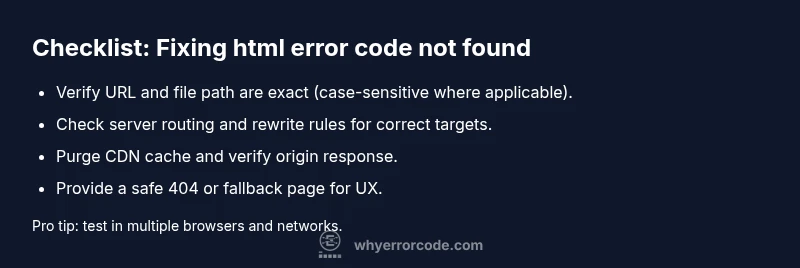
- Verify the URL is correct and matches the exact file path, including capitalization.
- Clear browser and CDN caches to ensure you’re loading the latest resource.
- Check the server or hosting platform routing rules to confirm the HTML path is reachable.
- Inspect server logs for 404 or routing errors and fix the underlying path or rewrite rule.
- If you controls both server and client, implement a robust 404 page that provides navigation and fallback options.
Diagnostic flow overview
When html error code not found appears, start by reproducing the issue in a controlled environment (different browser, private/incognito mode, and a fresh URL). Check server access logs for 404s or routing problems, verify the file exists at the specified path, and confirm there are no redirections interfering with the target resource. If the issue spans multiple pages or domains, investigate deployment scripts and CDN configurations.
Step-by-step repair: the most common cause (missing or mislocated HTML file)
- Reproduce the error on a test page to confirm the exact missing resource. Tip: Use a direct path to the HTML file in your local environment first.
- Locate the file in your project or server. Ensure the path matches exactly, including directory structure and case. Tip: On Windows vs Linux, case sensitivity can differ dramatically.
- Update references: if the file moved, update links, routes, or server rewrites to reflect the new location. Tip: Prefer absolute paths in critical links to avoid relative path drift.
- Validate server configuration: check your web server’s document root and any rewrite rules that might block access to the HTML file. Tip: A misconfigured 404 handler can mask real file locations.
- Test again from multiple devices and networks. If the page still fails, collect logs and consider a temporary fallback page to preserve user experience. Tip: Keep incident notes and version changes for traceability.
- Deploy to production with monitoring to ensure the fix persists. Cost considerations: parts typically range from $10–$120 for small assets or CDN adjustments, while labor for a simple path fix might range from $60–$200 depending on environment.
Other potential causes and fixes
If the missing file is confirmed but still inaccessible, the issue might be permissions, corrupted deployment, or invalid routing. Check file ownership and permissions so the web server can read the HTML (e.g., chmod 644 or 755 equivalents). Review deployment pipelines to ensure assets aren’t excluded or renamed during builds. For CDNs, purge stale content and verify origin fetches the correct file. If redirection rules are involved, verify they point to a valid resource and avoid infinite loops.
Safety tips and when to call a professional
- Always backup before modifying server configurations, routing rules, or deployment scripts.
- Do not expose internal error details to end users; implement a graceful fallback page instead.
- If you’re seeing widespread 404s after a deployment, involve your hosting provider or a senior devops engineer promptly to avoid extended downtime.
Prevention tips to avoid this error in the future
- Adopt a consistent file-naming and path strategy across development and production.
- Use automated tests that validate page availability after deployments.
- Implement robust 404 handling and helpful navigation to reduce user frustration.
- Monitor logs and implement alerting for repeated missing resource requests to catch issues early.
Steps
Estimated time: 2 files/changes typically take 20-60 minutes; complex deployments may take longer
- 1
Reproduce the error in a controlled environment
Open the exact URL in multiple browsers and networks to confirm the error is consistent. Capture the exact requested path for reference.
Tip: Document the URL and server response for quick triage. - 2
Check server logs and file availability
Search access logs for 404s and verify the HTML file exists at the expected path with correct permissions.
Tip: If permissions are wrong, adjust to allow read access by the web server. - 3
Validate routing and rewrites
Inspect web server config (e.g., Apache/Nginx) to ensure the path isn’t being rewritten to a non-existent resource.
Tip: Temporarily disable conflicting rewrites to isolate the issue. - 4
Test with a direct file reference
Place a simple test HTML file at the same path and verify it loads; if it does, the issue is likely content-specific.
Tip: Avoid cache during test by using hard refresh or incognito mode. - 5
Purge CDN and verify origin
If a CDN is in front of your origin, purge its cache and confirm the origin response matches expectations.
Tip: Set a short TTL during diagnosis to minimize stale content. - 6
Implement a safe fallback
Create a minimal 404 page with navigation to key sections to reduce user impact while you fix the root cause.
Tip: Always provide helpful links back to the homepage or sitemap.
Diagnosis: Browser shows 'html error code not found' when loading a page
Possible Causes
- highMissing HTML file on server
- highIncorrect URL or broken link
- mediumWrong server routing or rewrite rules
- lowCDN caching stale content
- lowDeployment mismatch (dev vs prod)
Fixes
- easyVerify exact file path and existence on the server
- easyCorrect URL references and case sensitivity issues
- mediumReview and fix server routing / rewrite rules
- mediumPurge CDN cache and ensure origin delivers current content
- hardCompare deployment artifacts between environments and re-deploy if needed
Frequently Asked Questions
What does 'html error code not found' indicate?
It indicates the browser or server cannot locate the requested HTML resource. This often results from a broken link, a moved file, or a misconfigured route. Fixing the path or restoring the file usually resolves it.
It means the page isn’t where it’s supposed to be, usually due to a broken link or moved file.
How can I quickly verify the resource is available?
Check the exact URL in the address bar, inspect server logs for 404 entries, and try accessing the file directly on the server path. Clear caches to rule out stale content.
Check the URL, inspect logs for 404s, and access the file path directly to confirm availability.
Should I clear my browser cache for this error?
Yes, a stale cache can mask the real issue. Clear the browser cache and try reloading. If using a CDN, purge its cache as well to rule out cached errors.
If you suspect caching, clear the cache and reload to rule it out.
Can a CDN cause this error?
Yes. A CDN can serve an outdated or missing resource. Purge the CDN cache and verify the origin server provides the correct HTML response.
CDNs can cause this; purge cache and confirm the origin serves the right page.
When should I contact hosting or devops support?
If multiple pages are affected or you cannot locate the file on the origin, it’s time to involve hosting or devops staff. Persistent 404s may indicate deployment issues or server misconfigurations.
If the issue spans multiple pages or persists after checks, contact support.
Is this related to code or server config only?
Both. HTML resource availability depends on file presence and correct server routing. Check both the file path and the server configuration to identify the root cause.
It can be both file and server-side; verify file path and routing.
Watch Video
Top Takeaways
- Identify whether the HTML resource is missing or misrouted.
- Prioritize checks: URL, file path, server routing, then caching/CDN.
- Implement a user-friendly 404 or fallback page to preserve UX.