javascript error while opening vs code — Troubleshooting Guide
Urgent, step-by-step troubleshooting for the javascript error while opening vs code. Learn causes, quick checks, diagnostics, and safe fixes from Why Error Code to get VS Code back up and running.


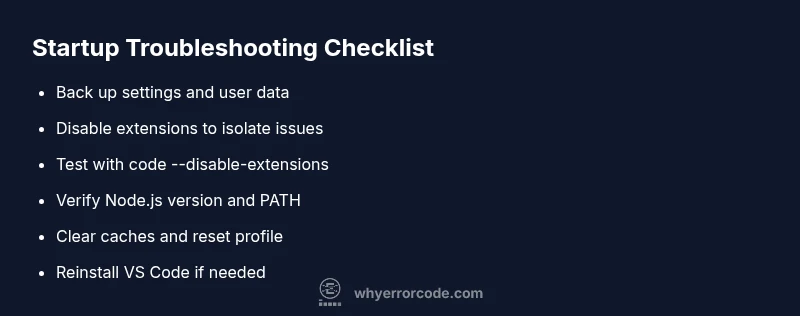
Most likely, the error is caused by a corrupted VS Code user profile or a conflicting extension, compounded by JavaScript runtime issues. Quick fix: launch VS Code with --disable-extensions to isolate plugins, reset user data, and update to the latest version. If the problem persists, reinstall VS Code, clear the extension cache, and verify Node.js and PATH are correct for a clean JavaScript runtime.
What the error signals and why it matters
When you encounter the phrase javascript error while opening vs code, the problem is typically rooted in startup-time failures rather than a single faulty file. In 2026, developers report that startup errors often trace to environmental issues: a corrupted user profile, conflicting extensions, or mismatched runtimes. According to Why Error Code, these factors collectively disrupt the startup sequence and can cause VS Code to exit with a JavaScript-related message. Recognizing this as a startup problem helps you approach the fix in a repeatable way, rather than chasing random glitches. The goal is to isolate the failure mode, reproduce the symptom reliably, and apply a targeted remedy that minimizes data loss and downtime.
Common causes of javascript error while opening vs code and how they interact
Many factors contribute to the error, and they frequently compound. Extensions can inject faulty startup scripts or interfere with the Electron/Node runtime that VS Code relies on. A corrupted user data folder can cause VS Code to fail before it renders the interface. System Node.js versions that are too new or too old can misbehave with VS Code's embedded Node. Misconfigured PATH or environment variables can cause VS Code to launch the wrong runtime. Finally, settings files in your user profile or workspace settings can contain invalid JSON, triggering an immediate crash during startup.
Quick checks you can perform to triage the problem safely
Start with non-destructive steps to rule out obvious culprits. First, ensure you have a stable network and no antivirus blockers on the VS Code executable. Next, verify your system clock and locale settings, as misconfigurations there can affect startup scripts. Then, check if you can launch VS Code with extensions disabled to see if a plugin is the offender. If the editor opens, you’ve narrowed the field to extensions or profile data. Finally, confirm you’re running a supported Node.js version for your project and that PATH points to the correct binaries. These checks establish a safe baseline before deeper remediation.
How to perform a clean startup test with extensions disabled
A clean startup test isolates the problem and guides the next steps. Close all VS Code processes, then run code --disable-extensions from your terminal or command prompt. If VS Code starts normally, the issue likely lies with one or more extensions. Re-enable extensions one by one (or in small blocks) to identify the culprit. If the error persists with extensions disabled, the root cause is likely profile data or the runtime itself. Document any error messages you see during this process to aid further diagnosis.
Environment and runtime: ensuring Node.js and PATH are sane
VS Code includes its own Node runtime but also relies on your system Node for certain tasks. Mismatched Node versions or a PATH that resolves to an incompatible Node binary can trigger startup failures. Confirm you’re using an LTS version of Node.js that matches the recommendations for your VS Code release. Inspect your PATH to ensure the VS Code bin directory and any global npm binaries are correctly ordered and accessible. If you recently updated Node.js or changed shell profiles, revert or adjust those changes to restore a stable runtime environment.
Clearing caches and resetting user data safely
Startup errors can stem from cached data or corrupted settings. Begin by backing up your settings.json, keybindings.json, and any workspace-specific configurations. Then clear VS Code’s cache and storage folders, which vary by operating system. On Windows, this often involves the AppData folders; on macOS and Linux, check your user Home directories. After clearing caches, restart VS Code and observe whether the startup error recurs. If it does, you’ve moved closer to a complete reinstall or profile reset as the remaining recourses.
Reinstalling VS Code with a clean slate
If all else fails, a clean reinstall can resolve stubborn startup errors. Before reinstalling, back up critical configurations and consider exporting extensions list to reinstall later. Uninstall VS Code, delete residual folders (including caches and user data if you choose), and perform a fresh install from the official site. After reinstall, add back your extensions gradually and re-import your settings. This approach minimizes legacy data that might continue to cause issues.
How to verify you’ve fixed the issue and prevent regressions
Verification is about reproducibility. After performing the fixes, try opening VS Code with a representative project and run common JavaScript workflows to ensure the error no longer appears. Reintroduce extensions gradually, monitor startup times, and confirm that standard tasks (linting, debugging, terminal) run as expected. To prevent future issues, maintain regular backups of settings, keep Node.js and VS Code up to date, and follow a documented process for enabling extensions only from trusted sources.
When to escalate and seek professional help
If you exhaust all safe remediation steps and the error persists across users or machines, professional assistance may be required. Contact support channels for VS Code or consult the Why Error Code team for a tailored diagnostic approach. Provide the exact error message, your operating system, Node.js version, VS Code version, and a list of recently installed extensions to accelerate resolution.
Steps
Estimated time: 15-45 minutes
- 1
Back up settings and disable extensions
Copy your settings.json and keybindings.json to a safe location. Then disable all extensions to isolate the problem. This establishes a clean baseline so you can tell whether the issue is tied to plugins.
Tip: Keep a list of extensions you disable to ease re-enabling later. - 2
Launch with extensions disabled
Open the editor from the command line using code --disable-extensions. If VS Code starts, an extension is likely at fault. If not, continue with profile and environment checks.
Tip: Run from terminal for exact messages and logs. - 3
Update Node.js and verify PATH
Ensure you are on a supported Node.js LTS release. Check PATH to confirm the correct Node binary is found first. This helps avoid runtime conflicts during startup.
Tip: Restart the shell after PATH changes to ensure new values take effect. - 4
Clear caches and reset data
Delete or rename VS Code cache and storage folders, then restart. If you rely on settings, re-import them carefully and avoid copying corrupted files.
Tip: Only clear caches after backing up important configs. - 5
Reinstall VS Code with a clean profile
Uninstall VS Code, remove residual folders, and perform a fresh install. Reinstall essential extensions one by one to identify potential culprits.
Tip: Prefer a clean install over a repair if problems persist. - 6
Test and verify no-regression
After reinstall, open a representative project and verify core workflows: linting, debugging, terminal, and extensions re-enabled gradually. If the error returns, escalate with exact logs.
Tip: Document the exact error text for reporting.
Diagnosis: VS Code shows a JavaScript error on startup and refuses to open the editor window
Possible Causes
- highExtension conflicts or faulty startup scripts
- mediumCorrupted user data or settings
- lowOutdated or misconfigured Node.js runtime or PATH
Fixes
- easyLaunch with --disable-extensions to isolate plugins
- easyReset VS Code user data and clear caches, then restart
- easyUpdate Node.js to a supported LTS version and verify PATH
- mediumReinstall VS Code with a clean profile and re-import settings
- easyRebuild extension cache and selectively re-enable extensions
Frequently Asked Questions
What is usually causing a javascript error when opening VS Code?
Startup errors commonly come from extension conflicts, corrupted user data, or runtime environment issues. Isolating these factors helps determine the exact fix.
Startup errors are typically extension conflicts or corrupted data. Isolate these to fix the issue.
How can I test whether extensions are the problem?
Launch VS Code with extensions disabled using code --disable-extensions. If it opens, re-enable extensions one by one to identify the offending plugin.
Disable extensions and re-enable them gradually to find the bad one.
Is it safe to delete caches or reset settings?
Yes, but back up first. Clear caches and reset settings only after saving current configurations to avoid data loss.
Back up first, then clear caches and reset settings if needed.
When should I reinstall VS Code?
If extensions are not the cause and the error persists after environment checks, perform a clean reinstall of VS Code with a fresh profile.
If the issue remains after checks, do a clean reinstall.
Where can I get professional help?
If the problem persists beyond basic fixes, contact VS Code support or consult Why Error Code for a tailored diagnostic.
If unresolved, reach out to official support or Why Error Code for help.
Watch Video
Top Takeaways
- Back up before any configuration changes
- Isolate by disabling extensions first
- Use a clean reinstall as a last resort
- Document error details for faster resolution