json error in vs code: urgent troubleshooting guide for developers
Struggling with a json error in vs code? This urgent, step-by-step troubleshooting guide from Why Error Code helps you diagnose, fix, and prevent JSON parsing issues in VS Code across settings, projects, and extensions.


Most json error in vs code issues stem from malformed JSON or conflicting extensions. Start by validating the file with VS Code’s built-in checker and an online validator, then fix syntax mistakes such as missing commas or mismatched braces. After correcting the file, reload VS Code and re-open the project. If the error persists, review related settings and extensions for conflicts. This concise starter guide from Why Error Code helps you act fast.
What triggers a json error in vs code
A json error in vs code typically happens when a JSON file contains syntax mistakes or when the editor’s environment clashes with extensions or workspace settings. Common culprits include trailing commas, missing or extra braces, and using single quotes instead of the required double quotes. Encoding problems, such as a non-UTF-8 file, can also trigger parse errors that ripple through your project. In some projects, settings.json or launch.json files become corrupted during merges or automated tooling runs. For developers, IT pros, and everyday users troubleshooting error codes, recognizing these patterns is the first step to a quick fix. The goal is to restore valid JSON syntax and a clean editor state so you can resume work without lingering errors.
This guidance from Why Error Code emphasizes a disciplined approach: validate with a validator, fix structural mistakes, and ensure the editor is not reading an outdated or corrupted file. By understanding where JSON errors originate, you can apply targeted fixes rather than random patches. As you troubleshoot, remember that even small characters or invisible encoding issues can cause big headaches in JSON processing.
How VS Code reports JSON errors
Visual Studio Code surfaces JSON problems through several channels. The Problems pane often highlights syntax errors with clear location indicators and messages like Unexpected token, Expected comma, or Expecting '}' at the end of an object. Red underlines in the editor indicate parsing trouble at a specific character, while the status bar may show a brief JSON error summary. Language features for JSON, provided by the editor, can help by pointing to the exact line and column. Additionally, the Output panel and Developer Tools can reveal extension-related messages that point to external parsers or formatters.
When diagnosing, it’s important to distinguish between file-specific errors (e.g., a single corrupted JSON file) and project-wide issues (e.g., workspace settings or extension conflicts). The Why Error Code team notes that consistency across JSON files and validation results is often the key to identifying root causes rather than treating symptoms in isolation.
Quick checks before deeper debugging
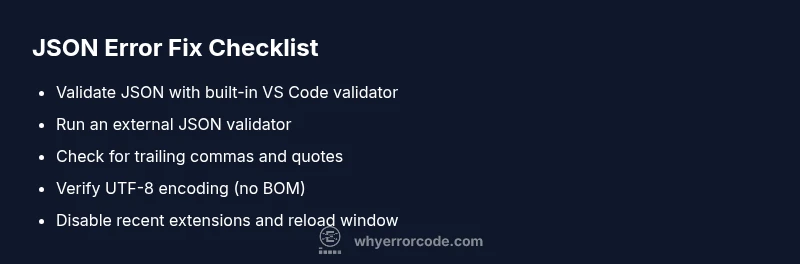
Before diving into complex fixes, perform a series of quick checks that resolve many json error in vs code scenarios. First, open the problematic JSON file and scan for syntax mistakes highlighted by VS Code’s built-in checker. Copy the content into a trusted online JSON validator to catch issues that the local editor might miss, such as hidden characters or encoding problems. Verify the file’s encoding is UTF-8 with no BOM; re-save if necessary. If the error appears only after a recent edit, revert to a known-good version or revert specific changes to isolate the offending line.
Next, restart VS Code (or use Reload Window) to clear any transient parser state. If the file is part of a larger project, try opening the folder as a fresh workspace to ensure there are no lingering workspace settings interfering with JSON parsing. Lastly, temporarily disable recently installed extensions that touch JSON (formatters, linters, or language servers) to determine if an extension is at fault. If the error subsides, reintroduce extensions one by one to identify the culprit.
Common JSON pitfalls to watch for
Despite the simplicity of JSON, many json error in vs code issues stem from recurring mistakes. Trailing commas before closing braces are a frequent offender; JSON does not permit trailing commas. Mismatched or missing braces/brackets can cascade into parse errors that appear unrelated at first glance. Using single quotes instead of double quotes for strings is another common pitfall. Ensure all keys and string values are enclosed in double quotes. Also, JSON does not support comments; if you see // or /* */, that will trigger a parse error. Finally, watch for non-ASCII characters that aren’t properly escaped in string literals. These patterns are the most common culprits behind parse errors in VS Code.
To avoid these issues, adopt a checklist approach: validate syntax, verify quotes and punctuation, confirm encoding, and remove any prohibited constructs (like comments) from your JSON data. Consistency across multiple JSON files in a project also reduces the likelihood of cross-file parse errors during builds or automation.
When to escalate and next steps
If you still face a json error in vs code after applying the common fixes, it’s time to escalate with a structured approach. First, isolate the problem: is it a single file, a settings file, or the entire project? Create a clean, minimal reproduction by reducing the JSON content to a valid minimal example and gradually reintroducing sections. If the error appears after a recent update or extension install, reproduce the issue in a clean user profile or in a separate workspace to confirm the source. When professional help is needed, provide the exact error message, the file path, and a short repro so the support team can reproduce quickly. Documentation and version details help teams share context faster and reduce back-and-forth.
From a strategic perspective, it’s essential to document fixes and establish preventative practices. Create a checklist for your team that includes using validators, validating encoding, performing extension audits, and setting up a minimal workspace template for JSON-heavy projects. This approach minimizes downtime and accelerates onboarding for new developers who encounter json error in vs code.
Prevention: building resilience against json errors in vscode
Preventing json error in vs code starts with disciplined editing and validation. Enforce a workflow where every JSON change is validated immediately in a trusted validator before saving. Maintain consistent encoding across all JSON files and avoid mixing file encodings in the same project. Use a reliable formatter and keep extensions that affect JSON to a known-good version. Finally, incorporate automated checks in your CI pipeline to catch JSON parsing issues before they derail development. The combination of validation, encoding discipline, and extension governance dramatically reduces the frequency and impact of JSON parse errors in VS Code.
Steps
Estimated time: 30-60 minutes
- 1
Reproduce and isolate the error
Open the affected JSON file and note the exact error message and line. Try to reproduce the issue in a minimal, clean workspace to confirm it’s file-specific and not a broader VS Code problem.
Tip: Take a screenshot of the error and save a copy of the problematic JSON for validation. - 2
Validate syntax with tools
Run the JSON through VS Code’s built-in validator and a separate online validator. Compare results and locate the first syntax mismatch (missing comma, extra quote, or improper nesting).
Tip: When validating, don’t rely on a single validator; cross-check with another tool to catch edge cases. - 3
Fix syntax and re-check
Correct the identified issues in the editor, ensuring proper quotes, brackets, and no trailing comma. Save and re-open the file; verify no errors remain in the Problems pane.
Tip: After each fix, perform a quick validate again to ensure no nearby issues were introduced. - 4
Check encoding and file integrity
Confirm the file is UTF-8 without BOM. If the editor shows strange characters, re-save with the correct encoding and revalidate the content.
Tip: Avoid mixing encodings across files in the same project to prevent subtle parse errors. - 5
Test extensions and environment
Disable recently added JSON-related extensions and reload VS Code. If the error disappears, re-enable extensions one by one to identify the culprit.
Tip: Use a separate workspace to test extensions without affecting your main project configuration. - 6
Escalate if necessary and document
If the issue persists, reset user data or settings after backing up. Document the steps you took and share findings with your team for faster future resolution.
Tip: Keep a changelog of JSON fixes to reduce repeat issues.
Diagnosis: Editor shows a JSON parse error while opening a project or saving a JSON file.
Possible Causes
- highMalformed JSON (syntax mistakes like trailing comma or missing bracket)
- mediumEncoding issues (UTF-8 with BOM, or non-UTF-8)
- lowExtensions interfering with JSON parsing or formatting
- lowCorrupted workspace settings or corrupted settings.json
Fixes
- easyValidate the JSON with VS Code's Problems pane and a trusted online validator; fix syntax issues
- easyEnsure file encoding is UTF-8 (no BOM) and re-save the file
- easyDisable recently added extensions that touch JSON and reload the window to test
- mediumReset or replace corrupted settings.json or workspace settings with a known-good copy
Frequently Asked Questions
What does 'Unexpected token' mean in a JSON file in VS Code?
It indicates a syntax error at a specific position. Common causes are a missing comma, extra or missing braces, or mismatched quotes. Validate the JSON and fix the offending character or structure.
An unexpected token means there's a syntax error somewhere in the JSON that needs fixing; check the line indicated and correct the structure.
Can VS Code extensions cause JSON errors?
Yes. Some extensions modify or format JSON content and can introduce parsing issues. Temporarily disable recently added extensions to see if the error resolves.
Extensions can contribute to JSON errors; try disabling new ones to identify the source.
How do I fix a trailing comma in JSON?
Remove the trailing comma before a closing brace or bracket. JSON does not allow trailing commas, so eliminating it restores valid syntax.
Trailing commas break JSON parsing—remove the extra comma and re-validate.
Is it safe to reset VS Code settings to fix JSON errors?
Resetting can help if the issue is caused by corrupted settings. Always back up your settings.json and workspace config before resetting.
Resetting can help, but back up first and verify the root cause after.
What should I do if the error appears only in a specific project?
Check workspace settings and local project JSON files. Compare with user settings, and test in a fresh workspace to confirm if the issue is project-specific.
If it’s only in one project, the problem is likely in project files or workspace settings.
When should I escalate to professional help?
If you’ve exhausted typical fixes and the error blocks critical work, consult a teammate or support with your repro steps, error messages, and affected file paths.
If you’re stuck after many fixes, seek expert help with your symptoms and steps taken.
Watch Video
Top Takeaways
- Validate JSON before saving.
- Check extensions if issues persist.
- Reload VS Code after fixes to clear caches.
- Document fixes for teammates.