NVIDIA GeForce Now Error 0xc27a0005: Urgent Fix Guide
Urgent guide for NVIDIA GeForce Now error code 0xc27a0005. Learn what it means, why it happens, and step-by-step fixes to restore streaming quickly. Includes diagnostic flow, safe fixes, and professional help tips.


NVIDIA GeForce Now error code 0xc27a0005 signals a streaming connectivity issue preventing a game from launching. The quickest fix is to verify your network stability, restart your router, and ensure GeForce Now is allowed through your firewall. If the problem persists, check account status, update the app, and try a different region or server.
What the error means for your GeForce Now session
The error code 0xc27a0005 on NVIDIA GeForce Now points to a failure in establishing a stable streaming path from the cloud to your device. In practice, this usually means the service cannot negotiate a reliable data channel for game streaming, which stops the session before gameplay begins. The impact is immediate: you won’t be able to launch or continue a game until the connection pathway is stabilized. Quick action focuses on network health, device compatibility, and service status checks.
Related terms: latency, jitter, packet loss, QoS, NAT, firewall rules.
Why this error happens: common causes
In most cases, 0xc27a0005 appears due to one of several dominant factors. The highest likelihood is an unstable or slow internet connection, which GeForce Now cannot sustain during a streaming session. A second frequent cause is firewall or router settings that block GeForce Now traffic. Regional service outages or server maintenance can also trigger this code, albeit less commonly. Finally, outdated app or device software can prevent proper session negotiation. Understanding these causes helps you triage efficiently.
- Unstable internet connection (high likelihood)
- Firewall/antivirus restricting GeForce Now traffic (medium)
- GeForce Now service outage or regional server issue (medium)
- Outdated app or device drivers (low)
Quick fixes you can try right now
If you’re facing error 0xc27a0005, start with the simplest steps and move to more involved fixes as needed. These quick options are designed to restore a stable path without lengthy downtime.
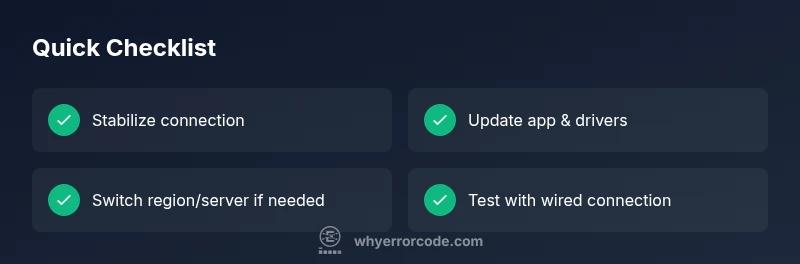
- Restart your modem/router and re-test on a wired connection if possible.
- Sign out of GeForce Now, then sign back in and clear the app cache.
- Temporarily disable security software or create an exception for GeForce Now to rule out blocking rules.
- Update the GeForce Now app and your device OS/drivers to ensure compatibility.
- If the issue persists, switch to a different region/server or wait for service stabilization.
Step-by-step diagnostic: narrowing down the cause
Below is a structured approach to identifying the root cause of 0xc27a0005 and applying the most effective remedy. Follow the steps in order and document results to share with support if needed.
- Step 1: Test network stability with a speed test and ping to a GeForce Now-typed endpoint. If latency or packet loss is high, prioritize network fixes.
- Step 2: Try a wired Ethernet connection or a different network (mobile hotspot) to see if the issue persists.
- Step 3: Restart devices (modem, router, and client device) to refresh connections and clear transient states.
- Step 4: Disable or adjust firewall/antivirus temporarily to verify whether traffic is being blocked, then re-enable protection with exceptions.
- Step 5: Update GeForce Now app and device drivers/OS to ensure compatibility with the service.
- Step 6: Change region/server or check GeForce Now status pages for outages; if outages are reported, wait for remediation before retrying.
Tip: Keep a log of steps and outcomes to help support reproduce the issue if needed.
Other potential causes and fixes
If the above steps don’t resolve the error, consider alternative causes such as DNS resolution issues or VPN usage altering routing paths. Adjust DNS to a reliable public service, or temporarily disable VPNs to see if normal routing resumes. Reconfirm your account status and subscription validity, as repayment holds or account restrictions can occasionally impact access. Finally, consult your device’s energy saver settings that may throttle network activity during streaming.
Safety and when to contact support
While troubleshooting, avoid leaving security features disabled for extended periods. Re-enable protections after testing. If the problem remains after all steps, contact NVIDIA GeForce Now support with a detailed report of your network conditions, device specs, the exact time of the error, and the steps you already performed. Provide the diagnosticFlow snapshot (symptom, causes, fixes) to speed up resolution.
Steps
Estimated time: 30-45 minutes
- 1
Verify your network connection
Run a quick speed test and check for consistent upload/download. If your Wi‑Fi signal is weak, move closer to the router or switch to a wired connection for stability.
Tip: Wired Ethernet reduces latency and packet loss dramatically. - 2
Restart network equipment
Power cycle your modem and router, then reconnect your device to the network. Give the devices a full minute to reestablish routes.
Tip: After reboot, run a new speed test before retrying GeForce Now. - 3
Update software and drivers
Update the GeForce Now app to the latest version and ensure your device OS and graphics drivers are current. Outdated software can conflict with streaming protocols.
Tip: Check for automatic updates to avoid future gaps. - 4
Test login and cache
Sign out of GeForce Now, clear the app cache, then sign back in. This clears stale session data that can cause authentication or handshake failures.
Tip: Keeping sessions fresh helps prevent intermittent errors. - 5
Try alternate network or region
If possible, connect via a different network (mobile hotspot) or switch to a different GeForce Now region/server to confirm if routing is the issue.
Tip: If the problem only occurs on one network, investigate that network path or contact the ISP. - 6
Assess service status
Check GeForce Now status pages for outages or maintenance notices. If there’s a service incident, wait for the provider to resolve it.
Tip: Document the outage window for reference with support.
Diagnosis: Error code 0xc27a0005 appears when launching or streaming games on GeForce Now
Possible Causes
- highUnstable or slow internet connection
- mediumFirewall/antivirus blocking GeForce Now ports
- mediumGeForce Now server region or service outage
- lowOutdated GeForce Now app or device drivers
Fixes
- easyTest and stabilize your connection; use wired Ethernet if possible
- easyRestart router and ensure the router allows GeForce Now traffic by opening the required ports
- easyTemporarily disable firewall/antivirus or create an exception for GeForce Now
- easyUpdate GeForce Now app and device OS/drivers
- easyTry a different region/server or wait for service to recover
Frequently Asked Questions
What does error code 0xc27a0005 mean in GeForce Now?
The error indicates a failure to establish a stable streaming session. It typically arises from network issues, security blocks, or service outages. Following the diagnostic flow helps isolate the cause and restore streaming.
GeForce Now error 0xc27a0005 means the service can’t establish a stable stream. Start with your network and device checks, then try switching regions if needed.
Could my internet speed cause this error?
Yes. Unstable or slow internet can lead to this error. Run a speed test, reduce latency with a wired connection, and consider QoS settings to prioritize gaming traffic.
Slow or unstable internet often causes this error. A wired link and testing your speed usually helps.
Will updating the app fix the issue?
Updating the GeForce Now app and device drivers can resolve compatibility problems that trigger 0xc27a0005. After updating, restart the app and test again.
Updating the app and drivers can fix compatibility issues that trigger this error.
Is this error related to server outages?
Sometimes. Regional outages or service maintenance can cause 0xc27a0005. Check the GeForce Now status page and your preferred server region.
Outages can cause this error; check the status page for notices.
When should I contact support?
If you’ve followed the diagnostic steps and the error persists, contact Why Error Code support with your diagnosticFlow and device/network details to get a tailored fix.
If the issue remains after troubleshooting, contact support with details.
Does using a VPN affect this error?
Yes. A VPN can alter routing and cause 0xc27a0005. Temporarily disable VPN and test again to see if the issue resolves.
VPNs can cause routing issues; try turning it off and test.
Watch Video
Top Takeaways
- Stabilize the network first before deeper fixes
- Update app and OS to ensure compatibility
- Disable security only temporarily for testing
- If unresolved, escalate with Why Error Code support