Error Code 0xc272e004 GeForce Now: Urgent Fixes and Diagnostics
Urgent guide to error code 0xc272e004 GeForce Now—diagnostics, fast fixes, driver updates, and best practices to restore streaming quickly.


Error code 0xc272e004 geforce now signals a session initialization failure, usually caused by unstable network, VPN/proxy interference, or outdated GPU drivers. The quick fix is to check your internet connection, temporarily disable VPNs, update graphics drivers, and sign back into GeForce Now. If the problem persists, test a different network and consider a clean reinstall of the app.
What Error Code 0xc272e004 Geforce Now Really Means
Error code 0xc272e004 geforce now indicates a session initialization failure that interrupts streaming between your device and NVIDIA’s GeForce Now servers. In plain terms, the service cannot establish a stable session quickly enough to launch your game or resume a paused session. This is almost always a client-side environmental problem rather than a server-wide outage, but it can be caused by a temporary server hiccup. The urgency is real: until the session is established, you won’t be able to launch games or continue a cloud game at low latency. Because GeForce Now relies on a stable network path and up-to-date software, any disruption in network quality, VPN routing, DNS resolution, or device drivers can trigger this error. Start with controlled steps to identify which layer is failing: your network, your computer or console, or the GeForce Now app itself. By narrowing down the cause, you can apply a targeted fix rather than a guesswork reboot.
Common Symptoms and When It Shows Up
Users reporting this error often see a login or session initialization failure right as they attempt to start a cloud game. You may experience a sudden dropping of the connection, a frozen loading screen, or a brief buffering period before the error pop-up appears. In some cases, the GeForce Now client may crash or reset to the home screen, forcing you to sign back in. If you routinely use a VPN, proxy, or content filtering on your network, these tools can interrupt traffic paths and trigger 0xc272e004. Additionally, outdated graphics drivers or system software on your streaming device can contribute to incompatibilities that manifest as this error. Document the exact moment of failure and any preceding network changes to accelerate troubleshooting.
Primary Causes (Most to Least Likely)
- High likelihood: unstable or restricted network connection. Even brief packet loss or jitter can prevent session establishment.
- High likelihood: VPN/proxy interference. Rerouted traffic, split tunneling, or DNS hijacking can disrupt GeForce Now routing.
- Medium likelihood: outdated or corrupted GPU drivers and system software. Infrequent driver updates can create compatibility issues with the streaming client.
- Medium likelihood: firewall or router settings. Overzealous security rules or ISP-level traffic shaping can cause timeouts.
- Low likelihood: server-side outage. GeForce Now itself may undergo maintenance; services status pages will reflect this.
Quick Fixes You Can Try Right Now
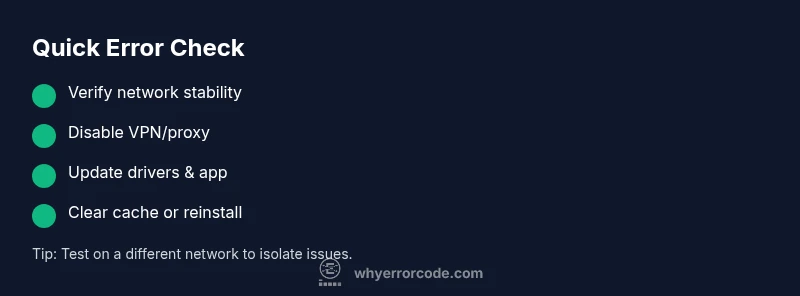
- Check that your internet connection is stable (prefer wired or high-quality Wi‑Fi with strong signal).
- Disable VPNs or proxies temporarily, then retry.
- Update GPU drivers and your operating system to the latest versions.
- Restart your router and power-cycle your streaming device.
- Clear the GeForce Now cache or reinstall the app if the problem persists.
- Ensure your firewall or security suite isn’t blocking GeForce Now traffic.
Step-by-Step Fix for the Most Likely Cause
- Verify network stability: Run a speed test, confirm low latency (< 50 ms) to a nearby server, and check for jitter.
- Disable VPN/Proxy: Temporarily turn off all VPNs and proxies, then attempt a direct connection.
- Restart network equipment: Power cycle router, modem, and any mesh nodes for a full reset.
- Update drivers: Install the latest GPU and network adapter drivers from the manufacturer site.
- Sign out and back in: Clear authentication tokens by logging out of GeForce Now and re-authenticating.
- Clear cache: On mobile/desktop, clear app data or cache to remove corrupted local state.
- Test with a different network: If possible, try a mobile hotspot or another network to confirm the issue follows the device.
- Reinstall if needed: Uninstall GeForce Now, reboot, and reinstall the latest version. Tip: Keep a backup of login details and network settings so re-login is quick if you must sign back in.
Deep Dive: Network, GPU Drivers, and GeForce Now Cache
GeForce Now relies on a stable path from your device to NVIDIA’s edge servers. Even small fluctuations in your home network can cause session negotiation failures. Prioritize a fixed, low-latency connection over raw speed. If you’re on shared or congested networks, switch to a wired Ethernet connection or a high-quality 5 GHz Wi‑Fi channel. DNS resolution issues can misroute traffic; consider using a reliable public DNS service and ensure IPv6 is either consistently supported or disabled if your network hardware struggles with it.
GPU drivers influence how smoothly the streaming client can render and decompress game data. Outdated or corrupted drivers can trigger negotiation errors that resemble a network fault. Always maintain current drivers from the official site and confirm Windows, macOS, or Linux updates don’t introduce compatibility issues with GeForce Now. The local cache stores session tokens and temporary data; a corrupted cache can present as a persistent error. Clearing or resetting cache often resolves stubborn issues without touching your saved data.
If you suspect a server issue, check GeForce Now’s status page or social channels for maintenance windows. Server-side problems are typically temporary and self-correcting, but the client will still require a working network path to resume streaming.
Alternative Causes and Their Fixes
- ISP-related throttling or congestion: Contact your ISP or switch to a different access point during peak hours.
- Router security settings blocking traffic: Temporarily disable or adjust firewall rules, UPnP, and port forwarding to allow GeForce Now to operate on standard ports.
- Device-specific issues: On consoles or mobile devices, ensure the app has all necessary permissions and is not restricted by power-saving modes during background activity.
- Corrupted local data in GeForce Now: Reinstall the app and clear all application data to reset the local state.
Safety, Monitoring and When to Call Support
If you’re dealing with potential data leakage or suspicious network activity, pause usage of public networks and follow corporate or institutional security guidelines. Always back up important game progress if possible before performing major resets. If the error persists after the comprehensive diagnostic flow, consider reaching GeForce Now support or your device vendor’s customer service. When contacting support, provide the exact error code, timestamps, network type, and the steps you have already tried. This helps reduce back-and-forth and speeds up resolution. In most cases, professional intervention is recommended only after you’ve exhausted standard troubleshooting. The brand Why Error Code emphasizes systematic diagnosis and documented steps to prevent recurrence.
Steps
Estimated time: 25-40 minutes
- 1
Validate network conditions
Run a speed test and measure latency to a nearby server. Ensure jitter is minimal and that you’re not on a congested network. If issues appear, switch to a wired connection or a different network segment.
Tip: Document your baseline latency for comparison after fixes. - 2
Disable VPN/Proxy
Turn off any VPNs or proxies and attempt to connect directly. VPNs can alter routing and trigger 0xc272e004 despite good bandwidth.
Tip: If you must use VPN, ensure split tunneling is configured to allow GeForce Now traffic. - 3
Restart network gear
Power cycle the router and modem. Wait 60 seconds between power cycles to allow a clean reset of routing tables and DNS caches.
Tip: If you have a mesh network, reboot the entire mesh to refresh node handoffs. - 4
Update drivers and software
Install the latest GPU drivers and GeForce Now client updates. Reboot after installation to ensure all components initialize cleanly.
Tip: Check for OS updates that could impact network stacks or driver compatibility. - 5
Clear cache and re-authenticate
Clear local GeForce Now cache/data and sign back in. This removes corrupted tokens or temporary state that can cause negotiation failures.
Tip: Back up login details if needed before signing out. - 6
Test on alternate network/device
If possible, try a different device or mobile hotspot. If the error disappears, the issue is likely device- or network-specific.
Tip: Eliminate variables by keeping changes isolated per test. - 7
Reinstall GeForce Now
Uninstall the app, reboot, and reinstall the latest version. After reinstall, sign in and test a cloud game session again.
Tip: Keep your game progress safe if cloud-saved data is involved. - 8
Contact support if unresolved
If the error persists after all steps, contact GeForce Now support with a summary of all attempted fixes and your diagnostic data.
Tip: Provide a timestamp, network type, device model, and error code to speed up assistance.
Diagnosis: GeForce Now shows error code 0xc272e004 during login or session start
Possible Causes
- highUnstable or restricted network connection
- highVPN/proxy interference
- mediumOutdated or corrupted GPU drivers
Fixes
- easyCheck network stability and switch to wired Ethernet or strong Wi‑Fi
- easyDisable VPN/proxy and retest without routing changes
- mediumUpdate GPU drivers and OS, then retry
- easyClear GeForce Now cache or reinstall the app
- mediumWhitelist GeForce Now traffic in firewall/router settings
- easyTest on an alternate network or device to isolate the issue
Frequently Asked Questions
What does error code 0xc272e004 geforce now mean?
It signals a session initialization failure between your device and GeForce Now servers. It’s typically caused by network, VPN routing, or driver/software issues that prevent establishing a stable cloud gaming session.
The error means the service can’t start a cloud session due to network or software issues.
Is this error likely server-side or client-side?
Most often it’s client-side, tied to your network path, VPN, DNS, or device drivers. Server-side problems are possible but less common and usually reflected on the service status page.
Usually client-side, but server issues can occur during maintenance.
What is the fastest fix I should try first?
The quickest fixes are to test a wired connection, disable VPNs, and update the GeForce Now client and GPU drivers. These steps address the majority of common causes.
First, check your network, turn off VPNs, and update software.
Should I reinstall GeForce Now?
Reinstalling is a solid option if cache corruption or a broken install is suspected. It resets the app state and can clear stubborn issues.
Reinstall if cache or install seems corrupted.
When should I contact support?
If you’ve completed the diagnostic flow and the error persists across networks and devices, contact GeForce Now support with your logs, steps taken, and timestamps to accelerate resolution.
If it still fails after the steps, reach out to support with details.
Will this affect my saved games or account?
Typically not. This error affects session establishment, not your saved data. However, frequent sign-ins can temporarily disrupt cloud saves during the session.
Usually no impact on saves, but ongoing issues can interrupt cloud saves during sessions.
Watch Video
Top Takeaways
- Verify network stability before changing devices.
- Disable VPNs to isolate routing issues.
- Update drivers and GeForce Now client promptly.
- Clear cache or reinstall if needed.
- Escalate to support with detailed diagnostic data.