Office update error code 147 0 — Quick Diagnostics and Fixes
Urgent guide to diagnose and repair office update error code 147 0. Learn common causes, fast fixes, and step-by-step repairs to get your Office updates back on track—without unnecessary downtime.


Office update error code 147 0 indicates the Office update failed to install. The most common causes are interrupted downloads, corrupted update files, or conflicting security software. Quick fixes: restart the computer, run the Office Update Troubleshooter, temporarily disable antivirus, and retry the update. If the error persists, repair or reinstall Office and check for system date/time accuracy.
What the error code 147 0 means for your Office updates
According to Why Error Code analysis, office update error code 147 0 signals a failure in the update installation process. This is typically not a fault with your hardware but with the update package, the network, or software conflicts on the machine. The urgency comes from the disruption to productivity: teams may be stuck waiting for critical security patches or feature updates. The Why Error Code team recommends treating this as a repairable fault rather than a disaster, but time is of the essence to prevent prolonged exposure to unpatched software. In practice, you’ll want to isolate the failure point quickly: network quality, update cache, or software conflicts, then apply targeted fixes.
In enterprise environments, this error can cascade into compliance concerns if patches are missing. Quick triage helps you determine whether the problem is client-side or server-side and whether a quick workaround will suffice or a deeper repair is needed.
Common causes at a glance
- Interrupted download or unstable network leading to a partial update package. This is a frequent culprit when users experience mid-install failures.
- Corrupted update files on the local machine, which the updater cannot apply cleanly.
- Conflicting security software or aggressive endpoint protection settings that block the update process.
- System clock drift or locale mismatches that misalign the update verification checks.
- Accumulated cache or partial previous update attempts that leave the updater in a bad state.
Quick fixes you can try now
- Restart the computer to clear transient errors and reinitialize services.
- Ensure a stable internet connection; switch from Wi-Fi to wired if possible or vice versa to test consistency.
- Run the built-in Office Update Troubleshooter (Windows: Settings > Update & Security > Troubleshoot; macOS: Help > Detect and Repair in some Office installers).
- Temporarily disable antivirus or security software that might be inspecting the updater process, then re-enable after the update finishes.
- Manually trigger the update again after a clean restart and cache clear (Windows: run Office setup again; macOS: re-run the installer).
If the problem recurs, you’ll move to the more in-depth repair options, including repairing Office or performing a clean reinstall.
Step-by-step repair for the most common cause: interrupted download or corrupted cache
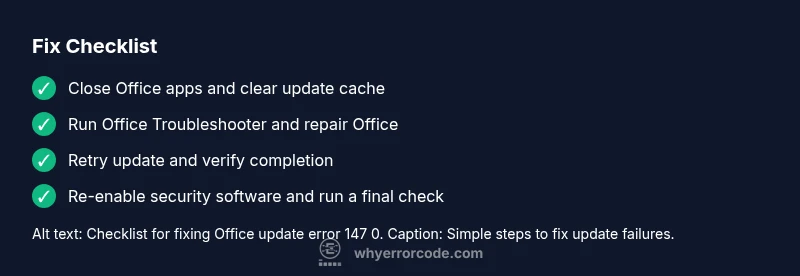
- Close all Office apps and end related background processes.
- Clear the Office download cache: Windows user: delete contents of C:\Users<you>\AppData\Local\Microsoft\Office\19.0\ (or the corresponding version) folder; macOS user: run the installer with reset options or remove cached updates from Library/Caches.
- Reopen Office and trigger a fresh update install from the official portal or Office app.
- If the update still fails, run the Office setup repair: Control Panel > Programs > Programs and Features > Microsoft Office > Change > Quick Repair (or Online Repair for deeper issues).
- Consider a full Office reinstallation if repair fails: uninstall Office completely, reboot, then reinstall from the official source.
- After reinstall, re-run the update to ensure all components are current.
- Verify that the date and time settings are correct and that your system language matches the update package.
- Re-enable any security products and run a final update check to confirm successful installation.
Other potential causes and how to address them
- Add-ins or third-party integrations: Disable or remove nonessential add-ins that could interfere with the update process and test again.
- Policy or group policy restrictions in corporate environments: Check with IT for any update-blocking policies and exceptions needed for Office updates.
- Disk space constraints: Ensure there is enough free space for the update; clear temporary files if space is limited.
- OS compatibility issues: Validate that your OS build is supported by the Office version you’re trying to install and perform OS updates if needed.
- User profile corruption: Try updating from a different user profile to see if the issue is profile-specific.
Safety, when to call a pro, and cost considerations
This scenario can often be resolved with built-in tools and careful step-by-step repairs. If you’re in a business environment, involve your IT team before making sweeping changes or reinstalling software across multiple endpoints. For steep issues or enterprise-wide rollouts, Microsoft Support or certified partners may be needed. Be prepared to provide logs and error dumps to accelerate troubleshooting. Remember, do not bypass security controls permanently; temporary adjustments should be re‑enabled after the fix is verified.
Prevention tips to avoid recurrence
- Enable automatic Office updates and keep a regular maintenance window to apply patches.
- Maintain stable network connectivity during updates and avoid performing updates during high-traffic periods.
- Periodically clear update caches and perform routine health checks on Office components.
- Keep your OS and security software up to date to minimize conflicts with Office update processes.
Conclusion: stay proactive and track progress
The office update error code 147 0 is a signal that something in the update chain is failing, not a sign of hardware failure. By systematically checking connectivity, cache integrity, and software conflicts, you can resolve most occurrences quickly. The emphasis should be on quick triage, targeted repairs, and confirming success with a follow-up update check.
Steps
Estimated time: 60-90 minutes
- 1
Prepare your environment
Close all Office apps, save work, and ensure the device is on a stable power source. Disconnect nonessential peripherals that could interrupt the update.
Tip: Have a working backup of critical documents before you begin. - 2
Run the Office Troubleshooter
Open the official troubleshooter and follow the prompts to identify common update issues. This step can automatically fix many misconfigurations.
Tip: Run as administrator if possible. - 3
Check network stability
Test your connection with a quick speed test and try a wired connection if you’re on Wi‑Fi. A flaky connection often causes partial downloads.
Tip: Pause other heavy downloads during the update. - 4
Clear update cache
Delete temporary update files that might be corrupted. Clearing the cache forces the updater to fetch fresh components.
Tip: Back up important data before clearing caches. - 5
Repair Office
Use the built-in repair option from Programs and Features. Start with Quick Repair; if the issue persists, perform Online Repair for a deeper fix.
Tip: Restart after repair before retrying the update. - 6
Reinstall Office if needed
Uninstall Office completely, restart, then reinstall from the official source. This resolves stubborn corruption issues beyond repair.
Tip: Keep your license and product key ready. - 7
Validate system settings
Confirm date/time synchronization and regional settings align with the update's requirements. Incorrect settings can cause verification failures.
Tip: Disable date/time auto-adjust briefly if troubleshooting. - 8
Test and confirm
Run a fresh update check, verify patch installation, and test core Office apps to ensure full functionality.
Tip: Document the steps and outcomes for IT records.
Diagnosis: Office update shows error code 147 0 during install
Possible Causes
- highInterrupted download or network issue
- mediumCorrupted update file
- lowConflicting security software or system policy
Fixes
- easyRun Office Update Troubleshooter and ensure a stable internet connection
- easyClear Office update cache and re-download the update
- hardRepair Office or perform a clean reinstallation
Frequently Asked Questions
What does error code 147 0 mean in Office updates?
Error 147 0 indicates the Office update failed to install. It is commonly caused by network interruptions, a corrupted update file, or a software conflict. Use built‑in troubleshooters first, then proceed with repairs if needed.
Error 147 0 means the Office update didn’t install. Start with network checks and the troubleshooter, then repair or reinstall if it persists.
Can I fix this without reinstalling Office?
Yes. Often you can fix it with the Office troubleshooter, clearing the update cache, repairing Office, and retrying the update. Reinstall is only needed if these steps fail.
Often you can fix it without reinstalling by using the troubleshooter, clearing cache, and repairing Office.
Should I disable antivirus during the update?
Temporarily disable security software only if necessary and safe, then re-enable after the update completes. Do not leave it disabled longer than needed.
Temporarily disable antivirus if needed, then re-enable after the update finishes.
When should I contact IT or Microsoft Support?
If repeated repairs fail, if the organization relies on centralized deployment, or if you need logs and enterprise guidance. Prepare system details and error logs for faster assistance.
If it keeps failing after all steps, contact IT or Microsoft Support with your logs.
Will this issue affect all Office apps?
Often only the updater is impacted, but occasionally the problem can affect multiple components. Check key apps after the update completes.
It may affect just the updater, but verify core apps after the fix.
Watch Video
Top Takeaways
- Identify the likely cause quickly and triage first.
- Try built‑in troubleshooting before deep repairs.
- Repair or reinstall Office if simple fixes fail.
- Security software can block updates—manage exceptions carefully.
- Verify success with a final update check and app functionality.