Update error code 0x800f020b: Quick Fixes and Diagnostics
Learn how to diagnose and fix update error 0x800f020b quickly with step-by-step fixes, diagnostic flow, and expert tips from Why Error Code.


Update error code 0x800f020b means a Windows Update installation failed due to servicing problems, often from corrupted components or missing prerequisites. It interrupts security and feature updates, so addressing it quickly is essential. The quickest path to relief is a set of built‑in repair tools and a guided sequence: diagnostics, repairs, and a check for lingering software conflicts.
What update error code 0x800f020b means
According to Why Error Code, update error 0x800f020b is typically a servicing failure that arises during Windows Update attempts. In practical terms, the update cannot be installed because a required component of the Windows servicing stack is missing, corrupted, or unable to be accessed. This situation blocks security updates, feature upgrades, and driver patches, exposing the device to vulnerabilities and performance issues. The urgency is real: failing updates can cascade into longer update times, repeated prompts, and unpredictable restarts.
The most common scenarios involve a corrupted Windows Update cache, broken servicing stack components, or system file inconsistencies that prevent the Update Agent from applying a patch. In some environments, third‑party software or antivirus interactions can interrupt the write operations required to complete an update. The error may appear after a Windows feature update, a monthly rollup, or a .NET Framework servicing pack, but the underlying pattern remains consistent: the updater cannot complete the installation because essential pieces are not in a healthy state.
From a troubleshooting perspective, you should treat 0x800f020b as a signal to verify system integrity, confirm the servicing stack's readiness, and ensure prerequisites are installed in the correct order. The goal is to restore a clean, traceable update path where the OS can fetch, validate, and apply the necessary files without interference. In this guide, you will encounter practical steps you can take immediately, followed by deeper repairs if the quick fixes do not resolve the issue. The Why Error Code team emphasizes methodical progress, backed by logs, tools, and a willingness to back out and retry if something stalls.
Steps
Estimated time: 60-90 minutes
- 1
Back up important data
Before performing any repair, back up your documents, photos, and essential files. Use a cloud sync or an external drive to prevent data loss if a repair requires more invasive actions.
Tip: Ensure your backup is recent and test a file restore from the backup. - 2
Pause updates and start with a clean slate
Open Windows Update settings, pause updates if possible, then terminate related services to prevent interference during repairs.
Tip: Note the current update history to compare before/after results. - 3
Reset Windows Update components
Open an elevated Command Prompt and run a sequence to stop services, rename folders, and restart services. This clears cached files that might block installation.
Tip: Run these steps exactly as shown to avoid partial resets. - 4
Run DISM and SFC scans
DISM /Online /Cleanup-Image /RestoreHealth fixes component store issues; SFC /scannow repairs corrupted system files. Reboot after each tool completes.
Tip: If DISM fails, try a different boot source or offline repair. - 5
Re-attempt the Windows Update
Check for updates again. If the error recurs, install any pending prerequisite updates manually and retry.
Tip: If the error persists, move to an in-place upgrade repair. - 6
Consider an in-place upgrade repair
Run a Windows 10/11 in-place upgrade to reinstall Windows while preserving data. This resolves deep OS corruption that prevents updates.
Tip: Backup remains essential; this is a higher‑risk operation that effectively refreshes the OS runtime.
Diagnosis: Windows Update shows error 0x800f020b during installation
Possible Causes
- highCorrupted Windows Update components
- mediumMissing servicing stack update or prerequisite component
- lowSystem file corruption or conflicting software
Fixes
- easyReset Windows Update components using built-in commands
- mediumRun DISM and SFC to repair system image
- easyPerform a clean boot to identify software conflicts
- hardUpgrade repair (in-place upgrade) Windows to repair OS without data loss
Frequently Asked Questions
What does error code 0x800f020b mean in Windows Update?
It indicates a servicing failure during Windows Update, often due to corrupted components or missing prerequisites, preventing installation of the update.
It usually means Windows Update hit a servicing problem, often due to corrupted files or missing prerequisites.
Can I fix error 0x800f020b myself without reinstalling Windows?
Yes, in many cases you can fix it with built‑in tools like SFC, DISM, and update troubleshooting steps without a full reinstall.
Yes, you can usually fix it yourself with built‑in tools like SFC and DISM, no reinstall needed.
Is this error related to .NET Framework or drivers?
The error is primarily a Windows Update issue; while .NET or drivers can contribute, the recommended fixes focus on repairing Windows components and update prerequisites.
It’s mainly a Windows Update problem, though other software can contribute.
How long does a repair typically take?
Depending on the fixes chosen, expect 15 minutes to over an hour; more comprehensive repairs can take longer.
Usually between 15 minutes and over an hour, depending on what needs to be repaired.
When should I call a professional?
If the error persists after trying the recommended steps or you’re uncomfortable performing OS repairs, seek professional help.
If steps fail or you’re unsure, contact a technician.
Watch Video
Top Takeaways
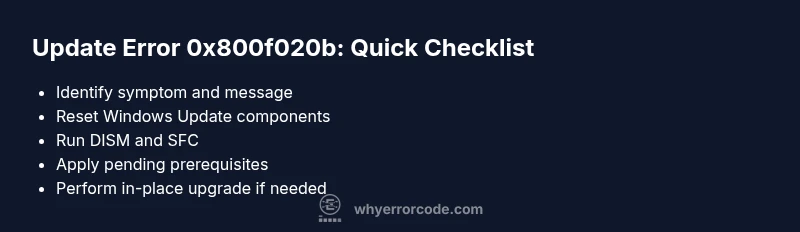
- Follow the diagnostic flow to isolate the issue
- Reset update components before heavy repairs
- Use DISM/SFC for deep repairs
- Consider in-place upgrade if fixes fail