Problem Devices Error Code 43: Urgent Troubleshooting Guide
Urgent guide to diagnosing and fixing problem devices error code 43. Learn signs, root causes, quick fixes, step-by-step repairs, and cost ranges. Quick actions now can save hardware and data.


Problem devices error code 43 is a sign that Windows has stopped a device due to a suspected fault in hardware or drivers. Start with a quick check: reconnect the device, run Windows Update, and update or reinstall drivers. If the issue persists, follow the detailed steps below. In many cases, Code 43 arises from a loose connection, corrupted driver, or a failing USB controller.
What the error means for problem devices error code 43
When you see Error Code 43, Windows is telling you that it has stopped a hardware device because it has detected a problem. This is a generic fault indicator used by the Device Manager to signal driver or hardware issues. The label may appear for USB devices, graphics adapters, network adapters, or internal components. It does not automatically identify the exact cause, but it does confirm that Windows could not keep the device running normally. In practical terms, you should treat Code 43 as a red flag that requires verification of connections, drivers, and firmware before attempting more invasive repairs. The urgency comes from the risk of data loss or system instability if the device is critical to operation.
Symptoms you might notice with problem devices error code 43
Common symptoms include: the device disappearing from Device Manager, the device failing to enumerate at boot, driver installation failures, or intermittent device recognition. You may also see the error pop up after a Windows update, a BIOS/UEFI change, or after installing new hardware. If the device is essential for work, production, or gaming, treat these signs as urgent and triage promptly. Always confirm whether the device is external (USB, peripherals) or internal (PCIe, intrinsic components) to tailor fixes correctly.
Diagnostic flow: symptoms → causes → fixes
This flow helps you narrow down root causes without jumping to conclusions:
- Symptoms: Device Manager shows Code 43; device isn’t usable; other devices may be affected.
- Possible causes: (high) Hardware fault or failing component; (high) Driver corruption or incompatibility; (medium) Power or USB supply issues; (low) Conflicting software or security policies.
- Solutions: Start with easy checks (re-seat, reconnect, reboot), then update or reinstall drivers, and finally test hardware in another system or replace components if needed.
Most common causes of Code 43 (in practice)
In real-world troubleshooting, the top culprits are hardware faults and driver issues. A loose USB connector or a failing USB controller can trigger Code 43 on external devices. Driver corruption or a recent driver update can also cause the error, especially after major Windows updates. Power issues—especially on laptops or hubs with insufficient power—can manifest as Code 43 even when hardware seems fine. Finally, software conflicts or security software can occasionally interfere with device enumeration. Prioritize fixes that address drivers and connections first.
Quick fixes you can try right now (no tools required)
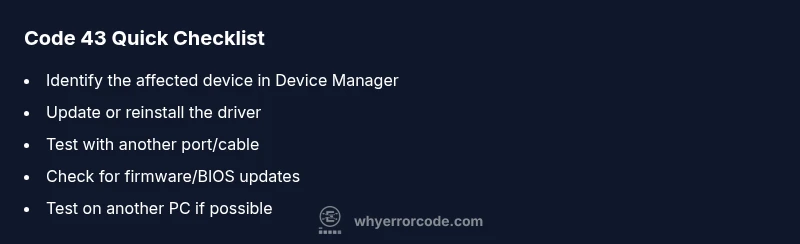
- Reconnect the device or reseat internal components if you’re comfortable opening the system. Try a different USB port or USB hub to rule out a power delivery issue.
- Run Windows Update and install any optional driver updates offered by the system.
- Update or reinstall the device driver via Device Manager: right-click the device > Update driver, or Uninstall device then reboot to force Windows to reinstall.
- Check for BIOS/firmware updates from the device manufacturer or motherboard vendor, as firmware issues can manifest as Code 43.
- If the device is external and supported by another PC, test it there to distinguish a device fault from a system issue. Costs for these steps are typically zero to a few tens of dollars if you consider professional services.
Step-by-step plan to verify and fix the most common cause (driver/software)
- Open Device Manager and locate the device flagged with Code 43. 2) Right-click and choose Update driver, then select 'Search automatically for updated driver software.' 3) If Windows finds and installs a new version, reboot and test the device. 4) If no new driver is found or the issue persists, right-click again and choose Uninstall device, then confirm. 5) Reboot to allow Windows to reinstall a fresh driver automatically. 6) If problems continue, download the latest driver directly from the manufacturer’s site and install it manually. 7) Re-test the device; if Code 43 remains, move to hardware testing or professional support. Tip: Keep a log of driver versions and error messages to aid support.
Other potential causes and fixes
If the driver path is clean but Code 43 persists, consider hardware faults: test the device on another computer, try a different cable, or swap the USB port/controller. Power issues can cause misdetection; use a powered USB hub or connect directly to the computer. Firmware updates for the device or motherboard can resolve compatibility gaps. Security software or system policy restrictions can interfere with device enumeration; temporarily disable conflicting software to test. In rare cases, BIOS/UEFI resets or a clean OS reinstall may be required, though this is usually a last resort.
Steps
Estimated time: 20-40 minutes
- 1
Open Device Manager
Press Windows+X and choose Device Manager. Locate the device with Code 43 under the appropriate category (e.g., USB Controllers, Sound, video and game controllers).
Tip: If the device is not listed, enable - 2
Update the driver
Right-click the device, select Update driver, and choose 'Search automatically for updated driver software'. If Windows finds a driver, install it and restart.
Tip: If no update is found, download the latest driver from the manufacturer’s site and install manually. - 3
Reinstall the driver
If updating didn’t help, right-click again and choose Uninstall device. Check 'Delete the driver software for this device' if available, then reboot to force Windows to reinstall.
Tip: After reboot, monitor the Device Manager to confirm the device reappears without Code 43. - 4
Test hardware and power
Disconnect the device and test it on another computer, or use a different USB port or cable to rule out a faulty cable or hub. If internal hardware is suspected, test or swap components if you have the expertise.
Tip: Use a powered USB hub to ensure devices receive adequate power and avoid underpowering externals. - 5
Check for firmware and BIOS updates
Visit the device or motherboard maker’s site for firmware/BIOS updates. Apply any recommended updates and reboot.
Tip: Firmware updates can be riskier; back up critical data and follow manufacturer instructions precisely. - 6
Final verification
Reconnect the device and verify it functions normally. If Code 43 persists, escalate, as the issue may be hardware-defined.
Tip: Document serial numbers and error messages for support if you need to contact a professional.
Diagnosis: Error code 43 displayed by Device Manager; Windows has stopped the device
Possible Causes
- highHardware fault or failing component
- highDriver corruption or incompatibility
- mediumPower or USB supply issues
- lowConflicting software or policy blocking device
Fixes
- easyReconnect the device to a different port or reseat internal connections
- easyUpdate or reinstall the device driver from the manufacturer page
- easyRoll back to a previous driver version if the issue started after an update
- mediumCheck for Windows and BIOS/firmware updates and apply
Frequently Asked Questions
What does error code 43 mean in Device Manager?
Error code 43 means Windows has stopped a device due to a detected problem, usually with hardware or driver software. It is a generic fault and requires verification of connections and drivers.
Error code 43 means Windows stopped the device because it detected a problem with the hardware or its driver.
Can Code 43 be caused by software conflicts?
Yes, in some cases, security software or system policies can interfere with device enumeration and trigger Code 43. Check security software settings and perform a clean boot if needed.
Occasionally software conflicts can trigger Code 43; try a clean boot to test.
Is Code 43 fixable without a professional?
Often yes. Start with reseating, driver updates, and a controlled restart. If the device remains problematic, test on another PC and consider professional service for hardware issues.
Usually you can fix it yourself with driver updates and reseating; hardware issues may still need a pro.
Should I update BIOS or firmware for Code 43?
Firmware or BIOS updates can resolve compatibility issues that lead to Code 43. Follow manufacturer instructions precisely and back up data before applying updates.
Firmware updates can help; follow official instructions and back up data first.
What are typical costs for fixing Code 43?
Software fixes are usually free or minimal. Hardware repairs vary widely, often ranging from $30 to $350 depending on parts and service needs.
Cost ranges from nothing for software fixes to a few hundred dollars for hardware service.
When should I call a professional for Code 43?
Call a professional if the device is critical, troubleshooting reveals a possible hardware fault, or if firmware/BIOS updates are needed and you’re uncomfortable performing them.
If the device is critical or hardware damage is suspected, seek professional help.
Watch Video
Top Takeaways
- Identify root cause quickly with the diagnostic flow.
- Start with simple, reversible fixes before hardware changes.
- Keep drivers and firmware current to prevent Code 43.
- Know when professional help is appropriate and cost ranges.