Remote desktop error code 0x104 mac: fixes that work now
Urgent guide to remote desktop error code 0x104 on Mac. Learn meanings, causes, quick fixes, step-by-step repair, and prevention for stable remote sessions.


Remote desktop error code 0x104 on Mac signals a failure to establish a secure remote session, typically due to authentication problems, certificate trust, or network connectivity issues. The quickest path to relief is to update the client, verify credentials, ensure host reachability, and adjust firewall or VPN settings. If the error persists, review host policies and recent changes to the remote environment. Why Error Code recommends a structured diagnostic flow to confirm root causes.
What remote desktop error code 0x104 mac means
Remote desktop error code 0x104 on Mac often appears when a remote session cannot be established due to a mismatch in security parameters, an authentication failure, or a blocked network path. Unlike simple login errors, 0x104 points to a problem negotiating encryption, cert trust, or port reachability between your Mac client and the remote host. In practical terms, this means the client and host cannot agree on session parameters fast enough for the remote session to start. According to Why Error Code, these failures are usually solvable by systematic checks rather than guessing. The Mac-specific layer may involve Keychain-stored credentials, macOS firewall rules, or VPN configurations that differ from Windows environments. Understanding that 0x104 is a protocol-level fault helps you differentiate it from a bad password.
Common causes at a glance
- Outdated client or host software that speaks a different protocol version. - Certificate trust issues between client and host, especially after a cert renewal. - Network blocks or misconfigured VPNs that prevent the required ports from opening. - Incorrect domain or hostname resolution due to DNS changes. - Mac firewall or security policies restricting the remote desktop app. Why Error Code analysis shows these causes appear frequently in consumer and enterprise deployments, particularly after updates in macOS or the remote host OS.
Quick checks you can perform now
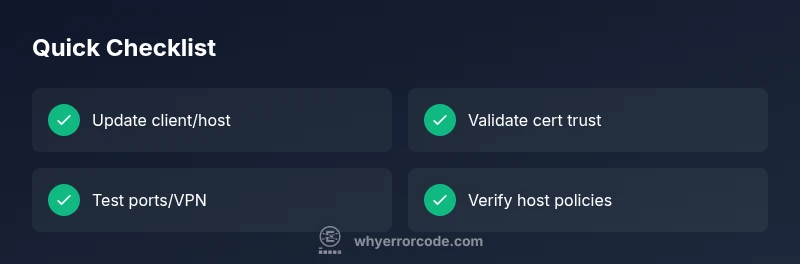
- Confirm the remote host is reachable (ping or traceroute) and that the remote desktop service is listening on the expected port. - Update both the Mac client and the remote host to the latest supported versions. - Verify credentials and the exact domain/host name used to initiate the session. - Temporarily disable or adjust macOS firewall rules to test whether the firewall blocks the remote desktop app. - Check VPN settings and ensure the tunnel allows the required traffic. These quick checks often resolve 0x104 without more invasive changes.
How to fix: Step-by-step overview for the most common cause
The most common cause for 0x104 on Mac is a certificate trust or authentication mismatch after an update. This section provides a high-level repair outline to guide you through the essential actions, keeping changes minimal and reversible. Start with updates, credential verification, and network validation. If the issue persists, proceed to a deeper certificate inspection and host policy review. It’s important to document every change to back out if needed.
Other causes and fixes to explore
- DNS/hostname resolution failures: flush DNS cache, verify hosts file, or use the direct IP address for testing. - Certificate pinning or distrust: re-import trusted root certificates into Keychain and re-establish trust on both sides. - Port filtering by security software: ensure the remote desktop port (often TCP 3389 for RDP) is permitted through security products. - Host-side changes: recent policy updates, licensing checks, or user permission modifications can trigger 0x104. These issues require coordination with IT or the remote administrator. - Hardware or virtualization constraints: on complex environments, virtualization hosts or network appliances could throttle or block RDP-like flows.
Safety, best practices, and when to call a pro
- Do not disable security features broadly to fix 0x104; instead, adjust specific rules for the remote desktop app. - Always back up credentials and config files before making changes. - If you rely on corporate policies, coordinate with IT to authorize changes and avoid policy violations. - If the session still fails after all steps, a professional assessment may be required to diagnose certificate chains, VPN integrity, or host-side policy blockers. Costs for professional support typically range from several dozen to a few hundred dollars depending on scope.
Prevention: keep 0x104 from returning
- Maintain synchronized versions of client and host software and monitor certificate expiration dates. - Use a consistent network path (labeled VPN or direct network) and test after every OS or firmware update. - Implement a lightweight change control process to capture the steps that fix 0x104, including documenting the exact ports and protocols used. - Regularly review security rules to ensure legitimate remote sessions aren’t blocked by overzealous firewall settings.
Steps
Estimated time: 45-90 minutes
- 1
Check network connectivity
Ensure the Mac can reach the remote host on the required port. Use ping or traceroute to confirm reachability, and verify that any VPN is stable.
Tip: If you see intermittent connectivity, log the timestamps and test on a wired connection. - 2
Update software
Update your macOS, the remote desktop client, and the remote host OS to the latest compatible versions. Reboot after applying updates to ensure changes take effect.
Tip: Review release notes for any changes to authentication methods. - 3
Verify credentials and domain
Double-check the username, domain, and remote host address. Clear saved credentials if they might be corrupted, and re-enter them manually.
Tip: Avoid copy-paste from insecure sources to prevent credential leakage. - 4
Inspect certificates and trust
Export and re-import root certificates on the Mac Keychain. Ensure the remote host certificate chain is trusted and not expired.
Tip: Check certificate validity periods and revocation lists. - 5
Review firewall and VPN settings
Temporarily disable the Mac firewall or security software to test, then reconfigure to allow remote desktop traffic on the correct port.
Tip: Document any exceptions you add for future reference. - 6
Test alternative connection paths
Try a different network or a different remote host to determine if the issue is host-specific or network-wide.
Tip: If another host works, the problem is likely host-side; if not, focus on client-side networking.
Diagnosis: Mac shows remote desktop error code 0x104 when initiating a session
Possible Causes
- highOutdated client or host software
- highCertificate trust issue between client and host
- mediumNetwork block or aggressive firewall/VPN
- lowDNS resolution or hostname mismatch
- lowHost policy or licensing blockers
Fixes
- easyUpdate both client and host software to the latest supported versions
- mediumVerify and re-establish certificate trust on both sides
- easyReview and adjust firewall/VPN rules to allow remote desktop traffic
- easyTest with direct IP to rule out DNS issues
- mediumCoordinate with IT to verify host-side policies and licensing
Frequently Asked Questions
What does remote desktop error code 0x104 mean on macOS?
0x104 signals a failure to establish a remote session due to protocol-level negotiation problems, often related to authentication, certificates, or network access. It is not typically a simple login issue and requires checking trust, connectivity, and compatibility between client and host.
0x104 on Mac means the session couldn’t be started due to authentication, certificate, or network problems. Check trust, connectivity, and compatibility between client and host.
Is 0x104 usually caused by my Mac or the remote host?
Most often, 0x104 arises from host-side policies, certificate validation, or network restrictions. Mac-side issues like outdated clients or misconfigured credentials can contribute, but the root is typically on the remote side or the network path.
Usually the host or network, but outdated Mac clients and bad credentials can contribute.
Can I fix 0x104 without IT support?
Yes, start with updating software, verifying credentials, and checking network paths. If the issue persists, inspect certificates and host policies. If you’re in a managed environment, involve IT before making policy changes.
Yes, begin with updates and credential checks, then review certificates. If needed, involve IT.
Should I reinstall the remote desktop client?
Reinstalling is rarely necessary. Update to the latest version, clear cached credentials, and reconfigure the session. Reinstall only if the application itself seems corrupted.
Usually updates and credential clearing are enough; reinstall only if necessary.
Is a VPN required to fix 0x104?
A VPN may be part of the correct network path for security, but it isn’t always essential. Ensure the VPN (if used) is properly configured and ports are allowed; otherwise test with a direct, secure connection.
VPN can help, but ensure its configuration and ports are correct; test without it if possible.
How long does it take to fix 0x104?
Diagnosis and fixes can range from 30 minutes for a straightforward credential or update issue to 2 hours or more if host policies or certificates require deeper changes.
Typically from half an hour to a couple of hours depending on root cause.
Watch Video
Top Takeaways
- Identify whether 0x104 is a cert, auth, or network issue.
- Update software and verify certificates first.
- Test network paths and firewall/VPN settings early.
- Document fixes and when to escalate to IT.
- Prevent recurrence with proactive certificate management and version control.