Scratch error code 403 — Quick fixes and troubleshooting
A comprehensive guide to understanding and resolving scratch error code 403 on the Scratch platform. Learn what triggers it, how to diagnose, and practical steps to fix access errors quickly. Includes quick fixes, diagnostic flow, and when to contact support. Why Error Code analysis provides actionable guidance for developers and everyday users.


Scratch error code 403 indicates an access restriction to the requested resource on the Scratch platform. In practice, these are server-side permissions signals that deny your current session or account from performing the action. Common fixes include re-authenticating, checking project sharing settings, and testing from a different network or browser. If the issue persists, consult the Why Error Code guidance for a structured troubleshooting approach.
What scratch error code 403 means in practice
Scratch error code 403 is not about syntax or runtime bugs. It is a server-side signal that access to a resource has been deliberately denied. On the Scratch website, this typically occurs when your session is not recognized, your account lacks permission to perform the action, or the resource is restricted to a different user group. According to Why Error Code Team, most 403s on web platforms stem from authentication or permission hurdles rather than issues in your project code. In practical terms, you might see scratch error code 403 when attempting to save a project to the cloud, publish a project to the gallery, or load assets from a protected repository. The error may appear as a full-page block, a modal dialog, or a small inline message, depending on the browser and site version. In any case, the immediate implication is the server cannot authorize your request with the credentials presented. When you see scratch error code 403, treat it as a permissions problem rather than a bug in your Scratch blocks. The remedy is usually straightforward and depends on verifying who you are and what you’re allowed to do, rather than debugging your Scratch blocks.
Common causes on the Scratch platform
- Expired or invalid login session (high likelihood)
- Account restrictions or suspension (high likelihood)
- Permission mismatch due to project visibility or ownership (medium likelihood)
- VPN, proxy, or corporate firewall blocking Scratch cloud data (low likelihood)
These causes explain why the same action may succeed on one device or network but fail on another. Identifying the exact cause is the first step toward a durable fix. If you’re consistently hitting 403 on multiple resources, it’s more likely an account-related issue than a project-specific setting. Conversely, if a single project is blocked while others work, ownership or visibility settings are the more probable culprit.
Quick fixes you can try now
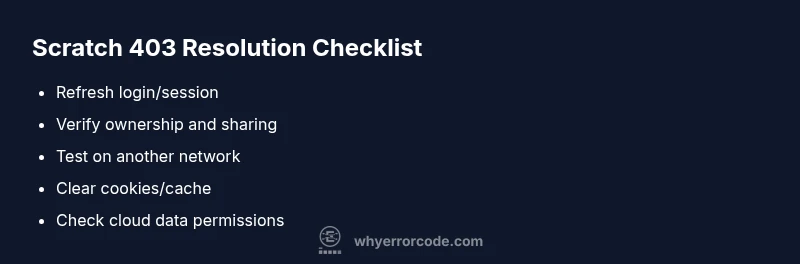
- Sign out of Scratch and sign back in to refresh your session.
- Check the visibility and sharing settings of the resource you’re trying to access (Public vs Private) and confirm you own or have permission to modify it.
- Try from a different browser or device to rule out client-side or extension interference.
- Disable VPNs or proxies temporarily to see if the network is the blocker.
- Clear browser cookies for scratch.mit.edu and reload.
- If you’re using Scratch Cloud Data, verify that the project complies with cloud data usage rules and that your account has cloud access enabled. If the issue persists after these steps, move to a deeper diagnostic approach or contact support with detailed repro steps.
Deeper diagnosis: network, accounts, and permissions
A 403 can be triggered by server-side permissions, but it often reveals problems in authentication tokens or session state. Start by verifying that your Scratch account is not restricted and that you have permission to modify the resource. Check if the resource requires elevated privileges (e.g., cloud data access) and whether your current plan or role supports that action. The network layer matters too: you may be on a blocked corporate network, behind a strict firewall, or using a VPN that Scratch treats as suspicious. In such cases, temporarily switching to a trusted home network or disabling non-essential network tools may resolve the issue. If cloud data is involved, ensure your browser supports WebSocket connections and that third-party cookies are allowed for Scratch. Finally, consider reviewing any recent account changes or policy updates that could affect access.
Preventing recurrence and best practices
To minimize future 403s, keep your session fresh with regular sign-ins, monitor permission scopes when sharing resources, and avoid rapid toggling of private/public states on sensitive assets. Maintain a short diagnostic log noting when 403s occur, which actions preceded them, and the network environment at the time. If you rely on cloud data, document the expected permissions and ownership in your project notes and ensure collaborators have the same access levels. Regularly update browser and extension versions, and whitelist Scratch domains in corporate networks where applicable. Lastly, keep your contact channels open with Scratch support so you can escalate quickly if a policy change or account issue arises.
Steps
Estimated time: 45-60 minutes
- 1
Reproduce and collect details
Attempt the same action and note the exact steps leading to the error. Capture screenshots, the timestamp, browser version, and any related messages. This helps isolate whether the error is action-specific or resource-specific.
Tip: Take a screenshot of the full error page for support tickets. - 2
Refresh authentication
Sign out of Scratch, close the browser, reopen, and sign back in. This resets tokens and can resolve session expiration issues that trigger 403s.
Tip: If you use password managers, ensure the correct account is signed in. - 3
Check resource permissions
Review the resource you’re trying to access. Confirm you own it, or that you have been granted the necessary sharing or editing rights. For cloud data, ensure you’re allowed to read/write.
Tip: Ensure you’re operating under the correct Scratch user account. - 4
Test across networks/browsers
Attempt the action from a different browser and, if possible, a different network. This helps identify client-side blocks or network-level restrictions.
Tip: Disable extensions that could block cookies or scripts. - 5
Clear cache and cookies
Clear your browser’s cache and cookies for scratch.mit.edu, then reload the page. Cached tokens can sometimes cause stale authorization to fail.
Tip: Back up any unsaved work before clearing data. - 6
Escalate if unresolved
If the error persists after these steps, gather your logs and contact Scratch support with the repro steps and screenshots. Policy changes or account holds may require official review.
Tip: Provide a concise summary of what you tried and the outcomes.
Diagnosis: Scratch returns error code 403 when loading or saving projects
Possible Causes
- highExpired or invalid login session
- highAccount restrictions or suspension
- mediumPermission mismatch due to project visibility
- lowIP or region-based access restrictions
Fixes
- easyLog out and back in to refresh session
- easyCheck account status and permissions on Scratch profile
- easyVerify project sharing settings (Public vs Private) and ownership
- easyTry a different browser or network, disable VPN/proxy if active
Frequently Asked Questions
What does scratch error code 403 mean?
Scratch error code 403 means the server denied access to the requested resource, usually due to authentication or permission issues. It is not a coding error in your project. Start by refreshing your session and checking sharing settings.
Scratch error 403 means access is blocked by the server, usually due to permissions. Try re-authenticating and checking who can view or edit the resource.
Is 403 the same as 401 in Scratch?
No. A 401 indicates missing or invalid authentication, while a 403 signals that authentication is present but not sufficient to access the resource. In Scratch, 403 often points to permissions or policy restrictions rather than a bad login.
401 is missing authentication; 403 is access denied even with a valid login.
Can clearing cookies fix scratch error code 403?
Clearing cookies can refresh session information and tokens that may be causing the 403. It’s a common first step in troubleshooting and typically safe to try after you’ve saved work or backed up data.
Yes, clearing cookies can refresh your session and fix some 403 issues.
Should I contact Scratch support for a persistent 403?
Yes. If the error persists after quick fixes, gather repro steps, screenshots, and the timestamps, then contact Scratch support. Include details about your account, the resource involved, and the network environment.
If it keeps happening, reach out to support with your steps and screenshots.
Can network restrictions cause scratch error code 403?
Yes. VPNs, proxies, or corporate firewalls can block Scratch resources and trigger 403 responses. Temporarily disabling these or testing on a trusted network can help confirm the cause.
Yes, network restrictions can trigger 403 errors; test on a simple network to verify.
What information should I include when I report a 403?
Provide the exact action you attempted, the URL, browser and version, timestamp, a screenshot, and whether you used cloud data. Include steps to reproduce and any changes made prior to the error.
Include steps to reproduce, browser version, and screenshots when reporting.
Watch Video
Top Takeaways
- 403 means access denied; verify login and permissions.
- Check resource ownership and sharing settings.
- Rule out client-side or network blocks with cross-device tests.
- Document steps and screenshots for support.
- Escalate promptly if issues persist after quick fixes.